SSD or HDD for Backup: Which Should You Choose?
Both SSDs and HDDs can hold reliable backups when used and checked properly. Price per capacity, portability, transfer time, and how often the backup is accessed usually matter more than declaring one technology universally safer.
Where an HDD makes sense
An external HDD often gives more capacity for multiple image versions at a lower cost per terabyte. It suits large photo archives and scheduled local backups when transfer speed is not urgent. Mechanical parts make it vulnerable to drops and vibration, especially while running.
An HDD is not an archive that can be forgotten indefinitely. Store it carefully, reconnect it periodically, verify files, and replace it when health or age warrants.
Where an SSD makes sense
An external SSD is compact, quick to read and write, and better suited to frequent travel or fast restores. It costs more per unit of capacity and can still fail suddenly. Power-off data retention depends on the device and conditions; do not treat an unplugged SSD as a permanent single-copy archive.
Choose a known enclosure and a connection that matches the SSD speed. A USB 2.0 port negates much of the performance benefit. Encryption can protect a portable drive, but keep the recovery key separately.
Use more than one copy
A practical plan has the original data, a local backup on either drive type, and another copy offsite or in a trusted cloud location. Disconnect or isolate an offline copy to reduce ransomware exposure. Retain enough versions to recover from accidental changes discovered late.
Test a restore, not merely file existence. The best backup drive is one you can afford at adequate capacity, keep connected for scheduled jobs, and replace before it becomes the only copy.
Back Up Windows to an SSD or HDD with Qiling
The same disk image workflow works with either drive type. Choose a separate physical destination and verify the backup afterward.
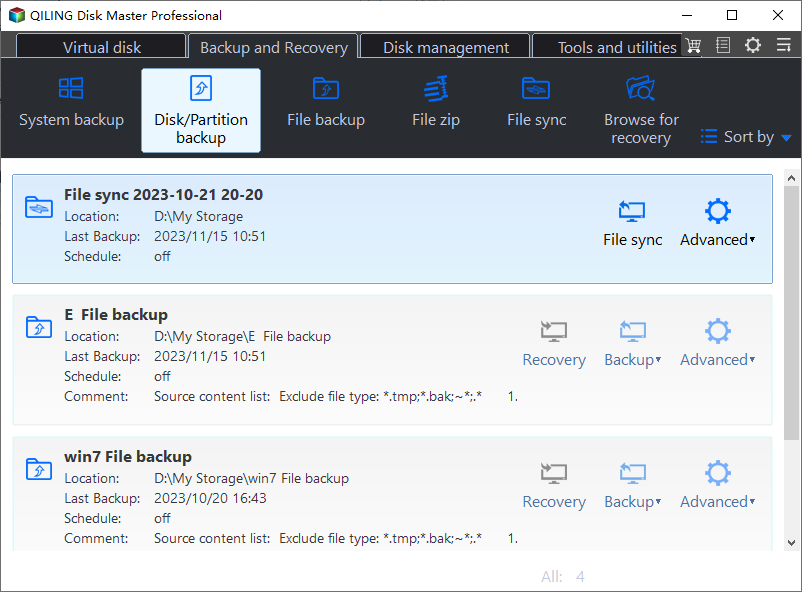
Step 1. Connect a separate destination drive with adequate free space. Open Qiling Disk Master and select Backup and Recovery > Disk/Partition backup. Check that the external drive has room for the image and future versions.
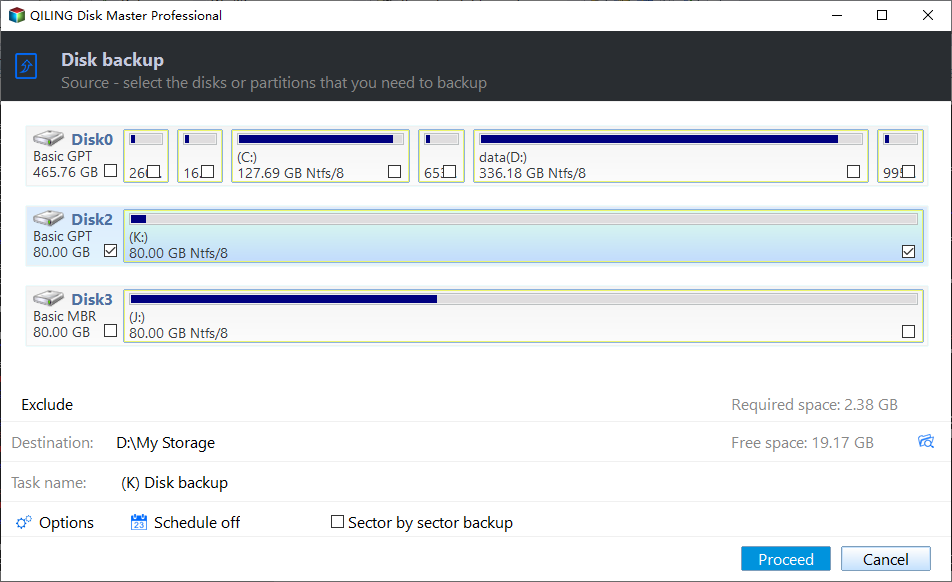
Step 2. On the source screen, select the entire physical disk by model and capacity if you need a restorable disk image; select individual partitions only if the article calls for that narrower scope. Select the physical Windows disk if you need boot and recovery partitions.
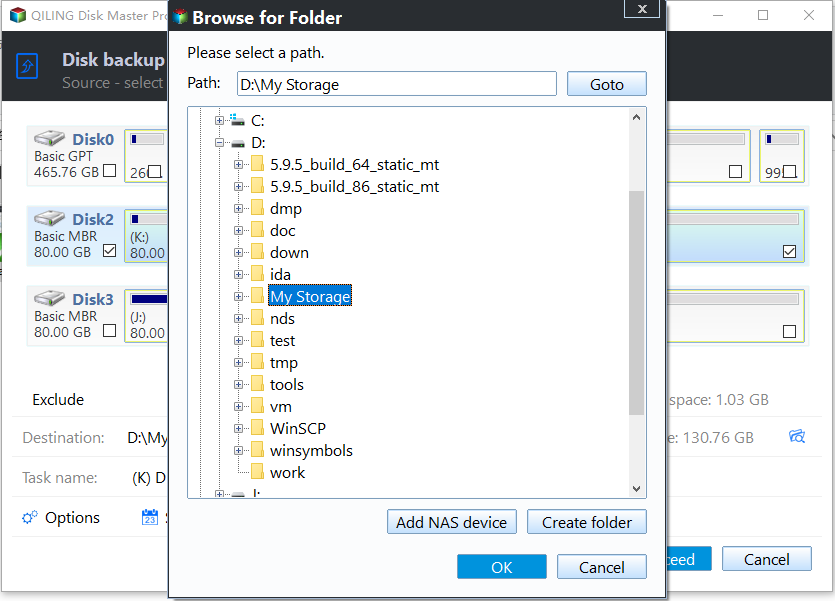
Step 3. Click the destination browse control and choose a folder on the separate drive. Check the estimated required space and confirm that the image is not being saved on the disk being protected. Browse to a folder on the external SSD or HDD, not the source.
Step 4. Review the selected source, destination, task name, and any optional schedule. Click Proceed and leave both drives connected until the backup completes. Set a schedule appropriate to how often files change, and keep an offline copy when possible.
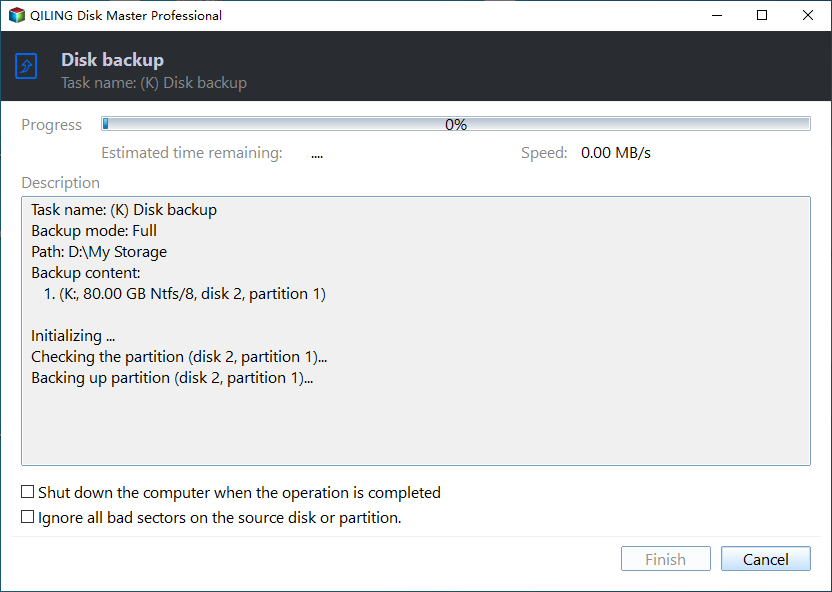
Step 5. Check the backup task result and use a test restore or recovery environment to verify that the image is usable. Restore a test file or test to spare storage and record where recovery media is kept.
Frequently Asked Questions
Is an SSD automatically more reliable for backup?
No. Both types can fail; independent copies and restore tests matter more.
Can I keep only one external backup?
A second copy protects against loss, theft, corruption, or failure of the first backup drive.
Conclusion
Choose HDD for economical capacity or SSD for speed and portability, then maintain multiple verified copies.
Related Articles
- Image a Hard Drive
Create a restorable image on your chosen storage. - Windows Disk Backup and Restore
Plan a complete backup and recovery workflow.
Products
Articles & Tutorials
- Data Recovery
- Data Backup
- File Recovery
- File Backup
- System Backup and Restore
- Disk and Partition Clone
- Technical articles
- Mobile articles
- Disk Master Help
- Windows Data Recovery Tutorials
- Windows Secure Delete Tutorials
- Windows Partition Management Tutorials
- Windows File Backup and Restore Tutorials
- Windows System Backup and Restore Tutorials
- Windows Disk Backup and Restore Tutorials
- Windows Clone Tutorials