Will You Lose SSD Data When Upgrading a Motherboard?
Replacing a motherboard does not by itself erase the SSD, but the new board may change boot mode, storage-controller behavior, device drivers, encryption recovery, and Windows activation. Prepare for those issues before taking the PC apart.
What stays on the SSD and what may change
Files, partitions, and installed software remain on the drive unless you format, overwrite, or physically damage it. However, Windows may fail to start if the new board cannot see the disk or the boot mode changes. A TPM change can trigger BitLocker or Device Encryption recovery.
Windows activation may require reactivation after a motherboard change. Microsoft's hardware-change guidance explains digital-license and product-key paths. OEM licensing can differ from a transferable retail license.
Prepare before replacing hardware
Back up personal files and, ideally, a restorable system image to separate storage. Export software licenses and record the BitLocker recovery key outside the PC. Note whether the old installation uses UEFI/GPT or Legacy/MBR and whether special RAID or storage-controller settings are enabled.
Check the new motherboard's manual for supported SATA/NVMe slots and shared ports. If changing from RAID to AHCI or vice versa, follow a tested migration plan; do not toggle the controller blindly after the swap.
First boot after the change
Install the SSD in a supported port, enter firmware, and confirm it is detected. Select the existing Windows Boot Manager if present. If Windows requests the recovery key, unlock the drive before diagnosing a boot failure. Allow Windows to identify hardware, then install chipset and network drivers from the board maker.
Check Activation settings and use Microsoft's troubleshooter or valid key if needed. Verify apps, files, USB ports, networking, and multiple restarts. Keep the backup until the upgraded PC is stable.
Image the SSD Before a Motherboard Upgrade
Qiling Disk/Partition backup creates a restorable fallback before the hardware change. It does not guarantee that Windows activation or drivers transfer unchanged.
Step 1. Connect independent storage with sufficient free space. Open Qiling Disk Master and choose Backup and Recovery > Disk/Partition backup. Use an external drive that will remain accessible after the swap.
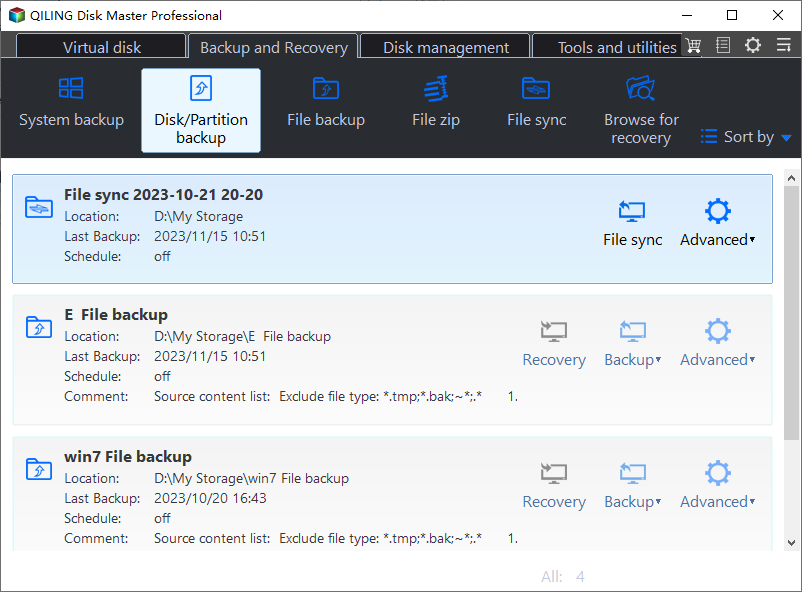
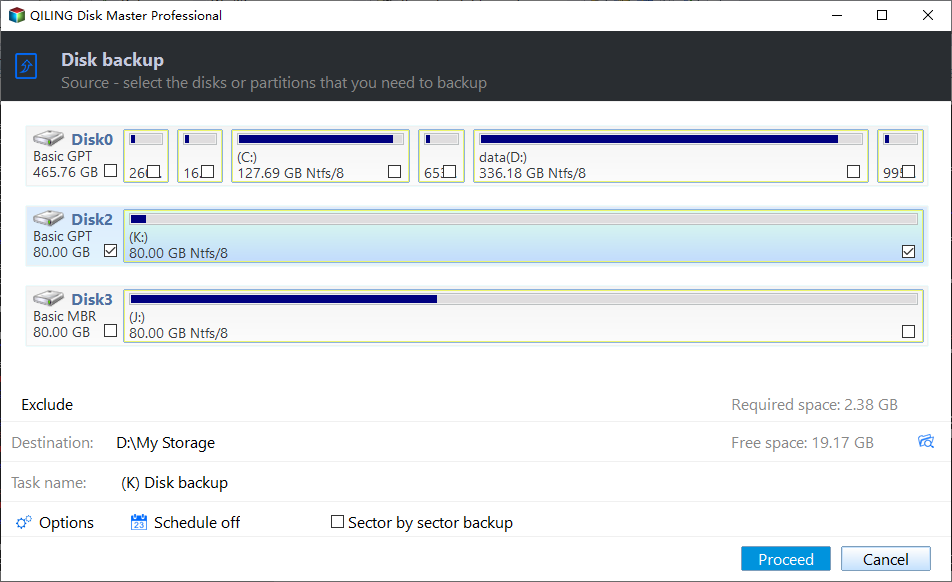
Step 2. Select the source disk directly in the disk list by model and capacity; select a partition only if that narrower scope is intentional. Select the whole Windows SSD including EFI, recovery, and data partitions.
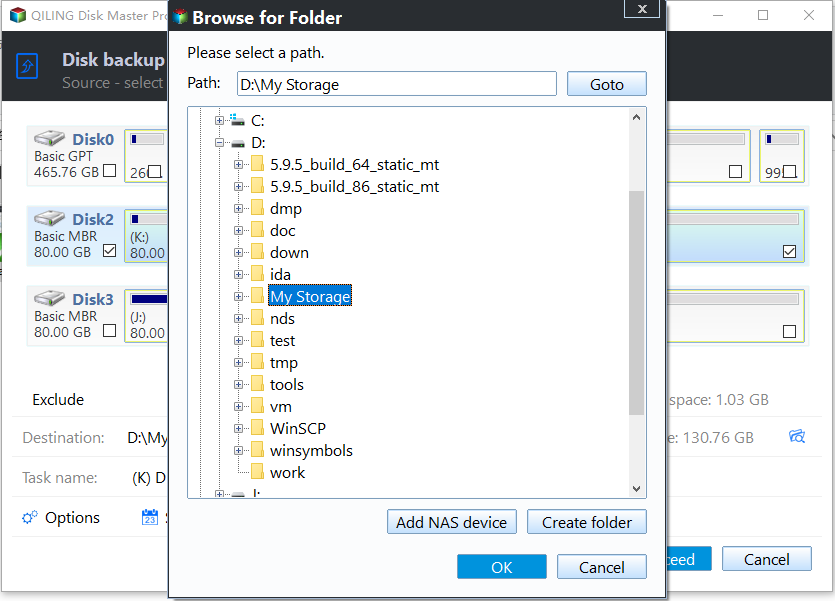
Step 3. Use the destination browse control to choose a folder on the separate storage. Check required space and confirm the image is not being saved to the protected disk. Save the image off the SSD being protected.
Step 4. Review the source, destination, and task name. Click Proceed; keep the drives connected until the progress window reports completion. Confirm the backup scope and capacity before Proceed.
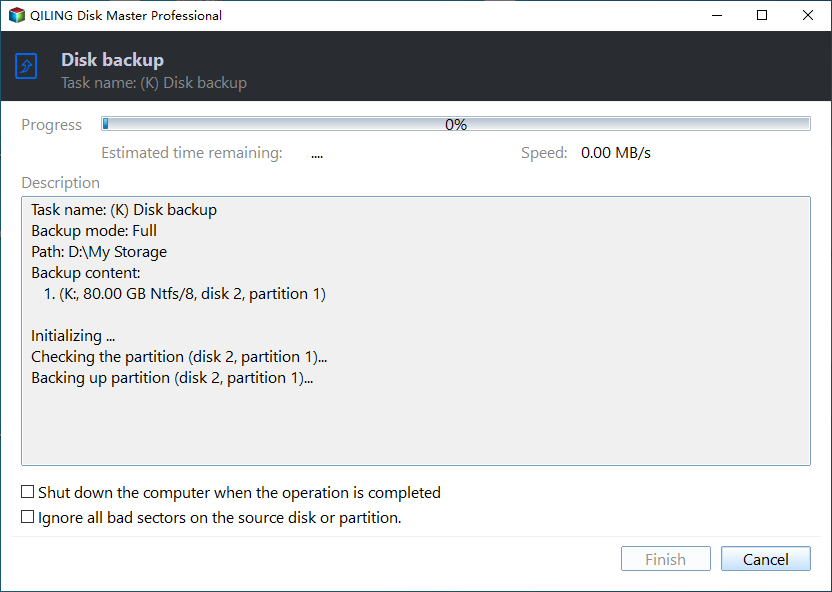
Step 5. Check the backup log and perform a small recovery test or restore to spare storage. Retain the BitLocker key and test a sample restore.
Frequently Asked Questions
Does a motherboard change format the SSD?
No, not automatically, but incorrect installation or an explicit reinstall can overwrite data.
Why does Windows ask for BitLocker recovery?
The TPM and boot environment changed; use the saved recovery key.
Conclusion
The SSD normally retains its data, but encryption, firmware, drivers, and activation need preparation and a verified backup.
Related Articles
- Windows System Backup
Prepare a full recovery path. - Move SSD to a New PC
Understand cross-hardware migration limits.
Products
Articles & Tutorials
- Data Recovery
- Data Backup
- File Recovery
- File Backup
- System Backup and Restore
- Disk and Partition Clone
- Technical articles
- Mobile articles
- Disk Master Help
- Windows Data Recovery Tutorials
- Windows Secure Delete Tutorials
- Windows Partition Management Tutorials
- Windows File Backup and Restore Tutorials
- Windows System Backup and Restore Tutorials
- Windows Disk Backup and Restore Tutorials
- Windows Clone Tutorials