Windows 10 Backup Not Backing Up All Files: Fix It
Windows 10 Backup and File History do not always include every file on your PC. Files outside default libraries, excluded folders, cloud-only files, hidden data, or locked program files may be skipped.
Why Some Files Are Missing from Backup
- The folder is not included in File History or Windows Backup settings.
- The file is stored in AppData, another drive, or a custom program folder.
- The file is cloud-only and not downloaded locally.
- The backup drive is full or disconnected during backup.
Check File History and Backup and Restore
Windows 10 has more than one built-in backup feature. File History mainly protects selected user folders and versions of personal files, while Backup and Restore can create file backups or a system image. If you expect every folder on every drive to be included, review the selected libraries, excluded folders, and backup destination carefully.
Also open OneDrive settings if Desktop, Documents, or Pictures are synced. Cloud-only files may look visible in File Explorer but may not be stored locally when the backup runs.
Use Qiling Backup to Select the Exact Folders
Qiling Backup lets you choose specific folders, drives, or file types, which is useful when Windows 10 built-in backup misses custom locations.
Step 1. Open Qiling Backup and choose File Backup.
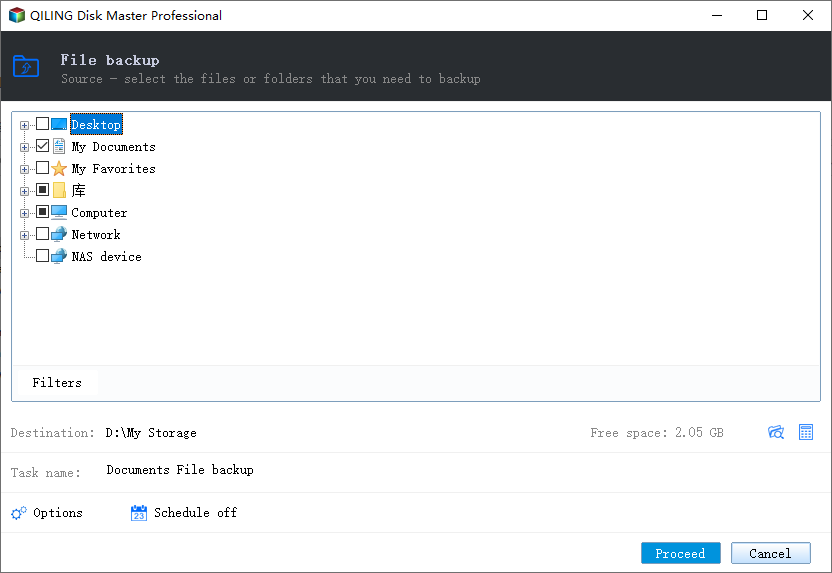
Step 2. Select Desktop, Documents, Pictures, Downloads, AppData, project folders, and any other folders Windows missed.
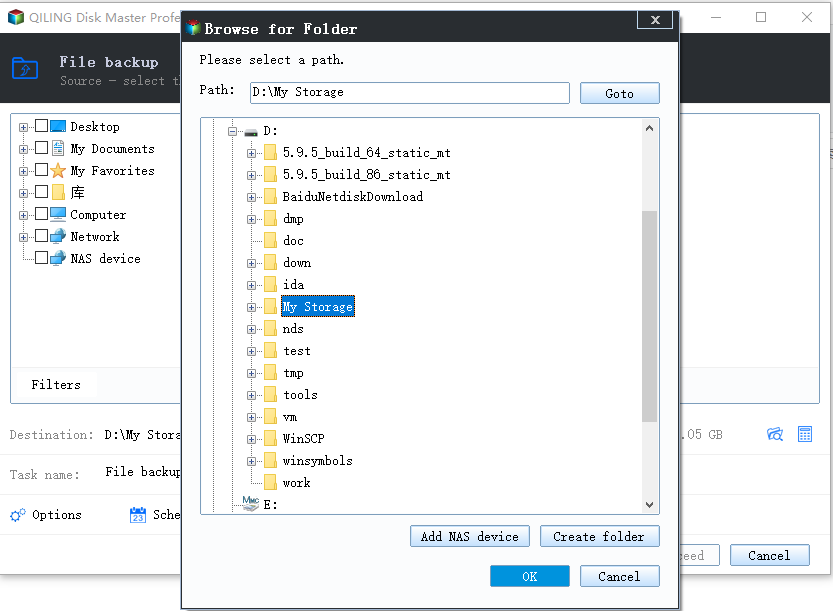
Step 3. Set filters or schedules if needed, then click Proceed.
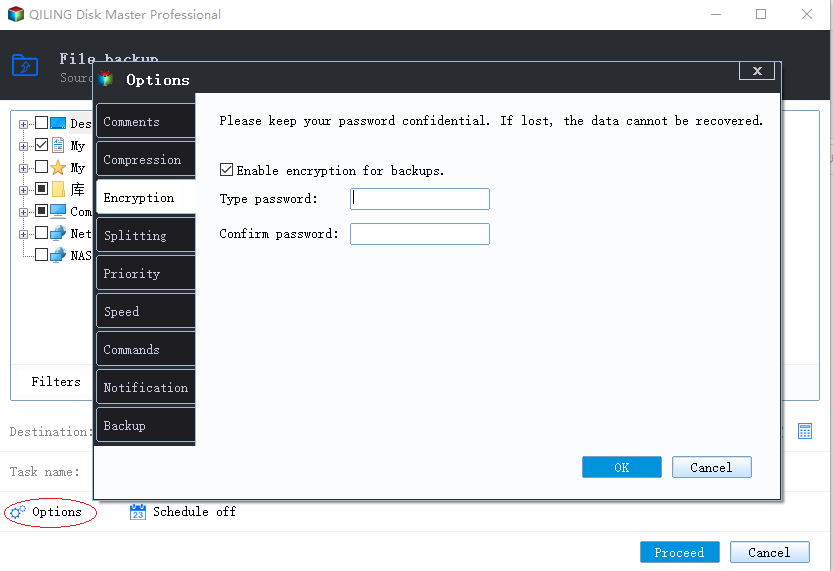
Fix Windows Backup Settings
Open File History or Backup settings, add missing folders, remove incorrect exclusions, and confirm the destination drive has enough space. Run a test restore to make sure important files are really included.
Conclusion
If Windows 10 backup does not back up all files, check included folders first. For custom folders and mixed locations, a manual file backup plan gives you clearer control.
Related Articles
Products
Articles & Tutorials
- Data Recovery
- Data Backup
- File Recovery
- File Backup
- System Backup and Restore
- Disk and Partition Clone
- Technical articles
- Mobile articles
- Disk Master Help
- Windows Data Recovery Tutorials
- Windows Secure Delete Tutorials
- Windows Partition Management Tutorials
- Windows File Backup and Restore Tutorials
- Windows System Backup and Restore Tutorials
- Windows Disk Backup and Restore Tutorials
- Windows Clone Tutorials