Back Up Windows 11 to an External Hard Drive
Decide what you need to restore. A file backup helps recover changed or deleted documents; a system image returns Windows, applications, settings, and required boot partitions to a prior state. For a practical recovery plan, keep both on a healthy external drive and verify them separately.
Prepare a suitable external destination
Use a drive with enough free space for the system image and future versions. Confirm the model, capacity, and volume label in File Explorer so you do not select the wrong disk. Connect it directly where possible. If BitLocker protects your PC or external drive, keep its recovery key independent of the computer.
Create the Qiling system image
Step 1. Open Qiling Disk Master, choose Backup and Recovery, and select System backup.

Step 2. Confirm the automatically selected Windows and boot partitions. Do not omit the small EFI or recovery partitions needed for a full restore.

Step 3. Browse to the external drive as the destination and verify its free space and letter.

Step 4. Review the task, click Proceed, and wait for completion.

Add a separate file backup for changing work
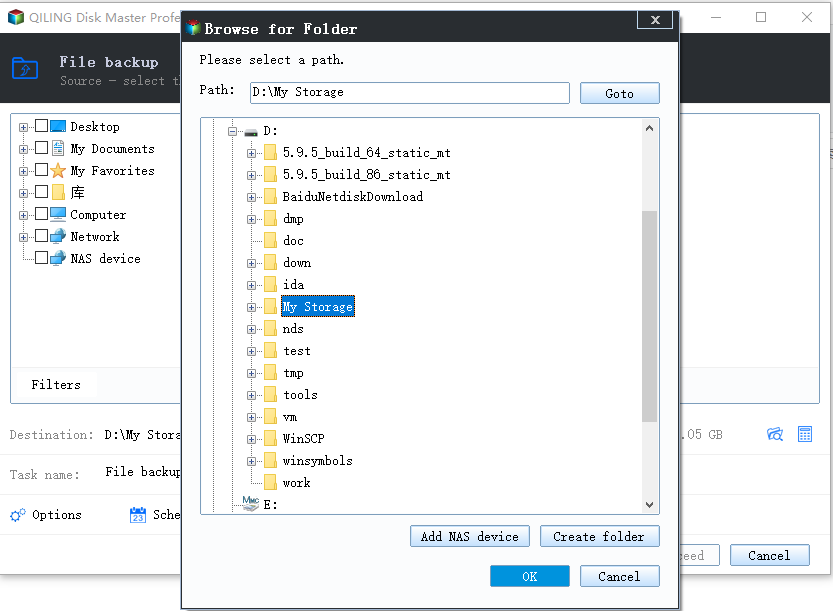
Choose File backup, select the folders that contain current work, select the same external drive or another protected destination, review the task, and click Proceed. Set a schedule appropriate for how often the files change. A system image alone may be too old to protect yesterday's document edits.
Verify before trusting the backup
Check the completion timestamps. Restore one file to a temporary location and open it. Create rescue media and confirm it sees the external drive and image. Disconnect the external drive when not backing up to reduce exposure to accidental deletion or ransomware. For another overview, see Windows 11 backup methods.
Related Articles
- System Image Software Checklist
Evaluate restore readiness, not just backup creation.
Products
Articles & Tutorials
- Data Recovery
- Data Backup
- File Recovery
- File Backup
- System Backup and Restore
- Disk and Partition Clone
- Technical articles
- Mobile articles
- Disk Master Help
- Windows Data Recovery Tutorials
- Windows Secure Delete Tutorials
- Windows Partition Management Tutorials
- Windows File Backup and Restore Tutorials
- Windows System Backup and Restore Tutorials
- Windows Disk Backup and Restore Tutorials
- Windows Clone Tutorials