How to Set Up Email Notification with Qiling Backup Personal Edition
This article applies to:
Qiling Backup Free and Home Editions
What is Backup Notification?
Sometimes, you may have to step away from the desk but the backup is still running in the program. To remotely monitor the backup result, the Backup Notification option will be useful. This option makes the scheduled backup a true set-it-and-forget-it job, as you no longer need to manually check the backup result.
This dedicated article will show you how to enable this option for your backup.
Steps to Set Up the Backup Notification
For New Backup Task
1. Create a new Backup Task, and select what you want to back up.
2. Click Options in the lower-left corner.
3. Navigate to the Backup Notification page, and fill in all the required information. How to fill in these fields will be explained later in this article.
4. Click OK to enable the notification.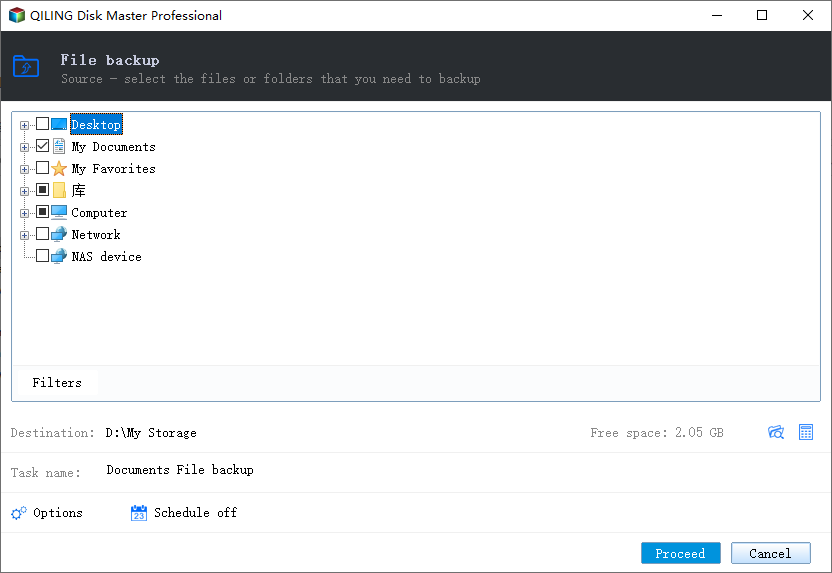
For Existing Backup Task
1. Highlight the existing backup task on the left side and click Options.
2. Navigate to the Backup Notification page, and fill in all the required information. How to fill in these fields will be explained later in this article.
3. Click OK to enable the notification. 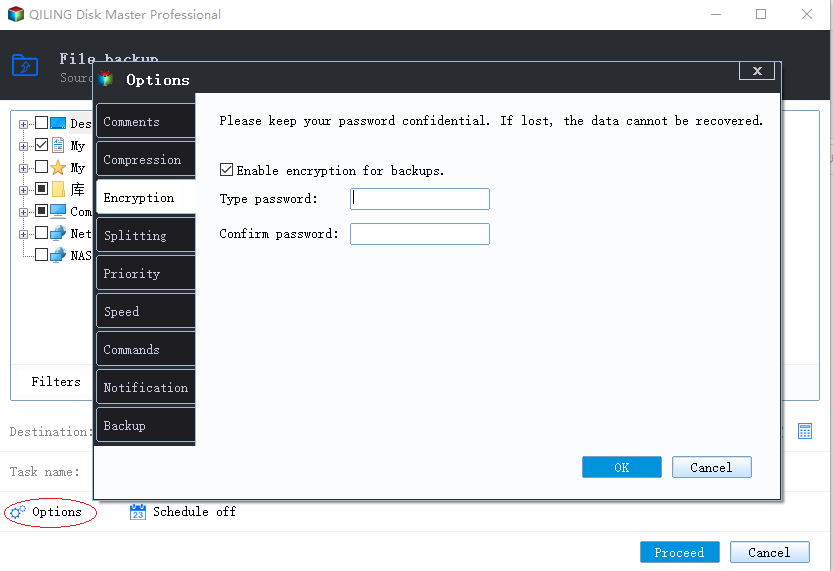
- For Ver13.5 and All Previous Versions
-
For New Backup Task
1. Select to create a new System Backup, Disk/Volume Backup or File Backup.
2. Click Backup Options in the Backup Setting page.
3. Navigate to E-mail Notification page, and fill in all the needed information. How to fill in these boxes will be explained later in this article.
4. Click Save to enable the notification.
For Existing Backup Task
1. Right click an existing backup task in the product, and select Edit Plan.
2. Click Backup Options in the Backup Setting page.
3. Navigate to E-mail Notification page, and fill in all the needed information. How to fill in these boxes will be explained later in this article.
4. Click Save to enable the notification.
How to Fill in Backup Notification Page
1. Fill in the email address you want to use to receive the notification. If you have more than one email address that needs to receive the notification, you can enter all of them, separated by commas. For example, Qilingtb@gmail.com,support@idiskhome.com,sales@idiskhome.com
2. Email Subject Contains: This field is filled in by default. You do not need to change it in most cases.
3. Server Name: Generally, it should be smtp.DomainName.com. For example, if you are using Gmail, please fill in smtp.gmail.com here.
4. Port: Set the port of the outgoing mail server. In most cases you do not need to change the default port 25. However, if the test with port 25 fails, you can try the combinations below:
25 with or without SSL/TLS ticked
465 with or without SSL/TLS ticked
587 with or without SSL/TLS ticked
5. Username/Password: Enter the login username and password of your Email account.
6. Choose in what situations you want to receive the notification: when the backup succeeds, fails, or in both situations.
We recommend sending a test message to verify that you can receive the notification email before saving the configuration.
Note:
If the test message works successfully but the actual backup notification fails, please check if you have any antivirus software running on your computer. Add TbService.exe as a trusted process in your antivirus and retry the program. You can always get assistance by contacting our tech support at techsupport@idiskhome.com.
If you need professional help, Qiling 1-on-1 Remote Assistance Service lets you schedule a remote desktop session with a dedicated support engineer. The service can assist with operating system migration, backup task customization, Windows boot error fixes, data recovery, and more. Visit the Qiling remote assistance service to learn more.
Related Articles
- Best Way to Backup Data to Synology NAS (2024 Choice)
Are you looking for the best way to back up data to Synology NAS? Well, you are in the right place. This tutorial will walk through the best backup software Qiling Disk Master, as well as the steps to use it to back up Windows data to Synology NAS. - Best Free Cloud Backup for PC (Top 2 Ways Included)
This article will introduce you the best free cloud backup for PC. Whether you want to backup files or even the Windows system, you can finish this task simply and for free. - Two Simple Ways to Run an Incremental Copy in Windows
Running an incremental copy in Windows is a good way to save backup storage space and minimize the time required for backup. To do so, two easy ways are listed here. - 3 Methods to Fix The Mounted Backup Volume Is Inaccessible
Encountered "the mounted backup volume is inaccessible"? You can refer to this article and find solutions here. - Best Ways to Store Videos Long Time[4 Choices 100% Working]
Videos are always precious memory in our life. In order to keep them for a long time, we need to store them in a proper and safe place. Here Qiling provides the four best ways to store videos long-term. Check this page to get what you want. - Professional Bootable Backup Software for Windows 11/10/7 [Free Download]
Follow a list of Windows bootable backup software for backing up and restoring data on a non-booting computer. Qiling bootable backup software is overall the most popular download option.
Products
Articles & Tutorials
- Data Recovery
- Data Backup
- File Recovery
- File Backup
- System Backup and Restore
- Disk and Partition Clone
- Technical articles
- Mobile articles
- Disk Master Help
- Windows Data Recovery Tutorials
- Windows Secure Delete Tutorials
- Windows Partition Management Tutorials
- Windows File Backup and Restore Tutorials
- Windows System Backup and Restore Tutorials
- Windows Disk Backup and Restore Tutorials
- Windows Clone Tutorials