How to Make a Bit-for-Bit Copy of a Hard Drive
A bit-for-bit or sector-by-sector copy attempts to duplicate every sector the drive exposes, including areas that an ordinary file copy omits. It can be useful for a fixed layout or a working duplicate, but it cannot repair unreadable hardware or guarantee access to deleted SSD data.
What a sector copy includes and cannot include
Unlike a standard used-data clone, sector mode reads the full accessible disk surface. It may preserve unallocated areas and partition layout. It does not reconstruct sectors that the hardware refuses to read, and SSD TRIM may already have removed deleted-file content. Encryption can make a copied volume unusable without the recovery key.
A sector clone alone is not evidence-grade acquisition. Legal or incident-response work typically needs write protection, hashes, acquisition logs, and chain of custody. Use validated forensic tools for that purpose.
Check capacity, condition, and time
Compare actual bytes and sector counts rather than only rounded labels such as 1TB. The destination must hold the complete source layout; a nominally equal drive can be slightly smaller. Back up target files because the clone overwrites them.
Sector mode can take much longer than an ordinary SSD upgrade. If an HDD clicks, vanishes, or reports repeated I/O errors, stop consumer cloning attempts and consider professional data recovery. Repeated reads can worsen a failing source.
Validate the working copy
After completion, inspect partitions and the intended files. If the destination is a Windows boot replacement, test it with the source disconnected. For evidence-related work, independently hash and document both acquisition and errors under the relevant procedure.
Do not erase or modify the source until the target has passed its intended verification. A copied disk may retain the old partition sizes, leaving extra destination space unallocated.
Use Sector-by-Sector Clone in Qiling Disk Master
The sector checkbox appears on the source-selection screen. Select it only for a healthy source and a target at least as large in actual bytes; do not use it merely because the destination is an SSD.
Step 1. Connect the destination by a compatible SATA or NVMe port or enclosure. Open Qiling Disk Master and choose Tools and utilities > Disk/Partition clone. Use stable connections and independent power.

Step 2. Select the entire source disk row by model and capacity, not just its C: partition. Select the entire physical source disk and confirm its model.

Step 3. On this source screen, select Sector by sector clone only after confirming the target has at least the source's actual byte capacity. The checkbox reads every accessible sector; it cannot repair physically unreadable sectors.
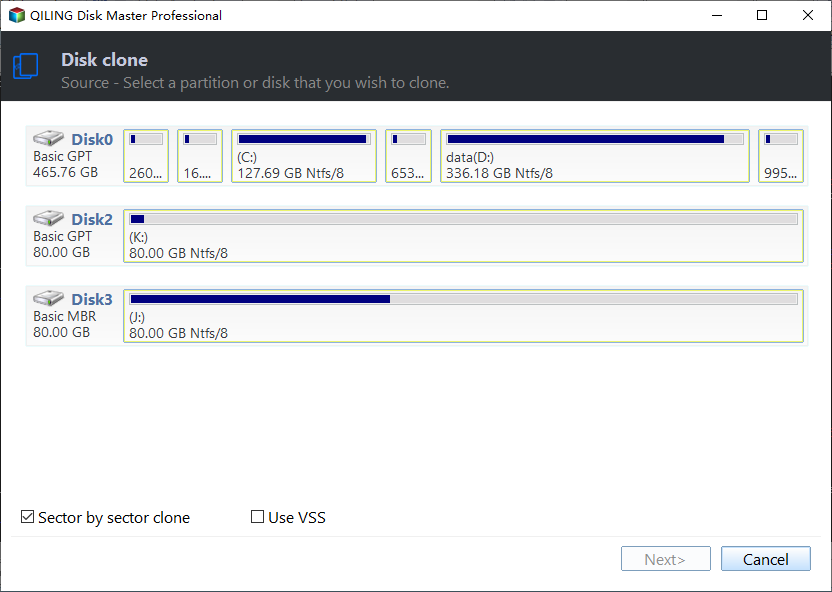
Step 4. Click Next, choose the destination disk by model and capacity, and click Next again. Existing target data will be overwritten. Choose the target and verify its actual capacity and identity.

Step 5. Review both disk identities and the proposed layout. Click Proceed, confirm the erase warning, and wait without disconnecting either drive. Confirm sector mode remains selected and every source partition fits.

Step 6. Test the target independently before erasing or reusing the source. Independently test boot or files, and document any read errors.
For formal forensic work, use a write-blocked validated acquisition workflow rather than relying solely on this consumer clone.
Frequently Asked Questions
Does bit-for-bit cloning recover bad sectors?
No. Unreadable sectors cannot be made readable by copying them.
Can a smaller target work?
Normally not for a full sector copy; compare actual capacities.
Conclusion
Use sector mode only for a specific need, and verify the copy without claiming it repaired failed media.
Related Articles
- Sector-by-Sector SSD Clone
See SSD-specific limits such as TRIM. - Forensic Copy of a Hard Drive
Separate a working clone from evidence acquisition.
Products
Articles & Tutorials
- Data Recovery
- Data Backup
- File Recovery
- File Backup
- System Backup and Restore
- Disk and Partition Clone
- Technical articles
- Mobile articles
- Disk Master Help
- Windows Data Recovery Tutorials
- Windows Secure Delete Tutorials
- Windows Partition Management Tutorials
- Windows File Backup and Restore Tutorials
- Windows System Backup and Restore Tutorials
- Windows Disk Backup and Restore Tutorials
- Windows Clone Tutorials