Fsutil Commands in Windows: What They Do and When to Use Them
Fsutil is a built-in Windows command that exposes file system details Windows does not show in Disk Management. It can report the cluster size of a volume, tell you whether the dirty bit is set, list support for TRIM, create a test file of an exact size and change a handful of NTFS behaviours.
It is also a tool with no undo. Some commands alter settings for the entire system, and a few can remove metadata that other programs rely on. This guide separates the safe queries from the commands that deserve a backup and a second thought.
What fsutil Is
Fsutil is a command-line utility that ships with Windows. It works on NTFS and, for some subcommands, on ReFS. It requires an elevated Command Prompt: without administrator rights it returns "Access is denied" for most operations.
Run fsutil with no arguments to see the list of subcommands, and fsutil fsinfo to see the file-system information group. The help for each subcommand is available with /?.
Safe Read-Only Commands
These commands only read information. They are the ones worth memorising:
| Command | What it shows |
|---|---|
fsutil fsinfo drives | Every drive letter and mounted volume |
fsutil fsinfo volumeinfo C: | File system name, serial number and flags |
fsutil fsinfo ntfsinfo C: | Bytes per cluster, MFT size, total and free clusters |
fsutil volume diskfree C: | Free and total bytes for the volume |
fsutil dirty query C: | Whether the volume is marked dirty |
fsutil behavior query DisableDeleteNotify | Whether TRIM is enabled (0 means enabled) |
Reading Bytes Per Cluster is useful when you are comparing how two drives store the same folder, and the TRIM query is the quickest way to confirm that an SSD is receiving delete notifications.
Working with the Dirty Bit
The dirty bit is a flag that tells Windows a volume may contain inconsistencies. It is set when a write is interrupted, and it is why a machine sometimes runs chkdsk at startup.
fsutil dirty query C:reports whether the flag is set.fsutil dirty set C:sets it deliberately, which forceschkdskon the next boot.- The flag is cleared by a completed
chkdsk, not by a command that pretends the volume is clean.
Setting the dirty bit is occasionally used by administrators who want a scan to run on a volume that cannot be dismounted. Do not clear it manually. If the flag returns immediately after a scan, the disk or the file system has a real problem, and the next step is a surface test and a backup, not another flag change.
Changing File System Behavior
The behavior subcommand changes settings that apply to the whole system. The useful ones are:
fsutil behavior query DisableLastAccessshows whether last-access timestamps are updated. Disabling them reduces writes on busy volumes.fsutil behavior query Disable8dot3shows whether short 8.3 file names are generated on new volumes.fsutil behavior query MemoryUsageshows how aggressively the system caches file metadata.fsutil behavior set DisableDeleteNotify 0re-enables TRIM if it was turned off.
Each change persists across reboots. Write down the original value before you change anything, and change one setting at a time so you can tell what caused a difference in behaviour.
Commands That Can Cause Damage
Several fsutil operations rewrite metadata or delete structures. Treat them as maintenance procedures, not as diagnostics:
fsutil usn deletejournal /d C:deletes the change journal. Backup and indexing tools that depend on it must rebuild their state, and some will report errors until they do.fsutil sparse setflagfollowed bysetrangecan mark real data as a hole and make it read back as zeros. Only use it on a copy, and only with ranges you have verified.fsutil repair initiate C:starts an NTFS self-healing pass. On a healthy volume it is slow; on a failing drive it adds load at the worst time.fsutil file setvaliddatachanges the valid data length without writing content. It is a developer tool and can expose stale data or corrupt a file.fsutil dirty setforces a boot-time check that cannot be cancelled easily on a server.
Before any of these, copy the data that matters. A file-system repair is not a substitute for a backup, and some repairs make recovery harder by moving or discarding damaged records.
What fsutil Cannot Do
Fsutil works inside an existing file system. It cannot create, delete, resize or move partitions, change a drive letter, convert a disk between MBR and GPT, or wipe a drive. Those tasks belong to a partition manager.
For irreversible operations, a dedicated tool with a clear preview is safer than a command you cannot undo. Qiling Disk Master, for example, can wipe a disk or partition so that the previous content cannot be recovered, which is the correct step before selling a drive.
Step 1. Launch Qiling Disk Master, select the disk you want to wipe and open Wipe data.
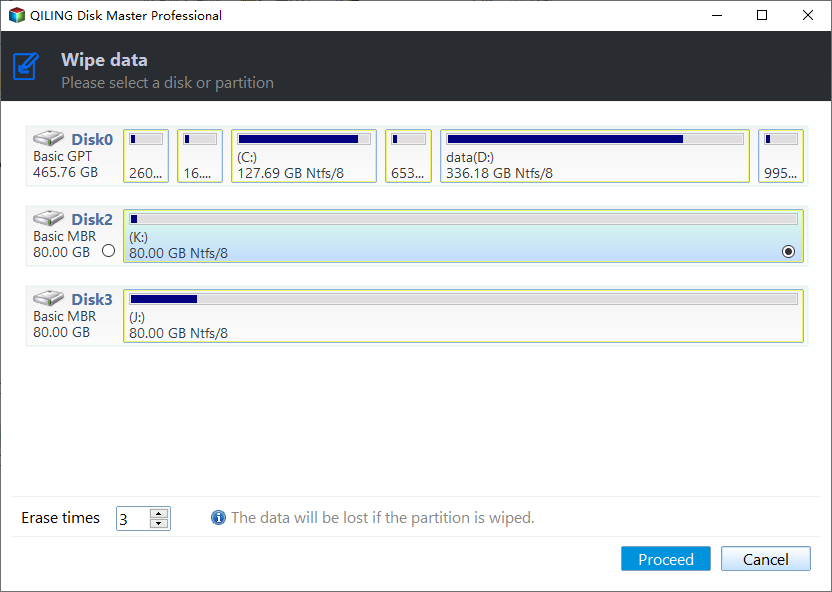
Step 2. Set the number of erase times and click Proceed. A single pass is enough for reuse; multiple passes take longer and are intended for sensitive data.
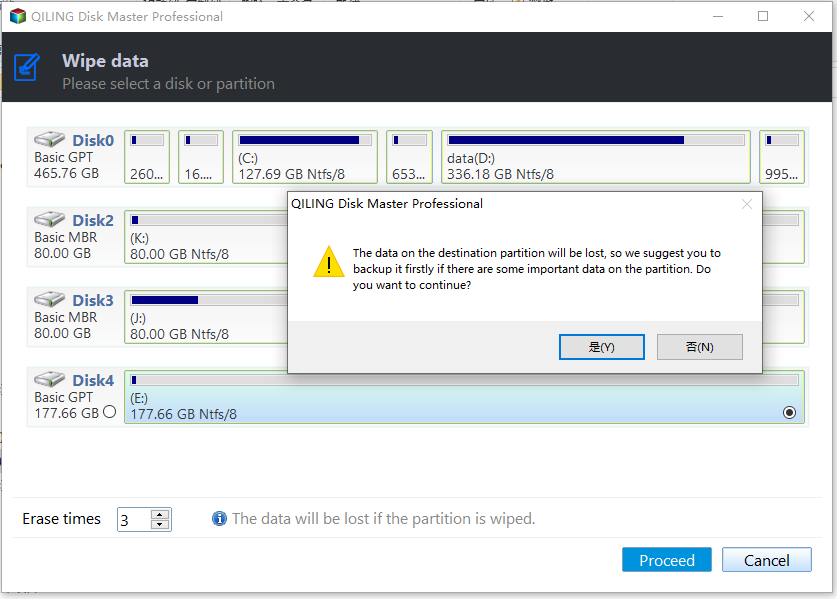
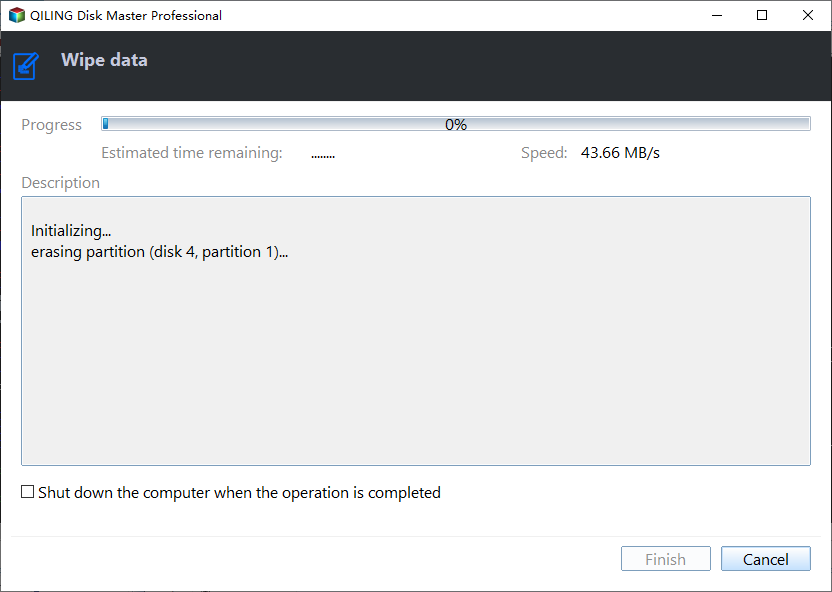
Step 3. Confirm the warning and wait for the progress bar to finish. The disk will contain no file system afterwards and must be initialised before use.
Does fsutil work on Windows Home?
Yes. It is part of every Windows edition. The only requirement is an elevated Command Prompt.
Is fsutil safe for checking a failing drive?
Read-only queries are safe. Repair commands add load and can move data, so back up first and test the hardware before running them.
Can fsutil shrink a partition?
No. Use Disk Management or a partition manager. fsutil only reports and adjusts file-system metadata inside an existing volume.
Related Articles
- What Is CHKDSK (Check Disk)
What the disk checker repairs, what it cannot fix, and how it relates to the dirty bit. - How to Run CHKDSK /F /R /X
The switch combinations that matter and the order in which to run them. - Hard Drive Data Destruction Before Disposal
Wiping, overwriting and physical destruction compared for retired drives.
Products
Articles & Tutorials
- Data Recovery
- Data Backup
- File Recovery
- File Backup
- System Backup and Restore
- Disk and Partition Clone
- Technical articles
- Mobile articles
- Disk Master Help
- Windows Data Recovery Tutorials
- Windows Secure Delete Tutorials
- Windows Partition Management Tutorials
- Windows File Backup and Restore Tutorials
- Windows System Backup and Restore Tutorials
- Windows Disk Backup and Restore Tutorials
- Windows Clone Tutorials