Repair Corrupt Excel File on Windows 10/11 [Top 4️⃣Methods]
In this article, you'll learn:
- Fix 1. Fix Corrupt Excel File with Document Repair Software
- To repair corrupt Excel files using MS Excel's built-in option, follow these steps: Open Excel and go to "File" > "Open" and select the corrupted file. If Excel detects corruption, it will prompt you to repair the file. If not, go to "File" > "Info" > "Check for Issues" > "Check for Issues" again.
- Fix 3. Restore Excel File with MS AutoRecover Feature
- Fix 4. Run Microsoft Diagnostic to Resolve Corrupt Excel Files
Why Excel Corrupted and Cannot be Opened
Have you ever encountered a corrupt Excel file with a Windows notice "The file is corrupt and cannot be opened"? This is a common Excel corruption issue that can be very annoying when you don't have any Excel backups. The file may become corrupted due to various reasons, and if you want to know the causes, you can check the contents.
- 🔋Sudden power-When you open an Excel file, it may be vulnerable to corruption if a power outage occurs while reading the file. This can result in the file becoming unusable.
- 👿If your Excel files are affected by a computer virus, the files may not open, and the workbook may show blank, due to computer virus and blackmail software.
- ❌To save the Excel file in the correct format, you should select "Excel Workbook" (.xlsx) or "Excel 97-2003 Workbook" (.xls) from the "Save as type" dropdown menu in the Save As dialog box. This ensures that the file is saved with the correct extension and can be opened and edited as intended.
- 💽When you try to save a large Excel file on a device with insufficient storage space, it may become corrupted. This is because the device cannot accommodate the file's size, leading to errors and potential data loss.
- 💻Hard drive failure or bad sectors can cause corruption and bad sectors in Excel files, leading to data loss and file damage.
When transferring Excel files between different storage devices, unexpected interruptions can cause file corruption, leading to issues with the file's integrity and usability.
After learning the reasons that can lead to corrupt Excel files, you can learn how to fix corrupt Excel files with some quick fixes, such as using the built-in repair tool, opening the file in a different version of Excel, or using a third-party repair software.
- Run antivirus software or Windows Defender.
- Delete temporary files to avoid conflict.
- Change Excel file extension to fix corrupt Excel files.
If your Excel file has become corrupt, don't worry! There are effective ways to repair it. In the following parts, we will introduce four useful methods to help you recover your file.
Fix 1. Fix Corrupt Excel File with Document Repair Software
To fix a corrupt Excel file on a Windows PC, the most recommended method is to use a professional Excel repair tool. A reliable file repair program can save you time and automatically fix tricky file issues, making it a great option even for those who are not computer experts. Simply download a trustworthy tool to get started.
Qiling Fixo Document Repair is a tool designed to fix corruption issues in various file types, including Excel, Word, PowerPoint, and PDF files. This software can help users repair damaged files, making it a useful solution for those experiencing problems with their documents.
- You can use Open and repair to open and fix corrupted documents on Windows PCs, including Word, Excel, PDF, PowerPoint, and photos.
- The preview option will enable users to check the file before saving it to their local PC or other storage devices.
- Qiling Fixo can repair MP4 files and other video files on various storage devices, and also offers an advanced repair option.
To fix corrupt Excel files, you can use Qiling Fixo Document Repair. This tool can help recover data from damaged Excel files, allowing you to access and edit your important information.
Step 1. Download and launch Fixo on your PC or laptop, then select "File Repair" to fix corrupted Office documents, including Word, Excel, PDF, and others. Next, click "Add Files" to choose the corrupted documents you want to repair.
Step 2. To repair multiple files at once, click the "Repair All" button. Alternatively, you can repair a single document by selecting it and choosing "Repair". Additionally, you can preview the documents by clicking the eye icon.
Step 3. To save your work, click "Save" to save a single document, or "Save All" to save all the repaired files. You can also select "View Repaired" to find the folder containing the repaired files.
Did Qiling Fixo repair tool fix your Excel corruption problem? You can share our guide to introduce Qiling Fixo to more users!
Fix 2. Repair Corrupt Excel Files with MS Excel Built-in Option
If your Excel file is corrupted, you can try using Microsoft Excel's built-in "Open and Repair" utility to fix the issue without downloading any additional tools. This utility can often repair corrupted files and allow you to access your data again.
Step 1. Launch Microsoft Excel on the PC
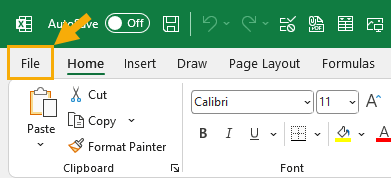
Step 2. Click "File" and choose "Open".
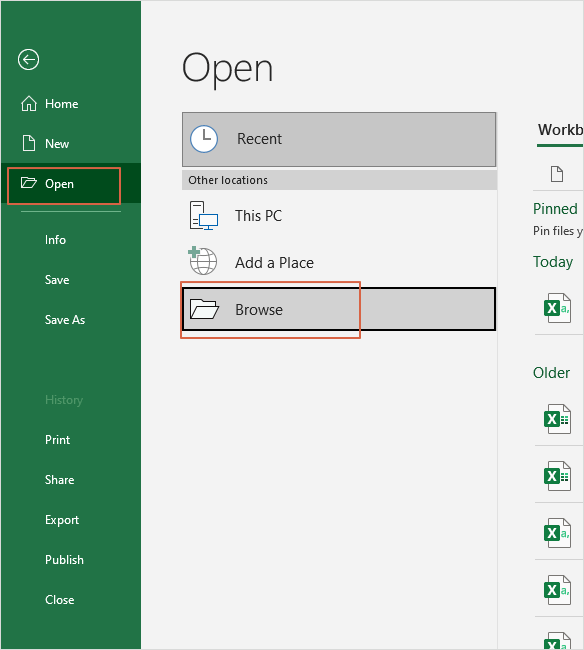
Step 3. Locate the "Browse" button and click on it.
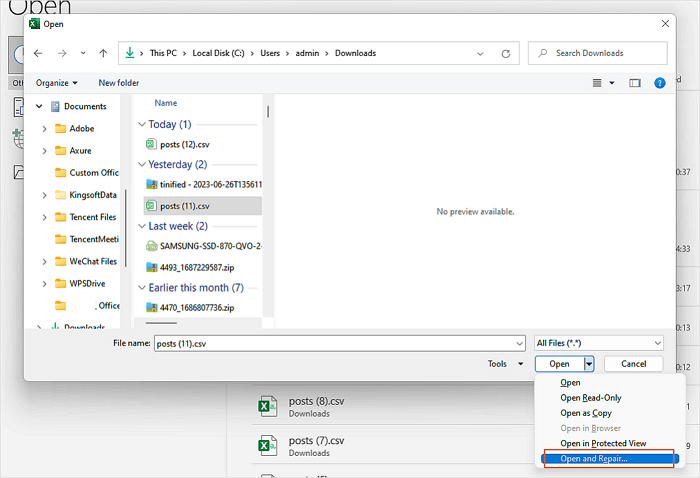
Step 4. To fix a corrupted Excel file, open the file and click on the "File" tab, then select "Open" and choose the corrupted file. Click the arrow beside "Open" and select "Open and Repair". This will attempt to recover the file's data and structure.
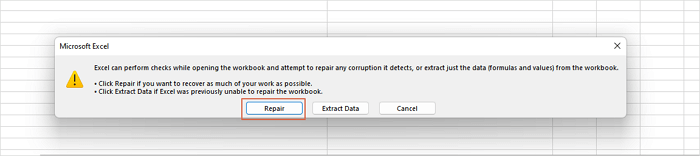
Step 5. Click "Repair" to start the Excel repair process, and wait a few minutes.
If you're experiencing issues with a corrupt Excel file, try the methods above to recover your data. These steps can help you repair or recover your file, depending on the level of corruption. If you're unable to recover your file, you may need to recreate it from scratch.
Fix 3. Restore Excel File with MS AutoRecover Feature
To find the Excel AutoRecover file location, follow these steps:
Step 1. Launch MS Excel and click "File" to open the menu.
Step 2. Click "Options" from the Excel sidebar.
Step 3. Click "Save", and you'll find the AutoRecover file location.
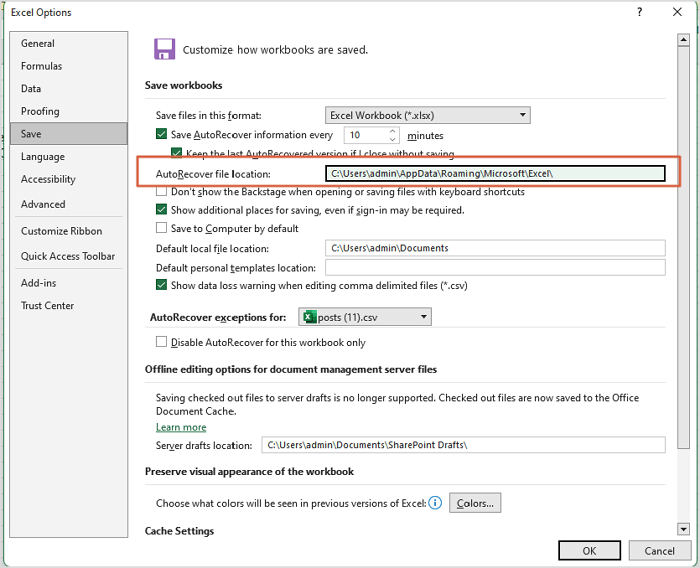
Step 4. To access the well-functional Excel files, copy the provided path and paste it into File Explorer. This will allow you to locate and view the Excel files.
This method can also work for unsaved Word document recovery:
How to Recover Unsaved Word Document
If you've lost an unsaved Word document, don't panic! There are five ways to recover it, and they're applicable to both Windows and Mac. You can try using the AutoRecover feature, which automatically saves your work at set intervals, or check the Recent Documents list to see if it's still there. Additionally, you can search for the document in the Windows or Mac file system, or try using a third-party recovery tool.
4. Run Microsoft Diagnostic to Resolve Corrupt Excel Files
Software corruption issues may cause corrupt Excel files, which can be resolved by running Microsoft Diagnostic on Windows.
Step 1. To open the Control Panel on Windows 11/10, you can use the search box. Simply press the Windows key + S to open the search box, type "Control Panel" in the search bar, and press Enter.
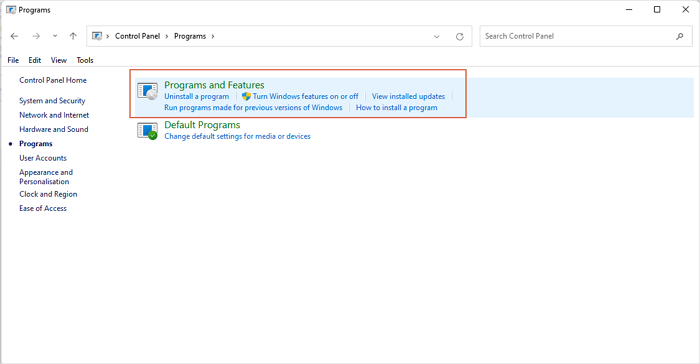
Step 2. Open Programs > Programs and Features.
Step 3. Find the Microsoft Office application and choose Change > Repair.
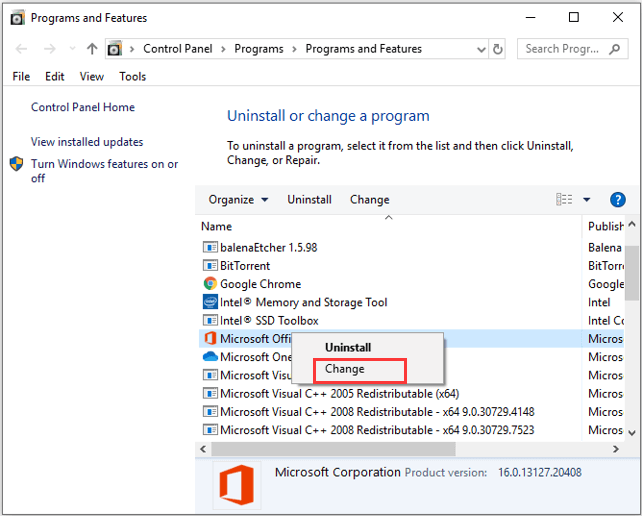
Step 4. You can choose "Quick Repair" to fix corrupt Excel files.

If the Excel file keeps closing automatically, you can fix the issue by running Microsoft Diagnostic Tool. This tool can help identify and resolve the underlying problem causing the file to close repeatedly.
If your Excel file keeps closing automatically, don't worry! There are several fixes you can try to resolve this issue.
If your Microsoft Excel file keeps closing automatically while editing, it's likely due to a crash issue with Excel. To resolve this, you can try restarting Excel, closing unnecessary add-ins, or checking for any corrupted files. You can also try running Excel in safe mode or reinstalling the application if the problem persists.
Bottom Line
If you've encountered corruption issues with a target Excel file, you can try one of four simple methods to resolve the problem. First, attempt to open and repair the file to gauge the severity of the issue. If the built-in "Open and Repair" feature doesn't work, you can use the Qiling Fixo Document Repair to repair the corrupt Excel file. This may help you successfully open the file.
Corrupt Excel File FAQs
Corrupt Excel files can be frustrating to deal with. They may cause errors, crashes, or loss of data, and can be difficult to recover. Fortunately, there are ways to diagnose and repair corrupt Excel files, and you can learn more about these solutions in the Q&As provided.
1. What is the best way to uncorrupt an Excel file?
You can uncorrupt an Excel file by using Qiling Fixo Document Repair, which can repair corrupted Excel files and recover data from them.
- 1. Launch it, and choose "File Repair".
- 2. You can add multiple Excel files that need to be repaired and repair them simultaneously.
- 3. Preview the repaired Excel files and save them all.
2. How to fix Excel 2016 not saving changes?
You have multiple methods to fix Excel not saving changes:
- 1. Repair corrupted Excel XLS or XLSX file
- 2. Check the folder permission
- 3. Start Excel in Safe Mode
- 4. Disable Add-ins in Excel
- 5. Make sure enough space on the disk
- 6. Repairing Office installation
- 7. Deactivate the antivirus software temporarily
3. How do I know if my Excel files are corrupted?
Excel files are often damaged, resulting in error messages. This can manifest in files appearing as 0kb or having the wrong file extension. Additionally, users may be unable to save changes within a corrupted Excel file.
4. How to corrupt an Excel file on Windows 10?
To corrupt an Excel file so it cannot be opened on a Windows 10 PC, you can try the following methods: delete the file extension, add a corrupted file extension, or add a malicious macro. However, please note that attempting to corrupt a file is not recommended and may not work as expected.
- 1. Change file extensions to corrupt an Excel file
- 2. Corrupt an Excel file using Notepad
- 3. Using an online file corrupter
- 4. Use a file compression tool
Related Articles
- Top 5 PST Repair Tools in Windows 10/11
- How to Recover Formatted Hard Drive/SD Card/USB Data Using CMD
- Top 10 Best Free Data Recovery Software for Windows 11
- Ace Data Recovery Services Near Me in Houston, TX | Top 10
How to find the best data recovery services near me in Houston? You can learn ten reliable data recovery services in Houston, TX, in this guide. You'll get detailed information after reading the guide. - Windows File Recovery Tutorials
Read this guide to learn Windows File Recovery Tutorials with clear steps, practical tips, and safer troubleshooting methods. - Windows File Recovery Tutorials
Read this guide to learn Windows File Recovery Tutorials with clear steps, practical tips, and safer troubleshooting methods.
Products
Articles & Tutorials
- Data Recovery
- Data Backup
- File Recovery
- File Backup
- System Backup and Restore
- Disk and Partition Clone
- Technical articles
- Mobile articles
- Disk Master Help
- Windows Data Recovery Tutorials
- Windows Secure Delete Tutorials
- Windows Partition Management Tutorials
- Windows File Backup and Restore Tutorials
- Windows System Backup and Restore Tutorials
- Windows Disk Backup and Restore Tutorials
- Windows Clone Tutorials