How to Recover Deleted Files Without Backup in Windows 10/11
- Recover Permanently Deleted Files Without Backup via Data Recovery Software (Recommended)
- Restore Deleted Files Without Backup in Windows from Recycle Bin
- Retrieve Deleted Files Without Backup Using Ctrl + Z
- Recover Deleted Files Without Backup Using Windows File Recovery
- Recover Deleted Files Without Backup FAQs
Deleting files from your computer can be a problem, especially when you regret it later. If you've erased a file without backing it up, recovering it can be more challenging. This is often due to the limited storage capacity of computers, leading to the deletion of unnecessary data. However, if you had used Windows backup software to save your files, you would be able to quickly recover them.
Recovering deleted files without a backup can be a more challenging process, as there's no existing copy to restore from. However, there are still some methods that can be attempted to retrieve deleted files, such as using data recovery software, checking the Recycle Bin or Trash, or looking for any remaining file fragments on the device.
Recover Permanently Deleted Files Without Backup via Data Recovery Software
Using specialized data recovery software is the most dependable way to recover permanently deleted files. Qiling Data Recovery Wizard is one of the best options available, with a high success rate and user-friendly interface.
Qiling Data Recovery Wizard is a user-friendly program that allows even beginners to recover lost files, whether or not a backup existed. The program can quickly search for and retrieve files that were lost due to various reasons, such as corrupted files, unintentional formatting, or erroneous deletion.
Qiling Data Recovery Wizard
- Losing important files without a backup can be devastating. Fortunately, there are ways to recover deleted files, documents, photos, audio, music, and emails even without a backup.
- Recover files from various storage devices, including formatted hard drives, emptied Recycle Bin, memory cards, flash drives, and digital cameras.
- Data recovery services are available to help recover lost data due to sudden deletion, hard drive formatting and corruption, virus attacks, and system crashes. These services are designed to recover data under various situations, providing a solution to restore lost files and get back to work quickly.
To recover deleted files without backup from a Windows 10/11 PC, follow this easy procedure: download the Qiling deleted data recovery program.
Step 1. To proceed, select the specific file location you want to scan and click the "Scan" button.

Step 2. After the process, select the "Deleted Files" and "LostFiles" folders in the left panel. You can then apply the "Filter" feature or click the "Search files or folders" button to find the deleted files.

Step 3. After clicking the "Recover" button, save the restored files in a location that is different from the original one to prevent any potential data loss or corruption.

Restore Deleted Files Without Backup in Windows from Recycle Bin
In Windows 10/11, recovering deleted files is a straightforward process. If you drag a file to the Recycle Bin or press the "Delete" key, the file will be moved to the Recycle Bin instead of being permanently deleted.
To recover deleted files from the Recycle Bin, follow these steps.
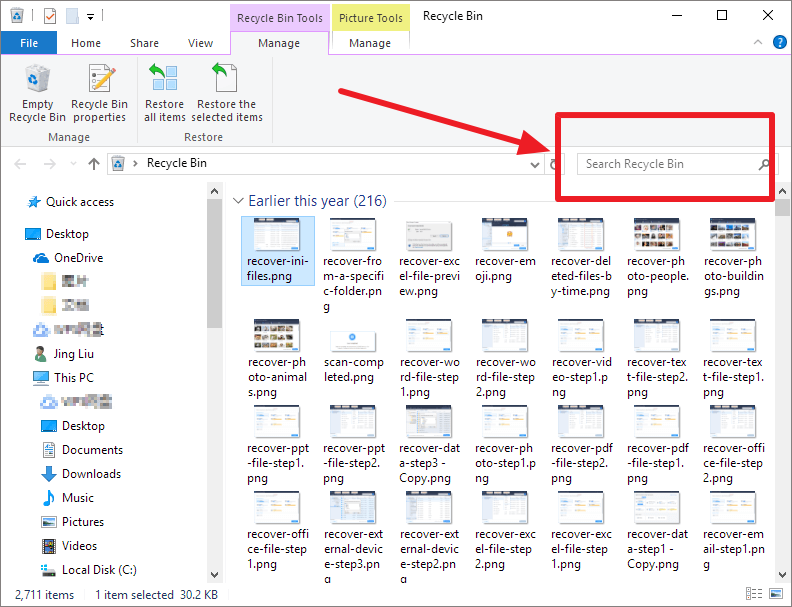
Step 1. To access the Recycle Bin, click the "Recycle Bin" icon from the desktop or Start menu.

Step 2. To recover deleted files or folders, start by identifying the specific item(s) you want to recover. You can search for a particular file by name, or browse through the categorized list to find the desired item based on its size, date of modification, or other attributes. This will help you locate the deleted file or folder you're looking for.
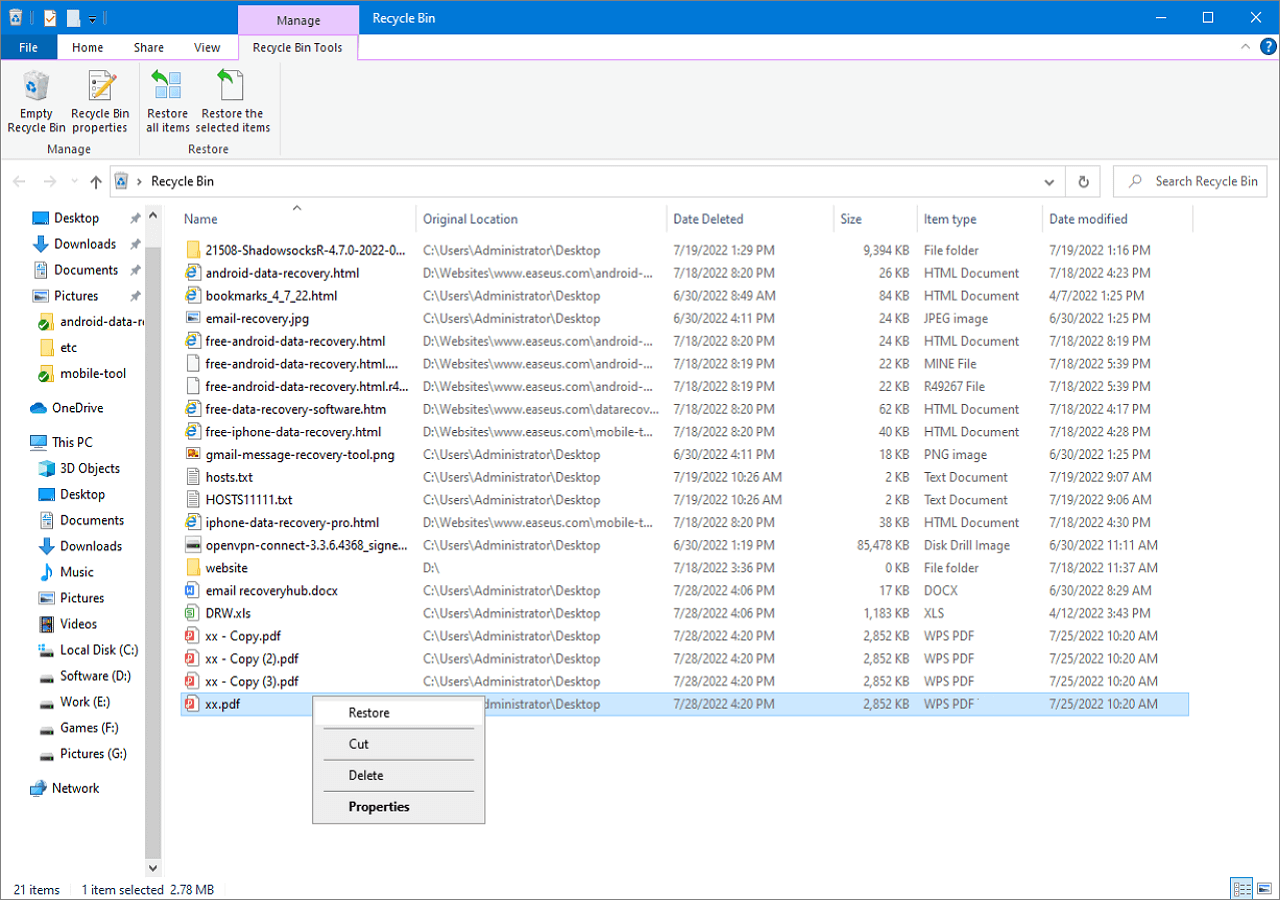
Step 3. Right-click the deleted files. Then, click "Restore" to recover them.
Retrieve Deleted Files Without Backup Using Ctrl + Z
You can quickly recover deleted files using the Windows shortcut Ctrl+Z, which allows you to undo previous actions and restore other data files you're working on.
Unfortunately, the steps to undelete files using Ctrl + Z are not accurate. Ctrl + Z is a keyboard shortcut used to undo actions in most operating systems, but it does not work for undeleting files.
Step 1. Right-click the folder containing the missing file.
Step 2. To restore a deleted file, go to the "Recycle Bin" and click "Undo Delete." to return the file to its original place.
Step 3. You may also press "Ctrl+Z" to recover the deleted data.
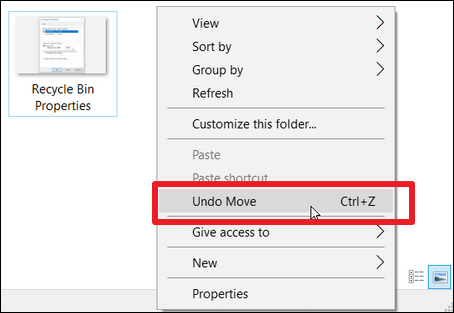
This procedure is ineffective if you restart your computer after a file loss, as only recently deleted files or folders will respond to CTRL + Z or Undo Delete.
Recover Deleted Files Without Backup Using Windows File Recovery
Windows File Recovery, a data recovery tool owned by Microsoft, is available on Windows 10 2004. However, it can be challenging to use due to its technical nature, unlike Qiling Data Recovery Wizard's user-friendly interface.
Here are the basic steps to recover your deleted files without backup: Windows File Recovery is only advised for somewhat more experienced computer users due to possible errors.
Step 1. Launch the Microsoft Store application and look up Window File Recovery. Now download and install the application.
Step 2. From the Start menu, open Windows File Recovery.
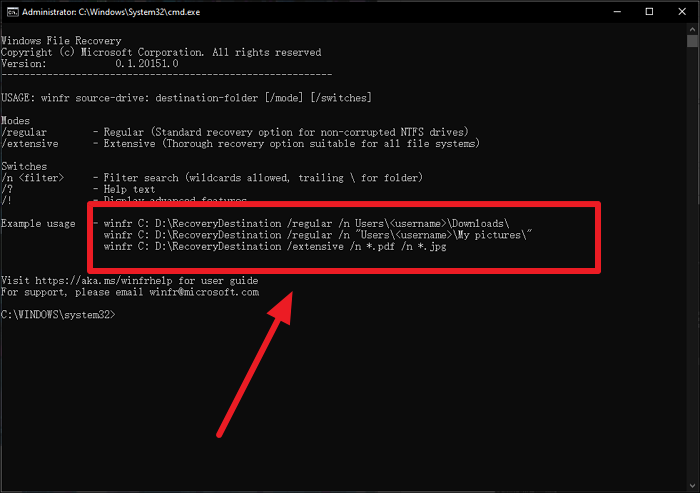
Step 3. To recover deleted files, use the command line syntax: `fsck -n -c -d -r -l /dev/sdX`, replacing `/dev/sdX` with the actual drive path where the deleted files are located. This command will scan the drive for deleted files and list them in a detailed report.
winfr source-drive: destination-drive: [/switches].
For example:
winfr C: D: /n \RecoveryDestination/extensive/n*.pdf/n*.jpg
Step 4. Click "Enter" after typing the commands.
- Notice:
- If a virus attacks or a partition is damaged, it may not be possible to recover files. In such cases, using Qiling Data Recovery Wizard to recover deleted files without a backup is recommended.
Conclusion
After reading this tutorial, recovering erased files without a backup should not be so complex. You can use specialized file recovery software, such as Qiling data recovery, to restore the drive for erased items. However, it's still recommended to regularly save your crucial information using a dependable backup program.
Recover Deleted Files Without Backup FAQs
Here are 4 additional questions and answers to help you know more about recovering deleted files without backup.
1. How to recover deleted files without backup from Windows 10 using CMD?
You can also use the Command Prompt to try to recover permanently deleted files without a backup in Windows 10. To do this, follow these steps:
- Step 1. Type 'cmd' into the start menu's search field.
- Step 2. To launch Command Prompt with administrator rights, choose 'Run as administrator.'
- Step 3. Enter the command 'attrib -h -r -s /s /d drive letter:*.*'
2. How to recover deleted files, but they are not in Recycle Bin?
If you mistakenly delete a file and it's not in the Recycle Bin, you can still retrieve it from the hard disk using dependable data recovery software like Qiling Data Recovery Wizard. The file will remain in its original position until another file replaces it.
3. Where do permanently deleted files go?
The file won't be deleted until a new one is saved in its exact spot, so it's not gone forever until then.
4. How can I recover deleted files without the software?
There are three ways to accomplish this: recovering from a backup, using Command Prompt, and restoring from the prior version, providing users with multiple options to restore their system.
Related Articles
- Free PST Recovery Software
- How to Recover Deleted Files After Windows 10 Updates [Fast and Safe]
- How to Recover Deleted Files from GoPro [Photos and Videos]
- Witcher 3 Missing Saves | How to Restore Witcher 3 Game Saves
- How to Do Samsung SD Card Recovery on Windows/Mac
Samsung SD card recovery software enables the recovery of deleted photos, videos, files, and more from a Samsung SD card. The detailed guide to recover data from the SD card can be followed on both Windows and Mac operating systems. - Best 5 SD Card Photo Recovery Apps to Recover Deleted Photos from SD Card
Here are the top 5 best apps to recover deleted photos from SD card, helping you keep all the great moments safe and in good situation. They apply to the SD card photo recovery app for Android, Windows PC or Mac OS.
Products
Articles & Tutorials
- Data Recovery
- Data Backup
- File Recovery
- File Backup
- System Backup and Restore
- Disk and Partition Clone
- Technical articles
- Mobile articles
- Disk Master Help
- Windows Data Recovery Tutorials
- Windows Secure Delete Tutorials
- Windows Partition Management Tutorials
- Windows File Backup and Restore Tutorials
- Windows System Backup and Restore Tutorials
- Windows Disk Backup and Restore Tutorials
- Windows Clone Tutorials