How to Recover Permanently Deleted Videos [Top 5 Methods]
- Method 1. Recover Permanently Deleted Videos with Recovery Software
- Method 2. Recover Deleted Videos from Backups Manually
- Method 3. Restore Videos Files with Windows File History
- Method 4. Retrieve Permanently Deleted Videos with Backup and Restore
- Method 5. Get Back Permanently Deleted Videos with Data Recovery Services
Can I Recover Permanently Deleted Videos
Video files are often larger than documents and images, making them more challenging to recover from deletion. Due to their size, lost video files can be difficult to recover, and various methods may be needed to retrieve them.
- 🗑️Accidental deletion. If you've accidentally deleted a video file, it may still be recoverable, especially if you've not emptied the Recycle Bin. However, if you have, you can try recovering it using data recovery software.
- ❌nterrupted transmission. You'll lose data if you remove the external storage device from your computer while transferring files. You can check the storage device to copy these files again.
- 🦠Malware or computer viruses. Your files may be deleted or hidden by viruses, and showing hidden files on Windows can help you recover your video files.
- ⛑️Physical damage.Recovering lost videos from a physically damaged storage device or PC can be a challenging task. Local repair labs or online data recovery services may be able to assist in retrieving the lost videos.
If your video files are permanently deleted on your Windows PC, you may still be able to recover them as long as the data hasn't been overwritten. To regain access to the deleted files, you can try using the methods outlined in the following steps.
Method 1. How to Recover Permanently Deleted Videos with Video Recovery Software
If you've accidentally emptied the Recycle Bin, permanently deleted videos without backups, or factory reset Windows without saving your files, you might think your data is gone for good. However, with the help of professional video recovery software like Deep Data Recovery, you can still recover your deleted videos. This user-friendly program is designed to be easy to use, even for those new to computers, allowing you to recover your lost data with minimal technical expertise.
If you've lost important video files, this software can be a lifesaver. It can help you recover deleted or corrupted video files, and even salvage footage from damaged storage devices.
- To recover deleted MP4 files, start by stopping any further use of the device to prevent overwriting of the deleted data. Next, download and install a reliable video file recovery software, such as Disk Drill or Deep Data Recovery Wizard.
- To recover deleted videos from laptop, PC, external hard drives, USB flash drives, and other storage devices, you can use data recovery software such as Deep Data Recovery Wizard, Recuva, or Disk Drill. These tools can scan the device for deleted files and recover them, even if they have been permanently deleted.
- You can recover deleted CCTV data and dashcam videos with Qiling data recovery software, which also supports CCTV data recovery.
If you've lost your video files, you can refer to the written tutorial for guidance on how to retrieve them.
Step 1. Run Deep Data Recovery, select the location or device where the videos were lost/deleted, and click "Scan" to find them.

Step 2. After scanning, select "Videos" in the left panel, go to "Lost" or "All" to find the desired videos, and then select them to click "Preview".

Step 3. Select the video files you want to recover, then click "Recover" to save them to a secure location.

If you think it's helpful, you can share This guide on social media to recommend Qiling data recovery software.
Method 2. Recover Deleted Videos from Backups Manually
If you have created backups of your videos, you can simply copy and paste them from your backup disk to your computer, eliminating the need for video recovery software. It's recommended to keep backup files on a separate storage device to avoid losing them all at once.
Check these simple steps to restore permanently deleted videos:
Step 1. If you're using a backup disk, connect it via a cable. If you're using a USB flash drive, plug it directly into your computer.
Step 2.To access your backup disk, you can find "This PC" on your desktop and double-click it, or alternatively, open File Explorer to locate your backup disk.

Step 3. Double-click your backup disk, locate your video backup, select all the files you want to recover, and use Ctrl + C to copy them.
Step 4. To transfer videos to your PC, go to the folder where you typically store videos, press Ctrl + V to paste the videos, and then safely eject the backup disk.

Method 3. Restore Videos Files with Windows File History
Windows File History is a built-in backup and restore feature that can help prevent data loss. If you have activated File History backup before, you can find the restore option in File History settings, which can be used to restore permanently deleted videos from backups.
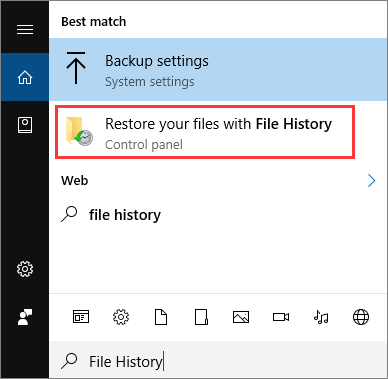
Step 1. To restore your files with File History, you can type "file history" in the search box and click "Restore your files with File History".
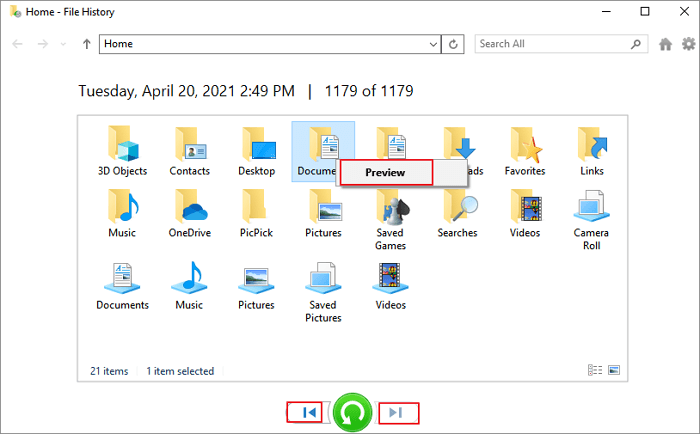
Step 2. The File History backups of the deleted videos will be displayed in the window, allowing you to navigate to the target folder to locate the backup of the deleted videos.
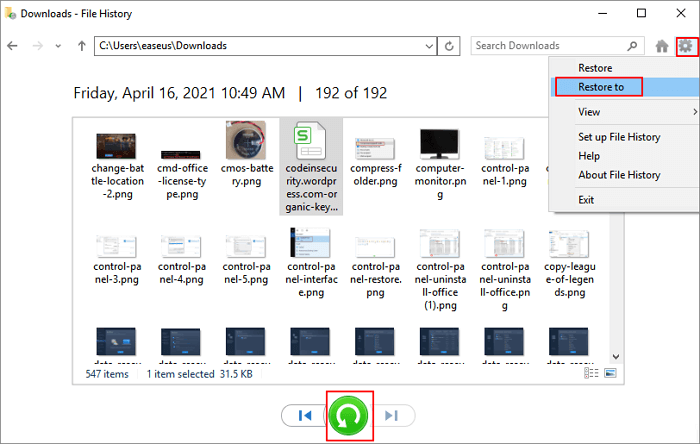
Step 3.After selecting all the videos, you can click the green button to restore them, or click the gear icon to customize the restore location.
This method is useful for recovering permanently deleted files. If File History is disabled or greyed out, try a different approach or move on to the next one. Share this method with your friends!
Method 4. Retrieve Permanently Deleted Videos with Backup and Restore
Windows Backup and Restore is a useful backup and restore option that can create system images and save backup files on internal or external hard drives. To restore essential video files, you can follow a tutorial.
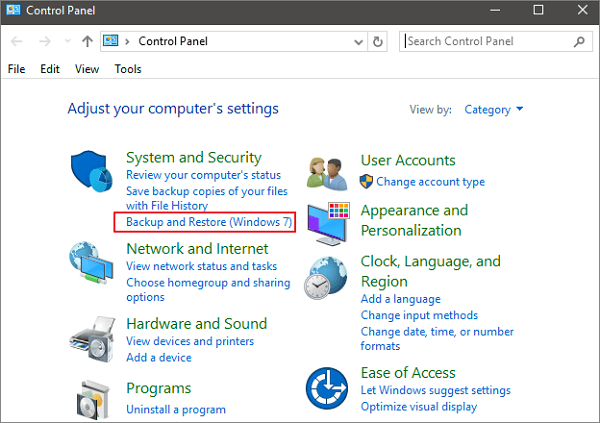
Step 1. To access the Backup and Restore feature in the Control Panel, follow these steps: Open the Control Panel and click on the "Backup and Restore (Windows 7)" option under the System and Security tab. This will allow you to manage your backups and restore points.
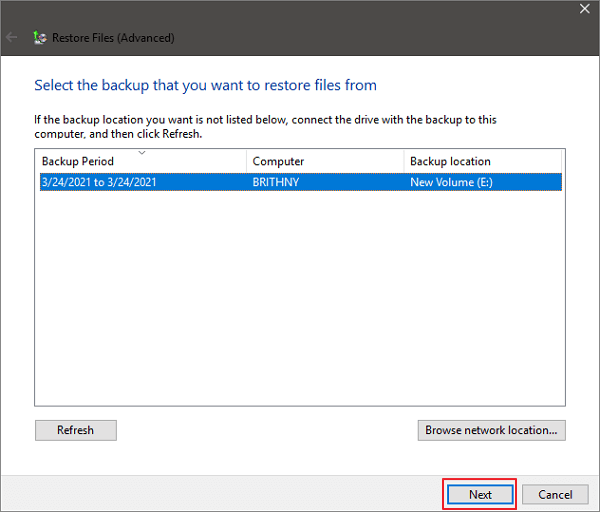
Step 2. To recover deleted videos, select the "Select another backup to restore files from" option to choose a backup of your deleted videos.
Step 3. You'll see the backup time and location in this window, and click "Next" to proceed. Then, follow the prompts to recover deleted files.
Method 5. Get Back Permanently Deleted Videos with Data Recovery Services
If all other methods fail, the last resort is to seek professional help from data recovery experts. This option can be costly, especially if the videos are large and the storage device is in poor condition. However, experts can provide a solution, and Qiling data recovery services are recommended as they offer online consultations, allowing you to discuss your situation and learn about recovery possibilities at any time.
Consult with Qiling data recovery experts for a one-on-one manual recovery service, which includes a FREE diagnosis followed by a range of services offered after the assessment.
- To repair a corrupted RAID structure, unbootable Windows OS, and corrupted virtual disk file, you can try the following steps: First, attempt to boot the system in safe mode or use a Linux live CD to access the disk. Next, use a RAID recovery tool like Qiling Backup to scan and repair the RAID structure.
- Recover/repair lost partition and re-partitioned drive
- To fix a RAW Bitlocker encrypted drive, you need to perform a low-level format on the drive, which will remove the encryption. This process is irreversible, so make sure to back up any important data before proceeding.
- Fix disks that become GPT-protected partitions
Summary
When deleting videos on your computer, be cautious and consider moving them to the Recycle Bin instead, in case of accidental deletion. For permanently deleted videos, the best recovery method on Windows is using a Deep Data Recovery tool, which can automatically scan, filter, and preview files before recovery.
Download and try it now! We believe this software won't make you disappointed!
Permanently Deleted Video Recovery FAQs
Permanently deleted video recovery is a process that allows you to recover videos that you thought were lost forever. If you've accidentally deleted a video or it was deleted by someone else, you may be able to recover it using specialized software or techniques.
1. How to recover permanently deleted videos from my phone?
If you've permanently deleted videos from your phone, don't worry, there's still a chance to restore them. Two effective methods can help you recover your deleted videos.
- Remove the memory card and recover files with data recovery software.
- Restore videos from Google Drive or other cloud backups.
2. Are permanently deleted videos really deleted on Windows?
A video on Windows can be considered free space and overwritten by new data when it's permanently deleted, but it may still be recoverable using specialized software or forensic methods until new data overwrites the space.
3. How to recover permanently deleted MP4 videos on Windows?
Using Deep Data Recovery, you can recover permanently deleted MP4 files on Windows in just three steps: scanning, previewing, and recovering. This process is faster and more efficient.
Related Articles
- Raw Drive Recovery: How to Recover Data from RAW Drive with Ease
- 2 Best Ways to Recover Deleted Minecraft Worlds in Windows 10
- 2023 Best Free Linux Data Recovery Software for EXT2/EXT3
- USB Data Recovery Software Free for USB Flash/Pen Drive Recovery
- How to Recover Hogwarts Legacy Lost Progress on PC/Steam/Xbox
If you've lost progress in Hogwarts Legacy on your PC, Steam, or Xbox, there are practical solutions to recover it. - 3 Ways to Recover Hogwarts Legacy Lost Save on Xbox
If you're experiencing issues with saving Hogwarts Legacy on Xbox, there are ways to recover lost saves.
Products
Articles & Tutorials
- Data Recovery
- Data Backup
- File Recovery
- File Backup
- System Backup and Restore
- Disk and Partition Clone
- Technical articles
- Mobile articles
- Disk Master Help
- Windows Data Recovery Tutorials
- Windows Secure Delete Tutorials
- Windows Partition Management Tutorials
- Windows File Backup and Restore Tutorials
- Windows System Backup and Restore Tutorials
- Windows Disk Backup and Restore Tutorials
- Windows Clone Tutorials