Why Do My Favorites Keep Disappearing in Outlook 365[Cause & Solution]
An Overview of Outlook Favorites
Outlook is a popular email service that offers a personal information manager, allowing users to centralize and manage emails, calendars, contacts, tasks, notes, and more. Additionally, it features a Favorites folder, enabling quick access to frequently used emails, folders, contacts, and other frequently accessed items.
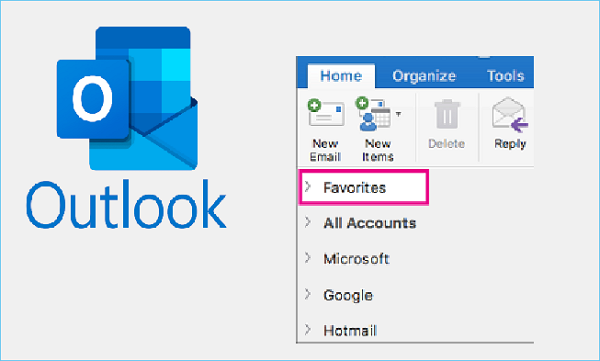
The Favorites folder in Outlook allows users to bookmark frequently used items, such as the Inbox, Sent Items, and others, for quick access without having to search for them every time.
You can turn favorites on or off in Outlook by going to Mail, then View, then Folder Pan, and finally Favorites. This allows you to customize your interface based on your needs.
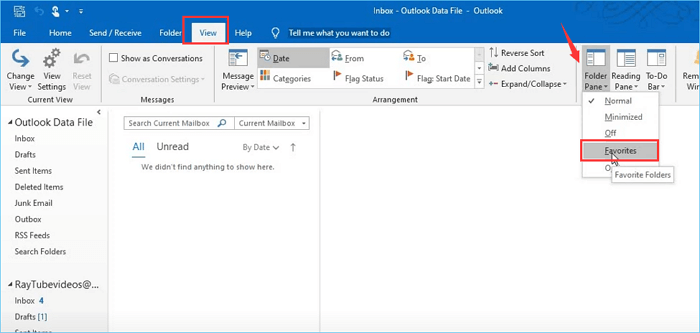
In some cases, users may experience issues with the Favorites function in Outlook 365, resulting in their saved favorites disappearing.
According to users' feedback:
A user is experiencing an issue where their Favorites in Outlook on their laptop keep disappearing after closing and reopening the program. Initially, they tried adding folders like Inbox and Sent Items to Favorites, which worked until the program was restarted, but even these disappeared after a few seconds.
This error can be frustrating. If you're experiencing it, don't worry - I've got some potential reasons and solutions for you. The following content will outline specific causes and fixes to try one by one.
Causes & Solutions to Favorites Keep Disappearing in Outlook 365
1. Outlook 365 Hasn't Been Upgraded or Updated
If you're experiencing issues with Outlook, such as missing Favorites, it may be due to an outdated version. Try updating to the latest version to resolve the problem.
To upgrade Outlook, open the program and navigate to File > Account Settings. In the next window, click on the Update Options button and select Update Now. This will initiate the upgrade process.
2. The Influence of Add-ins and Antivirus Programs
Some add-Disabling incompatible add-ins and programs may resolve issues with Outlook interface, including the disappearance of Favorites, caused by user software such as antivirus software.
To turn off and-ins:
To resolve the issue of Outlook being unable to start due to incompatible add-ins, go to File > Options, select Add-ins from the left menu, uncheck the incompatible add-ins in the right pane, and then restart Outlook. This should fix the problem.
To turn off antivirus programs:
To disable or uninstall your antivirus program, first exit Outlook, then navigate to the Taskbar and right-click on your antivirus program to select Disable or Exit. Alternatively, go to Control Panel > Programs and Features, locate your antivirus program, and uninstall it.
3. The Outlook Client Is Corrupted
If the Outlook client is corrupted, it can cause various issues, including Favorites disappearing in Outlook 365. To resolve this, consider using a professional tool to repair your Outlook client.
4. The Network Connection Is Unstable
An unstable network connection may cause Outlook Favorites to disappear. To resolve this, try reconnecting to the network or restarting your router.
5. The Outlook Profile Is Corrupted
If your Outlook profile is corrupted, it will also cause this issue. To resolve it, you can create a new Outlook profile. This will help to fix the problem.
To delete a profile in Outlook, go to Control Panel > Mail, select Show Profiles from the General tab, choose the profile to delete, and click Remove. Then, restart Outlook to see if it resolves the issue.
6. Outlook Reset
If none of the solutions in this guide work, you can try running the command "outlook.exe /resetnavpane" to see if it resolves the issue. This command resets the navigation pane in Outlook.
- First, close your Outlook.
- Click the Start menu and enter "outlook.exe /resetnavpane".
- To start with an empty Favorites folder in Outlook, click on the option that appears when prompted. This will initiate Outlook with an empty Favorites folder.
- Now, you can add new items to the Favorites.
- To add a file to your Favorites in Outlook, open the app, click on the "Favorites" tab, and then click on "Add to Favorites" and select the file you want to add. After adding the file, close and restart Outlook, and then check if the file is still in your Favorites.
Back Up Favorites to Avoid Losing Important Emails
To avoid losing important emails, it's recommended to regularly back up your Outlook Favorites folder to prevent data loss.
Here we will show you how to do that with two methods. There are many ways to write a program to calculate the sum of all numbers between 1 and 100.
Method 1: Export Favorites as a PST File
- To export emails from Outlook, open the application and go to File > Import and Export. Select Export to a file, then click Next.
- Select Outlook Data File (.pst) in the next pop-up window and click Next.
- Select the items you want to export in the next pop-up window and click Next. The export process will begin, and you will be able to view the progress in the Export Report window.
- In the next pop-To export a file, click on the Export button in the top right corner of the window, select the desired file format from the dropdown menu, choose a location to save the exported file, and enter a name for it. Finally, click Finish to initiate the export process.
Method 2: Use Outlook Backup Software to Back Up Automatically
Qiling Backup Home is a recommended Outlook backup software that allows easy backup of emails and data. It also supports scheduled backups, and backs up data to hard drives, cloud services, network locations, or secure zones, offering more flexibility than PST files which are only available on internal and external hard drives.
Qiling Backup Home provides full, incremental, differential, and compress backup options, maximizing storage space usage and conservation.
To back up your Outlook data, follow these steps:
Step 1. Launch Qiling Backup on your computer, and click File Backup on the home screen.

Step 2. To back up your Microsoft Outlook database folder, navigate to it, select the mailbox addresses you want to make a backup of (mails, contacts, or calendars), and click "OK".

Step 3. To save the Outlook backup, click on the illustrated area to select a location. This will allow you to choose where the backup file will be saved on your computer.

Step 4. The backup location can be a local drive, external hard drive, network, cloud, or NAS, with external physical drives or cloud storage being recommended for preserving backup files.

Step 5. Customization settings like setting an automatic backup schedule in daily, weekly, monthly, or upon an event, and making a differential and incremental backup are available in the Options button if you're interested. Clicking "Proceed" starts the Outlook backup process, which displays the completed task on the left side in a card style.

The Bottom Line
The issue of Favorites disappearing in Outlook 365 can be frustrating, but there are solutions to this problem. It's possible that the Favorites folder is being deleted or moved, or that the sync settings are not configured correctly. To resolve the issue, try checking the sync settings, verifying the Favorites folder is still present, and ensuring that the account is properly configured. Additionally, backing up your data regularly can help prevent losing important emails, and tools like Qiling Backup Home can be useful in protecting your important emails.
FAQ on Favorites Keep Disappearing in Outlook 365
1. How do I get my Favorites back in Outlook 365?
If your Favorites keep disappearing in Outlook 365, you can try various fixes such as upgrading Outlook, reconnecting to the network, restarting your router, creating a new Outlook profile, or running the command outlook.exe /resetnavpane. These steps can be found in the provided post.
2. Why does my Favorites folder in Outlook keep changing?
There are several reasons why your Favorites folder in Outlook might keep changing. For example, if your account is set to synchronize with an Exchange server, changes made on the server will be reflected in your Favorites folder. Another possible reason is that you have multiple profiles set up in Outlook, and you're not using the correct profile.
3. Why did my Outlook shortcuts disappear?
If your Outlook shortcuts have disappeared, it might be due to accidental deletion or a software glitch. You can attempt to recreate the shortcuts or use the command "outlook.exe /resetnavpane" to reset the navigation pane. This may resolve the issue.
Related Articles
- How to Clone SSD to Larger SSD in Windows 10/8/7
- [Newly Updated] How to Download and Backup Facebook Photos
- [Solved] This Application Was Unable to Start Correctly (Error Code: 0xc000007b)
- Qiling Backup vs Acronis True Image
- How to Back Up SD Card Data Before Formatting-4 Ways Included
You can learn how to back up SD card data before formatting on this page. 4 effective methods are provided. Choose the one that suits you best. - How to Back Up SD Card to Computer and Protect Security?
Backing up dozens of data on SD card to computer is time-consuming. If you are upset, you can follow this article. I will show you how to back up SD card to computer in a very short time.
Products
Articles & Tutorials
- Data Recovery
- Data Backup
- File Recovery
- File Backup
- System Backup and Restore
- Disk and Partition Clone
- Technical articles
- Mobile articles
- Disk Master Help
- Windows Data Recovery Tutorials
- Windows Secure Delete Tutorials
- Windows Partition Management Tutorials
- Windows File Backup and Restore Tutorials
- Windows System Backup and Restore Tutorials
- Windows Disk Backup and Restore Tutorials
- Windows Clone Tutorials