How to Transfer Files from PC to PC Using/Without USB Cable | Check Your Full Guide
This paper explores four methods for transferring files from one PC to another, including using a USB cable. Additionally, two other methods are provided that allow for file transfer between PCs without the need for a USB cable.
| Workable Solutions | Step-by-step Troubleshooting |
|---|---|
| To transfer files from one PC to another using a USB cable, first, connect the cable to the USB ports of both PCs. Next, enable file sharing on both PCs by going to the "Control Panel" on the first PC and clicking on "Network and Sharing Center." On the second PC, go to the "Control Panel" and click on "Network and Sharing Center. | Boot both PCs > Take out your USB cable...Full steps |
| To transfer files from one PC to another without a USB cable, you can use the built-in "Share" feature in Windows, or the "Share" feature in macOS. On Windows, go to File Explorer, select the files you want to transfer, right-click and select "Share", then choose "PC" as the destination. On macOS, select the files, right-click and select "Share", then choose "AirDrop" as the destination. |
1. (Fastest Way) Using file transfer software - Qiling Disk Master...Full steps 2. Using an external hard drive...Full steps 3. Using Windows settings - Nearby Sharing...Full steps 4. Using cloud storage...Full steps |
Transferring files from one PC to another can be done in a few easy ways, including connecting the two PCs with a USB data transfer cable, using file transfer software, or storing files in cloud storage. By connecting the PCs with a USB cable or using a software like Qiling Disk Master Free, you can transfer files and even share applications and accounts between the two devices.
P.S. If you enjoyed our guide, you can share it with your friends on various platforms like Facebook, Twitter, Reddit, and more. You can find the share button on the left side. We appreciate your support!
What's the Best Way to Transfer Files from PC to PC
This tutorial showcases four methods to transfer data between two computers in Windows 11/10/8/7, offering a solution tailored to your specific needs.
Case 1. Transfer files, programs, and settings (Large files and the file location is scattered).
Qiling Disk Master: This tool offers a user-friendly way to transfer multiple files, programs, and settings between two PCs for free, with lifetime free upgrades, and serves as data and application backup software for safekeeping.
- Qiling Disk Master -
Your Smart Windows 11 File Transfer
- To transfer files, apps, and settings from your old OS to your new Windows 11, you can use the Windows 11 built-in feature called "Windows 11 Upgrade" or use a third-party tool like Qiling Disk Master, or a cloud storage service like OneDrive. You can also use the Windows 11 Settings app to transfer your personalization settings, such as desktop background, theme, and language.
- 1-Click Product Key Finder for Windows, Office, Adobe apps.
- C Drive Cleaner & Windows 11 Performance Optimizer.
- Rescue Data When Windows 11 Corrupts or Dies.
Case 2. Transfer files (Limited file size and the file location is easy to find).
USB data transfer: USB data transfer is generally faster than wireless networks, but it requires a professional USB cable and some computer knowledge. If that's too much, consider using a simple PC data transfer software to transfer files between PCs.
Nearby Sharing: You can't miss Nearby Sharing, a Windows setting available on Windows 11/10, version 1803 or later, for file transfer tool, as long as your two PCs are under the same network.
C With limited free space, you can sync a few files, but larger files require a recurring monthly payment for additional storage.
P.S. To transfer a few files, you can copy and paste them to an External hard drive via a SATA cable or USB flash drive.
How to Transfer Files from PC to PC Using a USB Cable
If you have a USB cable, you can connect your device to a computer or charger using the following steps: plug one end of the USB cable into the charging port on your device, and the other end into a USB port on the computer or charger, making sure it's securely seated, and then you're ready to go.
For PC-To transfer files from one computer to another using a USB cable, you'll first need to connect the two computers using a USB-to-USB bridging cable or a USB networking cable. This cable has a small electronic circuit in the middle that allows the two PCs to communicate with each other. Once connected, you can transfer files between the computers by inserting one end of the cable into the USB port of each computer. This enables quick and easy file transfer between the two machines.
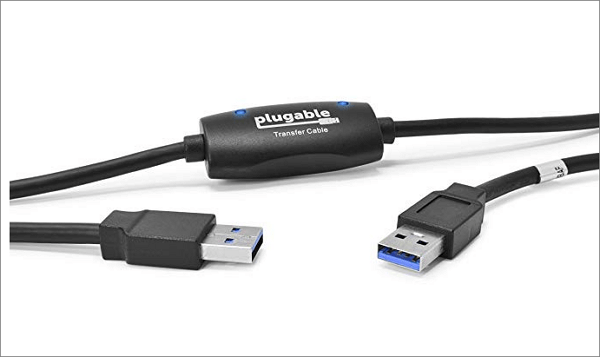
To transfer files between two computers using a USB cable, you can use a technique called USB to USB file transfer. This method allows you to share files between two computers without the need for a network or internet connection. To do this, simply insert a USB drive into one computer, copy the files you want to transfer to the drive, and then insert the drive into the other computer.
Step 1. Boot both PCs, waiting until they finish the startup process and are ready to use.
Step 2. Insert one end of the USB cable into the USB port of your computer 1 and the other end into the computer 2's USB port. Wait for both PCs to recognize the USB cable, which should also initiate an installation wizard.
Step 3. Choose the installation type by selecting the "USB Super link adapter" and hit "Next".
Step 4. Select "High-Speed Data Bridge" from the "Mode" drop-down menu.
Step 5. To access the Device Manager on your computer, click on the Start menu and select "Run...". Then, type in "devmgmt.msc" without quotes and press "Enter".
Step 6. To verify the USB cable, click on the little plus sign to expand "System Devices." Ensure the cable is listed as "Hi-Speed USB Bridge Cable" or a similar name provided by the manufacturer.
Step 7. To install the data transfer software, insert the installation disk into your CD/DVD-ROM drive and follow the guided prompts to complete the installation. This needs to be done on both computers.
Step 8. Launch the program on both computers, and a two-sided window will appear, displaying your computer on the left and the remote computer on the right, where you can transfer data.
Step 9. Select a drive/partition to transfer files, drag desired files/folders to the new location, and disconnect the cable once the transfer is complete.
You can use this method to transfer files from computer 1 to computer 2 or vice versa.
The source page of the above-detailed steps is https://www.techwalla.com/articles/how-to-transfer-data-from-pc-to-pc-using-usb-cable.
- Notice:
- You can move to the next part by downloading the simple file transfer software, which we specialize in for transferring files from PC to PC and simplifying your operation steps.
Transfer Files from PC to PC in Windows 11/10 without Using USB Cable
Transferring data between PCs can be done without a USB cable, making it a simple process.
While data transfer cables may not be a common necessity in daily life, they have various practical uses beyond transferring files from PC to PC via USB cable. To cater to actual demands, these cables can be repurposed for other tasks, such as transferring data between devices, charging devices, and even connecting external storage devices.
1. Qiling Disk Master - Files, Programs, Settings
2. External Hard Drive - Files
How to Transfer Files from PC to PC Using a PC Transfer Software
Applies to: Automatically transfer files, between PC in one click.
While USB-to-USB bridge cables are rare, you can still transfer files between two PCs using Nearby Sharing or cloud storage for smaller files. However, if you have a large number of files that exceed your USB/cloud storage capacity, Qiling PCTans can help you achieve this task.
This software allows you to transfer files from one computer to another, transfer installed programs without reinstallation, and migrate Windows settings easily, using the "PC to PC" mode.
Step 1. Open Qiling Disk Master on both of your computers. Choose "Backup and recovery" to proceed.

Step 2. Connect two PCs via the network by entering the target PC's password or verification code, and ensure the correct transfer direction is chosen before clicking "Connect".
The verification code is located on the top right corner of the main screen of the "File sync" feature on the target computer.
Step 3. To transfer files, select the "Files" option and choose the specific files you want to transfer. Additionally, you can click the Edit icon to customize the storage path for the transferred data.

Step 4. To transfer files from your PC to another PC, click on the "Transfer" button. The time it takes to transfer the files depends on their size, so be patient and wait for the process to complete.

How to Transfer Data Between Two PCs without Network Connection
In the absence of a network connection, transferring data between PCs or laptops can be easily done using the "Backup and Restore" feature in Qiling PCTrans. This allows you to connect two Windows laptops/PCs via a network and move files, apps, and account settings from one computer to another with just one click.
Go to check the article:
How to Transfer Files/Data from PC to PC Without Internet
This tutorial shows how to transfer files from PC to PC without internet on Windows 11/10/8/7. If you want to transfer essential and confidential files on your PC to another computer without using the internet, you can follow this article and transfer files now.
Transferring Data from One Computer to Another via External Hard Drive
Applies to: Manually Copy and paste files.
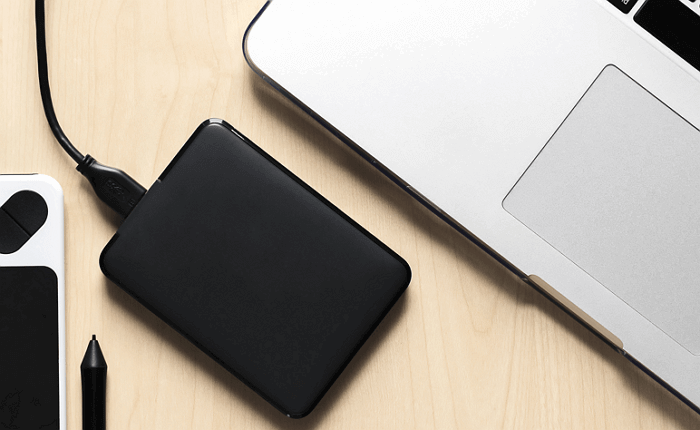
Step 1. Connect your external hard drive to your PC or insert your USB on your computer.
Step 2. Open your File Explorer and find your new device.
Step 3. To upload a file, drag or copy the file you want to upload into the designated area, ensuring your device has sufficient storage space available.
Move Files Between Two PCs via Nearby Sharing
Applies to: Except for OneDrive files, you can migrate files with limited size.
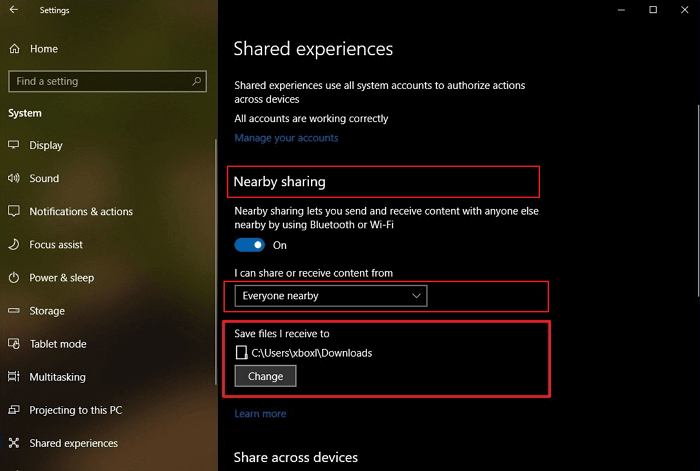
Step 1. To enable Nearby Sharing, go to Settings > System > Shared experiences > Nearby Sharing, select "Everyone nearby" and choose your storage path for sharing or receiving.
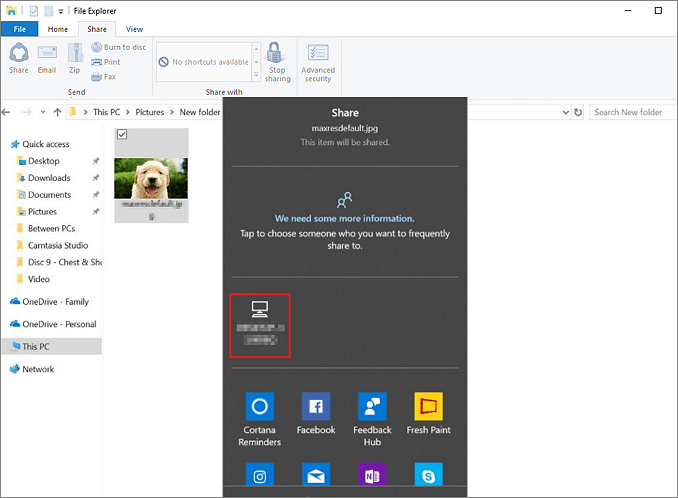
Step 2. To transfer a file, open File Explorer, right-click on the file you want to transfer, select "Share" from the pop-up menu, and then choose the device you want to share it with.
Transfer Files from PC to PC with OneDrive, Dropbox, or Other cloud storage
You have enough free space in your cloud storage to upload and transfer files.
Cloud storage allows you to copy files between PCs without any hardware, but you have to pay for extra storage.
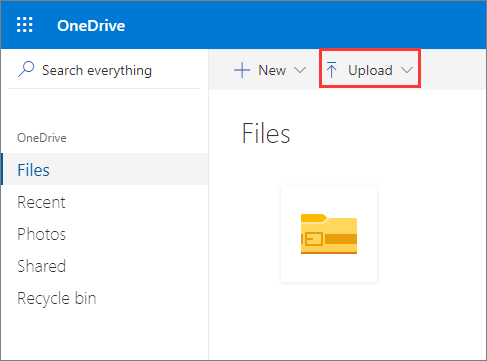
Step 1. Open the File Explorer window and navigate to OneDrive or Dropbox with your user account.
Step 2. To transfer files from your computer to the folder, simply drag and drop the desired files into the folder on your computer. This will move the files into the folder, making them accessible for the transfer process.
Step 3. To sync your files between the two computers, install OneDrive or Dropbox on the target computer and log into the same account.
Step 4. To move files from cloud storage to a new location on your PC, open the cloud storage folder in File Explorer and download the files to the desired location on your PC.
Further Reading: How to Transfer Files from One Mac to Another Using USB Cable
To connect two Macs via USB, you'll need to add a USB-to-Ethernet adapter and an Ethernet cable to the setup. This allows for a wired connection between the two Macs.
Step 1. Connect the USB adapter into a USB port on Mac 1.
Step 2. Connect one end of the Ethernet cable into the RJ-45 port of Mac 2, and the other end into the USB adapter.
Step 3. On two computers, click the Apple menu, then System Preference, select Sharing, and open the Sharing preferences.
Step 4. To connect two Macs, open Finder on one Mac, click "Go" and then "Connect to Server", and then click "Browse" to choose the target computer from the list. If prompted, you may need to enter the target computer's password.
Step 5. Now, drag and drop files between two Macs within this Finder window.
If you're looking to transfer data from one hard drive to another on Windows 10, you can find a related article that provides the solution. (Note: I removed the "Moreover" and condensed the text to fit the one-paragraph format) Let me know if you'd like any further assistance!
Read also:
Related Articles
- How Do I Transfer My Avira to New Computer/Another Drive
- How to Transfer Opera with Bookmarks to a New PC
- How to Transfer Chrome Bookmarks to a New Computer
- How to Locate or Find Large Files in Windows Server 2022/2019/2016
- Migrate User Profile to New Computer with Best Software
You will get 3 Windows 10 profile migration tools and stepwise guide to migrating user profile to new computers. - Two Free Ways for Mobile SD Card Backup
You will find the top 2 easy ways to create mobile SD card backup with the step-by-step guide.
Products
Articles & Tutorials
- Data Recovery
- Data Backup
- File Recovery
- File Backup
- System Backup and Restore
- Disk and Partition Clone
- Technical articles
- Mobile articles
- Disk Master Help
- Windows Data Recovery Tutorials
- Windows Secure Delete Tutorials
- Windows Partition Management Tutorials
- Windows File Backup and Restore Tutorials
- Windows System Backup and Restore Tutorials
- Windows Disk Backup and Restore Tutorials
- Windows Clone Tutorials