How to Free Up C Drive Space in the Windows Server?
A slow PC can be frustrating, especially when it's supposed to handle automated tasks like backups. If your computer is struggling to perform these tasks, it might be due to various reasons such as outdated software, insufficient storage space, or a cluttered registry. In such cases, running a disk cleanup, updating your operating system and software, and performing a registry clean-up can help improve your PC's performance.
The C drive space is likely full due to accumulated backup, log, and temp files, leading to decreased computer performance.
To manage C drive space effectively in Windows Server computers, regular server disk space checkups or cleanups are crucial to free up space. This helps in maintaining optimal server performance.
For the convenience of our readers, we have drafted a few methods to help them free up C drive space in Windows Server, making it easier for them to manage their storage needs.
How to Free Up C Drive Space in the Windows Server - 4 Easy Methods
In most computers, the C drive typically stores all system settings and application files, requiring a significant amount of free space to ensure smooth system operations.
Windows users need to run regular server checkups to remove outdated backup files, temp files, and other unwanted documents on the C drive.
To free up C drive space in a Windows server, consider the following four methods: deleting temporary files, uninstalling unused programs, compressing files, and using the Disk Cleanup tool. By implementing these methods, you can quickly and easily reclaim valuable space on your C drive, making it easier to manage your server's storage needs.
| Workable Solutions | Step-by-step Troubleshooting |
|---|---|
| Method 1. Clean Up C Drive with Qiling Disk Master | Step 1. Open Qiling Disk Master...Full steps |
| Method 2. Uninstall Unnecessary Apps on C Drive | Step 1. Open the Control Panel...Full steps |
| Method 3. Launch Disk Cleanup | Step 1. Go to File Explorer, select This PC...Full steps |
| Method 4. Manually Move Windows Pagefile.sys via Control Panel | Step 1. Press Windows + R key...Full steps |
Method 1. Clean Up C Drive with Qiling Disk Master
To free up C drive space, try deleting temporary files, emptying the recycle bin, and uninstalling unused programs. You can also use the built-in Disk Cleanup tool in Windows to automatically delete unnecessary files.
To move data, migrate old PC files and fully manage a Windows computer system, get the free Qiling Disk Master tool.
Qiling Disk Master provides two options to clean up the C drive: System Cleanup and Application Migration.
System Cleanup allows users to run a complete scan to remove unwanted files, and also helps move data and applications from the C drive to another drive or computer using the Application Migration feature, which can transfer programs without uninstalling them.
Qiling Disk Master offers various features to Windows users, including disk cloning and backup, in addition to its two main features.
- It supports Windows Server/11/10/8/7 and older versions.
- The software can assist you in transferring files from one server to another.
- The software provides three transfer modes: Network Connection, Transfer Locally, and Image Files.
- Qiling Disk Master can recover data from a dead
- The software is easy to use even for those without extensive technical knowledge.
To free up C drive space using Qiling Disk Master, follow these steps:
Step 1. Open Qiling Disk Master on your computer. Click "System Cleanup" and click the "Scan" button to go on.
Step 2. When the scan is finished, a list of junk files will appear. Choose the unwanted files, but be cautious not to accidentally delete files that are essential for your computer's normal functioning or software operation.
Step 3. Click the "Clean up" button and confirm the cleanup operation, freeing up disk space.
Method 2. Uninstall Unnecessary Apps on C Drive
To free up space on your C drive, uninstall any large and unnecessary applications stored on the drive by following these steps:
Step 1. To open the Control Panel, press the Windows key + R on your keyboard to open the Run command box. In the Run command box, type "control" and press Enter.
Step 2. Under the Programs, click on the Uninstall a Program tab.
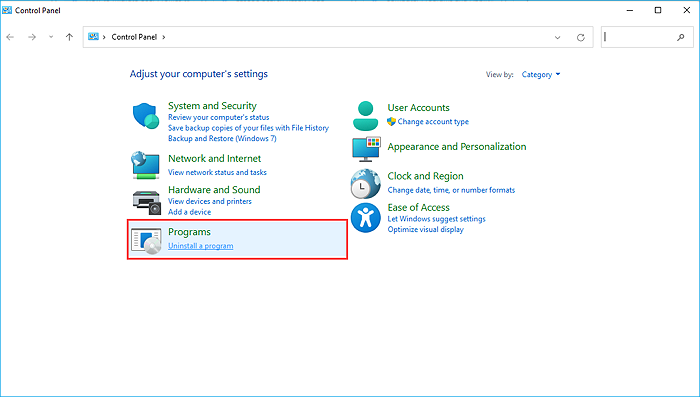
Step 3. To remove unwanted programs, look for them in the list of installed programs, then click on the Uninstall button next to each one to initiate the uninstallation process.
This method is only effective if you have unwanted applications on your computer. If there are no unimportant applications on the C drive, you can use Qiling to migrate heavy programs to a new location, freeing up space on the C disk and keeping all programs within reach.
Method 3. Launch Disk Cleanup
Windows Server users can run Disk Cleanup from File Explorer to free up space by removing unnecessary files like temp files and items in the Recycle Bin. To do this, they can launch Disk Cleanup from File Explorer.
Step 1. To access the properties of the C drive, go to File Explorer, select This PC, right-click on the C drive, and select Properties.
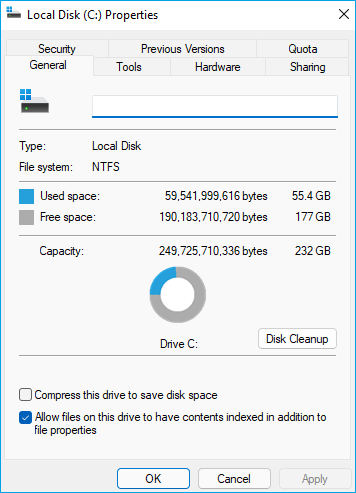
Step 2. To free up space on a C drive in a Windows Server device, click on the Disk Cleanup option in the pop-up window, which will then calculate the amount of space that can be freed up.
Step 3. Check for unnecessary files on the C drive and click OK to clean up the drive.
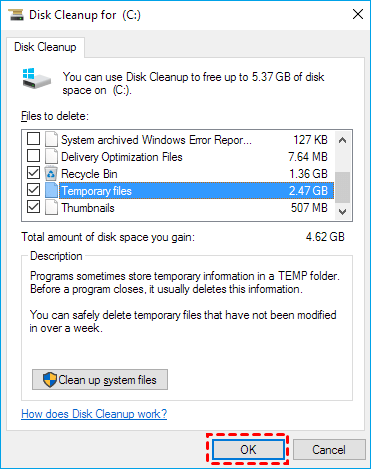
Step 4. Refresh the C drive once to ensure all unwanted files are removed.
Method 4. Manually Move Windows Pagefile.sys via Control Panel
Windows Server full drive issue can be addressed by moving the page file to another drive, which is usually located on the C drive by default to compensate for RAM. To manually move the page file, follow these steps.
Step 1. Press the Windows key + R to open the Run command box, type sysdm.cpl, and press Enter. This will open the System Properties window, where you can view and edit system settings.
Step 2. To access the settings for performance, click on the Advanced tab and then select Settings under the Performance tab.
Step 3. On the Performance Options pop-up window, click on the Advanced tab and then select Change under Virtual Memory.
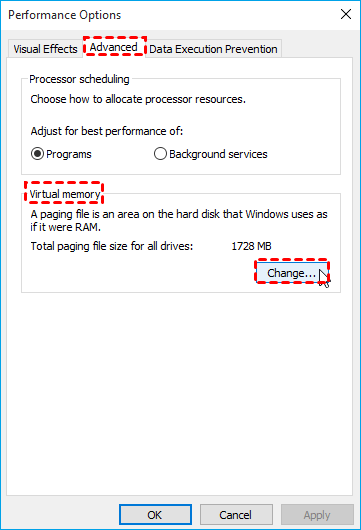
Step 4. To disable the page file on the C drive, uncheck the "Automatically manage paging file" option. Then, select the C drive and choose "No paging file". Finally, click "Set" to disable the page file on the C drive.
Step 5. To move the pagefile on a Windows Server machine, go to the System Properties window, click on the Advanced tab, and then click on the Settings button under Performance. Select the drive to move the pagefile, choose the option for System managed size, and click OK. Finally, reboot the machine to ensure the pagefile is moved effectively and operations run smoothly.
Final Words
To free up C drive space in Windows Server, you can utilize four fast and effective methods to clean up your C drive. These methods can help you quickly reclaim valuable space on your C drive.
Manual page file transfer and uninstalling unwanted files can be a daunting task for many users, making it difficult to keep their system clean and organized. To simplify this process, we recommend using Qiling Disk Master, which allows for quick system cleanups and migration of applications between drives, making it a convenient solution for users who want to keep their system tidy and organized.
You can download the software at any time from the Qiling website and receive 24/7 assistance to help with the application transfer process.
Related Articles
- How to Change Download Location in Windows Server
- AWS Server Backup: How to Back Up A Windows Server to Amazon S3 or Local Server?
- ArcGIS Software Mover|How to Transfer ArcGIS License to Another Computer
- How to Transfer Files from iCloud to OneDrive [Full Guide]
- 3 Methods to Fix The Mounted Backup Volume Is Inaccessible
Encountered "the mounted backup volume is inaccessible"? You can refer to this article and find solutions here. - Best Toshiba Hard Drive Backup Software
We all know that finding a good Toshiba hard drive backup software is very important. It makes the backup task simple and efficient. Click to learn more about backup software and its use steps.
Products
Articles & Tutorials
- Data Recovery
- Data Backup
- File Recovery
- File Backup
- System Backup and Restore
- Disk and Partition Clone
- Technical articles
- Mobile articles
- Disk Master Help
- Windows Data Recovery Tutorials
- Windows Secure Delete Tutorials
- Windows Partition Management Tutorials
- Windows File Backup and Restore Tutorials
- Windows System Backup and Restore Tutorials
- Windows Disk Backup and Restore Tutorials
- Windows Clone Tutorials