Resolved: Transfer TeamViewer with License to a New Computer
To transfer and move installed TeamViewer to a new computer without reinstalling the software, you can follow these steps: First, locate the TeamViewer folder on the old computer, which is usually found in the Start menu or by searching for "TeamViewer". Next, copy the entire TeamViewer folder to a USB drive or external hard drive.
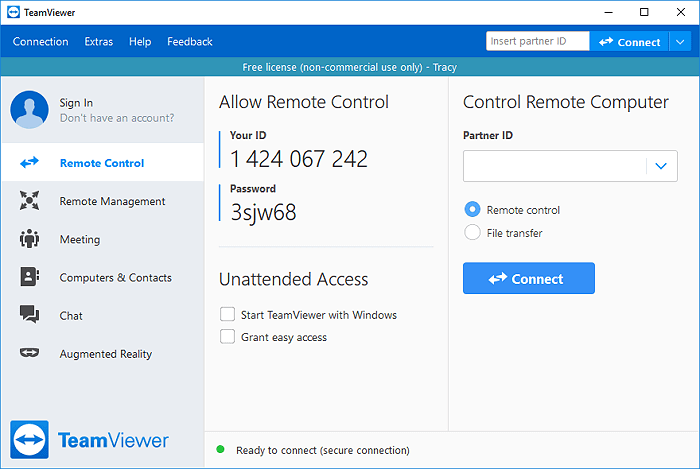
TeamViewer, launched by teamviewer.com in 2005, is a powerful tool that helps users manage their business on various platforms, including Windows PC, Mac, Android, and iOS devices.
With its remote control feature, TeamViewer brought great convenience to people in dealing with their jobs, allowing them to work from anywhere, whether at the office or on travel.
As TeamViewer's popularity grows, so do the issues that come with it. One of the most common problems users face is transferring the program to a new computer and getting it to work again. In this guide, we'll walk you through the process of resolving this issue, helping you to transfer TeamViewer to a new computer and get it up and running smoothly.
How Do I Move Licensed or Transfer Paid-up TeamViewer to New PC
You can transfer the TeamViewer license to a new computer, but you'll need to uninstall it from the old computer first. To do this, go to the TeamViewer website, log in to your account, and follow the instructions to remove the license from the old computer. Once you've done that, you can install TeamViewer on your new computer and enter the license key to activate it.
You can transfer the licensed TeamViewer from your old PC to your new one by uninstalling it from the old PC, then installing it on the new one and entering the same license key. This should activate TeamViewer on your new PC without requiring a new license. Just make sure to back up any necessary files or settings before uninstalling from the old PC.
Many users are concerned about transferring TeamViewer with its license to a new computer, as indicated by the community of TeamViewer and Google search results.
If you're struggling with the same issue or have needs such as..
- 1. How to transfer paid TeamViewer to a new computer
- 2. Move licensed TeamViewer to a new computer
- 3. Move TeamViewer program only to a new PC
Read on, and you'll get professional solutions in the next two parts.
Part 1. Transfer Installed TeamViewer to New PC
Instead of suggesting you re-To transfer TeamViewer to a new PC, you can download the TeamViewer Portable version, which allows you to transfer the program to a new PC without re-downloading it. This version is available for download on the TeamViewer website.
Here are some preparation jobs that need to be accomplished in advance:
- 1. Stop running TeamViewer on your PC and other devices.
- 2. Download a reliable program transfer tool for help:
Qiling Disk Master is designed to transfer installed programs, applications, and saved files/folders between PCs and laptops.
With the software, you can easily transfer desired applications to your target PC in just a few steps, making the process of setting up a new PC a breeze.
Note: To make the transferring process work, you need to install Qiling Disk Master on both computers.
To move TeamViewer to your new PC, first, download the TeamViewer software on your new computer. Then, log in to your TeamViewer account on the new PC using your existing credentials.
Step 1. Run Qiling Disk Master on both PCs
On the source PC, select "PC to PC" on the main screen of Qiling Disk Master and proceed.

Step 2. Connect two computers
1. Connect your target PC by selecting it via its IP address or device name and clicking "Connect".
2. To access the target PC, enter the login password and click "OK" to confirm.
If you didn't see the target PC in the listed devices, you can manually connect the target PC by clicking "Add PC" and inputting its IP address or device name.

Step 3. Select apps, programs, and software and transfer to the target computer
1. You can select and choose what you want to transfer from the current computer to the target PC, allowing you to customize the transfer process and tailor it to your specific needs.
2. To begin the process, select the desired applications and programs, then click "Proceed" to initiate the transfer.

- Tip
- By following the steps outlined, Qiling PCtrans will automatically transfer TeamViewer to the default location - C: drive - on your target computer.
- To use the transferred TeamViewer, you need to restart your PC. This will make it work again.
- To run TeamViewer on the new PC, go to the TeamViewer folder (C:/Program Files (x86)/TeamViewer) and double-click on the TeamViewer.exe file.
Paid users of TeamViewer may be wondering about the paid license and how to reactivate it on a new computer.
Follow Part 2, and you'll find answers to all of these questions.
Part 2. Move TeamViewer License to New Computer and Re-activate It
Here are some solutions that TeamViewer's support team has officially provided. Hopefully, one of these tips will help you to some extent.
About TeamViewer Install Limit:
TeamViewer allows up to three devices to connect to remote devices.
If you have three devices already registered, you can remove an existing device from your license by deactivating it.
- Notice:
- TeamViewer is free for private use, making the need to transfer licenses to a new computer primarily relevant to business users.
- The listed ways are only available for business users and advanced users to try, and are not suitable for free users.
Before You Start:
To confirm how many devices are using the same license, you can check the license details on your account or contact your license provider. Once you have this information, you can proceed with moving the license to the new device.
1. Check if your device is licensed with installed TeamViewer:
- To access TeamViewer, sign into the TeamViewer Management Console, and click "Edit profile" at the top right corner.

- Under the License tab, verify that your device is assigned to your TeamViewer account and that the device name is displayed.
If your device has been activated, it means you have successfully completed the activation process. If not, the current device is not activated. If yes, it means your device has been activated.
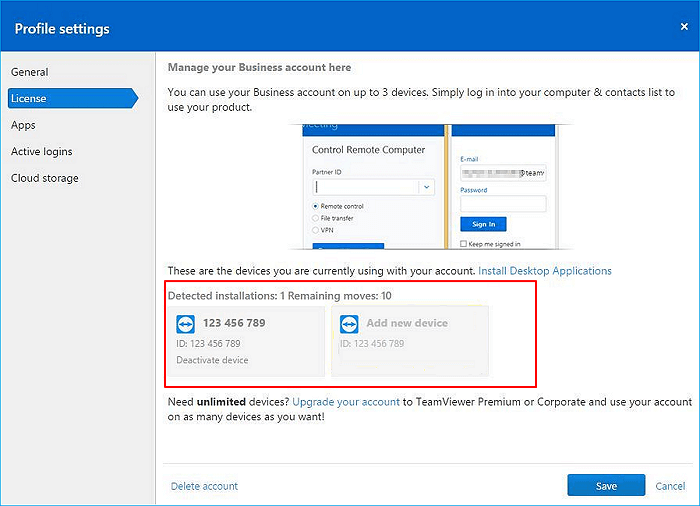
2. Check how many devices - your computers, mobile phone, etc., has been activated with the same account.
- If the number of activated devices is below 3, you can directly sign in with your TeamViewer business license and use it on the new computer.
- If you have three devices, you'll need to remove one device from the Business license and reactivate it on a new device.
Process:
1. Deactivate and Remove Device from Business License
Step 1. Open TeamViewer Management and sign in.
Step 2. Click "Edit profile".
Step 3. To remove your device from the business license, go to the License tab and click the "Deactivate device" button.
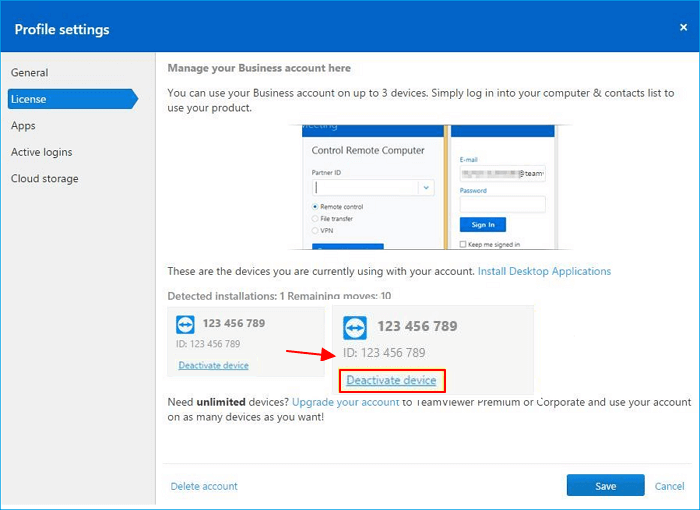
After this, you can move on and add your new computer to the Business license.
2. Add New Device/Computer to Your TeamViewer Business License
Step 1. Open the transferred on your new computer and sign in with your account.
Step 2. Go to TeamViewer Management Console and click "Edit profile".
Step 3. To activate your new computer, go to the License tab, click "Add new device", and enter the device ID of your new computer.
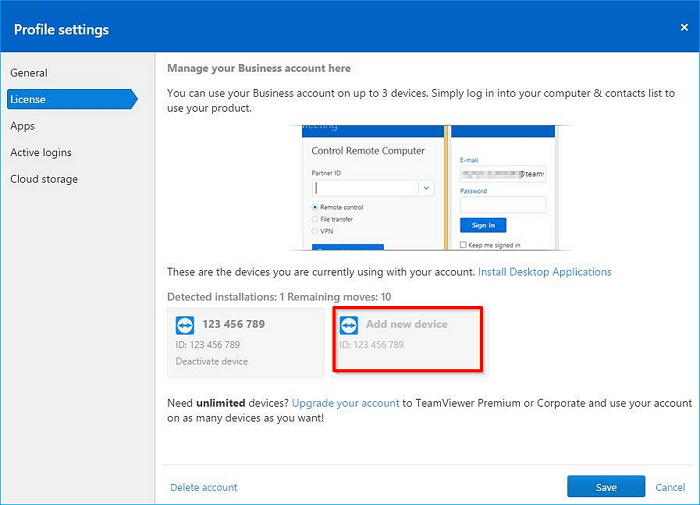
Step 4. Click "Save" and exit TeamViewer.
Step 5. Restart TeamViewer on your new PC to apply the changes.
PLUS: For advanced users with unlimited devices or those experiencing issues moving a license to a new computer, contacting TeamViewer's support team is recommended.
To Sum Up
To transfer TeamViewer and move its license to a new PC, follow these steps: Install TeamViewer on the new PC, then go to the TeamViewer website and sign in with your account credentials. Click on the "My TeamViewer" tab and select the "Devices" option, then click on the device you want to transfer.
First, you need to transfer the TeamViewer program with the help of Qiling Disk Master.
To transfer your TeamViewer license to a new computer, you can apply methods provided by the TeamViewer support team to move the license and activate your new device. This will allow you to continue using TeamViewer on your new computer.
After setting up the new computer, you should be able to access and manage your work files and tools, including remote control and file transfer features, to get back to work quickly and efficiently.
Related Articles
- Windows 10 File Transfer Tool (Windows 11 Available)
- 3 Tips to Uninstall Programs in Windows Server [2022 New]
- Transfer Visual Studio/Visual C++ to Another Computer
- [Easiest] How to Transfer/Move/Migrate Outlook to New Computer
- How to Create Windows 11 Bootable USB with/Without ISO
You can create a Windows 11 bootable USB drive using an ISO image that can be downloaded, or alternatively, use Qiling OS2Go to create a bootable USB drive without the need for an ISO image file. - How to Create Windows 11 to Go
To create a Windows To Go drive under Windows 11, you need to first prepare a USB drive with a capacity of at least 32GB and then download the Windows 11 ISO file. Next, you need to use the Windows 11 Media Creation Tool to create a Windows To Go drive.
Products
Articles & Tutorials
- Data Recovery
- Data Backup
- File Recovery
- File Backup
- System Backup and Restore
- Disk and Partition Clone
- Technical articles
- Mobile articles
- Disk Master Help
- Windows Data Recovery Tutorials
- Windows Secure Delete Tutorials
- Windows Partition Management Tutorials
- Windows File Backup and Restore Tutorials
- Windows System Backup and Restore Tutorials
- Windows Disk Backup and Restore Tutorials
- Windows Clone Tutorials