XCopy vs Robocopy: Which Is Better Windows File Copy & Windows File Backup Utility?
We often need to copy multiple files or directories to another network due to various requirements that need to be performed on our PC or laptop. Fortunately, there are several tools that can help us accomplish this task easily, with XCopy and Robocopy being two of the most popular options.
Copy and Backup Files without Admin Rights
The "You'll need to provide administrator permission to copy this file/folder" error is a common issue that affects many Windows 10/8/7 users. When this error message appears, it can be frustrating for ordinary users who are not familiar with their computer's inner workings.
What Is XCopy?
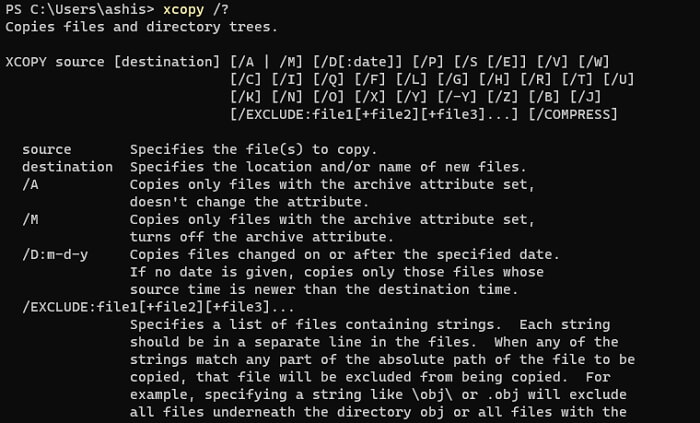
XCopy is a command used in computing for copying files and directories, more advanced than the traditional 'Copy' command, and is built-in in Windows OS.
Supported OS: The XCopy command is supported by operating systems such as IBM PC DOS, MS-DOS, IBM OS/2, Microsoft Windows, FreeDOS, and ReactOS.
Here is the list of some significant features that XCopy offers.
- It can directly copy the directory.
- Exclude files based on extension and file names.
- It can identify updated files.
What Is Robocopy?
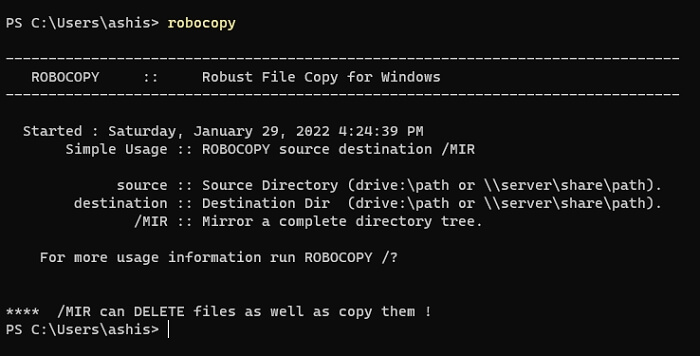
Robocopy, short for Robust File Copy, is a command-line directory or replication command for Microsoft Windows that shares similarities with XCopy but offers more advanced features. It genuinely works as XCopy but grants more functionality to its users.
The Windows Resource Kit was first introduced as a part of Windows NT 4.0, and has been available for all subsequent Windows versions, including Vista and Windows Server 2008.
Supported OS: Windows NT 4 and later i.e. Windows 7, Windows 10, and Windows 11.
Here is the list of features offered by Robocopy:
- It can pre-determine to cope with conflicting file names.
- Option to exclude files and folders
- Operations can be pre-scheduled.
- Mirror one folder to another,
- To ensure consistency across all folders, remove any files in the destination folders that are not present in the root folder. This will prevent discrepancies and maintain a uniform file structure.
- Copies all encrypted files in EFS RAW mode
- Copies files with security
- Create named jobs
Qiling Backup
- Faster backup than any "copy" manner
- Smarterthan manual copy through XCopy or Robocopy
- More flexible for incremental and differential backup
- "My scheduled backup plan includes regular backups of my entire PC, including the operating system and all files, as well as backups of specific disk volumes and email accounts. This ensures that all important data is safely stored and can be easily restored in case of a system crash, data loss, or other unexpected events.
Comparison Of XCopy And Robocopy
Xcopy and Robocopy are two command-line tools used for file transferring, but they have distinct differences. While Xcopy is a basic tool that copies files from one location to another, Robocopy is more advanced, offering features like file verification, logging, and the ability to mirror or backup directories. Robocopy is also more versatile, allowing for the copying of files with specific attributes, such as date modified or file size.
When comparing Windows File and Windows Backup utility, several aspects come into play. We'll focus strictly on copying Windows File and Windows Backup utility in our comparison.
XCopy vs. Robocopy: Mirroring
Robocopy uses mirroring, which is not a feature of XCopy, to synchronize directories. Instead of copying all files from one directory to another, Robocopy checks the destination directory first and removes any files that are no longer present in the main tree, effectively mirroring the contents. This approach is more efficient than XCopy's direct file copying method.
XCopy is similar to RoboCopy, but it doesn't have the same features. Unlike RoboCopy, XCopy doesn't check for files in the target directory before copying and doesn't save time by not copying unchanged files. Instead, XCopy simply copies files from the source to the target directory, without mirroring or checking for changes.
XCopy vs. Robocopy: Speed
Robocopy is faster than the standard Copy command because it uses multiple threads to copy files simultaneously, making it ideal for copying large numbers of files, and resulting in a significant transfer speed advantage.
XCopy vs. Robocopy: Automation
Automation is useful for tasks that require little to no interaction, such as creating daily backups or running batch jobs that take a significant amount of time. Robocopy's "Run Hours" option allows scheduling tasks based on the time of day, while XCopy runs tasks immediately.
The process will be present in the task list as it constantly checks the clock to see when to copy the files, running under the name of robocopy.exe, and logging with the /LOG:file option.
XCopy vs. Robocopy: Monitoring
Robocopy supports directory monitoring with "/MON" or "/MOT" commands, allowing it to periodically check for changes. In contrast, Xcopy lacks this feature. The "/MOT:m" command, for example, checks for changes every "m" minutes and copies the updated file, enabling efficient file saving while working on it. This is particularly useful for periodically saving a file while continuing to work on it.
XCopy vs. Robocopy: Attributes
Robocopy takes the lead in file attribute copying, not only supporting archive and attribute copying like XCopy, but also overall copy attributes, including timestamps, security, owner, and other auditing information.
Maintaining a proper directory structure is crucial, especially for administrators. These little attributes help keep everything organized and tidy.
XCopy vs. Robocopy: Performance
Robocopy outperforms in terms of overall performance, with better results in disk transfer rate, disk write transfer, disk transfer IOPS, disk write IOPS, disk read IOPS, disk average write request size, disk average write request time, CPU usage, and CPU usage system.
XCopy performed better in several disk and process performance metrics.
Limitations of Xcopy and Robocopy
Robocopy has some drawbacks, including the risk of accidentally deleting files or folders due to its simplicity, and the lack of safety features, which can lead to unintended copying of files.
Robocopy offers a feature-rich and faster experience with enhanced performance, making it a better choice than XCopy.
Easy Alternative Windows Backup Utility over XCopy and Robocopy
Robocopy and XCopy are command lines that can be challenging for regular users. Using them without experience can lead to errors. A safer and more user-friendly option is to use a third-party Windows backup software called Qiling Backup.
Here are several reasons why cloud storage is the best way to transfer files and create a backup. It is a secure and reliable way to store and access files from anywhere, and it eliminates the need for physical storage devices.
- It enables you to back up files, folders, partition/disk
- Schedule a differential, complete, or incremental backup
- Graphical interface to clone several partitions
- Clone the Windows OS to a new SSD without it re-installing to a new disk
Robocopy has more features than XCopy, but is harder to use, making Qiling Backup a better option for daily users.
Related Articles
- Windows 10 System Restore from Boot [Windows Tips]
- How to Back Up Windows 10/11 to OneDrive
- How to Install Windows 11 on Another Drive in Quick Steps
- Elden Ring Backup Tips: How to Back Up Elden Ring Save Data
- Can I Transfer Installed Programs to SSD without Reinstallation in Windows 11
Want to transfer installed programs to SSD in Windows 11? This article helps you move files from one place to another, making it easy to do so. - Can I Transfer Kindle Books to Another Device? Sure!
You can transfer Kindle books to another device with ease using three convenient methods. Click to learn how to transform your Kindle books.
Products
Articles & Tutorials
- Data Recovery
- Data Backup
- File Recovery
- File Backup
- System Backup and Restore
- Disk and Partition Clone
- Technical articles
- Mobile articles
- Disk Master Help
- Windows Data Recovery Tutorials
- Windows Secure Delete Tutorials
- Windows Partition Management Tutorials
- Windows File Backup and Restore Tutorials
- Windows System Backup and Restore Tutorials
- Windows Disk Backup and Restore Tutorials
- Windows Clone Tutorials