PDF File Recovery: How to Recover Deleted/Unsaved PDF Files Mac
Quick Navigation:
| Workable Solutions | Step-by-step Troubleshooting |
|---|---|
| Recover Deleted/Lost PDF Files |
1. 3 Steps to Recover Deleted PDF Files...Full steps 2. Recover PDF files on Mac from Time...Full steps |
|
Recover Unsaved PDF Files |
1. Recover Unsaved PDF File with...Full steps 2. Recover Unsaved PDF File on Mac from...Full steps |
PDF files have become extremely popular among users due to their space-saving properties and ease of use. Since they can encapsulate various elements such as fonts, colors, and graphics in a single file, PDFs take up minimal storage space. However, this widespread adoption has led to a significant issue: the high loss rate of PDF files, which has become a major concern.
This page discusses PDF file recovery, including how to recover deleted PDF files on Mac with a professional data recovery tool, recover unsaved PDF files using the Autorecover feature, and repair corrupted PDF files with simple methods.
For free PDF files recovery on Windows, here is the access.
How to Recover Deleted/Lost PDF Files on macOS/Mac OS X
If PDF files are lost or permanently deleted on a Mac, there are two effective ways to recover them. The best approach is to use a robust file recovery program like Deep Data Recovery for Mac. Alternatively, you can also use Time Machine to restore the lost PDF files.
Possible Causes for Loss of PDF Files
PDF files can be lost or deleted due to reasons such as accidental deletion, virus attacks, hardware failure, power outages, and human error.
- Delete PDF files on Mac and empty the trash without backup.
- Hard disk, volume, SD card, USB drive formatting
- Other cases that may require Windows 10 to be reinstalled include reinstallation, system upgrades, virus attacks, partition losses, system crashes, and more.
If you've lost PDF files on Mac due to the problems mentioned, you can recover them using Qiling Mac data recovery software, which has a good reputation for Mac data recovery, including restoring PDF files.
Method 1. 3 Steps to Recover Deleted PDF Files on Mac with a File Recovery Tool
Deep Data Recovery for Mac allows for easy and quick recovery of deleted or lost PDF files from Mac internal/external hard drives and other storage devices.
This tool, apart from recovering PDF files, uses advanced scanning and recovering algorithms to securely retrieve deleted files on Mac, including lost Word, Excel, PPT documents, photos, music, video, emails, and more.
Now, follow steps below to start the PDF files recovery on Mac with a few clicks.
Step 1. Launch Deep Data Recovery on your computer, select file types and click "Fast Scan" to initiate the recovery process.

Note: You can choose different search modes based on where and why the data was lost.
Step 2. Select the disk location where you lost data and click the "Scan" button.

Step 3. Deep Data Recovery for Mac will immediately scan your selected disk volume and display the scanning results on the left pane.

Step 4. Select the file(s) you want to recover from the scan results and click the "Recover" button to have them back.
Method 2. Recover PDF files on Mac from Time Machine
Time Machine is a free tool for Mac users that allows them to back up files to an external hard drive. If you have enabled Time Machine before, you can use it to recover deleted or lost PDF files from previous versions.
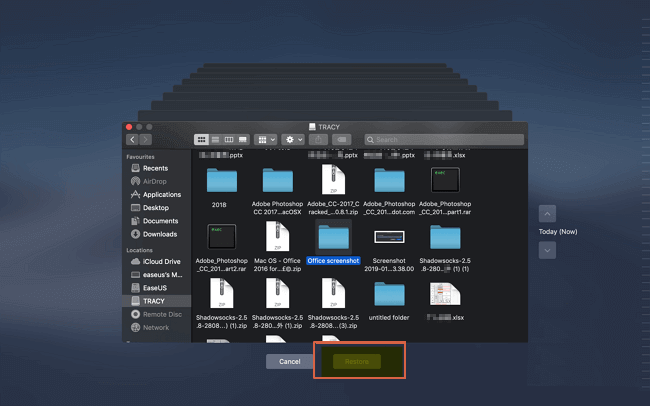
Step 1. Go to "Finder" > "Application", and launch Time Machine.
Step 2. Open the folder where you save your PDF files.
Step 3. To check the PDF files backup, select the target file from the timeline, and press the Space bar to preview it.
Step 4. Click "Restore" to recover the deleted PDF files.
How to Recover Unsaved PDF Files on Mac
Many Mac users experience frustration when they lose unsaved PDF files due to unexpected system crashes, power outages, or improper application closure without saving.
If you accidentally lose an unsaved PDF file, you can try using a data recovery software or a cloud storage service to retrieve the file. Some PDF editors and viewers also have built-in features to recover unsaved files.
Method 1. Recover Unsaved PDF File with AutoSave Feature
To restore unsaved PDF files on Mac, you can turn to the AutoSave feature of Adobe Acrobat or Adobe Reader.
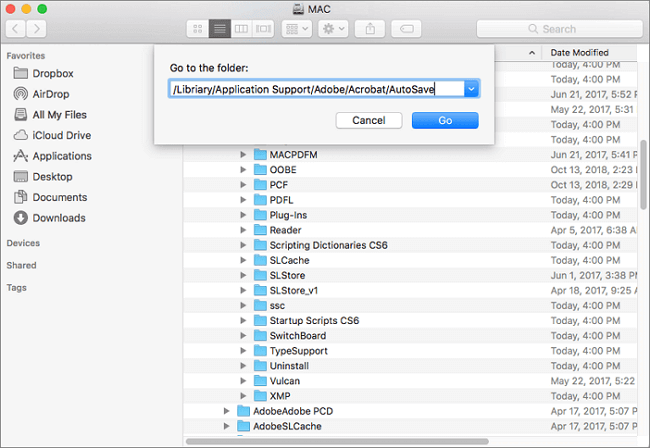
Step 1. Go to the menu bar, select "GO" > "Go to Folder ".
Step 2. Go to the path /Libriary/Application Support/Adobe/Acrobat/AutoSave and click "Go".
Step 3. Open the PDF files using Adobe, and then save them on your Mac.
Method 2. Recover Unsaved PDF File on Mac from Temporary Folder
To recover unsaved PDF files on Mac, you can try looking for them in the Temporary folder. This folder is where Mac stores temporary files, including unsaved documents.
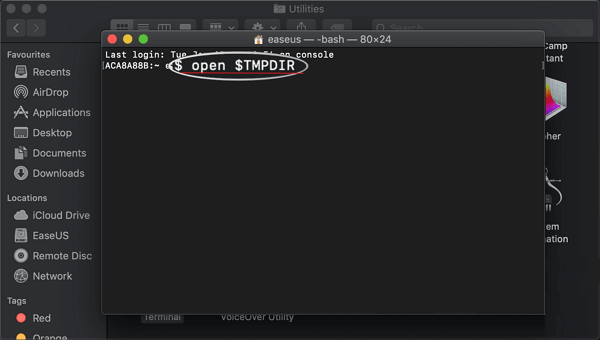
Step 1. To open Terminal on a Mac, go to the Finder, navigate to the Applications folder, then Utilities, and finally launch Terminal.
Step 2. Input open $TMPDIR into Terminal, then press Enter.
Step 3. Find the unsaved PDF files and recover.
How to Repair Corrupted PDF Files on Mac
If your PDF files are damaged on Mac, don't worry, there are ways to fix them. Corruption can occur due to improper download, storage device damage, or even a virus attack. To resolve the issue, you can explore the solutions provided.
- To improve your PDF reading experience, consider using alternative PDF Reader programs such as Adobe PDF Reader, Adobe Acrobat, or other third-party options. These alternatives may offer enhanced features and functionality, potentially resolving issues with the current PDF Reader.
- Restore from previous versions, like previous backups
- You can convert a PDF file to various formats such as images (jpg, png, etc.), graphs, texts, and more using online tools or software.
- You can try using a dedicated PDF repair tool that has a good reputation, such as Adobe Acrobat or PDF-Repair-Tool. These tools can help fix corrupted PDFs by repairing damaged page structures, re-encoding text and images, and re-creating the PDF's internal structure.
To Sum Up
We've covered the most comprehensive approaches to recover deleted and unsaved PDF files, as well as repair corrupted PDF files on Mac, and these tips also work to recover unsaved Word, Excel, and other files on Mac.
Losing data is a common occurrence, but it can be avoided by getting into the habit of backing up important files regularly. Alternatively, equipping your Mac with Deep Data Recovery can help you recover data on Mac to the greatest extent.
FAQs About How to Recover Deleted PDF Files on Mac
Here are the top three frequently asked questions on how to recover lost PDF files on Mac. If you also have any of these problems, you can find the methods here.
How do I recover a PDF on Mac?
Download and use Deep Data Recovery for Mac to recover deleted, lost, or corrupted PDF files on your Mac in a few simple steps.
Step 1. To recover a lost PDF file on a Mac, select the location where the file was originally saved and click "Scan" to initiate the scanning process. This will help recover deleted PDF files on Mac.
Step 2. When the scan is complete, select the PDF files you want to recover and click "Recover" to save them.
Where are PDF files stored on Mac?
To save an online receipt as a PDF instead of printing it directly, click the "PDF" pop-up menu and select "Save to Web Receipt." This will save the PDF to the Web Receipts folder in your Documents folder.
How do I recover a PDF file?
You can recover a PDF file on Mac using Deep Data Recovery, which scans, previews, and recovers deleted, lost, and formatted PDF files with simple clicks.
Qiling file recovery software allows you to recover PDF files from various storage devices, including MacBook/iMac, memory cards, USB drives, SD cards, and external hard drives.
Related Articles
- Folllow 4 Ways to Fix External Hard Drive Files Not Showing on Mac
- Top 5 Best Mac Data Recovery Software in 2022
- [Free] Deep Data Recovery for Mac 2.6 Torrent/Serial Key
- How to Recover Unsaved/Deleted Quicktime Recordings
- How to Recover JPEG from SD Card
It's very easy to recover JPEG from SD card no matter in what cases you lost the JPEG files, deleted it, formatted memory card or your SD card just go corrupt. Check out the SD card JPEG recovery process to get it now! - How to Recover Kaspersky Deleted Files
How can I recover deleted files from Kaspersky? The answer is quite simple and easy to restore files deleted by Kaspersky antivirus.
Products
Articles & Tutorials
- Data Recovery
- Data Backup
- File Recovery
- File Backup
- System Backup and Restore
- Disk and Partition Clone
- Technical articles
- Mobile articles
- Disk Master Help
- Windows Data Recovery Tutorials
- Windows Secure Delete Tutorials
- Windows Partition Management Tutorials
- Windows File Backup and Restore Tutorials
- Windows System Backup and Restore Tutorials
- Windows Disk Backup and Restore Tutorials
- Windows Clone Tutorials