2 Solutions to Wipe iPhone Data Permanently
Summary
To permanently wipe iPhone data and make deleted data unrecoverable by any data recovery software, you can learn how to do it yourself. This is especially useful if you're planning to sell or send your iPhone away. By taking the necessary steps, you can ensure that your personal data is completely erased and cannot be recovered by any data recovery software.
To protect your private information and make your old iPhone usable for others, it's essential to erase all data from it permanently. Whether you're selling, giving away, or recycling your iPhone, deleting everything on the device is necessary. In this guide, we'll show you two solutions to permanently wipe your old iPhone data.
Solution 1. How to Wipe an iPhone via the Settings App
Erasing all content and settings via the iPhone Settings app is the simplest way to wipe your iPhone clean, returning it to its original state. This method allows you to reset everything, including apps, settings, and personal data, making it a convenient option for those looking to start fresh.
Step 1. If you have paired your Apple Watch with your iPhone, you should unpair your Apple Watch.
Step 2. Back up your iOS device.
Step 3. To sign out of iCloud on an iPhone or iPad, go to Settings, then iCloud, scroll down and tap Sign Out. In iOS 7 or earlier, tap Delete Account instead.
Step 4. To delete an iPhone from your account, tap Sign Out, then tap Delete from My iPhone and enter your password. This will remove the device from your account.
Step 5. To erase all content and settings on your iPhone, go back to the Settings app and tap General, then Reset, and finally Erase All Content and Settings. If Find My iPhone is enabled, you may need to enter your Apple ID and password.
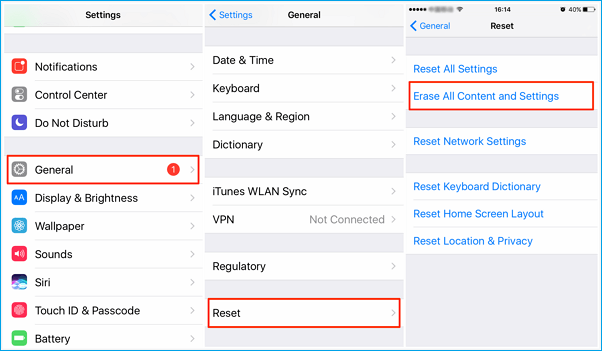
Step 6. If you're prompted for your device passcode or Restrictions passcode, enter it. Then tap Erase [device]. If you've forgotten your passcode, you can instead wipe your iPhone or iPad without a passcode.
Step 7.If you're not using a SIM card, contact your carrier to help transfer service to the new owner. If you are using a SIM card, you can remove it and contact your carrier to get help moving service to the new owner.
Solution 2. Use Third-party iPhone Data Eraser
The idea of erasing iPhone data permanently can be achieved with the help of third-party programs that can wipe data multiple times, making it harder to recover. One such excellent iOS data eraser is Qiling MobiMover, a professional iOS data management software that can import, export, and edit iOS data, as well as serve as an unlocker to bypass passcodes and securely erase everything from your iPhone.
You can download Qiling MobiMover on your computer to have a try.
Step 1. Launch Qiling MobiMover and connect the iPhone to the computer.
Step 2. Select an iOS version for your device and click "Download Firmware". If the firmware has been downloaded already, select the package manually.
Step 3. Please wait for Qiling MobiMover to download and verify the firmware.
Step 4. After the downloading process is complete, click "Unlock" to remove the password and unlock your iPhone.
Step 5. When the process is complete, the iPhone's password is successfully removed, and the device is reset.
Don't Forget The Last Step: Have A Test Whether iPhone Data Has Permanently Erased
Use Qiling MobiSaver Free to test if the iPhone data has been erased permanently, and then double ensure that the data has been completely wiped clean using the two methods mentioned earlier. This will prevent professional data recovery tools from restoring the deleted data. Start the process now.
Step 1. Connect iPhone to Your PC
Launch Qiling MobiSaver. Click "Recover from iOS device" on the left and click "Start".
Step 2. Scan for Lost iPhone Data
Qiling MobiSaver will automatically scan your iPhone/iPad/iPod, finding both existing and potentially lost data, and the process will complete once the scan is finished.
Step 3. Click the "Recover" Button
You can select the specific data you want to recover, such as photos, videos, contacts, SMS, notes, voice mails, and other files, and save them to a new location.
The Bottom Line
If you want to permanently erase everything from your iPhone, you can do so by using the built-in "Erase All Content and Settings" feature, or by restoring the device to its factory settings. You can also use third-party software or a computer to erase the data, or take the iPhone to an authorized Apple Store for a professional wipe. After erasing, you can set up your iPhone as a new device, restore it from a different backup, or give it to someone else without worrying about your personal data being accessed.
Related Articles
- How to Recover Deleted Kik Messages or Chat History on iPhone
- Recover Locked/Disabled iPhone 8/iPhone X Data without Password
- How to Recover Data from Bricked iPhone
- How to Recover iPhone Data from Lost or Overwritten iTunes Backup
- How Do I Recover Permanently Deleted Folders?
Learn four practical ways to recover permanently deleted folders in Windows, including backups, previous versions, File Recovery, and recovery software. - How to Find Missing Drives on Windows 10/11?
How to find missing drives on Windows 10/11? This guide lists five ways for you to find missing computer drives. Meanwhile, you can also learn how to recover missing files in Windows 10/11.
Products
Articles & Tutorials
- Data Recovery
- Data Backup
- File Recovery
- File Backup
- System Backup and Restore
- Disk and Partition Clone
- Technical articles
- Mobile articles
- Disk Master Help
- Windows Data Recovery Tutorials
- Windows Secure Delete Tutorials
- Windows Partition Management Tutorials
- Windows File Backup and Restore Tutorials
- Windows System Backup and Restore Tutorials
- Windows Disk Backup and Restore Tutorials
- Windows Clone Tutorials