How to Recover Deleted Text Messages from iPhone SE
Summary
If you're trying to recover deleted text messages on your iPhone SE or iPhone X, Qiling iPhone data recovery software can help. It allows you to easily retrieve deleted texts on your iPhone, including the SE and other versions.
iPhone SE deleted text message recovery overview
Unfortunately, if you've deleted the messages, they're gone from your iPhone SE. However, you can try using a data recovery app like PhoneRescue or Deep Data Recovery to scan your iPhone and recover the deleted messages. These apps can scan your iPhone's internal storage and recover deleted data, including text messages. If you've synced your iPhone with iTunes or iCloud, you might be able to recover the messages from a previous backup. But if you haven't synced your iPhone recently, it's unlikely you'll be able to recover the deleted messages.
If you've accidentally deleted important text messages on your iPhone SE, you're not alone. Many users have lost vital SMS due to deletion, and they're left wondering how to recover them. Fortunately, there's a solution: using Qiling iPhone data recovery software, you can easily recover deleted text messages from your iPhone SE in 3 ways.
- 1. Retrieve iPhone SE texts by extracting iTunes backup
- 2. Restore iPhone SE messages from iCloud backup
- 3. Recover deleted text messages by scanning iPhone SE
Qiling iPhone data recovery software can recover text messages that are lost due to various situations such as iOS upgrade, jailbreak, factory settings restore, loss or theft of the iPhone, or damage to the device.
Restore deleted iPhone SE/iPhone X messages from iTunes backup
If you've synced your iPhone with iTunes but lost your device, you can use Qiling iPhone data recovery software to extract iTunes backup files and recover lost text messages. This software can help you extract the backup files and save the recovered data to your computer or other storage devices, even if your iPhone is lost, stolen, or damaged.
Step 1. Run Qiling MobiSaver
To recover data from an iPhone or iPad, download Qiling MobiSaver, connect your device to your computer, start the program, select "Recover from iTunes Backup", and choose an iTunes backup to restore your data.
Step 2. Unlock iTunes
If the iTunes backup is encrypted, you'll need to enter the password to unlock it. Once unlocked, Qiling MobiSaver will automatically scan the backup file to find the lost data.
Step 3. Preview and Recover Data from iTunes
After scanning, preview the contents of your lost data, including photos and videos, contacts and messages, notes, and SNS data. Select the files you want to recover and click the "Recover" button to save them on your computer.
How to retrieve deleted iPhone SE SMS from iCloud backup
If you haven't synced your iPhone SE with iCloud or iTunes, you can use Qiling iPhone data recovery software to retrieve deleted SMS from an iCloud backup. This method allows you to recover deleted messages even if you haven't synced your device.
Step 1. Go to "Settings" > "General" > "Reset".
Step 2. Tap "Erase All Content and Settings" to reset your iPhone.
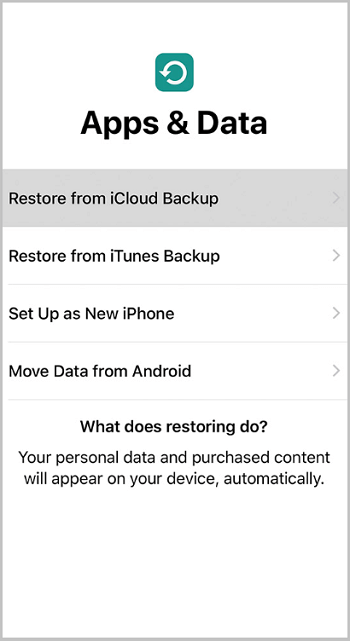
Step 3. To set up your iPhone, choose "Restore from iCloud Backup" on the Apps & Data screen.
Step 4. Sign in with your Apple ID and tap "Choose backup".
Step 5. To restore your iPhone from the most recent iCloud backup, follow these steps: Open the Settings app on your iPhone, tap on your name at the top, then tap on "iCloud" and select "iCloud Backup." Tap on "Back Up Now" to create a new backup, or tap on "Restore from iCloud Backup" and select the most recent backup from the list.
How to recover deleted texts directly from iPhone SE
If you're having trouble restoring deleted iPhone SE text messages from an iTunes or iCloud backup, you can try using Qiling iPhone data recovery software to scan your iPhone SE and potentially recover the deleted messages.
Step 1. Choose the Recovery Mode
Connect your iPhone to your PC, launch Qiling MobiSaver, click "Recover from iOS Device" and then "Start".
Step 2.Scan iPhone for Lost Messages
Qiling MobiSaver will automatically scan your iPhone and find lost messages and message attachments for you, including iPhone 13/12/11/X/XR/XS/8/7/6/5/4.
Step 3.Preview and Restore Lost Messages
Tick "Messages" and "Message Attachments". Choose the messages and attachments that you want to recover. Click "Recover to PC" or "Recover to Device" to decide where you'd like to restore them.
Qiling iPhone data recovery software can retrieve deleted text messages on iPhone SE in three ways. It can also be used to recover deleted texts from other iPhone models, such as iPhone 6. Users can choose a recovery mode that suits their specific data loss case and try the software to see if it works for them.
Related Articles
- Where Do Deleted Text Messages Go on iPhone [Text Message Recovery Tips]
- Top 7 Best iPad Data Recovery Software 2022 Update
- Top 8 Best iPhone Data Recovery Software for Windows/Mac [Free and Paid]
- How to Restore Old & Deleted Voice Memos on iPhone
- How to Recover Deleted Files from TRIM Enabled SSD
Recovering deleted files from a TRIM-enabled SSD can be challenging, but Deep Data Recovery can help. - 5 Ways for How to Recover Deleted Games on Windows 11/10 PC [2023 Guide]
If you've accidentally deleted games on your Windows 11/10 PC, there are ways to recover them. You can try checking the Recycle Bin, which may still have the deleted games stored in it.
Products
Articles & Tutorials
- Data Recovery
- Data Backup
- File Recovery
- File Backup
- System Backup and Restore
- Disk and Partition Clone
- Technical articles
- Mobile articles
- Disk Master Help
- Windows Data Recovery Tutorials
- Windows Secure Delete Tutorials
- Windows Partition Management Tutorials
- Windows File Backup and Restore Tutorials
- Windows System Backup and Restore Tutorials
- Windows Disk Backup and Restore Tutorials
- Windows Clone Tutorials