Where Do the Deleted Files Go on iPhone, How to Recover Deleted Files on iPhone 13/SE/12/11
Summary
Deleted files on an iPhone are stored in a temporary location, but their exact whereabouts can be a mystery. Fortunately, with the help of Qiling MobiSaver, it's possible to recover permanently deleted files on iPhone, even without a backup. This tutorial will guide you through the process, so you can breathe a sigh of relief and retrieve your lost files.
| Workable Solutions | Step-by-step Troubleshooting |
|---|---|
| Where Do Deleted Files on iPhone | When deleting files, the file could move to a temporary location or can be removed forever...Full steps |
| Recover Recently Deleted Files on iPhone | When you delete the photos on the device, it will directly go to the Recently Deleted album...Full steps |
| You can recover permanently deleted files on your iPhone using iOS data recovery software. This software can scan your device for deleted files and recover them, even if they've been permanently deleted. | Use an iPhone data recovery software to restore different files from iPhone like contacts, photos...Full steps |
| Recover Deleted Files on iPhone with iTunes Backup | Connect the iPhone to the computer. Open iTunes on the computer. Select the phone icon...Full steps |
| Recover Deleted Files on iPhone from iCloud Backup | Go to the Settings app on the iPhone. Click on General. Press the Reset button. Click on the Erase...Full steps |
iPhone users often worry about deleted files, as the device doesn't have a designated trash or recycle bin, making it difficult to recover deleted content. This can be frustrating for those who accidentally delete important files or wish to retrieve deleted data.
While there's no guarantee of recovering deleted files on your iPhone, you can still try. Multiple methods are available to attempt to recover lost files, so you don't need to panic about losing precious data on your device.
Where Do Deleted Files on iPhone Go
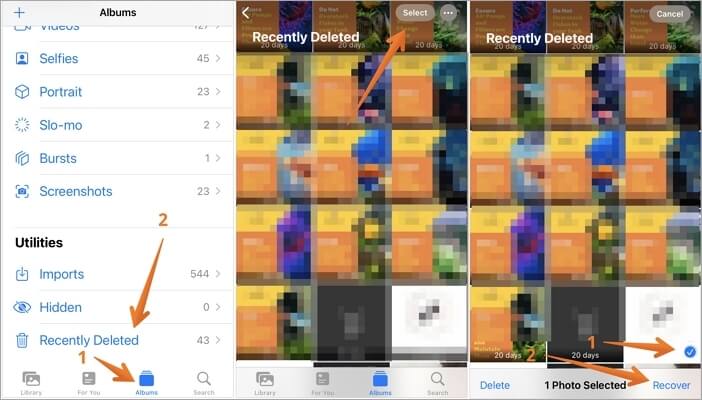
When you delete items on your iPhone, they don't simply disappear. Instead, they are moved to a hidden folder called "Recently Deleted" in the Photos app, where they remain for 30 days. This means that if you accidentally delete something, you can retrieve it within this timeframe by going to the Photos app, tapping on "Albums", selecting "Recently Deleted", and then tapping "Select" to choose the item you want to recover. After 30 days, the deleted items are permanently erased from your iPhone, so it's essential to act quickly if you need to recover something.
The iPhone OS performs operations like deleting, creating, and restoring files, and when deleting, files can either be moved to a temporary location or permanently removed, depending on the situation.
1. Where Do Temporarily Deleted Files on iPhone
If your iPhone is running on iOS or later versions, you're lucky! Deleted photos will automatically go to a "Recently Deleted" album, making it easy to recover them if needed.
You can access all the deleted images from this album, but they will be automatically deleted after 30 days and the deletion is permanent.
You can easily restore the photos you want by selecting the images you wish to recover and then clicking the Recover button, which will then retrieve them on the Camera Roll.
2. Where Do Permanently Deleted Files on iPhone
If you delete photos from the Recently Deleted album, panic and anxiety are sure to follow. However, you can still try to retrieve the images, making the situation a bit less tricky.
When you delete images from the Recently Deleted album, you need to understand that the photo is gone forever. It has been deleted permanently.
Although the photo is no longer visible on the Photos app, the data is still stored on the device. To recover the file, you can try looking for it through iCloud or iTunes backup, where the data is likely still stored.
To use this feature, you need to regularly back up your app data through iTunes or iCloud, so that you can restore it if needed.
Warning: Restoring files from iTunes or iCloud backup will delete and replace any new data created between backup and restoration time.
3. How to Check Recently Deleted Files on iPhone
To find recently deleted files on an iPhone, go to the Photos app, click on the Albums tab, scroll down to the bottom, and tap on the "Recently Deleted" folder. This will display all your recently deleted files.
How to Recover Recently Deleted Files on iPhone
You can recover deleted files on your iPhone by going to the Photos app, then selecting the "Albums" tab, followed by "Recently Deleted". From there, you can select the files you want to recover and tap "Select" to move them back to your iPhone's camera roll. Note that you can only recover files for thirty days after they were deleted. If you've exceeded that timeframe, the files will be permanently deleted. Additionally, if you've deleted files from other apps, such as Notes or Messages, you may need to check the app's settings or the iPhone's storage settings to see if the deleted files are still stored there.
How can I retrieve files from the Recently Deleted album on my device? To retrieve files from the Recently Deleted album, follow these steps:
Step 1. To access the Recently Deleted album in the Photos app, open the Photos app, select the "Albums" tab, and navigate to the "Recently Deleted" album.
Step 2. To view deleted photos, open the Photos app, go to the "Albums" tab, and select "Recently Deleted" from the list. This will show you all the images that have been deleted from your device.
Step 3. To restore deleted images, tap on the "Select" button, then choose the images you want to recover, and finally click the "Recover" button in the bottom-right corner.
How to Recover Permanently Deleted Files on iPhone Without Backup
If you've permanently deleted files on your iPhone, don't worry - there are still options available. While recovering deleted files is relatively easy within the thirty-day timeframe, permanent deletion can be a challenge. Fortunately, specialized data recovery software can help retrieve deleted files and images even after the thirty-day window has passed.
Qiling MobiSaver is a top-notch iPhone data recovery software that makes it easy to restore lost data from your iPod, iPhone, and iPod touch. With its user-friendly interface and wide range of features, you can recover various types of iOS data, including videos, photos, messages, contacts, and more. This software is a reliable tool to aid in the restoration of lost data, making it a valuable asset for anyone who needs to recover their important files.
Qiling MobiSaver stands out for its unlimited data recovery capability, allowing users to restore as much data as needed without any daily limits. The app provides three modes to recover files from iOS devices, offering flexibility and convenience.
Restoring from the iOS device: To recover deleted files on your iPhone, you need to connect it to your computer. Once connected, you can scan and restore any deleted files, including permanently deleted photos, using a data recovery software.
Restoring from iCloud backup: The software allows for easy restoration of deleted data from iCloud backups, making the process hassle-free and straightforward.
Restoring from iTunes backup: You can recover deleted data from an iTunes backup using Qiling MobiSaver, which can help you retrieve the data if you have backed up your iPhone with iTunes.
However, the easy-This software offers a user-friendly interface, allowing you to quickly recover lost data with just a few clicks. Its advanced algorithms and powerful scanning capabilities ensure a high success rate of data recovery. The software also provides a preview feature, enabling you to view the recovered files before deciding whether to save them.
Step 1. Connect iPhone to Your PC
Download and launch Qiling MobiSaver, then click "Recover from iOS device" on the left and finally click "Start".
Step 2. Scan for Lost iPhone/iPad/iPod Data
Qiling MobiSaver will automatically scan your devices, and find all the lost data for you. Just wait for the scan to complete.
Step 3. Recover Lost iPhone/iPad/iPod Data
You can select the lost data you want to recover, such as photos, videos, contacts, SMS, notes, voice mails, and other files, and save them to a new location.
How to Recover Deleted Files on iPhone With iTunes Backup
To recover deleted files on your iPhone, you can opt for iTunes backup, where you can restore the deleted files from the backup. Alternatively, you can use a third-party data recovery software to retrieve files from the iTunes backup. To do this, follow the steps to restore the backup and then use the software to recover the deleted files. This method allows you to recover deleted files on your iPhone.
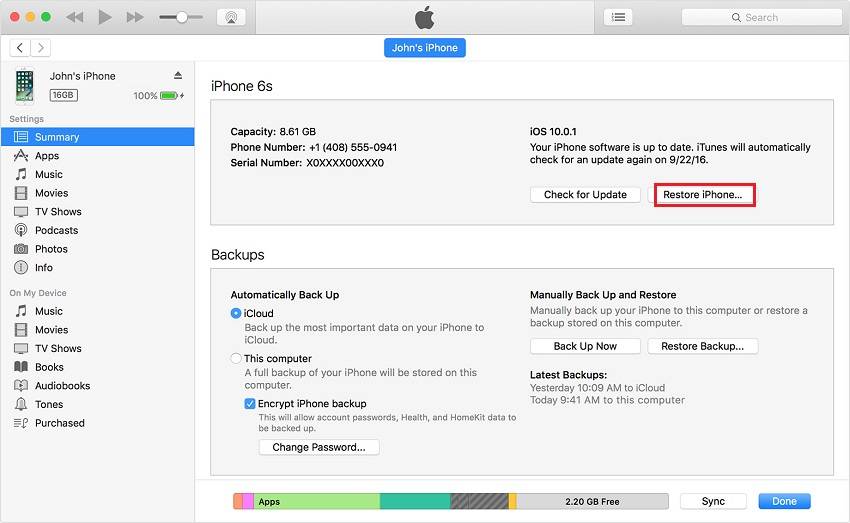
Step 1. To connect an iPhone to a computer, start by physically connecting the iPhone to the computer using a USB cable. Next, open iTunes on the computer. Select the phone icon in the top-left corner of the screen, and then navigate to the "General" section.
Step 2. In the Backups panel, click on the "Restore Backup" button, then select the desired iTunes backup and press "Restore".
To recover deleted files on your iPhone, you can use the built-in "Recently Deleted" album in the Photos app, or use third-party recovery software such as Deep Data Recovery or PhoneRescue. If you have backed up your iPhone to iCloud or iTunes, you can also restore the backup to recover the lost files. Additionally, if you have enabled iCloud Photo Library, you can also recover deleted photos from your iCloud account.
How to Recover Deleted Files on iPhone From iCloud Backup
Apple has ensured the protection of your data via iCloud, making it easy to restore deleted data and minimizing the hassle of data loss.
To use iCloud for data recovery, you need to ensure that the iPhone has an iCloud backup, which can be synced with the device to aid in the restoration of data.
To recover deleted files on your iPhone from an iCloud backup, you'll need to restore your iPhone from the most recent backup that was made before the files were deleted. To do this, go to Settings, then tap on your name at the top, followed by "iCloud" and "iCloud Backup".
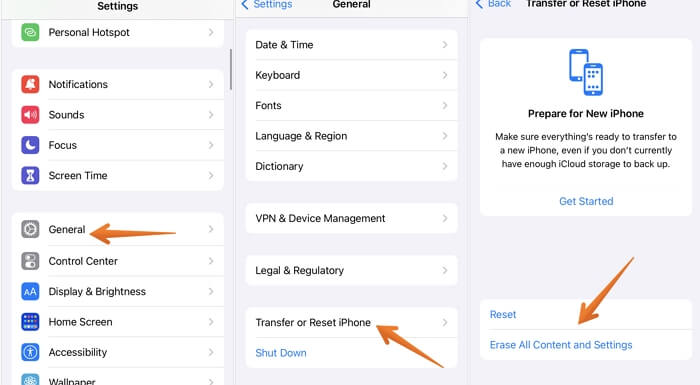
Step 1. To reset an iPhone, go to the "Settings" app, click on "General", press the "Reset" button, and then click on "Erase All Contents and Settings".
Step 2. You'll see a pop-up message with documents and data uploaded to iCloud. Click on "Erase Now".
Step 3. To restore an iPhone from an iCloud backup, follow the on-screen instructions until you reach the "Apps & Data" section, then select "Restore from iCloud Backup". Log in to your iCloud account and enter your password when prompted. Finally, choose the backup file you want to restore.
You need to wait for the process to be over. After that, you can proceed.
Concluding Words
If you've accidentally deleted files on your iPhone, they may still be recoverable from the Recently Deleted album. However, if they've been permanently deleted, you may need to use a third-party data recovery software to retrieve them.
Qiling MobiSaver is a user-friendly and reliable data recovery software that can easily retrieve lost data. Its simple operating steps allow for desired results within a few minutes, making it a convenient option for those in need of data recovery assistance. By downloading the app, users can access its exciting features and get started with data recovery right away.
Related Articles
- How to Restore LINE Chat History on iPhone, Android, and PC Without Backup
- 3 Methods to Retrieve Deleted Text Messages on iPhone 6/6s
- How to Free Restore Lost or Deleted Notes from iPhone
- How to Recover WeChat Chat History/Messages on iPhone
- Fix Command Cannot Be Performed Because a Dialog Box is Open
To resolve the error message “Command cannot be performed because a dialog box is open” when running an older version of Microsoft Word on Windows 10, follow these steps: click “OK” on the error message, then close any open dialog boxes in Word. - Fix Stuck at Windows Is Loading Files Loop
During the Windows setup process, users of Windows 7 or Windows Vista may get stuck at the “Windows is loading files” screen or experience a loop, preventing them from completing the setup.
Products
Articles & Tutorials
- Data Recovery
- Data Backup
- File Recovery
- File Backup
- System Backup and Restore
- Disk and Partition Clone
- Technical articles
- Mobile articles
- Disk Master Help
- Windows Data Recovery Tutorials
- Windows Secure Delete Tutorials
- Windows Partition Management Tutorials
- Windows File Backup and Restore Tutorials
- Windows System Backup and Restore Tutorials
- Windows Disk Backup and Restore Tutorials
- Windows Clone Tutorials