How to Restore LINE Chat History on iPhone, Android, and PC Without Backup
Summary
LINE users can restore their chat history using Qiling iOS data recovery software on iPhone, or by following other methods on Android devices and PC.
| Workable Solutions | Step-by-step Troubleshooting |
|---|---|
| Restore LINE chat from iPhone without Backup | Use reliable iOS data recovery software to restore LINE chat history, videos, and photos easily. Connect iPhone to your PC and launch Qiling MobiSaver > scan...Full steps |
| Restore LINE chat history on Android | Launch LINE on your Android device and go to its Settings > Chats menu, where you can enable...Full steps |
| Restore LINE chat history on PC | On your iOS device, open the LINE application. After that, choose the "Chat" room you want to back up and access from your PC. Select the "Settings"...Full steps |
| Back up LINE chat history | Option 1. Back up to iCloud on iPhone...Full steps Option 2. Backup to Google Drive on Android...Full steps |
LINE Chat allows free voice, video, and text communication with friends and relatives. However, due to frequent phone upgrades and technicalities, users may suddenly lose their chat history. To prevent this, creating a backup of LINE Chat history is crucial, enabling users to restore it whenever needed.
To protect your data, it's best to back up your phone's contents on your computer. Here are the detailed steps on how to restore LINE chat history on your iPhone, Android, and PC.

How to Restore Deleted LINE Chat History on iPhone Without Backup
To restore LINE chat history, you can try checking your device's storage for any saved chat data, looking for a "Backup" or "Restore" option within the LINE app, or contacting LINE's customer support for assistance. If you've previously backed up your chat history, you can try restoring it from the backup. If not, you may be able to recover some data through a data recovery service or by using a third-party app. However, please note that some data may not be recoverable, especially if it's been deleted or corrupted.
Qiling MobiSaver is an advanced iPhone and iPad data recovery program that allows you to recover deleted messages, photos, videos, contacts, chat histories, messages, and more on iOS devices.
Main Features of Qiling MobiSaver
- iMyFone D-Back is a software that helps in recovering data from iOS devices such as iPhone and iPad models.
- This tool can recover all erased line conversations in minutes by connecting to the device, scanning for deleted data, and retrieving the conversations.
- The software allows you to preview and select specific line messages you want to restore.
- The app allows for the recovery of various data types, including photos, contacts, videos, music, texts, WhatsApp messages, call logs, and calendars, in addition to line messaging.
Follow these instructions to restore your LINE conversations with Qiling MobiSaver for LINE:
Step 1. Connect iPhone to Your PC
Launch Qiling MobiSaver, choose the "LINE" button, and select "Device Storage" from the menu.
Step 2. Analyze iPhone/iPad/iPod
The software will analyze your device to perform LINE data recovery, allowing you to recover your lost or deleted LINE messages, contacts, and other data.
Step 3. Scan iPhone and Find LINE Data
Qiling Mobisaver will automatically scan your iPhone and find present LINE data and even some lost data for you, regardless of the iPhone model.
Step 4. Preview and Restore LINE Chats or Attachments
Select "LINE" or "LINE Attachments" on the left to preview them. Then, select "Recover to PC" or "Recover to Device" to save your LINE data.
How to Restore LINE Chat History on Android
To backup and restore LINE conversation history on an Android smartphone, sync your LINE app with your Google account, which will save your conversations.
To backup and restore your LINE conversation history on an Android device, first, ensure you have enough space on your Google Drive to handle the LINE backup. Then, open the LINE app, go to Settings, and select "Backup and restore chat history." Choose Google Drive as the backup location and follow the prompts to complete the backup process.
Step 1. To enable the backup and restore feature for LINE on your Android device, go to the app's "Settings > Chats" menu and turn on the functionality to back up and restore your conversation history.
Step 2. From this screen, select the option to save your chats to Google Drive for backup purposes, and also verify that LINE is linked to the correct Google account by tapping on it in the "Google Account" area.
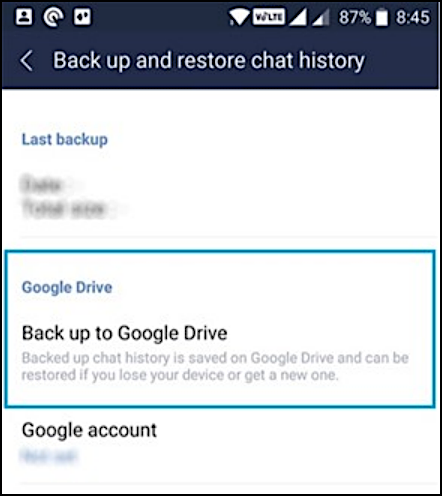
Step 3. The program will create a backup of your LINE conversations on the Google account that you have connected to it.
Step 4. LINE can be reinstalled on the same smartphone or another Android device when this is completed. The new device should be associated with the same Google account as the the old one.
Step 5. After that, go back to the "Back-up & Restore" settings and click on the "Restore" option to get your conversations back.
How to Restore LINE Chat History on PC
Losing data, including chats, can happen suddenly due to constant phone upgrades or other obstructions. To avoid this, it's essential to create a backup of your LINE chat history so you can restore it whenever you need to.
To back up and restore data on your computer, you can use the built-in backup and restore feature in your operating system. This feature allows you to select the files and folders you want to back up, and then creates a copy of them on an external hard drive or cloud storage service. You can also use third-party backup software, such as Qiling Backup, to back up and restore your data.
Step 1. You can save LINE conversation history in plain text format, which can be easily read by any PC. To do this, you'll need to copy the plain text file to your computer's hard drive. This will allow you to preserve your conversations for future reference.
Step 2. To backup and access a LINE chat room on your PC, open the LINE application on your iOS device, then select the "Chat" room you want to back up and access from your PC.
Step 3. To access the settings menu, press "V" and select "Settings" from the drop-down menu.
Step 4. Go to the "Export Conversation History" option, select it to export your chat history to your PC, and copy the LINE backup conversation history to your computer.
Bonus Tips: How to Back Up LINE Chat History
You can back up your LINE chat history using two methods. To do so, follow the steps below.
Option 1. Back Up LINE Chats to iCloud on iPhone
If you're an iOS user who's had trouble backing up your LINE conversation, you can try creating a permanent backup using iCloud. This process is similar to backing up on Google Drive through the LINE app, and it can help you preserve your conversation.
Note: To be able to use the iPhone, you must have an active iCloud account, and your device must be running iOS 8.1 or later. Follow the steps in this guide to get started.
Step 1. To open the LINE app on your iPhone, start by tapping the LINE icon on your home screen. Once the app is open, look for the three horizontal lines in the top-left corner of the screen.
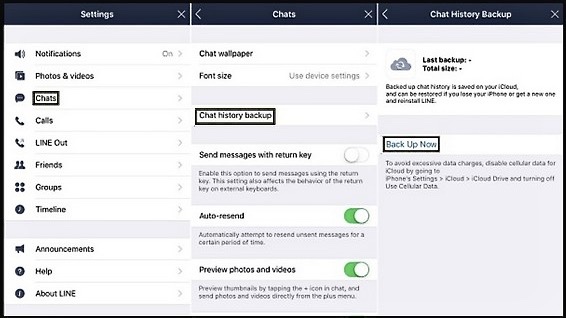
Step 2. Navigate to the "Settings" menu and choose the "Chat" option.
Step 3. Select “Back up now” from the “Conversation history backup” drop-down menu and wait for LINE to generate a chat backup on your iCloud account.
Option 2. Back Up LINE Chats with Google Drive on Android
Activate your Google Drive account and connect it to your Android smartphone to complete the activity. Otherwise, your efforts will be ineffective.
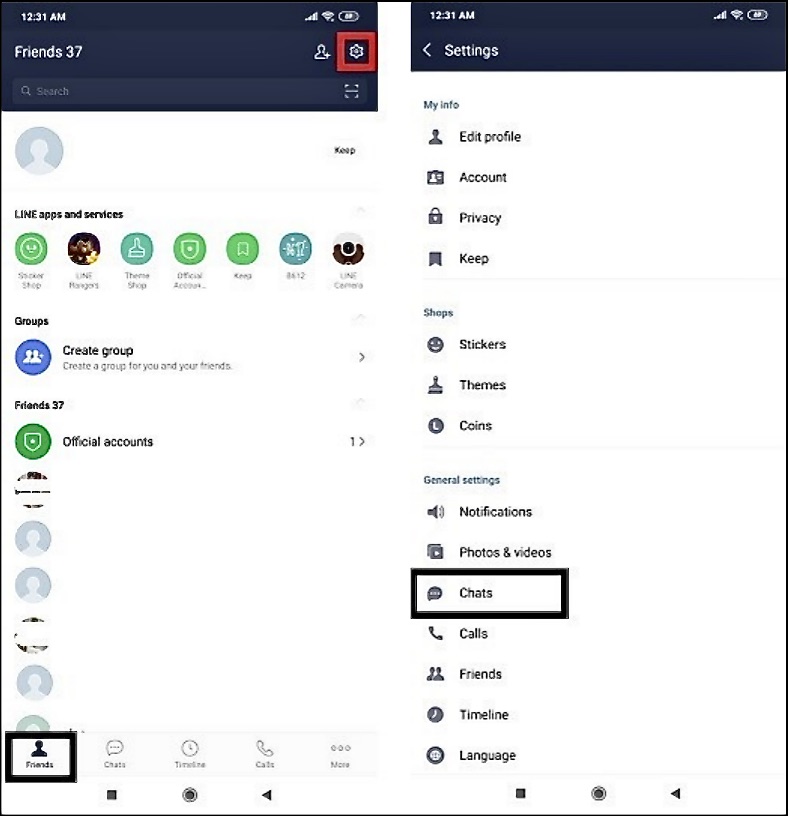
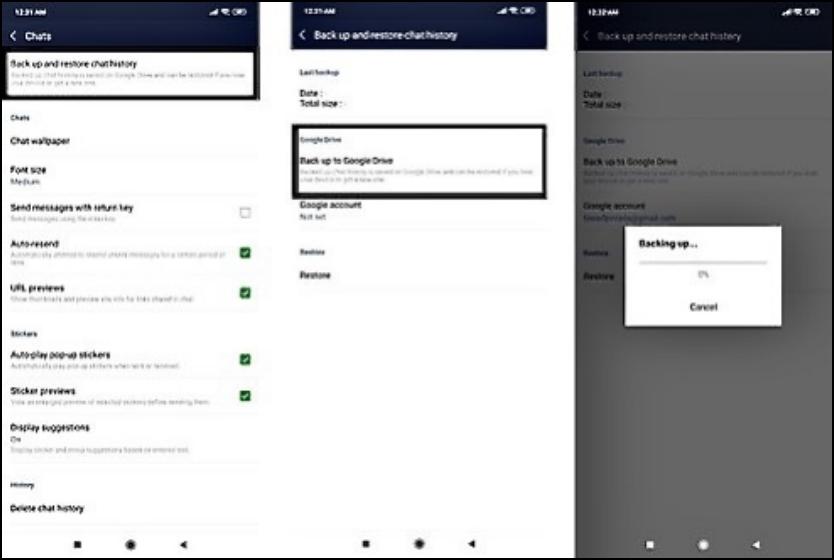
Step 1. Launch the LINE app on your Android smartphone and go to the "Friends" tab.
Step 2. In the "General settings" menu, tap on the "Chats" option located in the upper right corner of the screen.
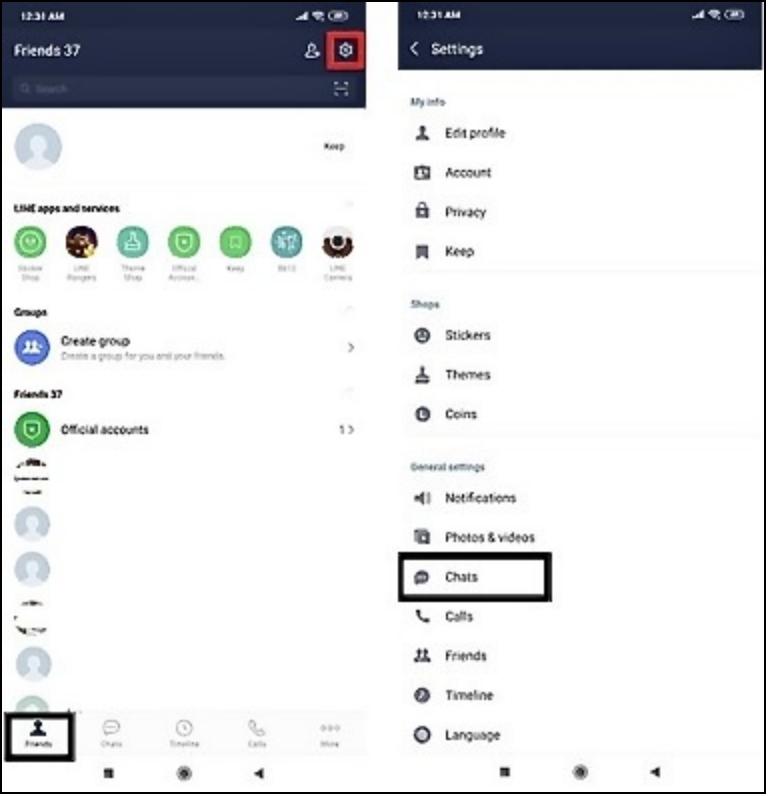
Step 3. To back up and restore chat history, select "Back-up and restore chat history" from the drop-down menu. Then, select "Back-up to Google Drive" from the drop-down menu.
Step 4. When you launch the LINE app, it will automatically start creating a backup of all your conversation histories and store them on your Google Drive account.
Wrap Things Up
Modern telecommunication services have greatly improved the balance between professional and personal obligations. LINE, a versatile app available on both Android and iOS, enables users to engage in video, audio, and text chats, making it a valuable tool for personal and professional communication.
When your smartphone's storage becomes overloaded with old LINE messages, it can hinder your ability to receive fresh ones quickly. To resolve this, consider backing up your previous conversations and storing them elsewhere, rather than deleting them, to free up space and maintain a smooth messaging experience.
With Qiling MobiSaver, you can easily and efficiently restore all your smartphone chats, even if they're lost, and don't have to worry about losing important conversations.
Related Articles
- How to Restore Old & Deleted Voice Memos on iPhone
- iOS 12/13 Supported | How to Backup iPhone in Recovery Mode
- How to Tell if You Are Blocked on Kik
- How to Recover Music Files Deleted by iTunes
- How to Restore Lost AI Files After Adobe Illustrator CC Crashes
If you lost AI files in Windows 10 due to Adobe Illustrator CC 2019 suddenly stopping or crashing. - Apacer USB 3.0 Repair and Format Tool Free Download (Official)
This page provides a direct download link for the Apacer USB 3.0 repair tool and a step-by-step guide on how to use the Format and Restore function to repair a malfunctioning Apacer USB drive. Before attempting these steps, it's essential to back up any files on the drive to prevent data loss.
Products
Articles & Tutorials
- Data Recovery
- Data Backup
- File Recovery
- File Backup
- System Backup and Restore
- Disk and Partition Clone
- Technical articles
- Mobile articles
- Disk Master Help
- Windows Data Recovery Tutorials
- Windows Secure Delete Tutorials
- Windows Partition Management Tutorials
- Windows File Backup and Restore Tutorials
- Windows System Backup and Restore Tutorials
- Windows Disk Backup and Restore Tutorials
- Windows Clone Tutorials