How to Clone a Disk with WinPE When Windows Won't Boot
When Windows stops at a blue screen or a spinning logo, the clone cannot run from inside the operating system. WinPE solves that: a small boot environment that runs the clone tool with every disk visible and nothing locked.
This guide covers building the media, booting from it, loading the right storage driver, and finishing the copy while the system disk sits idle.
PAGE CONTENT
- Why Clone from WinPE
- Prepare the Target Disk and the Media
- Boot from the WinPE Media
- Clone with Qiling Disk Master
- Check the Result Before You Remove Media
- FAQs About WinPE Cloning
- Back Up Before the Clone
Why Clone from WinPE
- The system disk stays offline. Nothing writes to it while the copy reads, so the image stays consistent.
- Locked files do not block the copy. No process holds the registry or the page file open.
- Damaged Windows still clones. A broken boot record does not matter when the copy runs from other media.
- Storage drivers load cleanly. An NVMe or RAID controller can be supplied before the tool starts.
- Recovery partitions stay visible. WinPE lists every volume, including the ones Windows hides.
A live clone is convenient but always carries a risk that a program writes to the disk mid-copy. WinPE removes that risk, which matters most when the source disk is already unstable.
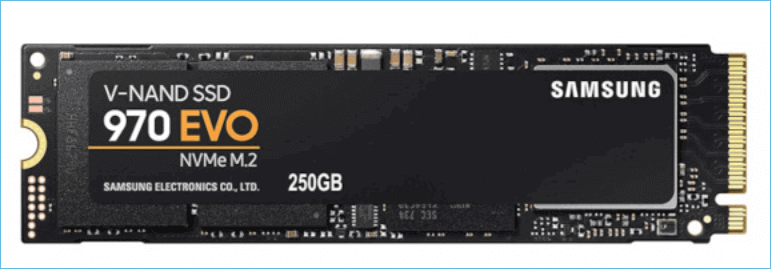
Prepare the Target Disk and the Media
- Build the bootable USB first. Use the media builder in Qiling Disk Master and write it to an empty stick.
- Add the storage driver. Newer NVMe and RAID controllers may need the vendor driver inside the media.
- Fit the target drive. Install the new SSD before you boot, so both disks are present at start-up.
- Leave the target unallocated. A blank disk is the expected starting state for the clone.
- Free space on the source. The used data must fit inside the target capacity.
The media builder writes a working environment in one pass. Test it on a machine that still boots before the failing one depends on it, so a bad stick never becomes the only recovery route.
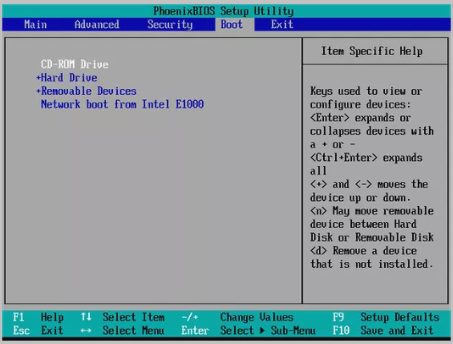
Boot from the WinPE Media
- Use the one-time boot menu. Press the vendor key at start-up and pick the USB drive.
- Match the firmware mode. Boot in UEFI mode for a GPT disk and in legacy mode for MBR.
- Disable Secure Boot if the media is rejected. An unsigned stick will not start with Secure Boot on.
- Wait for the desktop. The environment loads a minimal shell with the clone tool ready.
- Confirm both disks appear. If the target is missing, the storage driver is not loaded.
An empty disk list is the usual sign of a missing driver. Load the controller driver from the media and refresh before you assume the drive is dead.
Clone with Qiling Disk Master
Qiling Disk Master runs its clone wizard inside WinPE with the same interface as the Windows build. Both disks are visible, nothing is locked, and the copy can run at full speed.
Watch the video tutorial below to clone the drive step by step with Qiling Disk Master.
Step 1. Open Qiling Disk Master, choose Clone, and then select Disk Clone.

Step 2. Select the damaged system disk as the source and click Next.

Step 3. Select the new disk as the destination and confirm that its data will be replaced.

Step 4. Choose the clone mode and keep the EFI and recovery partitions on the target.

Step 5. Click Proceed, wait for the copy to finish, then shut the machine down before you remove the USB stick.

Check the Result Before You Remove Media
- Open Disk Management inside WinPE. Confirm the new disk shows the same partitions as the source.
- Check the active flag. The system partition must be marked active on an MBR disk.
- Verify the EFI volume. A GPT disk needs a FAT32 EFI partition with the boot files present.
- Shut down rather than restart. Remove the media with the machine powered off.
- Boot with only the new disk. Disconnect the old drive to prove the clone stands alone.
Doing the checks inside WinPE saves a second trip. A partition that is missing or inactive at this stage will not fix itself in the firmware.
FAQs About WinPE Cloning
Can I clone a disk when Windows will not boot at all?
Yes. That is exactly what WinPE is for. The copy runs from the USB stick and never needs the installed system.
Is WinPE included with Qiling Disk Master?
Yes. The media builder creates a bootable USB or ISO from the installed program, without extra downloads.
Why does the WinPE environment not list my NVMe drive?
The media lacks the storage driver. Add the vendor driver to the media and boot it again.
Does the clone fail if Secure Boot is enabled?
It can. Disable Secure Boot for an unsigned recovery stick, then re-enable it after the clone.
Can I clone a BitLocker disk from WinPE?
Yes, with either a suspended encryption state or a sector-by-sector copy that keeps the volume locked.
Back Up Before the Clone
Cloning a damaged system disk is the last chance to keep the data, so make an image before the copy rather than after. If the clone fails, the image restores to either disk.
Watch the video tutorial below to back up Windows and restore it if the clone fails.
Step 1. Open Qiling Disk Master and select System Backup to include the boot partitions.

Step 2. Save the image to a drive other than the target disk and start the backup.

Step 3. Click Proceed to start the system backup and wait patiently until it finishes. You can also tick Shut down the computer when the operation is completed to power off automatically.

Step 4. If the clone will not start, restore the image to the original disk and repair Windows first.

Conclusion
WinPE turns a failed boot into a manageable job: build the media, load the storage driver, confirm both disks, and clone while the system disk stays quiet. Check the partitions inside the environment, shut down before removing the stick, and test the new disk alone. The copy is the easy part once the environment sees every drive.
For more on offline cloning, see Clone a Hard Drive Without Booting Windows, Cloned Drive Won't Boot - Fix, Clone the System Drive After a Windows Update, and Best Free Disk Cloning Software in 2026.
Related Articles
- Clone a Hard Drive Without Booting Windows
Copy a disk from recovery media. - Cloned Drive Won't Boot - Fix
Repair a clone that stops at boot. - Clone the System Drive After a Windows Update
Clone without breaking the boot files. - How to Clone a Drive with DiskGenius
Clone a disk or partition with DiskGenius and skip bad sectors. - Best Free Disk Cloning Software in 2026
Pick a free clone tool for the upgrade.
Products
Articles & Tutorials
- Data Recovery
- Data Backup
- File Recovery
- File Backup
- System Backup and Restore
- Disk and Partition Clone
- Technical articles
- Mobile articles
- Disk Master Help
- Windows Data Recovery Tutorials
- Windows Secure Delete Tutorials
- Windows Partition Management Tutorials
- Windows File Backup and Restore Tutorials
- Windows System Backup and Restore Tutorials
- Windows Disk Backup and Restore Tutorials
- Windows Clone Tutorials