Cloned Drive Won't Boot? How to Fix It
The clone completes, the progress bar reaches 100 percent, and then the machine starts from the old disk or stops at a blank screen. A clone that will not boot is one of the most common problems after a drive upgrade.
This guide works through the usual causes in the order worth checking, then shows how to clone again with the boot files intact.
PAGE CONTENT
- Why a Cloned Drive Fails to Boot
- Check the Cable, the Slot, and the Boot Order
- Repair the Boot Files and Match the Firmware Mode
- Clone Again with Qiling Disk Master
- Test Before You Wipe the Old Drive
- FAQs About Cloned Drive Boot Problems
- Back Up Windows Before You Clone
Why a Cloned Drive Fails to Boot
- The boot partition was left behind. A data-only copy skips the EFI system partition and the recovery files.
- The destination is still MBR. A UEFI machine cannot boot from a disk prepared with the older layout.
- The firmware still points at the old disk. Boot order does not change itself after a swap.
- The clone stopped early. Read errors on the source leave the copy incomplete.
- The connection is loose. A partly seated cable or a shared M.2 lane produces an invisible drive.
When the source disk has read errors, the copy can fail before it finishes; see Clonezilla Failed to Clone Bad Sectors.
Check the Cable, the Slot, and the Boot Order
- Reseat the drive. Push the M.2 card or SATA cable fully in and check the screw.
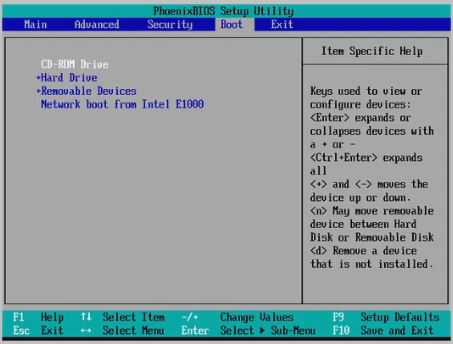
- Confirm the BIOS sees it. If the drive is missing from the boot menu, stop here and fix the hardware.
- Set the new disk first. Move it to the top of the boot order and save the change.
- Pick the UEFI entry. A disk can appear twice, once as UEFI and once as legacy.
- Remove other boot media. Unplug USB sticks so the firmware does not try them first.
Most "won't boot" cases end here, because the clone itself was fine and only the boot order was wrong.
Repair the Boot Files and Match the Firmware Mode
- Boot into recovery. Use the Windows installer or a rescue media to reach a command prompt.
- Rebuild the boot records. Run bootrec commands to repair the BCD and the boot sector.
- Match firmware to disk layout. UEFI needs GPT, while legacy BIOS expects MBR.
- Rebuild the EFI partition. If it was never copied, create it again and reinstall the boot files.
- Check the active partition. The system partition must be marked active on a legacy disk.
The commands and their order are explained in Bootrec.exe.
Clone Again with Qiling Disk Master
If the boot files are missing, the fastest route is a fresh clone that includes every partition. Qiling Disk Master copies the EFI and recovery partitions along with Windows. Download and install it first.
Step 1. Connect the destination drive, open Qiling Disk Master, choose Clone, and select Disk Clone.

Step 2. Select the whole system disk as the source, so every partition is copied, and click Next.

Step 3. Select the new drive as the destination and confirm the warning.

Step 4. Preview the layout, check that the destination holds all partitions, and tick Optimize for SSD.

Step 5. Click Proceed, wait for the clone to finish, then shut down, disconnect the old drive, and boot with only the new disk attached.

Test Before You Wipe the Old Drive
- Boot with one drive only. Disconnecting the old disk removes any confusion in the boot order.
- Sign in and check the desktop. Confirm files, applications, and network settings are present.
- Run Windows Update once. A quick check reveals driver problems on the new hardware.
- Restart twice. One successful boot can hide an unstable boot configuration.
- Keep the old drive for a week. Wipe it only after the new disk proves reliable.
A week of normal use is the cheapest insurance against a clone that seemed fine on the first boot.
FAQs About Cloned Drive Boot Problems
Does cloning copy the boot partition?
Yes, when you clone the whole disk. Cloning a single partition usually leaves the EFI files behind.
Can I fix the boot order without entering BIOS?
Sometimes. Windows can change the UEFI boot order, but a firmware menu is more reliable after a swap.
Why does the PC boot from the old drive?
The firmware still lists it first. Remove the old disk or move the new one to the top of the list.
Is a repair install safe after a clone?
Yes, if the files are intact. It rebuilds the boot configuration without touching personal data.
Do I need to reactivate Windows?
Usually not. The license follows the motherboard, which has not changed.
Back Up Windows Before You Clone
Before changing drives or partitions, create a full Windows backup. Qiling Disk Master creates a system image you can restore from.
Step 1. Open Qiling Disk Master and select System Backup to include Windows and the boot partitions.

Step 2. Save the image to a drive other than the system disk and start the backup.

Step 3. Click Proceed to start the system backup and wait patiently until it finishes. You can also tick Shut down the computer when the operation is completed to power off automatically.

Step 4. If the clone or the swap goes wrong, restore the image to return Windows to its working state.

Conclusion
A clone that will not boot is usually a missing boot partition, a wrong boot order, or a firmware mode that does not match the disk layout. Check the connection and the BIOS first, rebuild the boot files if they were never copied, and then clone the whole disk again with Qiling Disk Master so the EFI and recovery partitions travel with Windows. Boot with only the new drive attached, restart twice, and keep the old disk until the new one has run normally for a week.
For more on repairing or redoing a clone, see Replace a Hard Drive with an SSD Without Reinstalling Windows, Fix Acronis Clone Disk Failed, Clone a Hard Drive Using Command Prompt, and Clone Windows 10 to an External Hard Drive.
Related Articles
- Windows 11 SSD Clone Without Reinstall
Clone Windows 11 to a new SSD without reinstalling. Follow the steps and keep the old drive until the copy boots. - Do You Reinstall Windows After a New M.2 SSD
A new M.2 drive does not always need a fresh install. See when a clone is enough and when it is not. - NVMe SSD Not Detected in a USB Enclosure
An NVMe drive that stays invisible cannot be cloned. Learn why enclosures hide drives and how to fix it. - Macrium Reflect Free vs Clonezilla
Two free cloning tools with very different workflows. Compare speed, boot handling, and ease of use. - How to Clone a 2.5 SSD to M.2
Move a 2.5-inch SSD to an M.2 slot without reinstalling Windows. Follow the steps and keep it bootable.
Products
Articles & Tutorials
- Data Recovery
- Data Backup
- File Recovery
- File Backup
- System Backup and Restore
- Disk and Partition Clone
- Technical articles
- Mobile articles
- Disk Master Help
- Windows Data Recovery Tutorials
- Windows Secure Delete Tutorials
- Windows Partition Management Tutorials
- Windows File Backup and Restore Tutorials
- Windows System Backup and Restore Tutorials
- Windows Disk Backup and Restore Tutorials
- Windows Clone Tutorials