Super Easy | How to Clone Windows 10 to External Hard Drive
Quick Navigation:
- 1. Why Is Cloning Windows 10 To External Hard Drive So Important (4 Key Reasons!)
- 2. Things to Do Before Cloning Windows 10 to an External Drive (3 Necessary and 1 Optinal Preparations)
- 3. How to Clone Windows 10 to External Hard Drive With Qiling Disk Copy (Very Simple!)
Cloning your Windows operating system to an external hard drive is a great way to create a backup in case of a system crash. This process creates an exact copy of your operating system, including all your files, settings, and applications. With this guide, you can easily clone Windows 10 to an external hard drive in just a few clicks, ensuring that your important data is safely backed up.
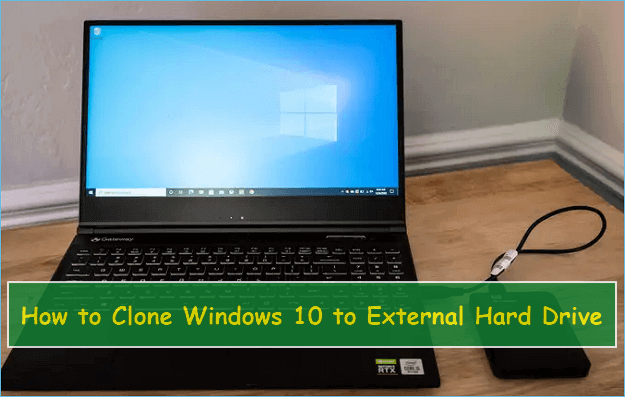
Why Is Cloning Windows 10 To External Hard Drive So Important
Cloning your Windows 10 operating system to an external hard drive is a crucial step in backing up your personal data, ensuring that it's safe in case your computer is damaged or lost, and providing a quick way to restore your system in case of a disaster, making it an essential practice for anyone using a personal computer.
- Keep Data Intact: By creating a clone of your system, you can ensure that all your data is backed up and safe in case of a system failure. Additionally, if you need to reinstall Windows 10, you can simply boot from the external hard drive, which will have all your data intact. This provides a convenient and safe way to reinstall your system.
- Save Much Time: Cloning a drive creates an exact duplicate of its contents, including files, settings, and applications, all at once, making it a reliable and efficient way to create a backup.
- Upgrade to a Larger Drive Easily: Upgrading your hard drive to a larger one is a convenient way to keep your Windows 10 and applications intact, eliminating the need to reinstall everything from scratch.
- Make Portable Windows: Cloning an external hard drive allows you to run Windows 10 on another computer, making it a good backup solution for portable devices.
Things to Do Before Cloning Windows 10 to an External Drive
To clone Windows 10 to an external hard drive, you'll need a compatible external hard drive with enough free space to hold the Windows 10 installation, a computer with Windows 10 installed, and a reliable internet connection. You should also ensure that the external hard drive is properly formatted and partitioned to match the original drive's configuration.
1. Prepare a target hard drive with enough storage capacity
To clone your system to an external drive, you'll need a reliable and fast external drive that's large enough to store all your data.
2. Connect the external hard drive to the computer
You may need to use an external USB hard drive if you're using a laptop, as most laptops don't have an internal hard drive bay. For desktop PCs, you'll likely need to disassemble the host chassis with a screwdriver to properly place the hard drives.
3. Format the external hard drive (optional)
To format an external hard drive in Windows, open This PC from the Start menu, right-click on the external hard drive, and select Format from the context menu. If the drive has already been used, you can skip this step. This will prepare the drive for use by Windows.
4. Select a reliable Windows cloning tool
The success of a Windows clone relies heavily on its reliability, efficiency, and user-friendliness, making it crucial to choose a reliable software. While there are various Windows cloning tools available, not all of them can deliver high performance when transferring the Windows OS to an SSD or HDD, so it's essential to be cautious when selecting a tool.

Do I Need to Format a New SSD Before Cloning
Cloning a hard drive involves copying all data from one drive to another, creating an exact replica of the original system.
How to Clone Windows 10 to External Hard Drive With Qiling Disk Copy
Qiling Disk Copy is a tool that allows you to easily clone your Windows 10 system to an external hard drive, and even replace your hard drive with a solid-state drive (SSD) in just a few minutes, making it a great option for those who are not tech-savvy.
Qiling Disk Master Professional supports disk upgrade and data migration, allowing for easy upgrades to larger hard drives or cloning of SD cards, SSDs, and other storage devices with just a few clicks.
Qiling Disk Copy
- Offers sector level cloning, which helps to clone a hard drive with bad sectors, by bypassing the bad sectors and cloning the good ones.
- Supports cloning from MBR to GPT and vice versa
- Supports adjusting disk layout.
- Compatible with Windows 11/10/8/8.1/7
Now, let's take a look at how to clone Windows 10 to an external hard drive with this tool.
Prior Notice:
- The "Sector by sector copy" feature requires the destination disk to be at least as large as the source disk, so it can be unchecked if cloning a larger hard disk to a smaller one is desired.
- All data on the destination disk will be completely erased, so be careful.
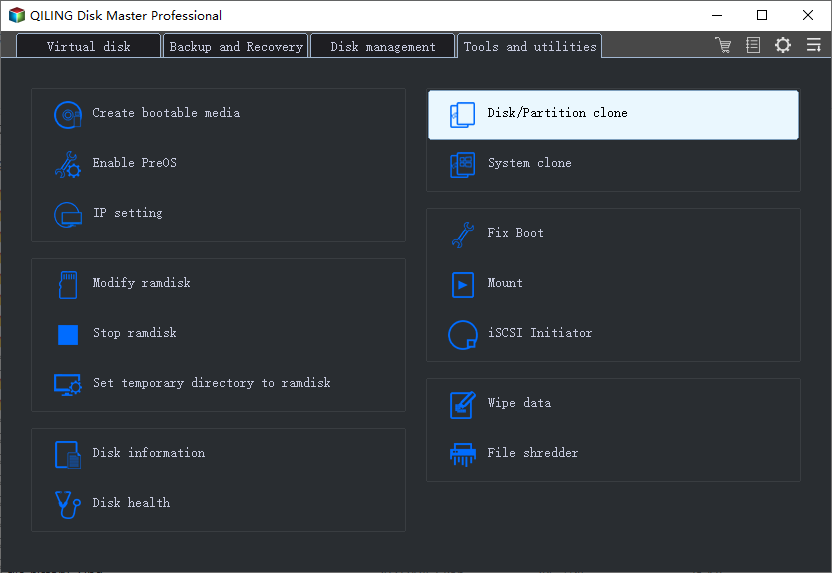
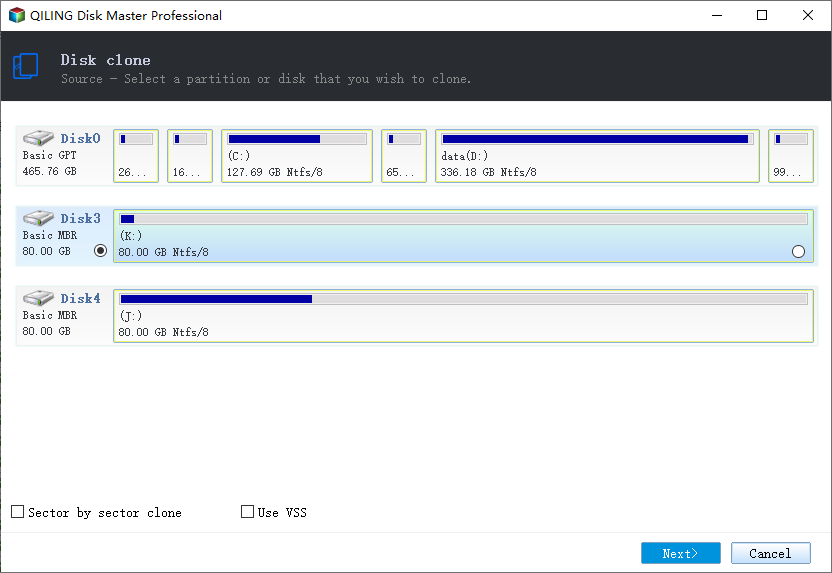
Step 1. To start copying/cloning an entire disk to another, click the "Disk clone" button in the tools page, select the disk you want to copy from as the source disk, and then click "Next".
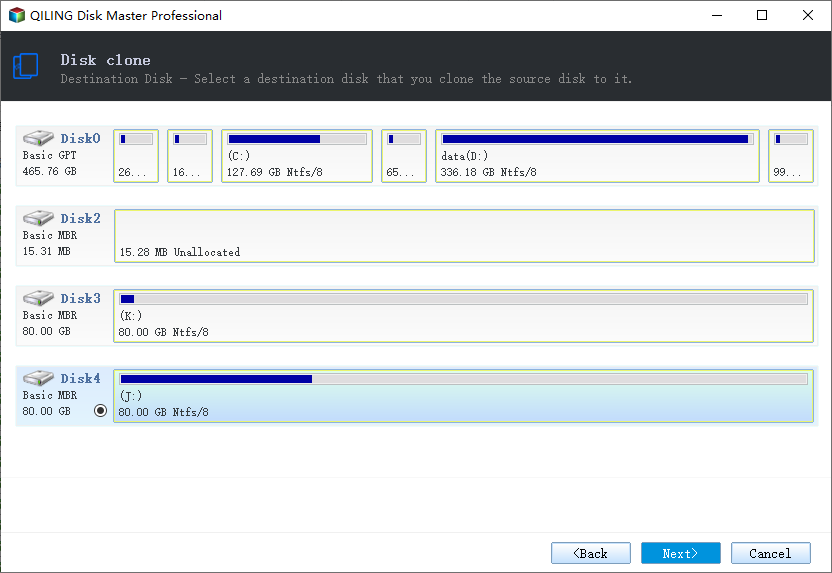
Step 2. Choose the other disk as the destination disk.
Step 3. Check the disk layout of the two disks and manage the destination disk by selecting "Autofit the disk", "Copy as the source", or "Edit disk layout" to ensure the correct configuration.
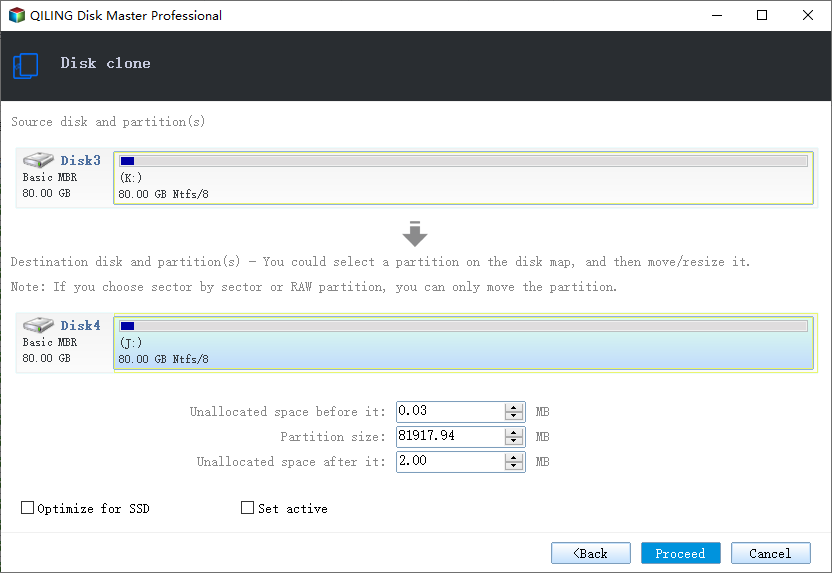
- "Autofit the disk" makes some changes by default on the destination disk layout so that it can work optimally.
- The "Copy as the source" option does not alter the destination disk and maintains the same layout as the source disk, making it a copy rather than a modification of the original.
- "Edit disk layout" allows you to manually resize/move partitions on the destination disk.
Enabling the "Check the option if the target is SSD" option can optimize the performance of your solid-state drive (SSD) by tailoring its settings to take advantage of its unique characteristics, such as faster read and write speeds. This can lead to improved overall system performance, particularly in applications that rely heavily on storage, like gaming and video editing.
Step 4. Click "Proceed" to officially execute the task.
A message now appears, warning you that data will be lost. Please confirm this message by clicking "OK".
Conclusion
Cloning Windows 10 to an external hard drive is a simple process that can help protect your data and make upgrading or moving your operating system easier, and can be achieved with the help of cloning software like Qiling Disk Copy.
Related Articles
- Preferred Way to Clone C Drive to External Hard Drive
- How to Move Windows Boot Partition to A New Drive
- How to Clone A Hard Drive in Windows 7(No OS Reinstalling)
- How to Clone IDE to SATA HDD/SSD (2 Ways)
- Simplest USB Clone Tool with High Efficiency [2024 Updated]
Clone a USB flash drive to another USB drive, copy data, and create a full backup with a reliable USB clone tool. - WD Disk Cloning Software Free Download for WD SSD Clone
If you need to clone your WD hard drive to SSD or HDD, the easiest way is to use reliable WD disk cloning software. This post covers some professional WD cloning software with its features, making it easy to find the one that suits your needs best.
Products
Articles & Tutorials
- Data Recovery
- Data Backup
- File Recovery
- File Backup
- System Backup and Restore
- Disk and Partition Clone
- Technical articles
- Mobile articles
- Disk Master Help
- Windows Data Recovery Tutorials
- Windows Secure Delete Tutorials
- Windows Partition Management Tutorials
- Windows File Backup and Restore Tutorials
- Windows System Backup and Restore Tutorials
- Windows Disk Backup and Restore Tutorials
- Windows Clone Tutorials