How to Clone C Drive to External Hard Drive with Best Disk Cloning Software
Why Need to Clone C Drive to External Drive
When planning to clone the C drive, which contains the operating system and related system files, to an external hard drive, it essentially means duplicating the entire system, including the OS, applications, and files, to the external storage device.
You need to clone your C drive to an external hard disk for various reasons, such as backing up your system, protecting your files, and ensuring business continuity. Cloning your C drive will create an exact replica of your system, including your operating system, programs, and data, which can be used as a backup or to quickly restore your system in case of a disaster.
- Improve computer performance. As your C drive fills up with applications and data, consider cloning it to an external drive and booting from there to boost your computer's performance.
- Bootable disk. When your computer fails to work, you may want to clone the C drive to an external drive, such as an SSD or HDD, to create a portable boot disk before buying a new computer.
- Time-saving. Upgrading your computer by cloning the C drive to a new drive saves time by avoiding the need to reinstall the OS and applications.
Best Disk Cloning Software for Windows Free Download
Cloning a C drive is a more complex process than backing up or copying a file or folder, as it requires duplicating all data on the drive. Manually, this can be a time-consuming task due to the sheer volume of data on the system drive. However, there is a solution: utilizing disk cloning software, such as Qiling Disk Copy, which can simplify and expedite the process of cloning the C drive to an external hard drive.
Qiling Disk Copy is an easy-to-use disk cloning tool compatible with Windows 11/10/8/7, allowing for cloning of operating systems, disks, and partitions. It facilitates upgrading a hard disk to a bigger one and cloning an HDD to an SSD for improved performance. Additionally, it enables resizing and rearranging partitions during the cloning process, making it an ideal tool for migrating an existing Windows system to a new hard disk, such as a larger hard drive.
- Upgrade your disk to a larger one without reinstalling Windows.
- Migrate Windows 10 to an NVME or M.2 drive without reinstalling Windows, you'll need to clone your existing system to the new drive.
- Allow for full disk and partition level cloning.
- Resize partition when cloning disks.
- Clone a drive with bad sectors.
- Create a WinPE bootable disk.
- Cloning a hard drive can be done more quickly with faster cloning speeds, reducing the overall time required for the process.
How to Clone System Drive to External Hard Disk
Qiling Disk Copy is a user-friendly cloning software that allows for easy and efficient disk cloning. Its features include the ability to clone a C drive to an external drive, clone a disk to a smaller one, and clone a disk to a larger one, making it a versatile tool for various disk cloning needs. The software is also easy to use, requiring only a few clicks to complete the cloning process. This makes it an ideal choice for those looking for a hassle-free disk cloning experience.
Prior Notice:
- The "Sector by sector copy" feature requires the destination disk to be at least as large as the source disk, so it's not suitable for cloning a larger disk to a smaller one. If you want to clone a larger disk to a smaller one, leave this feature unchecked.
- All data on the destination disk will be completely erased, so take care.
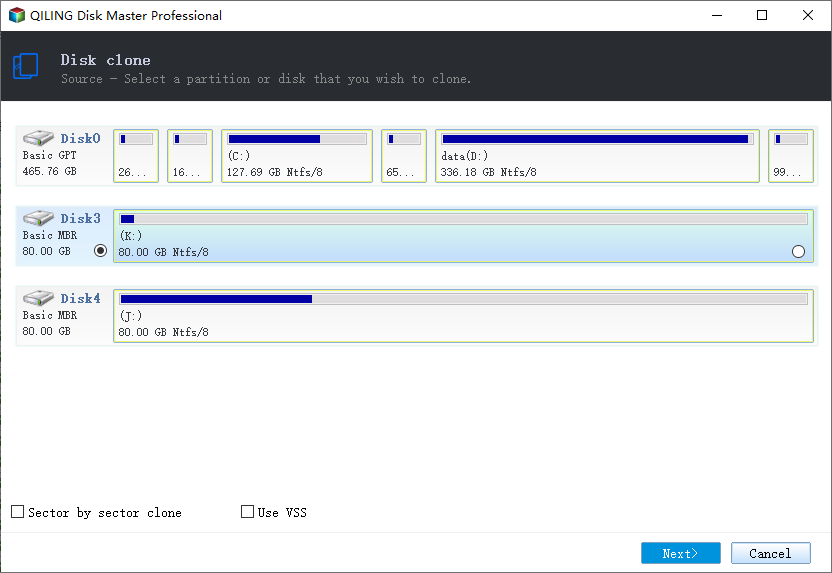
Step 1. To begin cloning an entire disk, select the source disk under "Disk Layout" and click "Next".
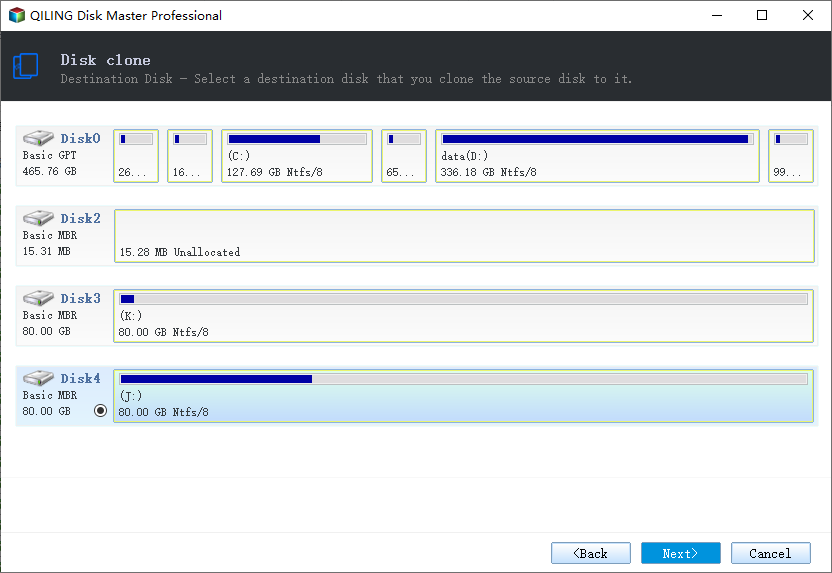
Step 2. Choose the other disk as the destination disk.
Step 3. Check the disk layout of the two disks. You can manage the disk layout of the destination disk by selecting "Autofit the disk", "Copy as the source" or "Edit disk layout".
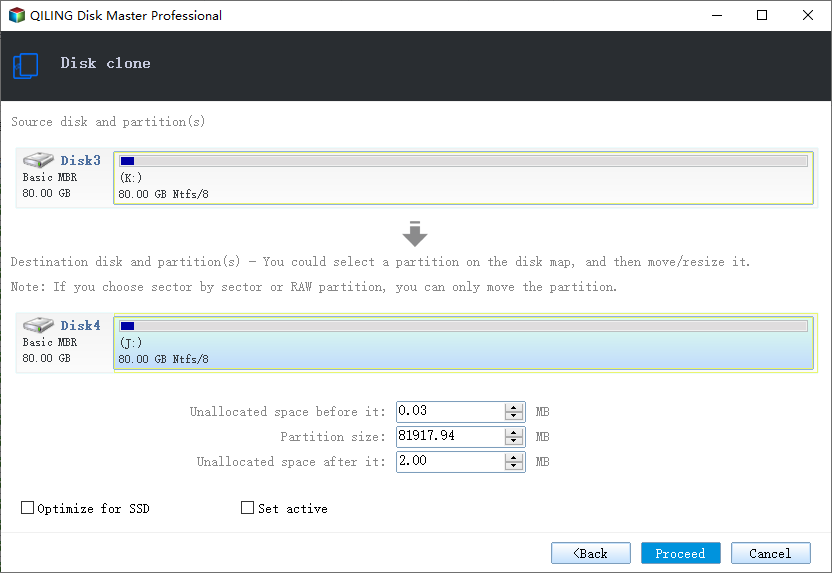
- "Autofit the disk" makes some changes by default on the destination disk layout to optimize its performance.
- The "Copy as source" feature doesn't modify the destination disk, and the layout remains the same as the source disk.
- The "Edit disk layout" feature enables manual resizing and repositioning of partition layouts on a destination disk.
If you want to optimize your SSD for best performance, check the "Check the option if the target is SSD" option. This will help put your SSD in its best performance.
Step 4. Click "Proceed" to officially execute the task.
A message now appears, warning you that data will be lost. Please confirm this message by clicking "OK" and then click "Next".
The Bottom Line
Now you know how to clone C drive to external hard drive. After reading this article, you can use Qiling Disk Copy to clone a C drive to an external drive more easily and safely.
Qiling Disk Copy Qiling Disk Copy is a top-notch cloning utility that allows users to clone various storage devices, including navigation SD cards, USB drives, external drives, SSDs, and more. It also enables users to clone NVMe SSD to SATA SSD. With its minimalist design and user-friendly interface, anyone can start using it immediately, regardless of their technical knowledge. Try Qiling Disk Copy now for a hassle-free experience.
FAQs
1. How do I transfer everything from my computer to an external hard drive?
Transferring data from a computer to an external hard drive is a straightforward process. Simply plug the hard drive into the computer, select the desired files on the computer, and then copy them to the external drive.
2. Can you copy your C drive?
To copy your C drive, go to "My Computer," expand the plus sign, select "C Drive," right-click on "C Drive," then click on "Copy." You can either select the entire C drive or choose files if space is insufficient.
3. How do I Backup my C drive?
To create a backup, go to Start, type "backup" in the search box, and select "Backup and Restore". Then, choose "Back up files" and select a location to save the backup. Finally, click "Next" to start the backup process.
4. Can I clone a hard drive without software?
Cloning a hard drive without software is nearly impossible, as Microsoft's operating system doesn't provide a built-in tool for this task. A manual file-by-file copy from one drive to another is a time-consuming alternative.
Related Articles
- Top 5 HDD to SSD Cloning Software for Windows 11/10 in 2022
- (2022 Tips) Replace Hard Drive with SSD without Reinstalling Windows
- Best Bad Sector Repair Solutions to Check and Remove Bad Sectors on Hard Disk
- Top 6 SD Card Cloning Software Easy to Get
- How to Make New SSD C Drive on Windows Laptop/PC🔥
When your old SSD C drive runs out of space, you can create a new SSD C drive by using a disk cloning tool like Qiling Disk Copy. This tool allows you to make a copy of your old drive, effectively creating a new SSD C drive with the same contents and settings, giving you more storage space. - How to Replace HDD with SSD on Desktop (Without Reinstalling OS)🔥
Replacing a desktop hard drive with an SSD can be done with the help of cloning software, such as Qiling Disk Copy, making the process straightforward and efficient.
Products
Articles & Tutorials
- Data Recovery
- Data Backup
- File Recovery
- File Backup
- System Backup and Restore
- Disk and Partition Clone
- Technical articles
- Mobile articles
- Disk Master Help
- Windows Data Recovery Tutorials
- Windows Secure Delete Tutorials
- Windows Partition Management Tutorials
- Windows File Backup and Restore Tutorials
- Windows System Backup and Restore Tutorials
- Windows Disk Backup and Restore Tutorials
- Windows Clone Tutorials