How to Clone an External Hard Drive to an Internal SSD
A USB hard drive often holds the only copy of an old laptop's files, a photo archive, or a full system backup. The data works fine where it is, but a USB connection is slow and a portable drive is easy to lose.
This guide explains when to move that data onto an internal SSD, what to check before a clone, and how to make the cloned drive boot or serve as fast internal storage.
PAGE CONTENT
- When to Move Data from USB to an Internal SSD
- Check the Enclosure, Cable, and Capacity
- Clone the External Drive with Qiling Disk Master
- Make the Cloned SSD Bootable or Use It as a Data Disk
- Verify Files and Remove the Old Copy
- FAQs About Cloning an External Drive
- Back Up Windows Before You Clone
When to Move Data from USB to an Internal SSD
- A portable drive is your only copy. An SSD inside the PC is safer than a drive that travels in a bag.
- USB transfer speeds hold you back. An internal SATA or NVMe link is far faster for large projects.
- You want the old system back. A backup image on a USB drive can be cloned back into a bootable disk.
- The internal disk is too small. A second internal SSD adds room without another external drive.
- The external drive is ageing. Portable drives fail after years of handling and cable wear.
Cloning copies the partition table, files, and hidden system data, so the result behaves like the original rather than a folder of copied files.
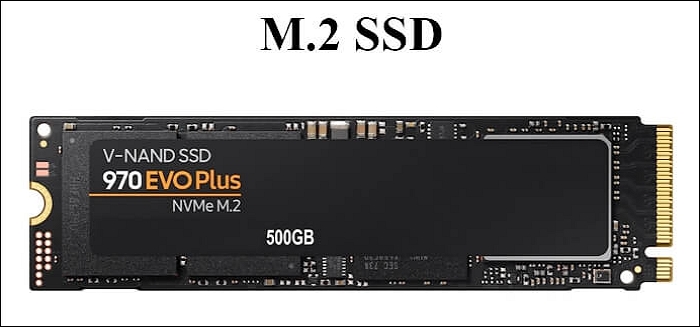
Check the Enclosure, Cable, and Capacity
- Confirm the drive is readable. Open the folder in File Explorer and copy one file before you start.
- Use a stable connection. A loose USB cable can drop the drive halfway through a clone.
- Compare the used space. The internal SSD must be larger than the data already on the external drive.
- Note the partition style. UEFI systems need GPT, while older BIOS machines use MBR.
- Plan for the swap. Decide whether the SSD goes into a free slot or replaces the current disk.
If the drive does not appear at all, work through the fixes in NVMe SSD Not Detected in a USB Enclosure before retrying.

Clone the External Drive with Qiling Disk Master
Qiling Disk Master clones a whole disk or a single partition and can copy only the space in use. Download and install it on the PC that will hold the SSD.
Step 1. Connect the external drive and open Qiling Disk Master, then choose Clone and Disk Clone.

Step 2. Select the external drive as the source and click Next.

Step 3. Select the internal SSD as the destination and confirm the warning.

Step 4. Preview the layout, keep intelligent copy enabled (or choose sector by sector for an exact copy), adjust the partitions if needed, and tick Optimize for SSD.

Step 5. Click Proceed, keep both drives connected until the progress bar finishes, then check that the SSD lists the same folders and files.

Make the Cloned SSD Bootable or Use It as a Data Disk
- Boot from the SSD. If the external drive held a Windows installation, set the SSD first in the boot order.
- Match the firmware mode. Boot in UEFI for a GPT disk and in legacy mode for an MBR disk.
- Assign a letter for data. A cloned data disk may arrive without a drive letter until you add one.
- Extend the partition. Grow the volume into unused space when the new SSD is larger.
- Keep the source connected. Leave the external drive plugged in until the first boot succeeds.
When the SSD is meant to replace the system disk rather than sit beside it, follow Replace the C Drive with an SSD.
Verify Files and Remove the Old Copy
- Open key files. Check documents, photos, and any database the drive carried.
- Compare folder sizes. A large gap usually means a folder was skipped or hidden.
- Test the boot twice. Restart the PC a second time to confirm Windows starts without a repair prompt.
- Keep the original for a week. Store the external drive unplugged until you are certain nothing is missing.
- Wipe it later. Erase the old drive before selling or reusing it, since it holds a full copy of your data.
Only wipe the external drive after the cloned SSD has run normally for several days.
FAQs About Cloning an External Drive
Can I clone a USB drive to an SSD without a USB adapter?
Yes. Cloning needs both drives visible at the same time, so the SSD must be installed in a slot or placed in its own enclosure.
Will the cloned SSD keep the drive letter?
Usually it keeps the same letter if the old drive is removed. If both drives are attached, Windows may assign a new letter to avoid a conflict.
Does an external drive clone include the recovery partition?
It does when you clone the whole disk instead of a single partition. Choose disk clone to keep every partition intact.
Can I clone a drive that is larger than the SSD?
Only if the used space fits. Shrink the partitions first or let the tool resize them during the clone.
Is a clone the same as a backup?
No. A clone is a working copy on another disk, while a backup keeps earlier versions you can return to.
Back Up Windows Before You Clone
Before changing drives or partitions, create a full Windows backup. Qiling Disk Master creates a system image you can restore from.
Step 1. Open Qiling Disk Master and select System Backup to include Windows and the boot partitions.

Step 2. Save the image to a drive other than the one being cloned and start the backup.

Step 3. Click Proceed to start the system backup and wait patiently until it finishes. You can also tick Shut down the computer when the operation is completed to power off automatically.

Step 4. If the clone fails, restore the image to return Windows to its working state.

Conclusion
An external drive is a fine place for old files until you need speed, safety, or a bootable system. Connect the drive, confirm the SSD has enough capacity, and clone the whole disk with Qiling Disk Master while SSD alignment is enabled. Then set the SSD in the boot order if it holds Windows, assign a letter if it holds data, and extend the partition into the extra space. Check the copied files, keep the external drive untouched for a week, and erase it only after the new disk has proved reliable.
For more on moving data between drives, see How to Clone the C Drive to an External Hard Drive, How to Clone Windows 10 to an External Hard Drive, How to Clone a Hard Drive to a SanDisk SSD, and How to Copy a Hard Drive to an SSD.
Related Articles
- Can I Safely Clone an HDD to an SSHD?
Cloning a hard drive to a hybrid drive works, but the flash cache needs care. See what to expect after the copy. - How to Clone a Desktop Computer
Move a full desktop system to a new disk without reinstalling. See how to clone every partition in order. - When Should I Replace My HDD?
Noise, errors, and slow reads are warning signs. Learn when a hard drive is worth replacing. - Larger HDD to Smaller SSD Clone Guide
Moving to a smaller SSD is possible when the used space fits. Learn how to shrink partitions during a clone. - How to Clone a Data Drive Without an Operating System
The simpler copy path for a drive with no boot files.
Products
Articles & Tutorials
- Data Recovery
- Data Backup
- File Recovery
- File Backup
- System Backup and Restore
- Disk and Partition Clone
- Technical articles
- Mobile articles
- Disk Master Help
- Windows Data Recovery Tutorials
- Windows Secure Delete Tutorials
- Windows Partition Management Tutorials
- Windows File Backup and Restore Tutorials
- Windows System Backup and Restore Tutorials
- Windows Disk Backup and Restore Tutorials
- Windows Clone Tutorials