2026 Step-by-step Guide | How to Clone Hard Drive to SanDisk SSD
Cloning a hard drive to a SanDisk SSD is a crucial process that ensures a smooth transition to a faster storage device. By migrating your hard drive to an SSD, you can enjoy improved system performance, faster loading times, and enhanced overall user experience. To achieve this, you'll need to use a reliable cloning software that can accurately transfer your data, operating system, and settings to the new SSD.
Why Migrate a Hard Drive to SanDisk SSD
The hard disk drive (HDD) and solid-state drive (SSD) are two types of storage media used in computers. While HDDs are traditional storage devices, SSDs use integrated circuit assemblies to store data. SSDs have several advantages over HDDs, including faster speed, higher reliability, and lower power consumption. Upgrading to an SSD can significantly improve the user experience, making it a popular choice among computer users who want to enhance their device's performance.
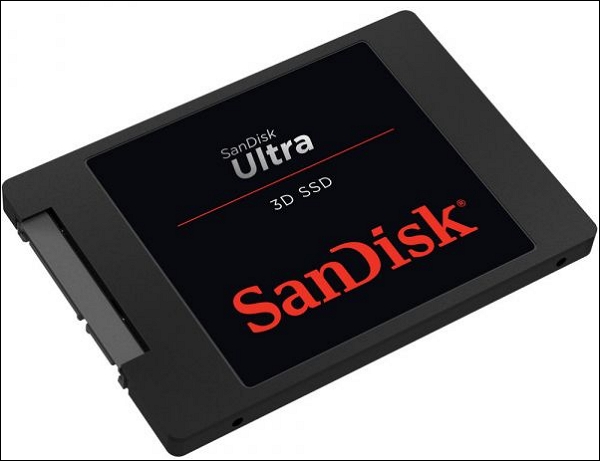
SanDisk SSD is a popular brand that offers a wide range of drives to cater to different needs, making it a popular choice for gamers and ordinary users alike, offering faster performance and a preferred upgrade option for computer users looking to replace their HDD with an SSD.
Why Do You Need SanDisk Cloning Software
Upgrading a hard drive to a SanDisk SSD can significantly improve disk performance, but it's essential to migrate data from the old hard disk to the new one. However, unlike some other SSDs, SanDisk SSDs do not come with cloning software to facilitate this process. Users will need to find alternative methods to transfer their data.
Fortunately, there is another way to transfer your data from an HDD to a SanDisk SSD without reinstalling the operating system and keeping all your data on the SSD from the old drive. You can use third-party disk cloning software, such as Qiling Disk Copy, which supports SanDisk and other brands of HDDs and SSDs that Windows can detect.
The Best SanDisk SSD Cloning Software Free Download
Qiling Disk Copy is a reliable and professional disk clone utility for Windows 11/10/8/7. It allows users to easily clone an entire hard drive, upgrade to a bigger disk, and transfer the operating system to a new disk without reinstalling Windows. The software also enables users to clone a MBR disk to a GPT disk or vice versa, clone a hard disk drive (HDD) to a solid-state drive (SSD) for improved performance, and even migrate Windows 10 to an NVME or M.2 drive without reinstalling the computer. With advanced options, experienced users can control every aspect of the migration process.
The following are the steps to clone a hard drive to SanDisk SSD:
Step 1: To clone a hard drive, select the HDD that you want to clone in the Disk layout section.
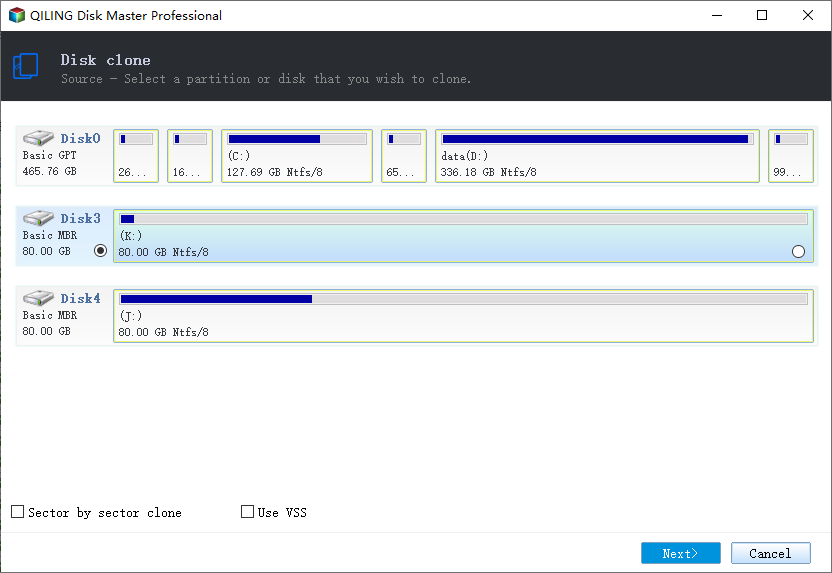
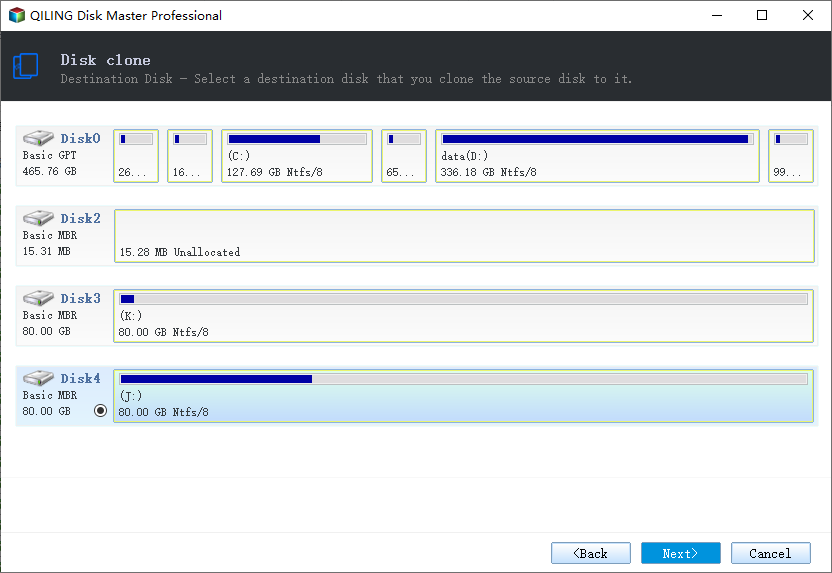
Step 2: Select the SSD as your destination.
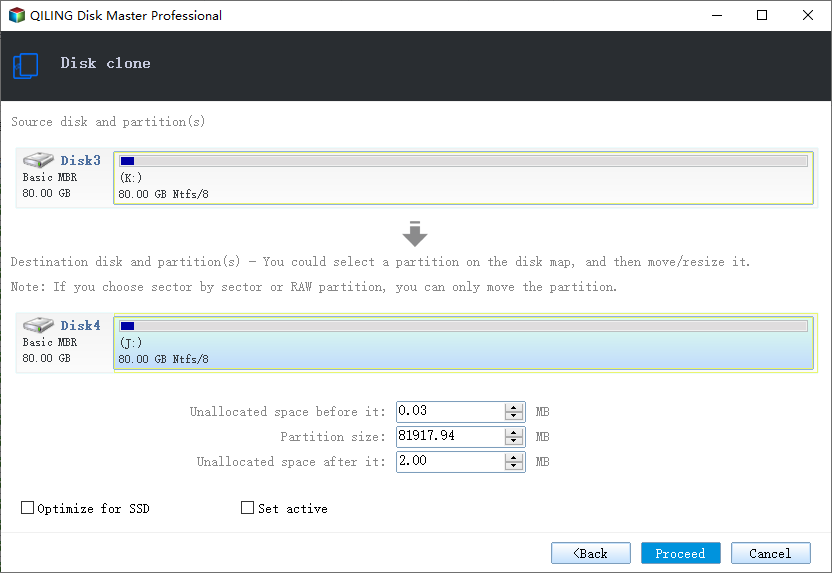
Step 3: Edit the disk layout and then click "Proceed" to continue.
You should select the "Check the option if the target is SSD" checkbox because the destination is an SSD.
Step 4: Wait for the process to complete.
A warning message informs you that the data on the SSD will be erased. You can click "OK" to proceed if you don't have important data on the destination disk.
Final Thoughts
Cloning a hard disk drive (HDD) to a SanDisk solid-state drive (SSD) is crucial for a better user experience, especially for gamers and computer experts. This process allows for a faster and more efficient computer performance. To successfully perform a clone from HDD to SanDisk SSD, the best tool to use is Qiling Disk Copy.
With SanDisk SSD cloning software - Qiling Disk Copy, you can easily clone a hard drive to SanDisk SSD, switching Windows 10 from an SSD to an NVME/M.2 drive without data loss or issues, cloning files, file systems, sectors, and windows OS on HDD to the SSD without reinstalling your computer.
FAQs
1. Does Windows 10 have cloning software?
Windows 10 has a built-System Image is a tool used for transferring hard drives, but it only works when cloning to a larger one, and uses a different imaging process than hard drive cloning.
2. Which SSD drives come with cloning software?
There are several SSD cloning software options available, including branded software like Samsung Data Migration, Seagate DiscWizard, and Intel Data Migration software, as well as third-party tools like Qiling Disk Copy and Clonezilla.
3. Is it better to clone or image a hard drive?
Cloning and imaging are both effective methods for backing up data, with cloning being ideal for fast data recovery and imaging providing more backup options. Incremental backup snapshots allow for multiple images to be saved without significantly increasing storage space.
4. Why won't Windows boot on my SSD?
If your Windows won't boot on your SSD, make sure it's the only storage device connected to your motherboard and is plugged into the SATA 0 port. If the issue persists, enter your BIOS, reset it to default settings, and check if the problem is resolved.
5. Can I boot from a cloned drive?
To upgrade a hard drive to a new SSD without reinstalling Windows and all installed programs, you can clone the hard drive. This process involves creating an exact copy of the original hard drive on the new SSD, allowing you to boot from the cloned drive without having to reinstall Windows and all your programs.
Related Articles
- (2022) Windows XP Cloning Software
- Do You Have to Reinstall Windows After Installing a New M2 SSD? [Check the Answer]
- Clone External Hard Drive to Another External Hard Drive in an Easy Way
- [2022 Guide] Dell Clone HDD to SSD Without Data Loss
- Super Easy | How to Transfer Data from One SD Card to Another
Learn how to transfer data from one SD card to another safely. Copy files, clone SD cards, and move data to a larger card without losing files. - Intel Data Migration Software Not Working - How to Fix?🔥
If your Intel data migration software isn't working properly, preventing you from transferring your operating system, installed applications, and personal files from an old storage device to a new Intel SSD drive, this blog can help you resolve the issue.
Products
Articles & Tutorials
- Data Recovery
- Data Backup
- File Recovery
- File Backup
- System Backup and Restore
- Disk and Partition Clone
- Technical articles
- Mobile articles
- Disk Master Help
- Windows Data Recovery Tutorials
- Windows Secure Delete Tutorials
- Windows Partition Management Tutorials
- Windows File Backup and Restore Tutorials
- Windows System Backup and Restore Tutorials
- Windows Disk Backup and Restore Tutorials
- Windows Clone Tutorials