Do You Have to Reinstall Windows After Installing a New M2 SSD? [Check the Answer]
Can I Install a New M.2 SSD Without Reinstalling Windows
As SSDs gain popularity, many users opt to replace their boot drive with an SSD for improved performance. The M.2 SSD is a newer, faster generation of SSD, offering even better performance than regular SSDs. Its compact size also makes it ideal for laptops with limited space. Upgrading to an M.2 SSD can have numerous benefits beyond just a slightly faster Windows boot time. However, a common concern is whether it's possible to install a new M.2 SSD without reinstalling Windows, leaving users wondering if they'll have to go through the hassle of reinstalling their operating system.
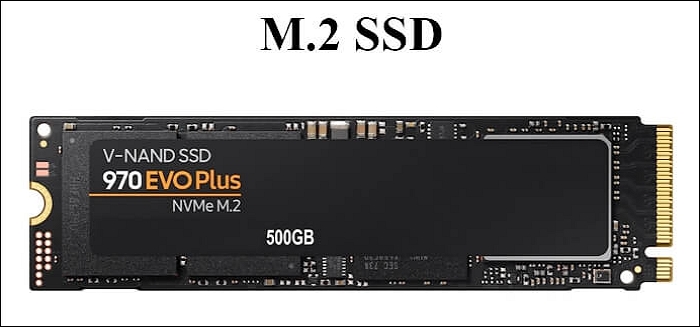
You can install a new SSD without reinstalling Windows. If you don't have Windows on an M.2 SSD, you can image the existing hard drive onto your M.2 SSD, then format your old hard drive for storage.
How to Add in a New SSD Without Reinstalling Windows
To install an M.2 SSD as a primary drive, you'll need to transfer the operating system (OS) to the SSD via disk cloning, which can also be used to transfer data. One simple method is to use a system clone, allowing you to transfer the Windows system and files to the SSD without reinstalling the OS. This can be achieved using disk cloning software, which can clone an HDD to an SSD. The detailed steps for installing a new SSD to your computer without reinstalling Windows involve using this software to clone the HDD to the SSD.
| Procedures | Step-by-step Troubleshooting |
|---|---|
| Step 1. Connect the M.2 SSD to your Computer Properly | Tools you need: USB-to-SATA cable or SSD enclosure...Full steps |
| Step 2. Clone Windows 11/10/8/7 from an HDD to M.2 SSD | Here, we will present the system migration process via professional...Full steps |
| Step 3. Install the Cloned SSD | After the cloning process, you need to replace the HDD...Full steps |
| Step 4. Boot your Computer from the Cloned SSD | After finishing the SSD installation, there is only one thing you...Full steps |
Step 1. Connect the M.2 SSD to your Computer Properly
Tools you need:
USB-to-SATA cable or SSD enclosure
You must prepare one USB-To connect an M.2 SSD to a desktop or laptop computer as an external hard drive, you'll need a M.2 to SATA adapter or a SSD enclosure. For a brand-new SSD, Windows may require initializing it to GPT or MBR for first use.
To initialize a new SSD:
- Go to This PC > Storage > Disk Management.
- Right-click on the new SSD and select Initialize Disk.
- Select the MBR or GPT style.
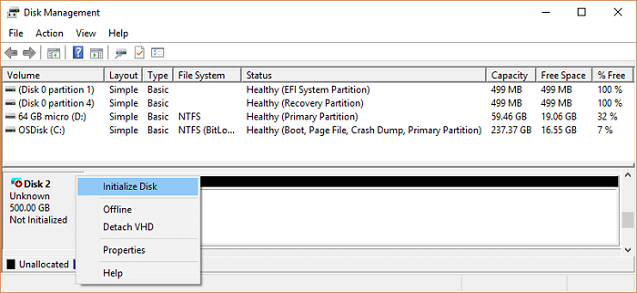
Ensure the new M.2 SSD partition style is aligned with the old HDD to avoid boot issues with the cloned SSD.
To check the current partition style of a disk:
- Press the Windows key + R to open the Run window.
- Type "diskmgmt.msc" and click OK to open disk management.
- Right-click the disk you want to check and click Properties.
- Choose the Volume tab to check the Partition style.

Step 2. Clone Windows 11/10/8/7 from an HDD to M.2 SSD
Here, we will present the system migration process via professional disk cloning software - Qiling Disk Copy, which allows easy installation of a new M.2 SSD on laptops and desktops without reinstalling Windows.
Qiling Disk Copy is an easy-to-use disk cloning utility for Windows that allows you to clone a hard drive, system, or partition within a few clicks, and also enables you to resize partitions, upgrade a hard drive to a bigger one, clone an HDD to an SSD, and clone a hard disk with bad sectors.
To clone the Windows system to a new SSD, start by preparing the new SSD by formatting it and installing the necessary drivers. Next, download and install a cloning software such as Macrium Reflect or Qiling Disk Copy.
Prior Notice:
- The "Sector by sector copy" feature requires the destination disk to be at least the same size as the source disk, allowing you to clone a larger hard disk to a smaller one if unchecked.
- The disk will be completely erased, so be careful.
Step 1. To start copying/cloning an entire disk to another, click the "Disk clone" button in the tools page, select the disk you want to clone as the source disk, and click "Next".
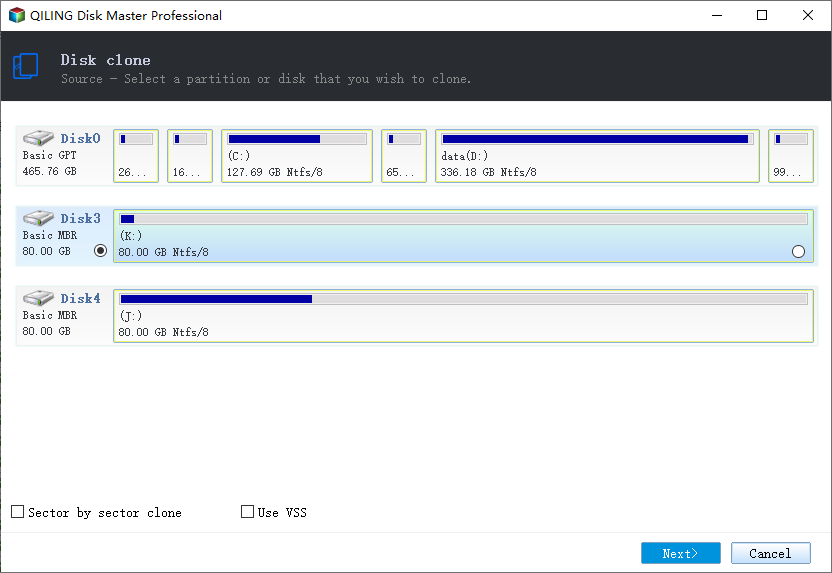
Step 2. Choose the other disk as the destination disk.
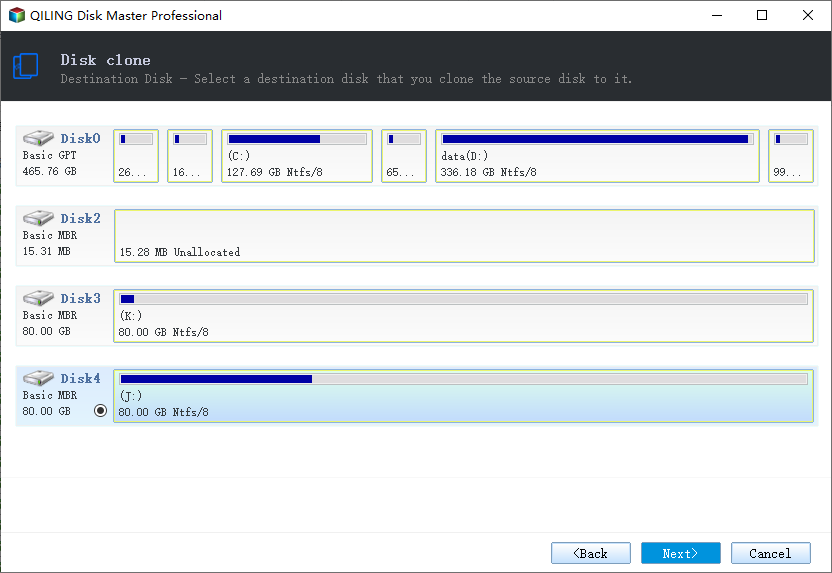
Step 3. To check and manage the disk layout of the two disks, select one of the provided options: "Autofit the disk", "Copy as the source", or "Edit disk layout".
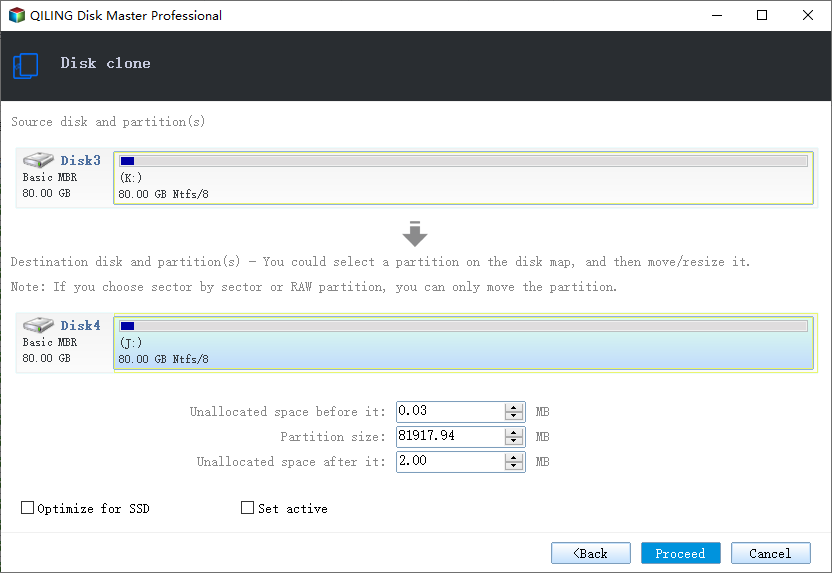
- "Autofit the disk" makes some changes by default on the destination disk layout to optimize its performance.
- The command "Copy as the source" does not modify the destination disk and preserves the original layout of the source disk.
- The "Edit disk layout" feature allows users to manually adjust the partition layout on a destination disk, enabling them to resize or move partitions as needed.
To optimize your SSD's performance, select the "Check the option if the target is SSD" option. This will allow your SSD to function at its best.
Step 4. Click "Proceed" to officially execute the task.
A message now appears, warning you that data will be lost. Please confirm this message by clicking "OK" to continue if you do not have important data on the destination disk.
Step 3. Install the Cloned SSD
After cloning, replace the original HDD with the new M.2 SSD in the computer. This is the final step to complete the upgrade.
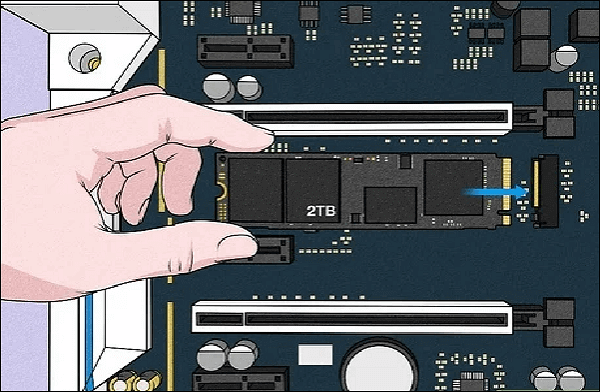
For computers with one slot:
To replace the old hard drive with an SSD manually, you'll need to follow a series of steps. First, shut down your computer and unplug it from the power source.
- Unplug the power cord.
- Remove the back cover of your computer. This may require a screwdriver to unscrew the screws holding it in place.
- Install the SSD into the mounting bracket, and then screw it in.
- Connect one SATA power cable to the SSD.
- Close the cover and reboot your computer.
For computers with more than one slot:
To upgrade to an SSD, you can simply shut down your computer, enter the BIOS settings by pressing a specific key (usually F2, F12, or Del), set the SSD as the first boot option, and save the changes. This way, you can keep using your old hard drive for storage or remove it altogether.
Step 4. Boot your Computer from the Cloned SSD
After installing an SSD, the final step is to set your computer to boot from it. This involves restarting your computer and accessing the BIOS menu, which can usually be done by pressing a specific key such as F2, F12, or Del, depending on the computer brand. Once in the BIOS menu, navigate to the boot settings and select the SSD as the primary boot device. Save the changes and exit the BIOS menu, then let the computer boot from the SSD.
To quickly boot your computer from a solid-state drive (SSD), look for the boot options in the BIOS menu. Change the first boot option to the SSD, save the changes, and your computer will boot from the SSD quickly.
The Bottom Line
Do you have to reinstall windows after installing a new M.2 SSDIt's easy to add an M.2 SSD to your computer without reinstalling Windows. You can use Qiling Disk Copy to clone your Windows system from an old HDD to a new SSD, making the process hassle-free.
FAQs
1. Can I swap m 2 SSD without reinstalling Windows?
You can install an M.2 SSD containing Windows on your computer using disk cloning software, which can save you time and effort by avoiding the need to reinstall the operating system and manually reconfigure the system to its original settings.
2. How do I initialize a new M 2 drive?
In Disk Management, right-To initialize a disk, click on the disk you want to initialize, then click on Initialize Disk. If the disk is listed as Offline, right-click on it and choose Online. Note that some USB drives may not have this option due to being formatted and assigned a drive letter.
3. Do games wear out SSD?
SSDs (Solid-State Drives) are prone to wear and tear when used for heavy activities like reading and writing, especially in games that involve frequent data access. This can lead to a reduction in the SSD's lifespan.
4. Which lasts longer HDD or SSD?
An SSD can last around 20 years, while an HDD typically lasts about 6 years, but this can vary depending on factors like usage and maintenance.
Related Articles
- How to Clone Your Desktop Computer | Easiest Method
- Top 2 Silicon Power SSD Cloning Software (2025 Guide)
- How to Clone a Navigation SD Card with a Few Clicks for Windows 11/10/8/7
- (2022) Migrate Dell OS with Dell Migrate or An Alternative
- Easiest Way: Clone HDD to SSD without SATA to USB Cable
You can use the easiest way to effortlessly clone HDD to SSD without SATA to USB cable or try the other two methods. - How to Clone Large HDD to Smaller SSD without Data Loss?
To clone large HDD to smaller SSD effortlessly and safely, it is a nice choice to use professional disk cloning software – Qiling Disk Master.
Products
Articles & Tutorials
- Data Recovery
- Data Backup
- File Recovery
- File Backup
- System Backup and Restore
- Disk and Partition Clone
- Technical articles
- Mobile articles
- Disk Master Help
- Windows Data Recovery Tutorials
- Windows Secure Delete Tutorials
- Windows Partition Management Tutorials
- Windows File Backup and Restore Tutorials
- Windows System Backup and Restore Tutorials
- Windows Disk Backup and Restore Tutorials
- Windows Clone Tutorials