How to Clone Your Desktop Computer | Easiest Method
If you're looking to clone your desktop computer, whether you're a beginner or a tech-savvy individual, this guide is for you. We'll walk you through a step-by-step process, from start to finish, to help you clone your desktop computer with ease.
Some Essentials About Cloning A Desktop Computer
What is Cloning? In the computer tech field, cloning refers to the practice of creating an identical copy of an application or program, where two programs are identical in function and behavior, but lack the original source code.
Why do we Clone Desktop Computers or drives? Using cloning software allows you to replicate your computer's applications, programs, settings, operating systems, drives, and software, saving you time and potentially money.
You can use software to transfer your programs and settings to a new computer, saving time and effort.

Clone vs Clean Install: Which Suites You Better
When replacing the hard drive or solid-state drive (HDD or SSD) in our computer, one crucial decision we have to make is whether to perform a clone or clean install. This choice determines how our operating system, programs, and data are transferred to the new drive, and it can significantly impact the overall process and outcome. A clone involves copying the entire contents of the old drive to the new one, preserving all files, settings, and applications, while a clean install involves wiping the old drive and reinstalling the operating system and software from scratch. Each approach has its advantages and disadvantages, and the right choice depends on individual circumstances and preferences.
What can you benefit from Cloning a Desktop Computer? Cloning a desktop computer allows users to easily upgrade or replace their hard drive without losing any data, making it a convenient and time-saving option. This is particularly useful for users who have multiple hard drives installed and need to transfer data to a new drive. By cloning the original drive, users can ensure that all their files and programs are preserved, making the upgrade process seamless and hassle-free.
* Also read: How to Upgrade Laptop HDD with SSD
When adding a new SSD as the boot drive to improve a desktop computer's performance, users can save data on the SSD by cloning, allowing them to choose between a clean OS install or cloning the running OS. This approach enables users to leverage the SSD for both OS installation and data storage, effectively utilizing its performance benefits.
Cloning a desktop computer is a simple and quick process that allows you to copy the operating system and all data to a new hard drive, preserving the customized system settings and configurations, whereas a clean install involves installing a fresh copy of Windows from scratch.
Qiling Disk Copy is the Easiest Way to Clone a Computer Desktop
Cloning, OS transfer/migration, and backing up can be done using software to ensure accuracy and save time, avoiding errors in the process.
The top software for cloning disks is Qiling Disk Copy, which allows you to clone your source and all programs to the target disk, even if the target disk is smaller than the source disk, as long as it has enough space to store data. It's a user-friendly solution that can be completed with just a few clicks.
To clone your computer desktop, you'll need a SATA cable to connect the target device to the receiving device. Set up your target device and install Qiling Disk Copy, then you can clone your files and programs to the target device, but make sure the target disk is empty to avoid data loss.
When selecting the target device, options for target disk layout appear, including Autofit the disk, Copy as the disk, and Edit disk layout. Autofit selects all target disk space by default, Copy as the disk copies as is, and Edit disk layout allows choosing and editing the layout.
Follow the step-by-step guide to clone a desktop computer hard drive:
Note: To ensure a seamless disk copying or cloning process, activate Qiling Disk Copy.
Step 1. Download, install and run Qiling Disk Copy on your PC.
To initiate the disk cloning process, click on "Disk Mode" and select the source disk that you want to copy or clone. Then, click on "Next" to proceed with the operation.
Note: When copying or cloning a disk, ensure the destination disk is as large as or larger than the source disk to maintain sector-by-sector accuracy.
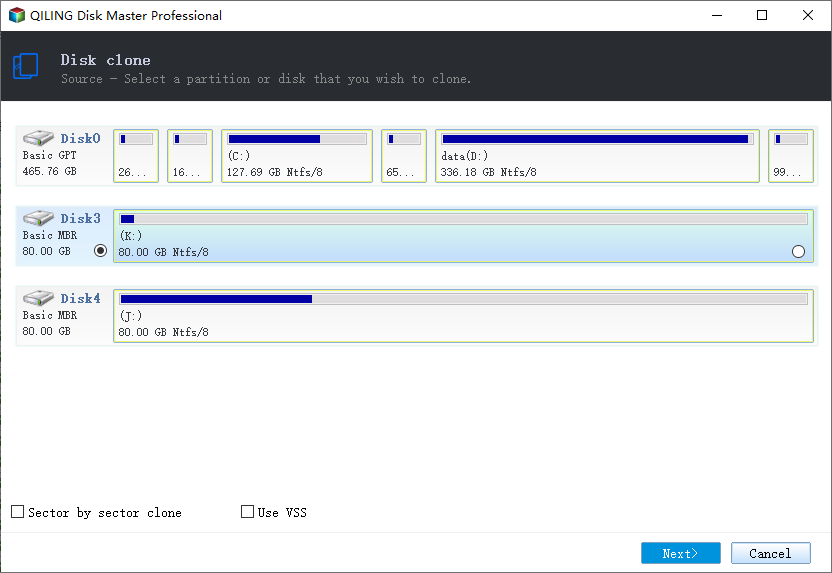
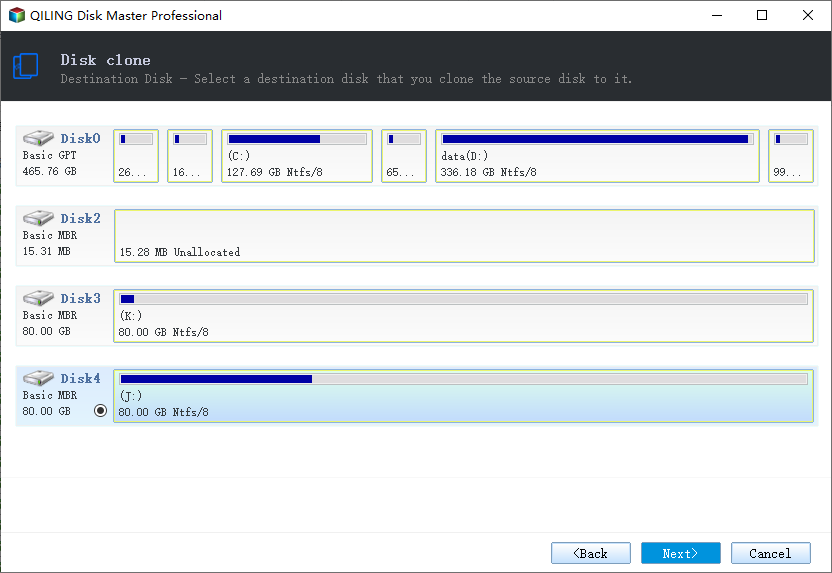
Step 2. Select the destination disk where you want to clone/copy the old disk and click Next to continue.
If the program asks to erase data on the destination disk, click OK to confirm.
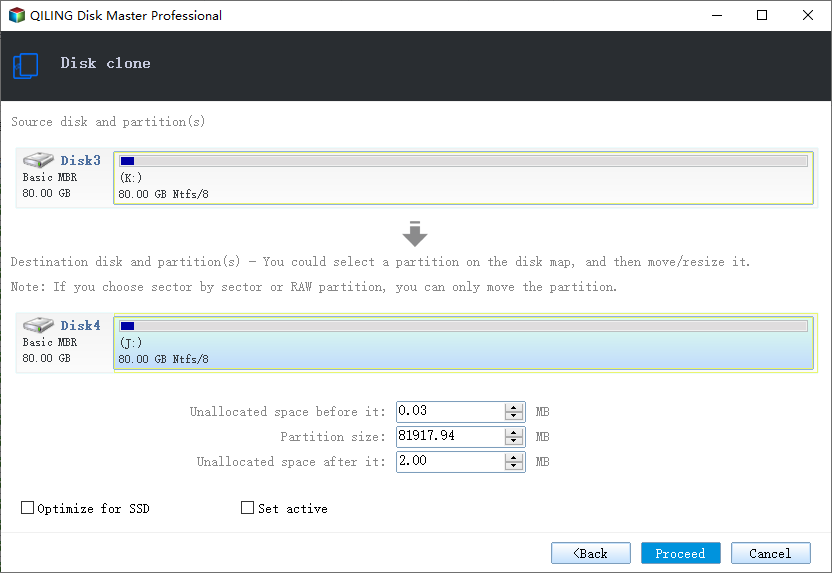
Step 3. To modify the disk layout, select the "Check and edit the disk layout" option and then choose one of the following actions: Autofit the disk, Copy as the source, or Edit disk layout.
Autofit the disk is recommended.
The "Copy as the source option" will replicate the exact partition layout from the source disk to the destination disk.
Edit disk layout allows you to manually resize or move partition layout on the destination disk.
If your destination disk is an SSD drive, make sure to check the "Check the option if the target is SSD" option to ensure optimal performance.
To start the disk cloning or disk copying process, click on the "Proceed" button. This will initiate the process of creating an exact replica of the selected disk on the target disk.
Conclusion
Cloning your drives or desktop computers can save you time and money by allowing you to easily upgrade to a new drive or system. With a few clicks, you can clone all your data to the target device, whether it's an SSD or another desktop computer. Qiling Disk Copy is a fast and user-friendly way to clone, helping you avoid data errors and save time in the process.
Disk Copy is a reliable cloning software that allows for easy data migration, even on Windows 11. With this tool, you can safely clone your hard disk to another disk, SSD, laptop, or desktop computer, making it a convenient option for home use without needing technical assistance.
Related Articles
- (2022) Windows XP Cloning Software
- Disk Clone | Samsung Clone SSD to Larger SSD
- How to Clone A Hard Drive in Windows 7(No OS Reinstalling)
- How to Clone Hard Drive Without Software
- How to Replace M.2 SSD in PC [Works on Windows 11/10/8/7]
Replacing an M.2 SSD in a PC can be done easily with the help of Qiling Disk Copy, which allows you to transfer data from one M.2 SSD to another without reinstalling Windows OS. This makes the process of upgrading or replacing an M.2 SSD much simpler and more efficient. - How to Replace Old SSD with New SSD on Windows Laptop/PC
This post is a step-by-step guide on how to replace an old SSD with a new one without losing any data, using the professional disk clone software Qiling Disk Copy.
Products
Articles & Tutorials
- Data Recovery
- Data Backup
- File Recovery
- File Backup
- System Backup and Restore
- Disk and Partition Clone
- Technical articles
- Mobile articles
- Disk Master Help
- Windows Data Recovery Tutorials
- Windows Secure Delete Tutorials
- Windows Partition Management Tutorials
- Windows File Backup and Restore Tutorials
- Windows System Backup and Restore Tutorials
- Windows Disk Backup and Restore Tutorials
- Windows Clone Tutorials