Replace C Drive with SSD for Windows 11/10/8/7 [Without Data Loss]
The C drive is typically located on a traditional hard disk drive (HDD) that comes with the computer. Over time, the HDD's performance degrades, making it necessary to replace the old C drive with a new one to improve overall system performance.
Can I Replace My C Drive with a New SSD
Both HDD and SSD can be used as computer storage devices, but SSDs outperform HDDs in several areas, including faster data access speeds and lower power consumption. As a result, many users are opting to replace their traditional HDDs with SSDs.
To replace your C drive with a new SSD, you'll need to clone your existing drive to the new SSD, then swap the drives in your computer. This process can be done with cloning software, such as Qiling Disk Copy, which will copy your entire C drive to the new SSD, including your operating system, programs, and data.
The answer is "YES."
Replacing your C drive with an SSD can significantly boost your computer's speed and performance, providing benefits such as faster boot times, quicker loading of applications and games, and improved overall responsiveness.
- Make computer run faster: Upgrading to an SSD (Solid State Drive) can significantly boost your computer's performance by replacing the traditional hard disk drive (HDD) as the primary drive, resulting in faster data access speeds and a smoother user experience.
- Save power: Solid-state drives (SSDs) use less power than traditional hard disk drives (HDDs), which can lead to cost savings on your electricity bill.
- Improve reliability: SSDs are more reliable than HDDs because they have no moving parts, making them less prone to failure due to physical shock or vibration.
Replacing the C drive with an SSD can be a great upgrade, but it's essential to consider the drawbacks. One major con is the higher cost of SSDs compared to HDDs. Additionally, SSDs have a shorter lifespan due to the limited number of write cycles, which can affect their overall performance over time.
Replacing the C drive with an SSD can significantly improve your computer's speed and performance, making it a worthwhile upgrade.
You may be interested:
What to Prepare Before Replacing C Drive with SSD
Replacing the C drive with an SSD requires more than just swapping out the drives. Before getting started, there are a few things to consider, such as ensuring the operating system can be installed on the new SSD, backing up any important data, and potentially reinstalling the OS to take full advantage of the SSD's performance. Additionally, you may need to update the BIOS or UEFI settings to support the new SSD.
1. A New SSD
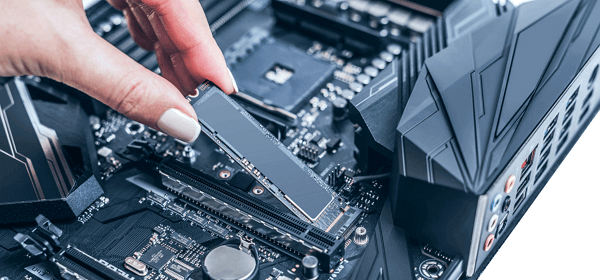
When selecting a solid-state drive (SSD), it's essential to choose one that is compatible with your computer. This involves considering the different types of SSDs, such as SATA and NVMe, to ensure a seamless integration with your system.
2. A Connect Cable
To connect an SSD to your computer, you'll need to use a connecting cable, typically a SATA to USB cable, or install it in an SSD slot if your computer has one.
3. Choose A Data Transferring Method
To replace a C drive with an SSD without losing data, you can either back up all data on the C drive and then restore it to the new SSD or clone the C drive directly to the SSD. Cloning is a more direct and time-saving method, and Qiling Disk Copy can help you do this without losing any data.
Qiling Disk Copy is an easy-to-use and reliable disk cloning utility that can create an exact copy of your C drive. It's a great choice for you to consider due to its user-friendly interface and ability to accurately replicate your C drive.
- Quickly migrate Windows PC from one PC to another.
- Create a local backup of hard drives effectively.
- Compatible with Windows 11/10/8/7.
- This tool offers a faster cloning speed compared to other similar tools, saving time when cloning a hard drive.
- You can choose to clone the entire operating system or clone only used sectors of the source disk to an SSD.
- The cloned disk allows for a seamless boot-up, eliminating the need to reinstall Windows.
- The software supports creating a disk image of the bad hard drive to a new healthy one with ease.
With this tool, you can replace the C drive with an SSD without losing any data, and you won't need to reinstall Windows.
[Steps Tutorial] How to Replace C Drive with SSD
Here is the step-To replace your C drive on a HDD with a new SSD using Qiling Disk Copy, follow these steps: Download and install Qiling Disk Copy from the official website, then connect the new SSD to your computer. Next, launch Qiling Disk Copy and select the source disk (your HDD with the C drive) and the target disk (your new SSD) in the software. Choose the correct cloning mode (sector-by-sector or intelligent clone) and select the correct cloning options.
Follow the steps below:
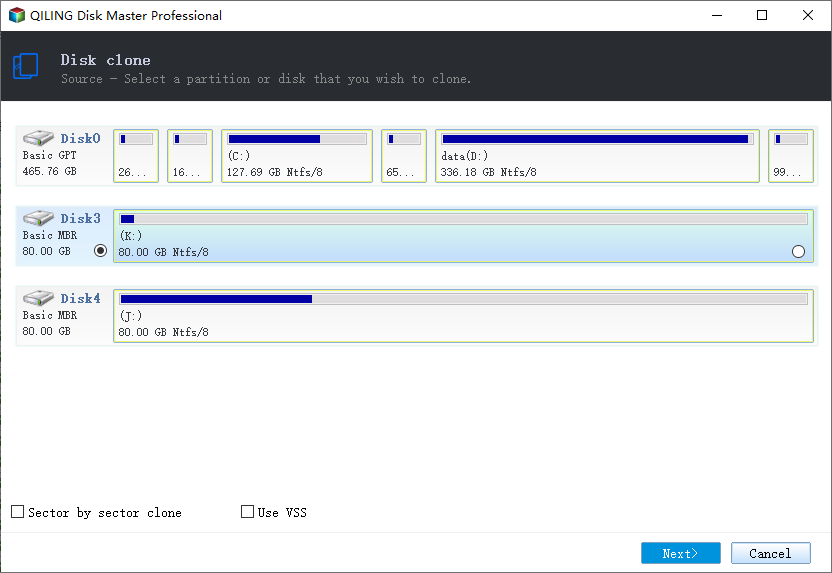
Step 1: To clone a hard drive, click the "Disk clone" button on the tools page and select the hard drive you want to clone.
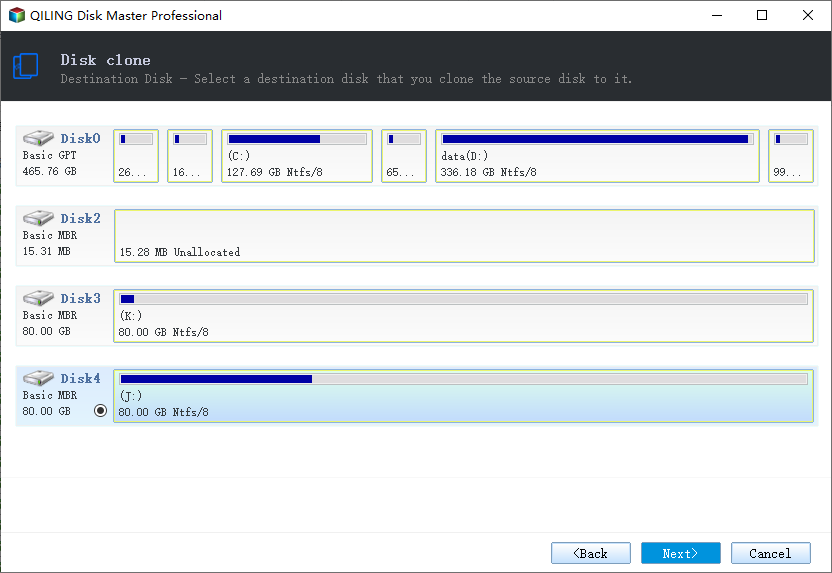
Step 2: Select the SSD as your destination.
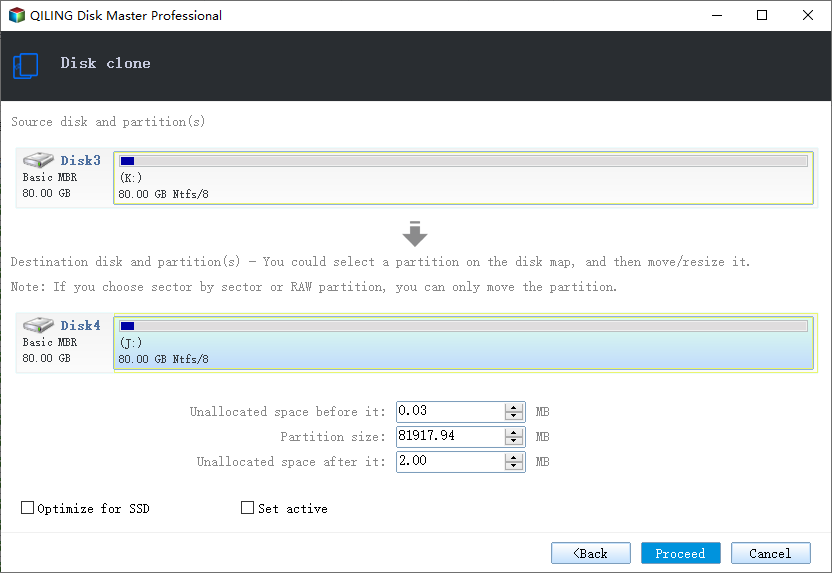
Step 3: Edit the disk layout and then click "Proceed" to continue.
When using an SSD as the destination, it's recommended to select the option to check if the target is an SSD.
A warning message tells you that the data on the SSD will be erased, click "OK" to continue. This is because you are replacing the old SSD with a new one, so all data will be erased from the old one. If you have important data on the old SSD, you should back it up before proceeding.
Step 4: Wait for the process to complete.
To replace the C drive with an SSD without losing data and reinstalling the operating system, follow these steps: create a system image, clone the C drive to the SSD, disconnect the original C drive, and then boot from the SSD. This process allows you to keep your data intact while upgrading to a faster SSD.
FAQ on Changing C Drive with SSD
Can I replace my C drive with a larger one?
Replacing the C drive with a larger one can boost a computer's speed, making it run faster and smoother, and help avoid potential issues.
How do I move my OS from C to SSD?
You can use Qiling Disk Copy to safely move your operating system from the C drive to an SSD. Simply follow the steps outlined in our previous post, and Qiling Disk Copy will ensure a quick and safe OS transfer, protecting your data in the process.
Related Articles
- Migrate Windows 10 from SSD to NVME and M.2 Without Reinstalling
- How to Transfer or Copy Windows 10 to a USB Flash Drive Easily and Quickly
- (2022) Top 5 Easiest Disk Cloning Software
- How to Replace HP Laptop Hard Drive[New & Efficient Guide]
- Excellent Tool: Transfer OS to New Hard Drive without Reinstalling
If you wish to transfer OS to new hard drive without reinstallation Windows 11, 10, 8, and 7, you can download the Qiling Disk Master Professional. Its "Migrate OS to SSD Wizard" can help you move Windows OS to a new hard drive and boot from it successfully. - How to Use Qiling Disk Clone Wizard Correctly?
To use the Disk Clone wizard of Qiling Disk Master, follow this detailed tutorial. The wizard allows you to clone a disk, which means creating an exact copy of the disk, including all files, settings, and applications.
Products
Articles & Tutorials
- Data Recovery
- Data Backup
- File Recovery
- File Backup
- System Backup and Restore
- Disk and Partition Clone
- Technical articles
- Mobile articles
- Disk Master Help
- Windows Data Recovery Tutorials
- Windows Secure Delete Tutorials
- Windows Partition Management Tutorials
- Windows File Backup and Restore Tutorials
- Windows System Backup and Restore Tutorials
- Windows Disk Backup and Restore Tutorials
- Windows Clone Tutorials