How to Replace HP Laptop Hard Drive[New & Efficient Guide]
If your HP laptop is running slow or low on storage, consider replacing the hard drive with a larger one, such as a hard disk drive (HDD) or solid-state drive (SSD), to improve performance and free up space.
Upgrading your HP laptop's hard drive to a solid-state drive (SSD) can enhance its performance and provide more storage space, making it a worthwhile upgrade for those with old hard drives.
Before replacing an HP hard drive, it's essential to prepare your laptop and gather the necessary tools and information. To replace an HP laptop hard drive, start by backing up your data, shutting down your laptop, and unplugging it from the power source. Next, remove the bottom panel to access the hard drive, then disconnect the power and data cables.
What to Prepare Before Replacing HP Laptop Hard Drive
Before replacing the hard drive on your HP laptop, back up your data, shut down the laptop, and ground yourself to prevent static electricity damage. Remove the battery, disconnect the power cord, and take out the screws that hold the hard drive in place.
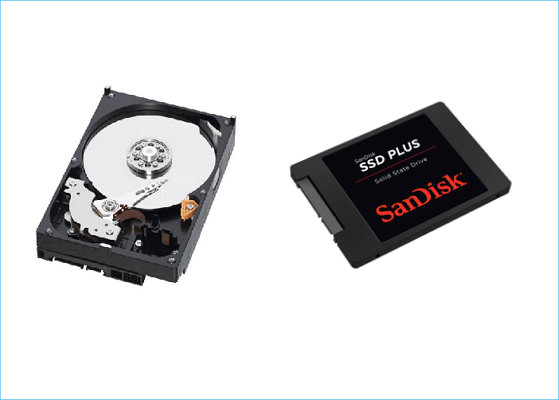
- A new larger HDD/SSD:
You'll need to purchase a new hard drive or SSD that is compatible with your HP laptop. Make sure you have the correct model and part number of the original hard drive, and ensure the new one has a larger capacity.
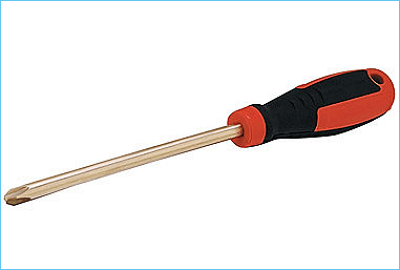
- A Phillips screwdriver
To open up the case of your HP laptop, you'll need a Phillips screwdriver.
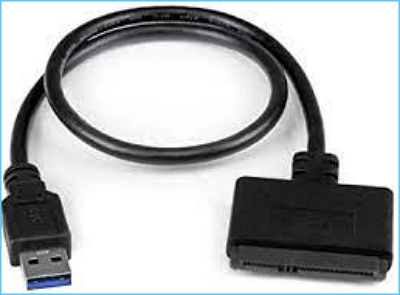
- A connecting cable
Since most modern laptops, including HP models, only have one hard drive slot, you'll need a proper connecting cable to attach the new hard drive to your laptop before cloning or migrating your data.
- A reliable disk cloning tool
If you don't want to reinstall Windows and applications on your new HDD/SSD, you can use disk cloning software like Qiling Disk Copy to clone your old hard drive to the new one without losing any data.
Step-by-Step Guide to Replace HP Laptop Hard Drive
To replace the hard drive on your HP laptop, start by shutting down the laptop and unplugging the power cord. Next, remove the screws from the bottom panel to access the hard drive. Carefully pull out the hard drive and disconnect the SATA cable.
Action 1. Connect the new drive to the HP laptop via connecting cable
Most HP laptops nowadays only have one slot, so you'll need to connect the new SSD as an external drive and then transfer your data.
Generally, a SATA to USB cable is available.
Action 2. Download disk cloning software and clone all data on the old hard drive to the new HDD/SSD
Qiling Disk Copy DiskGenius is a fast and flexible disk cloning utility for Windows that helps you move disks from one to another without losing data. It can clone a bootable disk, saving you time and effort by avoiding the need to reinstall Windows and other programs.
This software offers a fast speed, saving you lots of time, and allows you to clone the whole disk or only the used sectors as the source.
Download it and follow the steps below to clone your old hp hard drive to the new one.
Prior Notice:
- The "Sector by sector copy" option requires the destination disk to be at least as large as the source disk, so it's not suitable for cloning a larger hard disk to a smaller one. If you want to clone a larger disk to a smaller one, you should leave this feature unchecked.
- Be aware that any data on the destination disk will be completely erased, so take care.
Step 1. To start copying/cloning an entire disk to another, click the "Disk clone" button in the tools page, select the source disk, and proceed with the next steps.
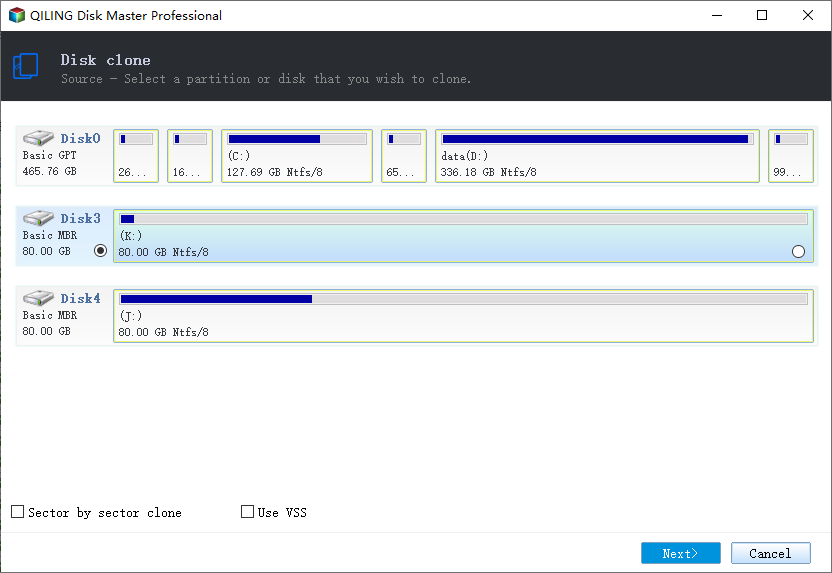
Step 2. Choose the other disk as the destination disk.
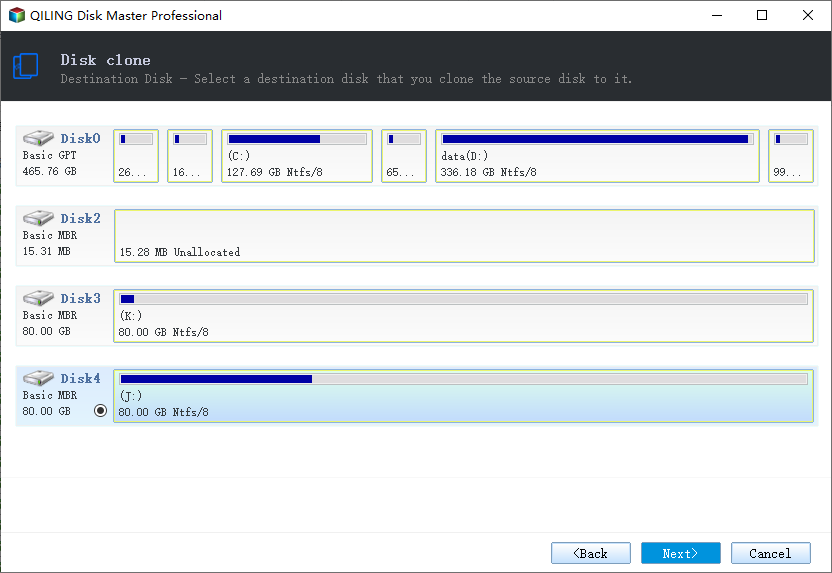
Step 3. Check the disk layout of the two disks, and manage the destination disk layout by selecting "Autofit the disk", "Copy as the source" or "Edit disk layout".
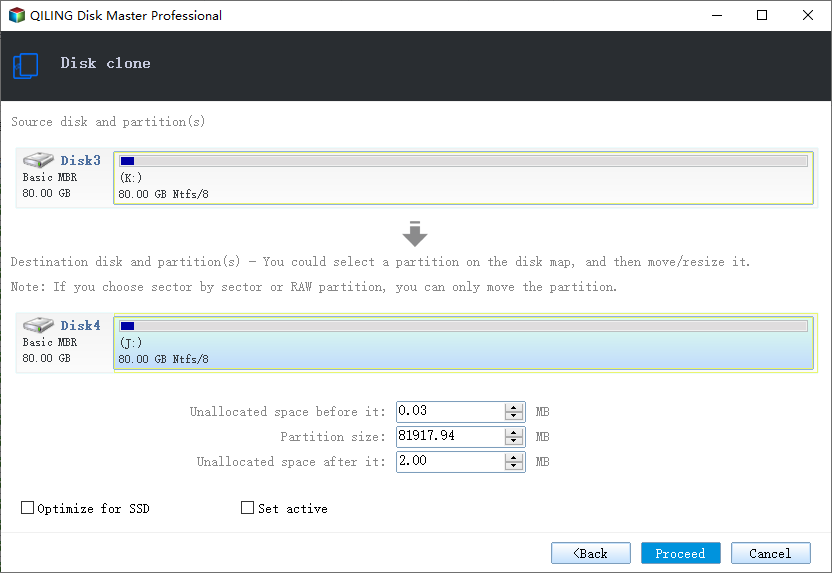
- "Autofit the disk" makes some changes to the destination disk layout by default to optimize its performance.
- The "Copy as the source" option does not modify the destination disk, and the layout remains the same as the source disk.
- Edit disk layout allows you to manually resize or move the partition layout on the destination disk.
Enabling the "Check the option if the target is SSD" option can help optimize your SSD's performance by tailoring its settings to take advantage of its capabilities, resulting in improved overall system speed and responsiveness.
Step 4. Click "Proceed" to officially execute the task.
A message appears, stating that data will be lost, and prompting you to confirm by clicking "OK".
Action 3. Open up the case of your HP laptop and replace the old hard drive with the new one
When the cloning process is complete, replace the original hard drive with the new HDD/SSD. Power off your HP laptop, disconnect all external devices, and remove the screws from the back.
To replace the hard drive in your HP laptop, start by locating the hard drive slot, usually found on the bottom or side of the laptop. Unscrew the screws holding the old hard drive in place, then carefully remove it from its slot. Replace it with the new hard drive, ensuring it is securely fastened with the screws. Finally, connect the new hard drive to the proper interface, such as SATA or PCIe, to complete the replacement.
Screw everything back into place, reassemble your HP laptop, and connect the power cord.
Action 4. Restart your hp laptop and enjoy the better performance
Now you can restart your HP laptop and check if it's running smoothly with the new hard drive. The cloned hard drive keeps all the original Windows system and applications, so you don't need to do anything else.

How to Clone M.2 SSD with Only One Slot[Step-by-Step Guide]
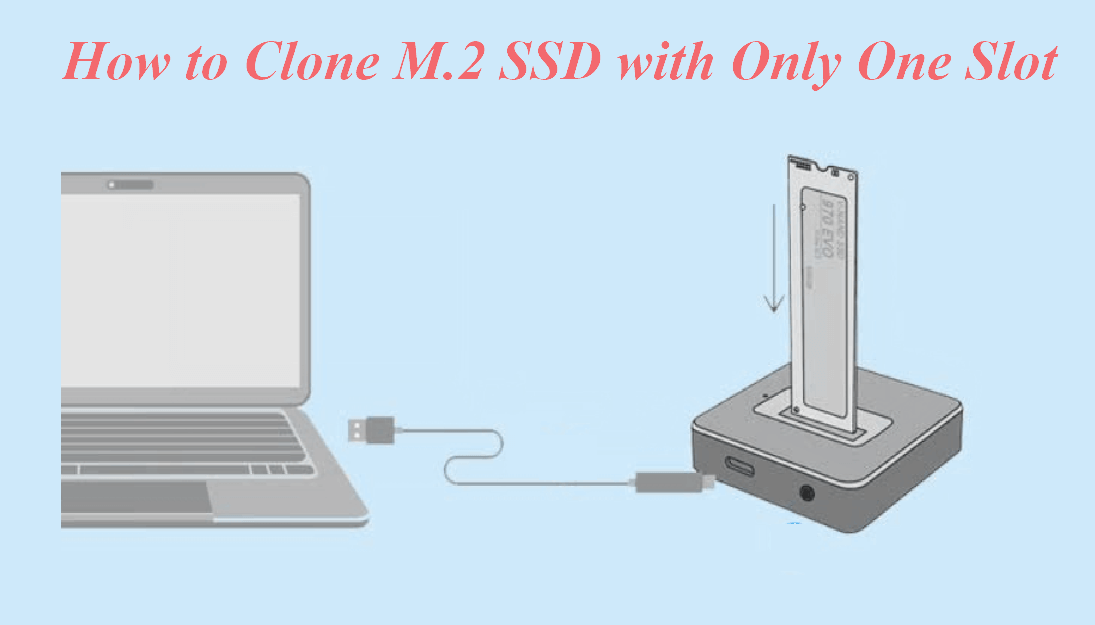
To clone an M.2 SSD to another one with only one slot, you'll need to use an M.2 to USB adapter. This adapter allows you to connect the M.2 SSD to your laptop via USB, effectively giving you a virtual second slot. You can then use software like Qiling Disk Copy to clone the M.2 SSD to another M.2 SSD connected to the same laptop via the M.
Sum Up
To replace the hard drive in an HP laptop, first, back up all data on the existing hard drive using a disk cloning tool like Qiling Disk Copy. Then, purchase a new hard drive of the desired size and ensure it is compatible with the laptop. Next, shut down the laptop, remove the bottom panel, and locate the hard drive. Disconnect the SATA and power cables, and remove the hard drive. Install the new hard drive, reconnect the cables, and replace the bottom panel.
If you encounter any issues while cloning or replacing an HP hard drive, please reach out to us for further assistance. Thank you for reading.
FAQ on Replacing HP Laptop Hard Drive
1. Can you replace the hard drive in an HP laptop?
To replace the hard drive in an HP laptop, connect the new drive via a cable, then clone all data from the old hard drive to the new HDD/SSD. Once the cloning is complete, replace the old hard drive with the new one.
2. Is it worth replacing the hard drive on the laptop?
If your HP laptop is running out of space or slowing down, it's worth replacing the hard drive with a larger one to improve its performance and make it run more smoothly.
3. How much does it cost to replace a laptop hard drive?
To upgrade your HP laptop's storage, you'll need to buy a new hard drive or solid-state drive (HDD/SSD) for around $60-$100 and a cloning tool for about $20, making the total cost around $80-$120, depending on the capacity of the new drive.
4. Can I replace HDD with SSD in an HP laptop?
Upgrading from a Hard Disk Drive (HDD) to a Solid-State Drive (SSD) can significantly improve the performance of an HP laptop by replacing the HDD. This upgrade is straightforward and can be completed by following the same process as replacing the HDD. The SSD is much faster than the HDD in terms of speed and performance. This upgrade can improve the overall performance of the laptop.
Related Articles
- How to Copy Hard Drive to New Computer
- Samsung Cloning Software to Clone HDD to SSD Free
- Clone VS Image | What's the Difference? How to Clone or Image a Hard Drive [Get Full Guides Now]
- How-to Guide | Clone NVMe SSD to NVMe SSD
- How to Free up Space on PlayStation 4 [Four methods]?
Learn how to free up space on PS4 in this post if it says there is not enough storage to download or install games. - Reliable HDD to SSD Cloning Freeware for Windows 10/8/7
You may need HDD to SSD cloning freeware to migrate data when upgrading the disk. Luckily, Qiling Disk Master Standard can clone HDD to SSD on Windows 11, 10, 8, and 7 without losing data.
Products
Articles & Tutorials
- Data Recovery
- Data Backup
- File Recovery
- File Backup
- System Backup and Restore
- Disk and Partition Clone
- Technical articles
- Mobile articles
- Disk Master Help
- Windows Data Recovery Tutorials
- Windows Secure Delete Tutorials
- Windows Partition Management Tutorials
- Windows File Backup and Restore Tutorials
- Windows System Backup and Restore Tutorials
- Windows Disk Backup and Restore Tutorials
- Windows Clone Tutorials