How to Clone M.2 SSD with Only One Slot [Step-by-Step Guide]
M.2 SSD is the next-The M.2 SSD is a high-performance storage device that's smaller, faster, and more power-efficient than regular SSDs, making it a popular choice for hard drives. However, as usage increases, M.2 SSDs can become full, and cloning them to a larger one is a recommended solution to avoid data loss or reinstalling the system. This is especially important if the M.2 SSD is nearing failure, as cloning it to a new one in advance can prevent data loss.
What to Prepare If Your PC with Only One Slot
You can clone an M.2 SSD to another one even if your PC only has one M.2 slot by using a USB enclosure or a PCIe to M.2 adapter. This allows you to temporarily move the M.2 SSD to a different interface, making it possible to clone the drive without needing a second M.2 slot. This method can be a bit more complicated than using two M.
Actually, there are ways out.
To upgrade a laptop with only one M.2 slot, you can use a bootable cloning tool and an external USB HDD to clone a bootable hard drive. This involves booting into the cloning tool, making a drive image into the HDD, shutting down, replacing the M.2 SSD with a larger one, and then booting into the cloning tool again to copy the drive image from the HDD into the new drive.
The alternative method is using a USB to M.2 SSD converter, which allows you to connect an M.2 SSD to your computer via the USB interface.
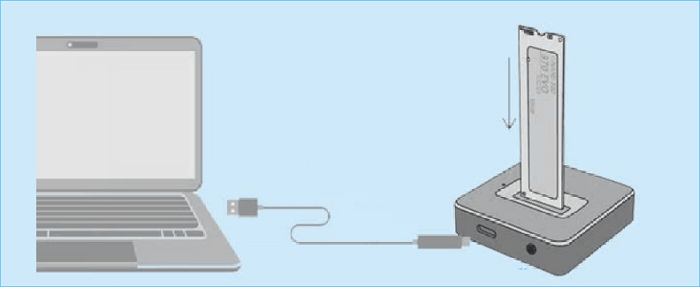
To prepare for a computer with only an M.2 SSD port, you'll need an external USB HDD or a USB to M.2 SSD converter and an extra USB cable.
Reliable SSD Cloning Utility - Make the Cloning Process Easier
A reliable cloning tool is necessary, as the built-in Windows Backup and Restore tool can be unreliable and time-consuming, often getting stuck or failing to back up.
To make the cloning process as easy as possible, we recommend using professional disk cloning software like Qiling Disk Copy, an ultimate utility for Windows 11/10/8/7. This software helps you clone your disk with ease and is a great alternative to the built-in Windows tool.
- Faster speed & less time: Qiling Disk Copy offers a faster cloning speed compared to other tools, making it more efficient in cloning a hard drive, which saves time.
- Flexible clone source: You can use it to copy only the OS or copy only the used sectors of the source disk to another SSD, which helps to transfer the operating system and used data to a new drive without copying unnecessary empty space.
- Bootable cloned SSD: The computer can be successfully booted from the cloned SSD.
- Multiple clone source: Qiling Disk Copy can be used to clone entire disks, systems, and partitions, providing a convenient and efficient way to create exact copies of your data.
- Migrate Windows 10/11 without reinstalling: This software can quickly and easily transfer a Windows installation from a hard drive to a solid-state drive, or from one solid-state drive to another, saving time and money.
- Upgrade hard drive without losing data: Qiling Disk Copy ensures a smooth upgrade from one hard drive to another by copying files, programs and OS as they were, providing a seamless transition.
Based on the above advantages, Qiling Disk Copy is definitely your best choice to clone M.2 SSD. Now, let's see how to clone it step by step.
A Step-by-Step Guide to Clone M.2 SSD with Only One Slot
To clone your M.2 SSD using the first method, you'll need to connect an external USB HDD to your computer and use Qiling Disk Copy to clone the M.2 SSD. Once connected, you can follow the steps to complete the cloning process.
Prior Notice:
- The "Sector by sector copy" feature requires the destination disk to be at least as large as the source disk, so it can be unchecked when cloning a larger hard disk to a smaller one.
- All data on the destination disk will be completely erased, so take care.
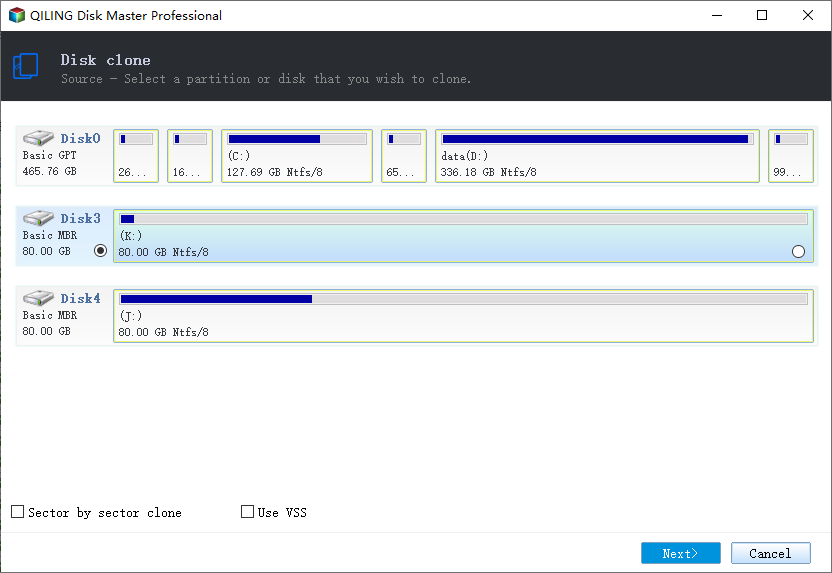
Step 1. To start the process of copying or cloning an entire disk to another, select the disk you want to copy as the source disk under the "Disk clone" option and click "Next".
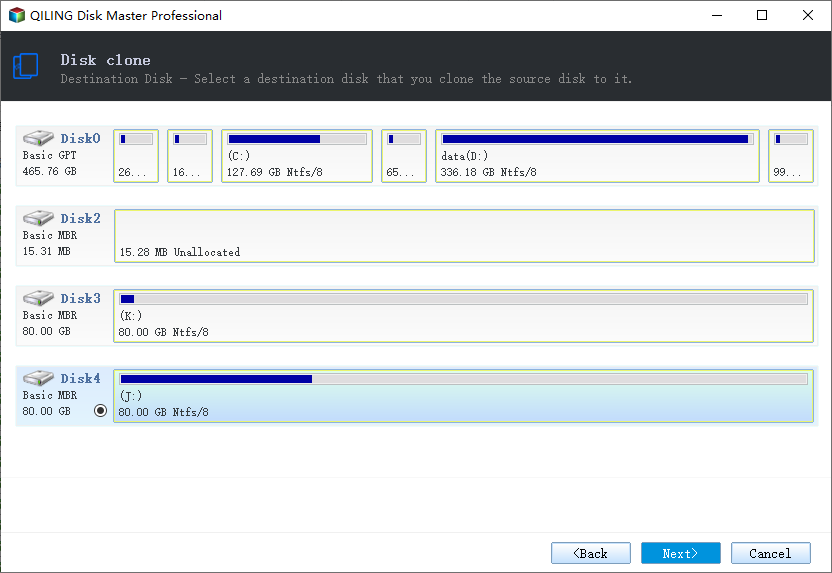
Step 2. Choose the other disk as the destination disk.
Step 3. Check the disk layout of the two disks, and manage the destination disk by selecting "Autofit the disk", "Copy as the source" or "Edit disk layout".
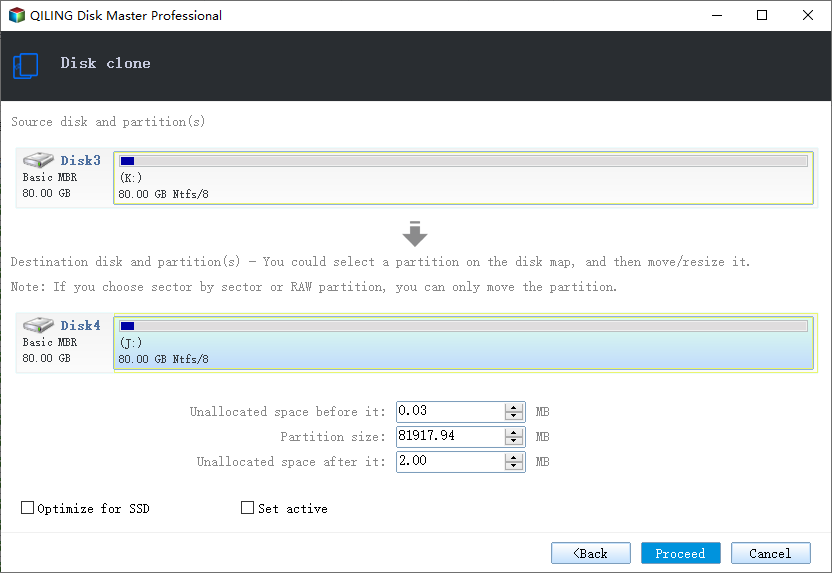
- "Autofit the disk" makes some default changes to the destination disk layout to optimize its performance.
- "Copy as the source" does not change anything on the destination disk and the layout is the same as the source disk.
- "Edit disk layout" allows you to manually resize and move the partition layout on the destination disk.
Enabling the "Check the option if the target is SSD" option can optimize your Solid-State Drive's performance by tailoring it to its capabilities, which may differ from those of traditional Hard Disk Drives. This adjustment can lead to improved system responsiveness, faster loading times, and overall enhanced user experience.
Step 4. Click "Proceed" to officially execute the task.
A message now appears, warning you that data will be lost. Please confirm this message by clicking "OK".
After the cloning process is complete, swap the old M.2 SSD with the new one and restore the system image to the new drive, eliminating the need to reinstall Windows.
If you're using a USB to M.2 SSD converter, you can clone your M.2 SSD by first connecting the adapter to your PC and then following the usual cloning steps. Once you're done, install the new M.2 SSD and boot your computer from it.
Wrapping Up
To clone an M.2 SSD with only one slot, you can use a USB-to-M.2 adapter or a PCIe-to-M.2 adapter to connect the SSD to a computer with a free M.2 slot. Then, use a disk cloning software like Qiling Disk Copy to clone the SSD.
Note:
When cloning a Windows hard drive, it's recommended to clone it to an external hard drive or connect the target disk to your computer via a USB-to-SATA cable, allowing the disk copy program to detect and display it as unallocated space.
FAQ on Cloning M.2 SSD with Only One Slot
1. Does M.2 slots matter?
The M.2 slot is versatile and supports various widths and lengths, making it suitable for different applications. For storage, any M.2 SSD will suffice, but for speed, an M.2 PCIe SSD is recommended.
2. How do I clone NVMe SSD to another NVMe SSD?
To clone an NVMe SSD to another NVMe SSD, you can use professional disk copy software like Qiling Disk Copy, which offers two cloning modes: cloning only the OS or used sectors, allowing you to choose the best option for your needs.
3. Can you clone an M.2 SSD to a SATA SSD?
You can clone an M.2 SSD to a SATA SSD, as long as the SATA SSD is larger than the used space on your M.2 SSD. This can be done using disk cloning software like Qiling Disk Copy, which can help you transfer the contents of your M.2 SSD to the SATA SSD.
4. Can I swap M.2 SSD without reinstalling Windows?
Creating a bootable cloned disk can save you time and money by eliminating the hassle of reinstalling Windows systems and programs. Alternatively, you can also clone just the OS to a new M.2 SSD if you don't want to transfer everything from your old drive.
Related Articles
- Western Digital HDD Repair Tool | Repair WD HDD Without Losing Data
- FIX Error: Acronis True Image For Crucial Not Working
- How to Transfer/Copy Data from One Internal Hard Drive to Another
- [Windows Clone] How to Clone OS in Windows 11/10/8/7
- Samsung SSD Clone Not Booting - How to Fix 🔥
If you're experiencing issues with a cloned Samsung SSD not booting, Qiling's ultimate guide offers effective solutions to fix the problem. Additionally, Qiling Disk Copy, a top-rated Samsung SSD cloning tool, can help you clone an SSD seamlessly. - Seagate DiscWizard Clone Stuck [Why & How to Fix]✅
Discover why your Seagate DiscWizard clone is stuck and get back to seamless disk cloning with expert troubleshooting. Resolve the issue and enjoy uninterrupted disk cloning.
Products
Articles & Tutorials
- Data Recovery
- Data Backup
- File Recovery
- File Backup
- System Backup and Restore
- Disk and Partition Clone
- Technical articles
- Mobile articles
- Disk Master Help
- Windows Data Recovery Tutorials
- Windows Secure Delete Tutorials
- Windows Partition Management Tutorials
- Windows File Backup and Restore Tutorials
- Windows System Backup and Restore Tutorials
- Windows Disk Backup and Restore Tutorials
- Windows Clone Tutorials