How to Clone an MSI Laptop HDD to SSD
An MSI laptop that still boots from a hard drive feels much older than its processor deserves. The disk, not the CPU, is the bottleneck, and copying the existing Windows avoids a full reinstall.
This guide explains the bay layout on common MSI models, what to prepare, how to clone the HDD to an SSD, and how to boot the laptop from the copy.
PAGE CONTENT
- Why MSI Laptops Gain From an SSD
- Find the Right Bay on Your MSI Model
- Prepare the SSD and the Laptop
- Clone the HDD to the SSD with Qiling Disk Master
- Boot the MSI Laptop from the New SSD
- FAQs About MSI Laptop Upgrades
- Back Up Windows Before You Clone
Why MSI Laptops Gain From an SSD
- Windows starts faster. A hard drive takes a minute to reach the desktop; an SSD cuts that to seconds.
- Games load between maps. Large titles stream textures from disk, so load screens shrink with faster storage.
- Updates stop dragging. Windows patches and driver installs spend most of their time waiting on disk access.
- Many models have a free slot. Gaming and creator models often ship with an empty M.2 bay next to the hard drive.
- The chassis stays quiet. Solid state storage removes the spinning platter noise and most of the vibration.
Cloning keeps the installed games, launchers, and driver pack in place, so the laptop behaves exactly as before, only faster.
Find the Right Bay on Your MSI Model
- Check the service manual. MSI publishes a disassembly guide for each model series.
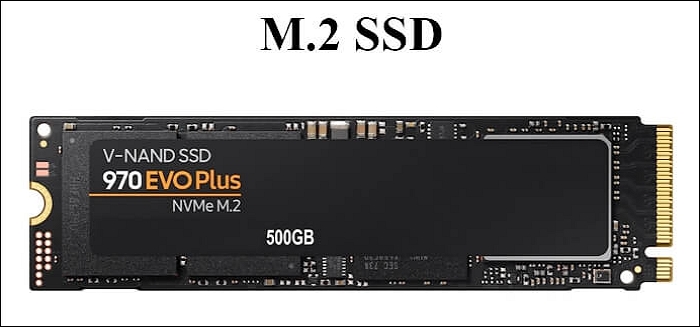
- Count the bays. Many models combine one 2.5-inch bay with one M.2 slot, while thin models are M.2 only.
- Match the M.2 key. A B-key slot takes SATA drives, an M-key slot takes NVMe drives.
- Measure the length. Most slots accept 2280 drives, but short 2242 slots exist on compact models.
- Note the warranty seal. Opening the bottom panel can affect coverage on some regions.
Remove only the screws the manual lists and keep them in order. A misplaced screw can short the board when the panel goes back on.
Prepare the SSD and the Laptop
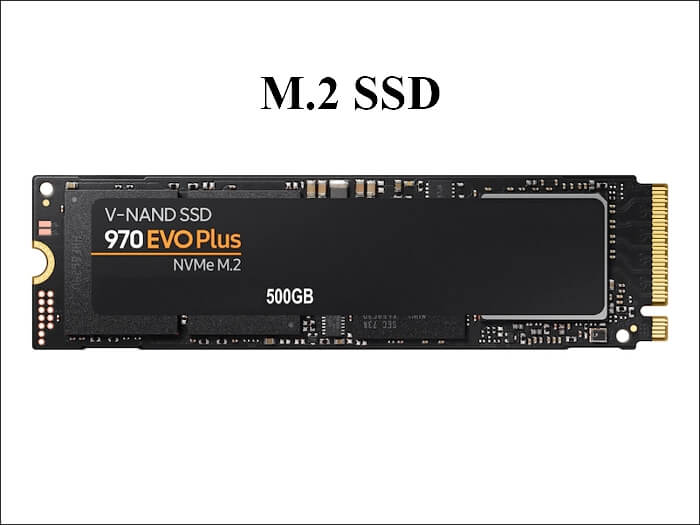
- Pick a capacity that fits. The new SSD must hold every partition on the old hard drive.
- Initialize the SSD as GPT. A UEFI laptop will not start from an MBR disk.
- Suspend BitLocker. Pause protection so the copy is readable at boot.
- Copy personal files aside. A clone is not a backup, and a failed run can cost data.
- Run on AC power. A laptop that sleeps mid-clone leaves a half-written disk.
If the laptop has only one M.2 slot, use a USB enclosure for the new drive as described in How to Clone an M.2 SSD with Only One Slot.
Clone the HDD to the SSD with Qiling Disk Master
Qiling Disk Master copies the whole disk, including the EFI and recovery partitions, and can resize partitions while it runs. Download it and install it on the laptop before you open the bottom panel.
Step 1. Open Qiling Disk Master, choose Clone, and then select Disk Clone.

Step 2. Select the laptop hard drive as the source and click Next.

Step 3. Select the new SSD as the destination and confirm that its data will be replaced.

Step 4. Review the partition layout, keep the recovery partition, and tick Optimize for SSD.

Step 5. Click Proceed, wait for the copy to finish, then shut the laptop down before swapping the drives.

Boot the MSI Laptop from the New SSD
- Open the firmware settings. Press the Del key at power-on to enter the MSI BIOS.
- Pick the UEFI entry. Choose the SSD under UEFI boot options, not a legacy entry.
- Disable the old drive. Unplug the original hard drive so Windows cannot fall back to it.
- Extend the system partition. Use Disk Management to grow the volume into free space.
- Keep the old drive. Store it for a week in case a game or file was missed.
If the laptop ignores the new drive, recheck the M.2 seating and the boot order as described in Cloned Drive Wont Boot Fix.
FAQs About MSI Laptop Upgrades
Will cloning void my MSI warranty?
Software cloning does not. Opening the bottom panel may affect coverage in some regions, so check the local terms first.
Can I clone to the same M.2 slot?
Yes, but the old drive must be removed first. Use a USB enclosure for the new SSD and clone before the swap.
Do I need to reinstall the MSI drivers?
No. The clone carries the existing driver pack, Dragon Center, and profiles with it.
Will the SSD run hotter in a thin chassis?
NVMe drives warm up under load. A model with a heat spreader or a free slot away from the battery runs cooler.
Can I keep the old hard drive as storage?
Yes if the laptop has a spare 2.5-inch bay. Put the old drive there and format it from Windows after the SSD boots.
Back Up Windows Before You Clone
Before changing drives or partitions, create a full system backup. Qiling Disk Master creates an image you can restore from.
Step 1. Open Qiling Disk Master and select System Backup to include Windows and the boot partitions.

Step 2. Save the image to an external drive and start the backup.

Step 3. Click Proceed to start the system backup and wait patiently until it finishes. You can also tick Shut down the computer when the operation is completed to power off automatically.

Step 4. If the laptop will not boot on the new SSD, restore the image to the old drive and retry the clone.

Conclusion
An MSI laptop with an SSD boots, loads games, and installs updates in a fraction of the time. Check the model manual for the bay layout, fit the right M.2 key and length, suspend BitLocker, and keep the laptop on AC power. Clone the whole disk with Qiling Disk Master, keep the EFI and recovery partitions, and unplug the old hard drive before the first boot. Then extend the system partition and keep the old drive until everything works.
For more on laptop storage, see Cloned Drive Wont Boot Fix, How to Clone an M.2 SSD with Only One Slot, Replace a Hard Drive with an SSD Without Reinstalling Windows, and Migrate Windows 10 to NVMe or M.2.
Related Articles
- How to Clone an ASUS Laptop HDD to SSD
Vivobook and ROG models mix SATA bays and M.2 slots. - How to Clone an NVMe SSD to a Larger NVMe SSD
Move an NVMe installation to a bigger drive and keep it bootable. - HP Laptop Hard Drive Replacement
Another laptop teardown and upgrade path with the same clone steps. - 4K Alignment When Cloning to an SSD
Misaligned partitions slow a new SSD and shorten its life. - How to Clone a Laptop HDD to an SSD via USB
Turn a single-bay laptop into a two-disk workspace with a USB adapter.
Products
Articles & Tutorials
- Data Recovery
- Data Backup
- File Recovery
- File Backup
- System Backup and Restore
- Disk and Partition Clone
- Technical articles
- Mobile articles
- Disk Master Help
- Windows Data Recovery Tutorials
- Windows Secure Delete Tutorials
- Windows Partition Management Tutorials
- Windows File Backup and Restore Tutorials
- Windows System Backup and Restore Tutorials
- Windows Disk Backup and Restore Tutorials
- Windows Clone Tutorials