How to Clone an ASUS Laptop HDD to SSD
An ASUS laptop with a hard drive is limited by the platter, not the processor. Moving Windows to an SSD keeps MyASUS, Armoury Crate, and every licence intact.
This guide covers the slot differences between Vivobook, ZenBook, and ROG models, the BIOS settings that matter, and the clone itself.
PAGE CONTENT
- Why Upgrade an ASUS Laptop
- Check the M.2 or SATA Slot
- Prepare ASUS BIOS and Windows
- Clone the HDD with Qiling Disk Master
- First Boot on the ASUS Laptop
- FAQs About ASUS SSD Upgrades
- Back Up Windows Before You Clone
Why Upgrade an ASUS Laptop
- Windows starts far sooner. The boot chain finishes in seconds instead of waiting on HDD seeks.
- Games and apps load faster. ROG and TUF owners see shorter map and shader load times.
- Battery drain drops. An SSD uses less idle power than a mechanical drive.
- MyASUS features stay. A clone keeps the recovery partition and vendor tools in place.
- No reinstall needed. Profiles and activation carry over with the disk copy.
Cloning suits a healthy Windows install. If the old drive already shows SMART warnings, image it first and replace the hardware rather than repairing it.
Check the M.2 or SATA Slot
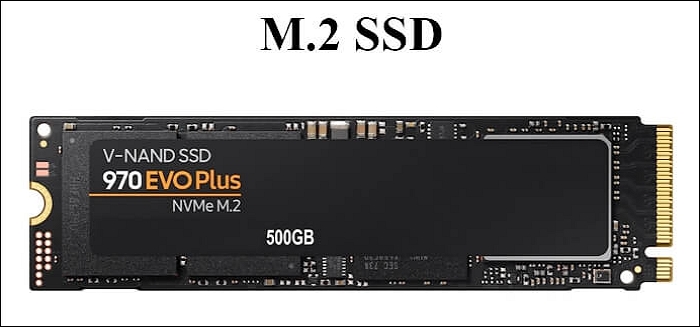
- Identify the model family. Vivobook often has a 2.5-inch bay plus an M.2 slot, while ZenBook is usually M.2 only.
- Check the M.2 key. An M-key slot accepts NVMe, and a B+M slot accepts SATA M.2 modules.
- Read the PCIe generation. A Gen4 drive in a Gen3 slot works, but it runs at Gen3 speed.
- Look for a second slot. Many ROG and TUF laptops expose two M.2 slots for a dual-drive layout.
- Confirm the drive length. Most slots take 2280 modules, and a few compact models take 2230 only.
Buy for the slot you have, not the fastest drive on the shelf. A SATA M.2 module in an NVMe-only slot simply will not appear in the BIOS.

Prepare ASUS BIOS and Windows
- Update the BIOS. Use MyASUS or the support page so the new drive is recognized reliably.
- Suspend BitLocker. Pause protection so the copied disk starts without a recovery prompt.
- Disable Fast Startup. A full shutdown removes hibernation links to the old drive.
- Use an NVMe enclosure. With one M.2 slot, the new drive must be connected through USB for the copy.
- Check the free space. The SSD must hold the used data plus the EFI and recovery volumes.
If the firmware uses Intel RST RAID mode, note it before the clone. Switching to AHCI afterwards needs the safe-mode preparation described on the ASUS support pages.
Clone the HDD with Qiling Disk Master
Qiling Disk Master copies the ASUS disk with its EFI and recovery partitions, so the new SSD boots without rebuilding the boot store.
Step 1. Open Qiling Disk Master, choose Clone, and then select Disk Clone.

Step 2. Select the ASUS HDD as the source and click Next.

Step 3. Select the SSD in the enclosure as the destination and confirm that its data will be replaced.

Step 4. Review the layout, keep the EFI and recovery partitions, and tick Optimize for SSD.

Step 5. Click Proceed, wait for the copy to finish, then shut down and install the SSD in the M.2 slot.

First Boot on the ASUS Laptop
- Open the boot menu. Press Esc at startup for the ASUS boot menu, or F2 for the firmware setup.
- Select the new entry. Put Windows Boot Manager on the SSD first in the boot order.
- Check Secure Boot. Keep the existing Secure Boot state so the copied boot files remain trusted.
- Install ASUS drivers. MyASUS or Armoury Crate restores chipset and storage drivers after the swap.
- Enable TRIM. Confirm that drive optimization is scheduled for the new SSD.
If the laptop reports no bootable device, the SSD entry is missing or the boot store points at the old disk. Cloned Drive Wont Boot Fix covers the repair steps.
FAQs About ASUS SSD Upgrades
Does an ASUS laptop need a reinstall after cloning?
No. A full disk clone keeps Windows, activation, MyASUS, and the recovery partition.
Can I add a second SSD to my ASUS laptop?
Only if the model has a free M.2 or 2.5-inch bay. Check the service manual before buying.
Will a SATA M.2 drive work in my ASUS laptop?
Only in a B+M keyed slot. An NVMe-only slot requires a PCIe drive.
Can I clone without an enclosure?
Only when the laptop has two slots. With one slot, connect the new drive through USB first.
Does the clone keep Armoury Crate settings?
Yes. Applications and their settings live on Windows, so they move with the clone.
Back Up Windows Before You Clone
Before changing drives or partitions, create a full system backup. Qiling Disk Master creates an image you can restore from.
Step 1. Open Qiling Disk Master and select System Backup to include Windows and the boot partitions.

Step 2. Save the image to a drive other than the target disk and start the backup.

Step 3. Click Proceed to start the system backup and wait patiently until it finishes. You can also tick Shut down the computer when the operation is completed to power off automatically.

Step 4. If the copy will not start, restore the image to a spare drive and boot from it.

Conclusion
An ASUS upgrade depends on one question: M.2 or 2.5-inch. Confirm the key type and length, update the BIOS, and note whether the firmware runs AHCI or RAID before you copy. Clone the whole disk so the EFI and recovery partitions stay in place, then set Windows Boot Manager on the SSD first and keep Secure Boot unchanged. Install the ASUS drivers and confirm TRIM before you retire the HDD.
For more laptop upgrades, see How to Clone an MSI Laptop HDD to SSD, How to Clone an NVMe SSD to a Larger NVMe, Cloned Drive Wont Boot Fix, and How Long Does a Disk Clone Take.
Related Articles
- How to Clone a Lenovo Laptop HDD to SSD
ThinkPad and IdeaPad models use similar slot rules. - How to Clone a Dell Laptop HDD to SSD
Dell BIOS and recovery tools need the same checks. - How to Clone an Acer Laptop HDD to SSD
Aspire owners often start from a 2.5-inch hard drive. - Migrate Windows 10 to NVMe or M.2
Move an existing install onto faster storage. - How to Clone an SSD to an HDD
Trade speed for capacity while keeping the boot files.
Products
Articles & Tutorials
- Data Recovery
- Data Backup
- File Recovery
- File Backup
- System Backup and Restore
- Disk and Partition Clone
- Technical articles
- Mobile articles
- Disk Master Help
- Windows Data Recovery Tutorials
- Windows Secure Delete Tutorials
- Windows Partition Management Tutorials
- Windows File Backup and Restore Tutorials
- Windows System Backup and Restore Tutorials
- Windows Disk Backup and Restore Tutorials
- Windows Clone Tutorials