How to Clone a Lenovo Laptop HDD to SSD
A Lenovo laptop with a hard drive still works, but every start, update, and file copy reminds you how old the disk is. Cloning the drive onto an SSD keeps Windows, the recovery tools, and every installed program exactly where they were.
This guide explains the storage layouts Lenovo uses, the checks to run first, the clone itself, and how to boot the laptop from the new drive.
PAGE CONTENT
- Why Lenovo Laptops Benefit from an SSD
- Identify the Storage Layout of Your Lenovo
- Prepare the SSD and the Laptop
- Clone the HDD to the SSD with Qiling Disk Master
- Boot the Lenovo Laptop from the New SSD
- FAQs About Lenovo SSD Upgrades
- Back Up Windows Before You Clone
Why Lenovo Laptops Benefit from an SSD
- Boot time drops sharply. A ThinkPad or IdeaPad that took a minute to reach the desktop usually opens in seconds.
- Office work feels lighter. Large documents, mail archives, and browser profiles all read from disk.
- Updates finish sooner. Windows patches and Lenovo Vantage updates stop waiting on the platter.
- Battery life improves. An SSD uses less power than a spinning drive during normal use.
- The old drive keeps its value. After the swap it can become an external backup disk.
The clone also carries the recovery partition, so the Lenovo one-key recovery tools keep working after the upgrade.
Identify the Storage Layout of Your Lenovo
- Look up the model. ThinkPad, IdeaPad, Legion, and Yoga models differ in drive bays and access.
- Check for a 2.5-inch bay. Older models accept a standard SSD in the existing caddy.
- Check for an M.2 slot. Many newer models add an M.2 slot beside the hard drive.
- Confirm the key and length. Some slots take 2242 drives only, often shared with the WWAN slot.
- Rule out soldered storage. A few thin models have no removable drive at all.
If the drive is soldered, cloning to an internal SSD is not possible. In that case, use an external SSD for large files instead of replacing the disk.
Prepare the SSD and the Laptop
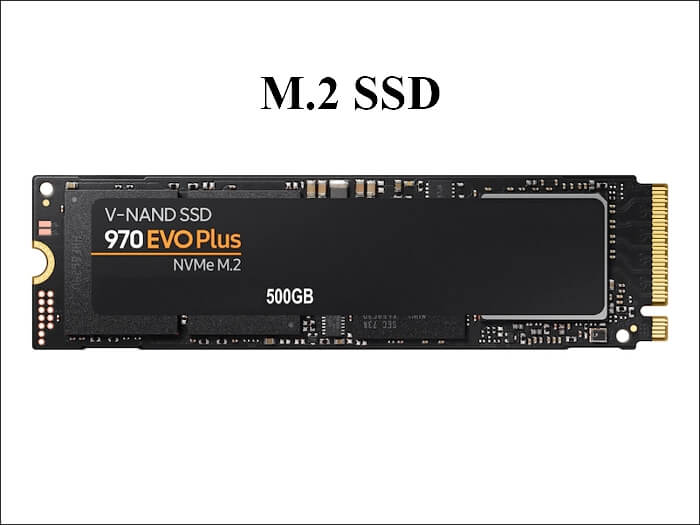
- Choose an SSD that fits. A 2.5-inch SATA drive for the caddy, or an M.2 drive for the slot.
- Match or exceed capacity. The recovery partition alone can take several gigabytes.
- Suspend BitLocker. Pause protection so the clone stays readable at boot.
- Save the recovery key. Store it outside the laptop before changing the disk.
- Charge the battery. Keep the laptop on AC power for the whole task.
Lenovo Vantage can confirm the exact drive model and firmware version, which helps when you pick the replacement.
Clone the HDD to the SSD with Qiling Disk Master
Qiling Disk Master copies every partition, including the EFI system partition and the Lenovo recovery volume, and can resize them during the task. Install it before you open the laptop.
Step 1. Open Qiling Disk Master, choose Clone, and then select Disk Clone.

Step 2. Select the Lenovo hard drive as the source and click Next.

Step 3. Select the new SSD as the destination and confirm that its data will be replaced.

Step 4. Review the layout, keep the recovery partition, and tick Optimize for SSD so the trim settings follow the new drive.

Step 5. Click Proceed, wait for the copy to finish, then shut the laptop down before the swap.

Boot the Lenovo Laptop from the New SSD
- Open the BIOS. Press F1 or F2 at power-on, depending on the model.
- Use the boot menu. F12 opens a one-time menu if you only want to test the new drive.
- Set the SSD first. Choose the UEFI entry for the new drive in the boot order.
- Test the recovery key. Press the Novo button or the recovery shortcut once to confirm it still opens.
- Keep the old drive. Store it for a week in case a file was missed.
If the laptop ignores the new drive, recheck the caddy screws and the boot entry as described in Cloned Drive Wont Boot Fix.
FAQs About Lenovo SSD Upgrades
Does cloning keep the Lenovo recovery partition?
Yes, when the whole disk is cloned. Keep that partition in the layout preview so the one-key recovery still works.
Will Lenovo Vantage still detect my hardware?
Yes. The clone keeps the serial numbers and drivers, so Vantage reads the same model information as before.
Can I clone to a larger SSD?
Yes. Extend the system volume into the free space after the first boot, or resize partitions during the clone.
Do I need to disable Secure Boot?
No, unless the copy refuses to start. Most clones boot with Secure Boot on; turn it off only for troubleshooting.
Can I move the old drive to an external enclosure?
Yes. A 2.5-inch USB enclosure turns the old hard drive into a backup disk once the SSD boots.
Back Up Windows Before You Clone
Before changing drives or partitions, create a full system backup. Qiling Disk Master creates an image you can restore from.
Step 1. Open Qiling Disk Master and select System Backup to include Windows and the boot partitions.

Step 2. Save the image to an external drive and start the backup.

Step 3. Click Proceed to start the system backup and wait patiently until it finishes. You can also tick Shut down the computer when the operation is completed to power off automatically.

Step 4. If the new SSD will not start, restore the image to the old drive and run the clone again.

Conclusion
A Lenovo laptop gains more from an SSD upgrade than from almost any other change. Identify the bay or M.2 slot, pick a drive with enough capacity for the recovery volume, suspend BitLocker, and save the recovery key. Clone the whole disk with Qiling Disk Master, keep the EFI and recovery partitions, and unplug the old drive before the first boot. Then set the SSD first in the BIOS, test the recovery shortcut, and keep the old disk until everything is confirmed.
For more on laptop storage, see Cloned Drive Wont Boot Fix, How to Clone an MSI Laptop HDD to SSD, Replace a Hard Drive with an SSD Without Reinstalling Windows, and How to Clone an M.2 SSD with Only One Slot.
Related Articles
- HP Laptop Hard Drive Replacement
Another laptop teardown and upgrade path with the same clone steps. - How to Clone a 2.5-inch SSD to M.2
Move a SATA installation onto an M.2 drive without a reinstall. - How Long Does a Disk Clone Take
Clone time depends on used space, drive speed, and the connection you use. - How to Clone an Acer Laptop HDD to SSD
Aspire models often hide an optical bay caddy. - How to Clone a Laptop HDD to an SSD via USB
Turn a single-bay laptop into a two-disk workspace with a USB adapter.
Products
Articles & Tutorials
- Data Recovery
- Data Backup
- File Recovery
- File Backup
- System Backup and Restore
- Disk and Partition Clone
- Technical articles
- Mobile articles
- Disk Master Help
- Windows Data Recovery Tutorials
- Windows Secure Delete Tutorials
- Windows Partition Management Tutorials
- Windows File Backup and Restore Tutorials
- Windows System Backup and Restore Tutorials
- Windows Disk Backup and Restore Tutorials
- Windows Clone Tutorials