How to Clone a Laptop HDD to an SSD via USB
Most laptops hold a single 2.5-inch drive, so there is no free bay for the new SSD. A USB to SATA adapter solves that: it keeps the old drive working while the copy is written to the new one.
This guide explains how to prepare the adapter, clone the laptop disk without opening the machine twice, and swap the drive so Windows still starts.
PAGE CONTENT
- Why Copy Through USB
- Choose the Right Adapter
- Prepare the SSD and the Laptop
- Clone the Laptop HDD with Qiling Disk Master
- Swap the Drive and Boot
- FAQs About USB Drive Clones
- Back Up Windows Before You Clone
Why Copy Through USB
- One bay only. Thin laptops have no space for a second 2.5-inch drive.
- No opening twice. The old drive stays inside while the copy goes to the adapter.
- The adapter is cheap. A USB 3.0 to SATA cable costs far less than a dock.
- The system keeps running. Windows stays usable until the copy finishes.
- The old drive stays intact. It is the rollback if the SSD fails to boot.
A USB clone works because Qiling Disk Master sees the SSD as an ordinary disk. The only real requirement is a stable connection that does not drop during a long copy.
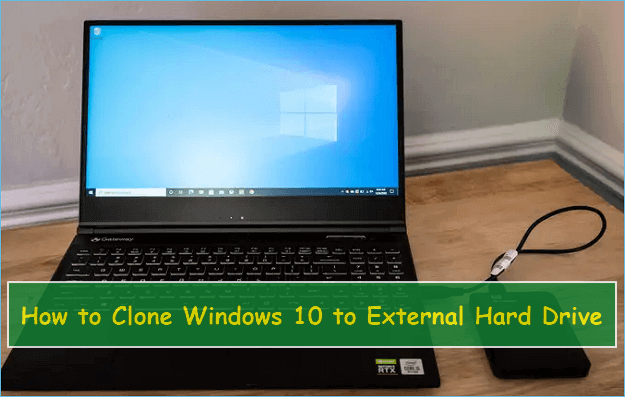
Choose the Right Adapter
- Match the interface. A SATA to USB 3.0 cable suits 2.5-inch drives; NVMe needs its own enclosure.
- Prefer USB 3.0 or faster. USB 2.0 turns a one-hour copy into a whole afternoon.
- Check the power draw. Bus-powered adapters are fine for SSDs and most laptop HDDs.
- Avoid loose cables. A wobbly connector is the most common cause of a failed copy.
- Use a rear port. Direct ports keep a steady link better than hubs.
Some 2.5-inch enclosures include a power switch or a sleep feature. Disable sleep before the clone, or the drive may disconnect halfway through.
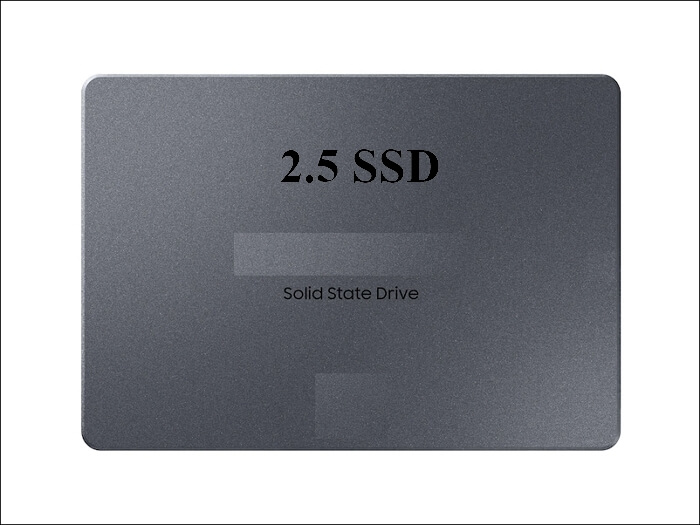
Prepare the SSD and the Laptop
- Leave the SSD blank. Do not create partitions; the clone writes the laptop layout.
- Check the drive height. Most laptops take 7 mm drives, and some accept 9.5 mm.
- Close other programs. Stop games, sync clients, and backup jobs during the copy.
- Plug in the charger. A laptop that sleeps mid-copy can corrupt the task.
- Note the boot mode. A UEFI laptop needs a GPT disk with an EFI partition.
Suspend BitLocker before the clone. Encryption blocks a block-level copy, and the new drive may ask for a recovery key on the first boot.
Clone the Laptop HDD with Qiling Disk Master
Qiling Disk Master runs inside Windows and copies the disk while the laptop keeps working. Download it before you attach the SSD to the adapter.
Step 1. Open Qiling Disk Master, choose Clone, and then select Disk Clone.

Step 2. Select the laptop HDD as the source and click Next.

Step 3. Select the USB SSD as the destination and confirm that its data will be replaced.

Step 4. Review the layout, keep the EFI and recovery volumes, and tick Optimize for SSD.

Step 5. Click Proceed, wait for the copy to finish, then shut the laptop down before you unplug the adapter.

Swap the Drive and Boot
- Open the service cover. Most laptops expose the drive with a few screws.
- Transfer the bracket. Move the mounting frame and screws to the new SSD.
- Fit the SSD. Seat it in the bay and close the cover before you power on.
- Set the drive first. Choose the SSD in the firmware boot order.
- Test the basics. Confirm sleep, Wi-Fi, and one heavy program before you wipe the HDD.
If the laptop does not list the SSD, the connector may not be fully seated. Open the bay again and press the drive until it clicks into place.
FAQs About USB Drive Clones
Can I clone a laptop drive through a USB adapter?
Yes. The adapter exposes the SSD as a normal disk, and the clone writes to it like any other target.
Is a USB clone slower?
A USB 3.0 link is close to SATA speed. USB 2.0 is much slower and should be avoided.
Do I need to open the laptop before the copy?
No. The copy runs with the old drive in place; you open the machine only to swap the disks afterwards.
Will Windows activate on the new SSD?
Yes. The hardware is unchanged, so the digital licence still applies.
What if the adapter disconnects mid-copy?
The task fails. Reconnect the drive and start again with a direct port and the laptop on mains power.
Back Up Windows Before You Clone
Before changing drives, create a full system backup. Qiling Disk Master creates an image you can restore from if the SSD will not start.
Step 1. Open Qiling Disk Master and select System Backup to include Windows and the boot partitions.

Step 2. Save the image to a drive other than the target disk and start the backup.

Step 3. Click Proceed to start the system backup and wait patiently until it finishes. You can also tick Shut down the computer when the operation is completed to power off automatically.

Step 4. If the SSD will not start, restore the image to the original HDD and try again.

Conclusion
A USB adapter turns a single-bay laptop into a two-disk workspace. Keep the old HDD in place, attach the SSD through USB 3.0, suspend BitLocker, and clone the whole disk with SSD optimisation. Then shut down, swap the drives, and set the SSD first in the firmware. Keep the HDD as a rollback until sleep and daily work behave normally.
For more laptop upgrades, see How to Clone an HP Laptop HDD to SSD, How to Clone a Dell Laptop HDD to an SSD, How to Clone an M.2 SSD When There Is Only One Slot, and Replace a Hard Drive with an SSD Without Reinstalling Windows.
Related Articles
- Cloned Drive Wont Boot Fix
Repair the boot entry when the copy refuses to start. - How to Clone a Lenovo Laptop HDD to an SSD
Some models hide the drive behind a service cover. - How to Clone an ASUS Laptop HDD to an SSD
Check the bay height before you buy the drive. - 4K Alignment When Cloning an SSD
Raw copies keep the original alignment intact. - How to Clone an HDD to an SSD With Only a USB Cable
An adapter is enough when the laptop has one bay.
Products
Articles & Tutorials
- Data Recovery
- Data Backup
- File Recovery
- File Backup
- System Backup and Restore
- Disk and Partition Clone
- Technical articles
- Mobile articles
- Disk Master Help
- Windows Data Recovery Tutorials
- Windows Secure Delete Tutorials
- Windows Partition Management Tutorials
- Windows File Backup and Restore Tutorials
- Windows System Backup and Restore Tutorials
- Windows Disk Backup and Restore Tutorials
- Windows Clone Tutorials