How to Clone an HDD to an SSD With Only a USB Cable
Not every laptop has a second drive bay, and not every desktop has a free SATA power lead. A USB to SATA adapter turns the target SSD into an external drive that Windows can clone to.
This guide covers the adapter types worth buying, the power limits that cause a copy to drop, and the steps to move an HDD to an SSD over a single USB cable.
PAGE CONTENT
- When a USB Cable Is the Only Option
- Pick the Right Adapter and Cable
- Prepare Both Drives Before the Copy
- Clone Over USB with Qiling Disk Master
- Boot From the New SSD
- FAQs About USB Cloning
- Back Up the HDD Before You Clone
When a USB Cable Is the Only Option
- The laptop has one drive bay. The old HDD sits in it and the SSD has nowhere to go.
- The desktop has no spare port. SATA ports are used by the system disk and the optical drive.
- The case is hard to open. Some prebuilt machines and all-in-ones hide the drive cage.
- The drive must stay in place. A USB copy lets the source run in its normal position.
- The target is an M.2 drive. A USB enclosure for NVMe works the same way as a SATA adapter.
A USB copy is slower than an internal one, but it needs no disassembly until the moment you swap the drives. That makes it the practical choice for laptops with a single bay.
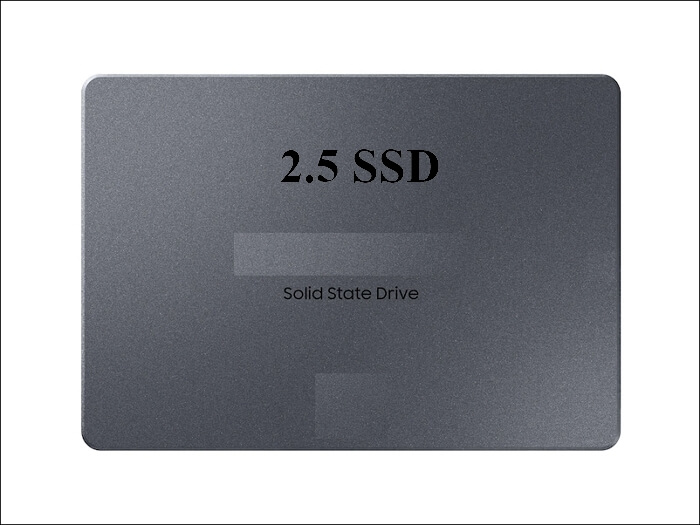
Pick the Right Adapter and Cable
- Choose USB 3.0 or faster. A USB 2.0 adapter caps the copy at roughly 40 MB/s and doubles the wait.
- Check the power rating. A 2.5-inch SSD needs little power, but a 3.5-inch HDD needs an external supply.
- Match the connector. SATA adapters do not fit NVMe drives, and M.2 SATA does not fit an NVMe slot.
- Avoid unpowered hubs. A hub that shares one port can drop the drive in the middle of the copy.
- Prefer a short, thick cable. Long thin cables cause disconnects under load.
The classic failure is a drive that disappears halfway through the copy. It is almost always power or cable quality, not the cloning software, so buy the adapter before you need it.
Prepare Both Drives Before the Copy
- Back up the target. The clone overwrites every partition on the SSD, so move any files off it.
- Initialize nothing. Windows may offer to format a new SSD, decline and let the clone tool handle it.
- Free space on the source. An HDD that is more than 90 percent full slows the copy and can fail.
- Close background programs. Updates, antivirus scans, and sync clients add load to the source disk.
- Plug the adapter into a rear port. Front ports on a desktop often share a weak internal header.
Keep the laptop on AC power for the whole task. A battery that fails at 30 percent leaves a half-written SSD and an unbootable machine.
Clone Over USB with Qiling Disk Master
Qiling Disk Master sees the USB-attached SSD as an ordinary disk. Start the task from Windows, and let the tool write the partitions while the source HDD keeps running.
Watch the video tutorial below to clone the drive step by step with Qiling Disk Master.
Step 1. Open Qiling Disk Master, choose Clone, and then select Disk Clone.

Step 2. Select the internal HDD as the source and click Next.

Step 3. Select the USB-attached SSD as the destination and confirm that its data will be replaced.

Step 4. Review the partition layout, tick Optimize for SSD, and keep the EFI and recovery volumes.

Step 5. Click Proceed, and do not unplug the adapter until the tool reports success.

Boot From the New SSD
- Shut down before the swap. Remove the adapter only after Windows has fully powered off.
- Install the SSD in the bay. Reuse the old screws and the same cable the HDD used.
- Set the boot order. Pick the SSD in firmware or in the one-time boot menu.
- Check that Windows starts. One automatic restart may follow the hardware change.
- Keep the HDD. Store it untouched until the laptop has run on the SSD for a week.
If the new drive is not listed in the boot menu, the copy may have gone to the adapter's logical disk rather than the physical one. Reconnect it and repeat the task with the whole disk selected.
FAQs About USB Cloning
How long does a USB clone take?
With USB 3.0, expect roughly 10 to 20 minutes per 100 GB. USB 2.0 takes several times longer.
Can I clone to an SSD through a USB hub?
Only a powered hub. An unpowered hub can drop the drive when the copy reaches a heavy section.
Does the USB adapter change the drive?
No. The adapter only translates SATA to USB, and the drive keeps its partitions.
Can I boot Windows from the USB SSD?
Sometimes, but internal SATA is faster and more reliable. Move the drive into the bay once the copy is done.
Will the SSD be slower after a USB clone?
No. The copy route does not affect the speed of the drive once it is connected internally.
Back Up the HDD Before You Clone
An old HDD that is being replaced may already be weak. Take a full system image first, so a failing source does not cost you the data.
Watch the video tutorial below to back up Windows and restore it if the clone fails.
Step 1. Open Qiling Disk Master and select System Backup to include the boot partitions.

Step 2. Save the image to a drive other than the target disk and start the backup.

Step 3. Click Proceed to start the system backup and wait patiently until it finishes. You can also tick Shut down the computer when the operation is completed to power off automatically.

Step 4. If the SSD will not boot, restore the image to the HDD and repeat the copy over USB.

Conclusion
One USB cable is enough to move an HDD to an SSD when no bay or port is free. Buy a USB 3.0 adapter with a stable power supply, keep the source under 90 percent full, and choose the whole disk as the source instead of a volume. After the copy, power down, swap the drive into the bay, and set the SSD first in the boot order.
For more on external copies, see How to Clone a Laptop HDD to an SSD via USB, How to Clone M.2 SSD with Only One Slot, How to Clone an HDD to an SSD on Windows 10, and How to Clone an External Hard Drive to an Internal SSD.
Related Articles
- How to Clone an Acer Laptop HDD to SSD
Single-bay Acer models rely on USB adapters. - How to Clone a Dell Laptop HDD to SSD
Check the bay and the adapter before the swap. - How to Clone a Lenovo Laptop HDD to SSD
Some models hide the drive under the battery. - How to Clone an HP Laptop HDD to SSD
HP chassis vary, so plan the cable route first. - How Long Does a Disk Clone Take?
Volume and interface set the waiting time.
Products
Articles & Tutorials
- Data Recovery
- Data Backup
- File Recovery
- File Backup
- System Backup and Restore
- Disk and Partition Clone
- Technical articles
- Mobile articles
- Disk Master Help
- Windows Data Recovery Tutorials
- Windows Secure Delete Tutorials
- Windows Partition Management Tutorials
- Windows File Backup and Restore Tutorials
- Windows System Backup and Restore Tutorials
- Windows Disk Backup and Restore Tutorials
- Windows Clone Tutorials