How to Clone an HDD to an SSD on Windows 10
Windows 10 is still the most common desktop system, and many machines still boot from a mechanical drive. An SSD removes the wait without touching the installation.
This guide covers the interface check, the settings to change before the copy, and the clone steps with Qiling Disk Master.
PAGE CONTENT
- Why Clone on Windows 10
- Check the Interface and Boot Mode
- Prepare Windows 10 Before Cloning
- Clone the HDD with Qiling Disk Master
- First Boot from the SSD
- FAQs About Windows 10 SSD Clones
- Back Up Windows Before You Clone
Why Clone on Windows 10
- Boot time falls sharply. An SSD reaches the desktop in seconds where an HDD takes a minute.
- Updates install faster. Monthly cumulative updates unpack far more quickly on solid state storage.
- Programs open sooner. Office, browsers, and games stop waiting on disk seeks.
- Activation stays intact. A clone keeps the digital licence tied to the same hardware.
- The old drive can retire. A drive past five years is the component most likely to fail next.
Cloning suits a healthy Windows 10 install. If the system already crashes or shows SMART warnings, image the drive first and plan a repair instead of a direct upgrade.
Check the Interface and Boot Mode
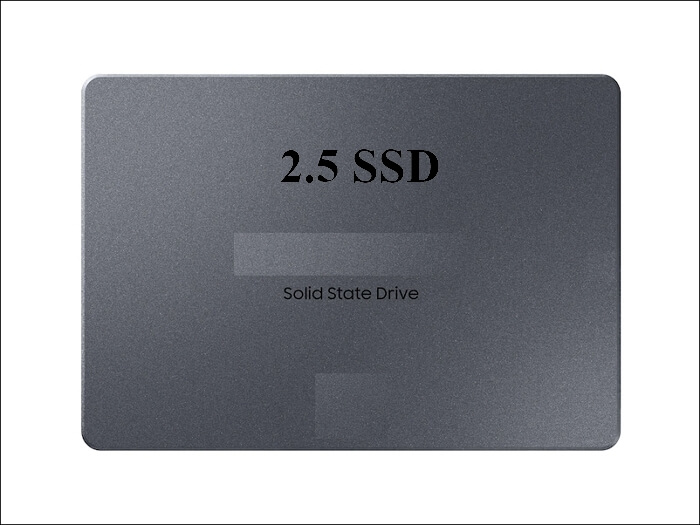
- Confirm the bay type. Most desktops and older laptops take a 2.5-inch SATA drive, while newer models add an M.2 slot.
- Check the drive height. A 7 mm SSD fits every bay, and a 9.5 mm drive may not fit slim laptops.
- Note the SATA mode. Record whether the firmware uses AHCI or Intel RST RAID before the copy.
- Confirm the boot mode. UEFI systems need GPT, and legacy systems boot from MBR with an active partition.
- Compare free space. The SSD must exceed the used data, not the HDD label capacity.
If the BIOS cannot see the SSD, fix detection before cloning. A drive that never appears in firmware will not appear to Windows either.

Prepare Windows 10 Before Cloning
- Suspend BitLocker. Pause protection so the new disk boots without a recovery key prompt.
- Disable Fast Startup. A full shutdown clears hibernation links to the old drive.
- Install pending updates. Finish Windows updates before the move so the copy is not mid-patch.
- Connect a USB adapter. A SATA-to-USB cable lets the clone run before you open the case.
- Record the boot order. Note the current firmware entry so you can set the SSD first afterwards.
Run a full system backup as well. A clone is a copy, not a backup, and a failed copy should never be the only rollback path.
Clone the HDD with Qiling Disk Master
Qiling Disk Master copies the whole Windows 10 disk, including the EFI or system reserved volume and the recovery partition, so the SSD boots on its own.
Step 1. Open Qiling Disk Master, choose Clone, and then select Disk Clone.

Step 2. Select the Windows 10 HDD as the source and click Next.

Step 3. Select the SSD as the destination and confirm that its data will be replaced.

Step 4. Review the partitions, keep the boot and recovery volumes, and tick Optimize for SSD.

Step 5. Click Proceed, wait for the copy to finish, then shut the PC down before you swap the drives.

First Boot from the SSD
- Set the SSD first. Choose the new drive or Windows Boot Manager at the top of the boot order.
- Keep the SATA mode. Leave AHCI or RAID exactly as it was when the clone was made.
- Enable TRIM. Windows 10 normally schedules optimization, but confirm it is still active.
- Extend the volume. Use Disk Management to claim free space when the SSD is larger.
- Keep the HDD aside. Store it unplugged for a week in case a file was missed.
If the copy stops on a boot device error, the boot entry or storage mode is wrong. The repair steps in Cloned Drive Wont Boot Fix cover both cases.
FAQs About Windows 10 SSD Clones
Do I need to reinstall Windows 10 after cloning?
No. A full disk clone carries Windows, programs, and the boot partitions to the new drive.
Will Windows 10 stay activated?
Yes on the same machine. A motherboard change is what triggers a new activation prompt.
Can I clone to a smaller SSD?
Only when the used space fits. Shrink the C partition and check the total of all partitions first.
Does the clone work with RAID mode?
It copies the volume the controller exposes. Keep the mode unchanged or prepare the AHCI switch carefully.
How long does the clone take?
Used space and the connection decide. A 200 GB copy over USB 3.0 typically takes under an hour.
Back Up Windows Before You Clone
Before changing drives or partitions, create a full system backup. Qiling Disk Master creates an image you can restore from.
Step 1. Open Qiling Disk Master and select System Backup to include Windows and the boot partitions.

Step 2. Save the image to a drive other than the target disk and start the backup.

Step 3. Click Proceed to start the system backup and wait patiently until it finishes. You can also tick Shut down the computer when the operation is completed to power off automatically.

Step 4. If the clone will not start, restore the image to a spare drive and boot from it.

Conclusion
Moving Windows 10 to an SSD is a disk clone, not a rebuild, when the interface and boot mode match. Confirm the bay type, keep the SATA mode unchanged, and suspend BitLocker before you copy. Clone the whole disk so the boot and recovery partitions travel with the system, then set the SSD entry first, keep TRIM active, and extend the volume.
For more on storage upgrades, see How to Clone an HDD to an NVMe SSD on Windows 11, How to Copy a Hard Drive to an SSD, Cloned Drive Wont Boot Fix, and How Long Does a Disk Clone Take.
Related Articles
- 4K Alignment When Cloning an SSD
Correct offsets keep write speed and endurance intact. - How to Replace the C Drive with an SSD
Move the system volume while keeping the data disk. - Replace a Hard Drive with an SSD Without Reinstalling Windows
Keep programs and settings through a disk copy. - How to Clone a Failing SSD Before It Dies
Act early when SMART warnings appear on the old disk. - How to Switch From IDE to AHCI After Cloning
Load the AHCI driver before you change the firmware mode.
Products
Articles & Tutorials
- Data Recovery
- Data Backup
- File Recovery
- File Backup
- System Backup and Restore
- Disk and Partition Clone
- Technical articles
- Mobile articles
- Disk Master Help
- Windows Data Recovery Tutorials
- Windows Secure Delete Tutorials
- Windows Partition Management Tutorials
- Windows File Backup and Restore Tutorials
- Windows System Backup and Restore Tutorials
- Windows Disk Backup and Restore Tutorials
- Windows Clone Tutorials