How to Clone an HDD to an NVMe SSD on Windows 11
Windows 11 feels slow on an old hard drive because every update and app launch waits on a spinning platter. An NVMe SSD removes that wait while keeping the same installation.
This guide covers the slot check, the firmware and driver checks that decide whether the copy boots, and the clone itself with Qiling Disk Master.
PAGE CONTENT
- Why Move Windows 11 to NVMe
- Check the M.2 Slot and Boot Mode
- Prepare the NVMe Drive
- Clone the HDD with Qiling Disk Master
- First Boot from the NVMe SSD
- FAQs About HDD to NVMe Clones
- Back Up Windows Before You Clone
Why Move Windows 11 to NVMe
- Boot time drops sharply. An NVMe drive reads several gigabytes per second instead of about 100 MB/s.
- Windows 11 expects fast storage. Updates, indexing, and Defender scans run better on low latency.
- A clone keeps everything. Apps, licences, and profiles stay in place without a reinstall.
- The old HDD can retire. A five-year-old system drive is the part most likely to fail next.
- One slot needs planning. Many laptops have a single M.2 slot, so an external enclosure is required.
The copy is only half the job. Windows 11 must also find an EFI boot entry and an NVMe driver that the firmware can hand over to.
Check the M.2 Slot and Boot Mode
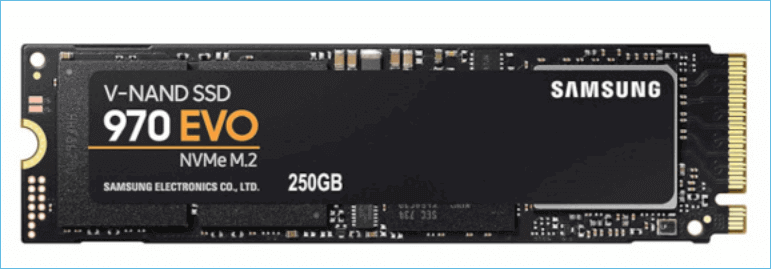
- Confirm the slot key. An M-key slot takes NVMe, while a B+M SATA M.2 drive will not fit or run.
- Check the PCIe generation. A Gen3 drive works in a Gen4 slot, but it runs at Gen3 speed.
- Look for lane sharing. Some boards disable a SATA port when the M.2 slot is populated.
- Confirm UEFI and GPT. Windows 11 expects UEFI boot, and a legacy MBR install must be converted.
- See the disk in firmware. If the BIOS does not list the NVMe drive, update the BIOS first.
If the firmware cannot see the new drive, no clone tool will help. Resolve detection and mode settings before you copy a single byte.

Prepare the NVMe Drive
- Compare used space. The NVMe capacity must exceed the used data, not just the HDD label size.
- Suspend BitLocker. Pause protection so the copy stays readable and the new disk can boot.
- Disable Fast Startup. A full shutdown clears hibernation files that confuse the first boot.
- Initialize as GPT. An uninitialized NVMe drive should be GPT for a UEFI installation.
- Use an external enclosure. With a single slot, connect the NVMe through USB for the copy.
A 1TB HDD holding 300 GB fits a 500 GB NVMe. Check the used space in File Explorer, then leave room for the recovery volume and future updates.
Clone the HDD with Qiling Disk Master
Qiling Disk Master copies the whole disk, including the EFI system partition and the recovery volume, so the NVMe drive boots on its own. Install it on the Windows 11 machine and connect the NVMe through the enclosure.
Step 1. Open Qiling Disk Master, choose Clone, and then select Disk Clone.

Step 2. Select the old HDD as the source and click Next.

Step 3. Select the NVMe SSD as the destination and confirm that its data will be replaced.

Step 4. Review the partition layout, keep the EFI and recovery volumes, and tick Optimize for SSD.

Step 5. Click Proceed, wait for the copy to finish, then shut the PC down before you move the drive into the M.2 slot.

First Boot from the NVMe SSD
- Pick Windows Boot Manager. Select the NVMe entry at the top of the firmware boot order.
- Confirm the disk is seen. Task Manager and Device Manager should list the NVMe model.
- Enable TRIM. Windows usually schedules it, but check that drive optimization is still on.
- Extend the volume. Use Disk Management to claim any free space beyond the old partition.
- Keep the HDD aside. Leave it unplugged for a week as a rollback path.
If the copy stops on a boot device error, the firmware mode or boot entry is wrong. The checks in Cloned Drive Wont Boot Fix apply to NVMe drives as well.
FAQs About HDD to NVMe Clones
Does Windows 11 need GPT on an NVMe drive?
Yes for UEFI boot. Windows 11 does not support legacy BIOS boot, so the disk must be GPT with an EFI partition.
Can I clone to a smaller NVMe SSD?
Only when the used space fits. Shrink the system partition first, then size the target for the new, smaller capacity.
Do I need to reinstall Windows after the clone?
No. A disk clone carries the EFI partition, the recovery volume, and the boot configuration with it.
Will the old HDD still boot?
Yes until it is changed. Keep it offline after the switch so Windows does not confuse the two boot entries.
How long does the clone take?
Used space and the USB link decide. A 300 GB copy through USB 3.2 typically takes about an hour.
Back Up Windows Before You Clone
Before changing drives or partitions, create a full system backup. Qiling Disk Master creates an image you can restore from.
Step 1. Open Qiling Disk Master and select System Backup to include Windows and the boot partitions.

Step 2. Save the image to a drive other than the target disk and start the backup.

Step 3. Click Proceed to start the system backup and wait patiently until it finishes. You can also tick Shut down the computer when the operation is completed to power off automatically.

Step 4. If the clone will not start, restore the image to a spare drive and boot from it.

Conclusion
Moving Windows 11 from an HDD to NVMe is a disk clone, not a rebuild, as long as the slot, firmware mode, and drivers line up. Confirm the M.2 key and PCIe generation, keep the disk GPT with UEFI boot, and suspend BitLocker before you start. Clone the whole disk so the EFI and recovery partitions travel with the system, then set the NVMe boot entry first. Check that TRIM is active and extend the volume into any free space.
For more on faster storage upgrades, see Migrate Windows 10 to NVMe or M.2, How to Clone an NVMe SSD to a Larger NVMe, Cloned Drive Wont Boot Fix, and How Long Does a Disk Clone Take.
Related Articles
- How to Clone an M.2 SSD When There Is Only One Slot
A single M.2 slot still allows a clone through a USB enclosure. - 4K Alignment When Cloning an SSD
Correct alignment keeps NVMe write speed and endurance intact. - Do You Reinstall Windows After Installing a New M.2 SSD
A clone replaces the reinstall when the old disk still works. - Replace a Hard Drive with an SSD Without Reinstalling Windows
Keep applications and settings by copying rather than rebuilding. - How to Clone Windows to a PCIe 4.0 SSD
The faster slot needs the right board and heatsink.
Products
Articles & Tutorials
- Data Recovery
- Data Backup
- File Recovery
- File Backup
- System Backup and Restore
- Disk and Partition Clone
- Technical articles
- Mobile articles
- Disk Master Help
- Windows Data Recovery Tutorials
- Windows Secure Delete Tutorials
- Windows Partition Management Tutorials
- Windows File Backup and Restore Tutorials
- Windows System Backup and Restore Tutorials
- Windows Disk Backup and Restore Tutorials
- Windows Clone Tutorials