How to Clone an NVMe SSD to a Larger NVMe SSD
An NVMe drive fills up faster than expected: games, project files, and Windows updates all compete for the same small partition. Moving to a larger NVMe keeps the installation intact, provided the clone copies the boot files correctly.
This guide explains what to prepare, how to clone NVMe to NVMe with Qiling Disk Master, and how to make the new drive boot and use its full capacity.
PAGE CONTENT
- Why Upgrade to a Larger NVMe
- What You Need Before You Start
- Prepare the New NVMe Drive
- Clone NVMe to NVMe with Qiling Disk Master
- Make the New Drive Bootable
- FAQs About NVMe Cloning
- Back Up Windows Before You Clone
Why Upgrade to a Larger NVMe
- Games and projects outgrow the drive. A 512 GB NVMe is tight once a few modern titles and media files are installed.
- Windows needs free space. A nearly full drive slows updates, paging, and temporary files.
- A second slot is cheaper than a new PC. Most boards have room for another M.2 drive.
- Reinstalling costs a day. Applications, licenses, and settings all have to be rebuilt.
- Drive health can force a swap. A failing NVMe is replaced before it takes data with it.
Cloning copies the whole installation, including the EFI system partition and recovery files, so nothing has to be configured again.
What You Need Before You Start
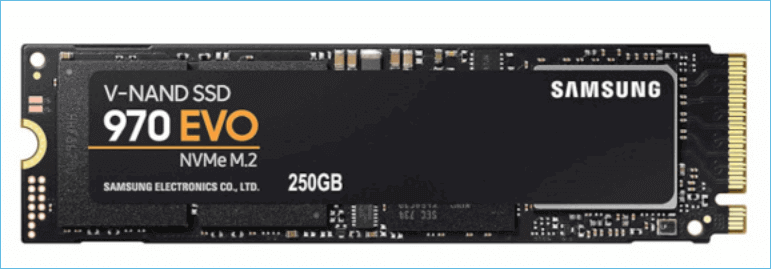
- A larger NVMe SSD. Check the form factor and key type before buying, usually M.2 2280.
- A free M.2 slot or a USB enclosure. Either one lets the target drive appear in Windows.
- A backup of important files. A clone is not a backup, and a failed run can cost data.
- Qiling Disk Master on the source system. Install it before you touch the hardware.
- The current boot order. Write it down so the new drive can be set the same way.
If the PC has only one M.2 slot, use an enclosure or adapter as described in How to Clone an M.2 SSD with Only One Slot.
Prepare the New NVMe Drive
- Connect the new drive first. Use the second slot or an enclosure and confirm Windows lists it.
- Initialize it as GPT. A UEFI system expects GPT, not MBR, on the boot disk.
- Check the used space. The new drive must hold at least the data already on the old one.
- Close heavy programs. Pause games, editors, and backup jobs before the clone starts.
- Suspend BitLocker. Pause protection on the source drive so the clone is readable at boot.
A few minutes of preparation prevents the most common clone failures.

Clone NVMe to NVMe with Qiling Disk Master
Qiling Disk Master clones a drive sector by sector or intelligently, copying only the blocks in use. Download and install it first.
Step 1. Open Qiling Disk Master, choose Clone, and then select Disk Clone.

Step 2. Select the current NVMe as the source disk and click Next.

Step 3. Select the new NVMe as the destination and confirm the warning about the data on it.

Step 4. Preview the disk layout, adjust the partition size to use the extra capacity, and tick Optimize for SSD.

Step 5. Click Proceed, wait for the clone to finish, then shut down, swap the drives, and keep the old NVMe until the new one boots.

Make the New Drive Bootable
- Open the UEFI settings. Press the vendor key at power-on, usually Del or F2.
- Set the new drive first. Choose the NVMe under UEFI boot entries, not a legacy entry.
- Boot once and watch. Windows should start without a repair prompt or a stop error.
- Extend the partition. In Disk Management, grow the system partition into the free space.
- Keep the old drive aside. Leave it untouched for a week in case something is missing.
If the new drive is meant for a different machine, follow the migration steps in Migrate Windows 10 to NVMe or M.2.
FAQs About NVMe Cloning
Does the new NVMe have to be the same brand?
No. Any NVMe drive that fits the slot and has enough capacity will work, regardless of the manufacturer.
Can I clone to a smaller NVMe?
Only when the data in use fits. Most tools resize partitions during the clone, but the margin is small.
Will Windows stay activated?
Yes. The motherboard is unchanged, so the digital license still applies after the swap.
How long does an NVMe clone take?
It depends on the amount of used data. NVMe drives are fast, so a typical system clone finishes in minutes.
What if the new drive is not detected?
Reseat it, check the slot shares with SATA ports, and look for the drive in the BIOS before cloning.
Back Up Windows Before You Clone
Before changing drives or partitions, create a full Windows backup. Qiling Disk Master creates a system image you can restore from.
Step 1. Open Qiling Disk Master and select System Backup to include Windows and the boot partitions.

Step 2. Save the image to a drive other than the system NVMe and start the backup.

Step 3. Click Proceed to start the system backup and wait patiently until it finishes. You can also tick Shut down the computer when the operation is completed to power off automatically.

Step 4. If the clone or the swap goes wrong, restore the image to return Windows to its working state.

Conclusion
A larger NVMe is the simplest upgrade for a machine that is running out of room. Connect the new drive, initialize it as GPT, and clone the system NVMe with Qiling Disk Master while SSD alignment is enabled. Then set the new drive first in UEFI, boot once to confirm Windows starts, and extend the partition into the extra space. Keep the old drive untouched until the new one has proven itself, and take a system image beforehand so a failed clone never becomes a lost installation.
For more on moving a system to new storage, see How to Clone a 2.5 SSD to M.2, Replace a Hard Drive with an SSD Without Reinstalling Windows, Do You Reinstall Windows After Installing a New M.2 SSD, and How to Clone a Hard Drive to a SanDisk SSD.
Related Articles
- Windows 11 NVMe SSD Cloning Software
Windows 11 needs a cloning tool that handles UEFI, GPT, and NVMe. See which options work and what to check. - NVMe SSD Not Detected in a USB Enclosure
An NVMe drive that stays invisible cannot be cloned. Learn why enclosures hide drives and how to fix it. - How to Clone an HDD to an NVMe SSD on Windows 11
Move Windows 11 onto NVMe without a reinstall. - 4K Alignment When Cloning to an SSD
A misaligned clone can cut SSD speed in half. Learn what 4K alignment means and how to check it. - How to Clone an SSD to a Larger SSD
Move a healthy install to bigger capacity and grow partitions afterwards.
Products
Articles & Tutorials
- Data Recovery
- Data Backup
- File Recovery
- File Backup
- System Backup and Restore
- Disk and Partition Clone
- Technical articles
- Mobile articles
- Disk Master Help
- Windows Data Recovery Tutorials
- Windows Secure Delete Tutorials
- Windows Partition Management Tutorials
- Windows File Backup and Restore Tutorials
- Windows System Backup and Restore Tutorials
- Windows Disk Backup and Restore Tutorials
- Windows Clone Tutorials