(Easiest Way) How to Clone 2.5 SSD to M.2 with Best SSD Cloning Software
2.5 SSD vs. M.2 SSD: What's the Difference
Solid-state drives (SSDs) have gained popularity over hard disk drives (HDDs) due to their faster read and write speeds. The primary types of SSDs include 2.5, M.2 (SATA & NVMe), NVMe PCIe, and U.2 SSDs.
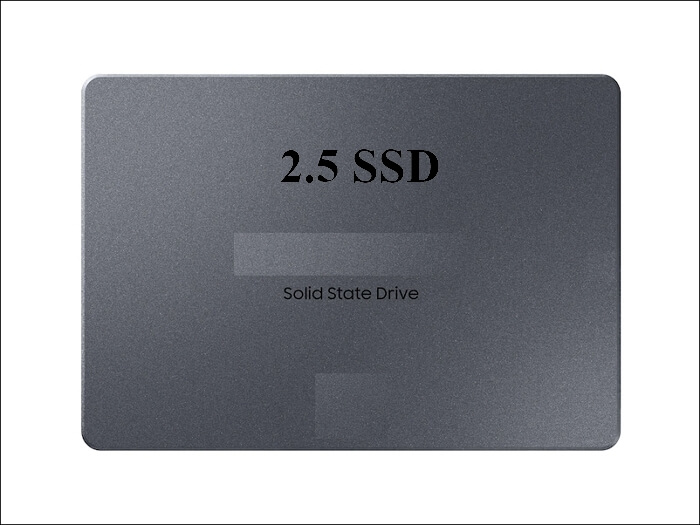
The 2.5 SSD is a traditional SSD form that is mounted to the SSD tray within a computer tower, connected to the motherboard via SATA, with a transfer speed of around 500-600 MB/s, and requires both a SATA data cable connection and a SATA power cable.
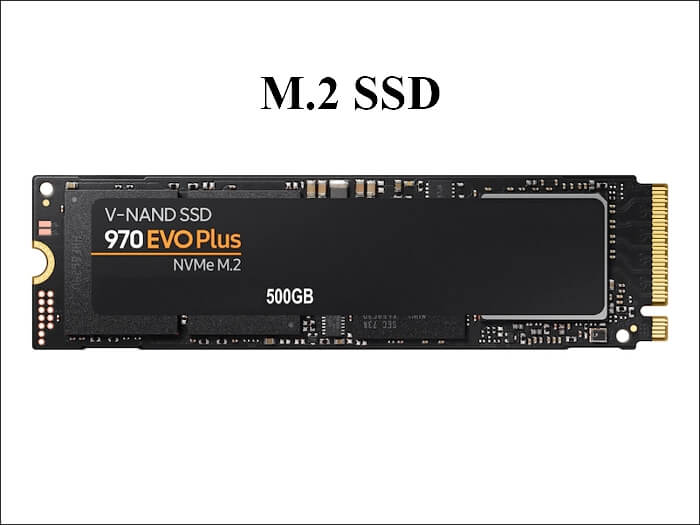
The M.2 SSD is a newer generation of SSD that offers faster speeds, reaching up to 3500 MB/S for data transfer. It's also smaller than traditional 2.5-inch SSDs, making it ideal for laptops with limited space. M.2 SSDs come in two types: SATA and NVMe, with NVMe being the faster option for improved performance.
Best SSD Cloning Software for Cloning 2.5 SSD to M.2
Most computer users want to transfer data from 2.5 SSD to M.2 SSD due to its better performance and smaller size, but choosing the right SSD cloning software can be a challenge. Qiling Disk Copy is a practical and efficient option that can easily and quickly clone data from 2.5 SSD to M.2 SSD.
Qiling Disk Copy is a powerful and easy-to-use disk cloning utility for Windows 11/10/8/7 that enables you to clone systems, disks, and partitions with ease. It's an ideal solution for upgrading to a larger disk or SSD without reinstalling the system, and can also help migrate Windows 10 to NVME or M.2 storage for improved performance. With Qiling Disk Copy, you can upgrade a hard disk to a bigger one, clone an HDD to SSD, and even migrate Windows 10 to NVME or M.2 without the need for a Windows computer reinstallation.
- Time-saving. Qiling Disk Copy offers a faster cloning speed, resulting in less time spent on cloning a hard drive or SSD.
- Diverse cloning sources. CloneDisk can help you clone disks, systems, and partitions on your Windows 11/10/8/7 computer, allowing you to create exact copies of your data.
- Migrate Windows System. Qiling Disk Copy can easily clone Windows 10 from a hard disk drive (HDD) to a solid-state drive (SSD) of SATA, M.2, or NVMe type.
- Keep your data backup handy. It can create a backup of the source disk, and you can easily and quickly restore data from the corrupted hard drive.
It can be concluded from the above that Qiling Disk Copy is your best choice to clone 2.5 SSD to M.2 SSD. Now, let's see how to clone it step by step.
Step-by-step Guide to Clone an M.2 SSD from 2.5 SSD
The following are the detailed steps to use Qiling Disk Copy. You can perform the steps to clone 2.5 SSD to M.2 SSD. Here's how:
Prior Notice:
- The "Sector by sector copy" feature in cloning a hard disk requires the destination disk to be at least as large as the source disk, making it impossible to clone a larger disk to a smaller one. If you want to clone a larger disk to a smaller one, this feature should be left unchecked.
- All data on the destination disk will be completely erased, so take care. This is a warning message.
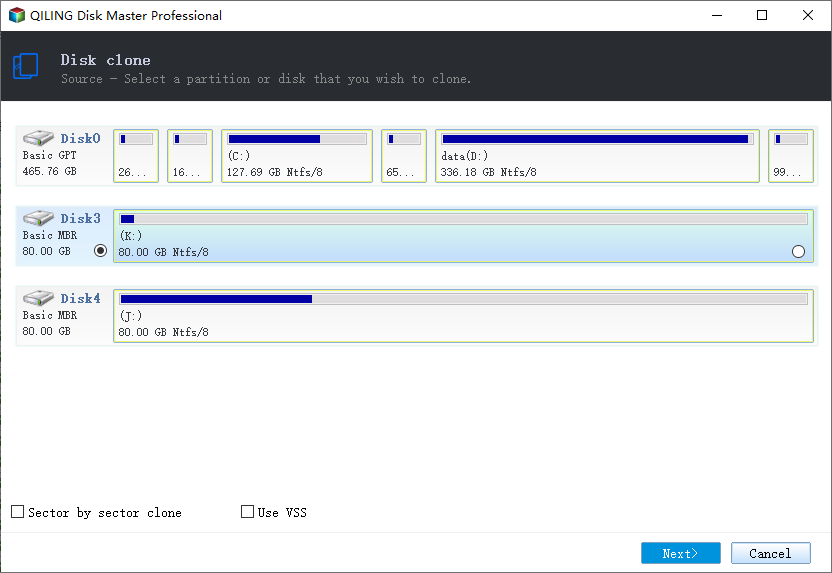
Step 1. To start copying/cloning an entire disk to another, click the "Disk clone" button in the tools page, choose the disk as the source disk, and click "Next".
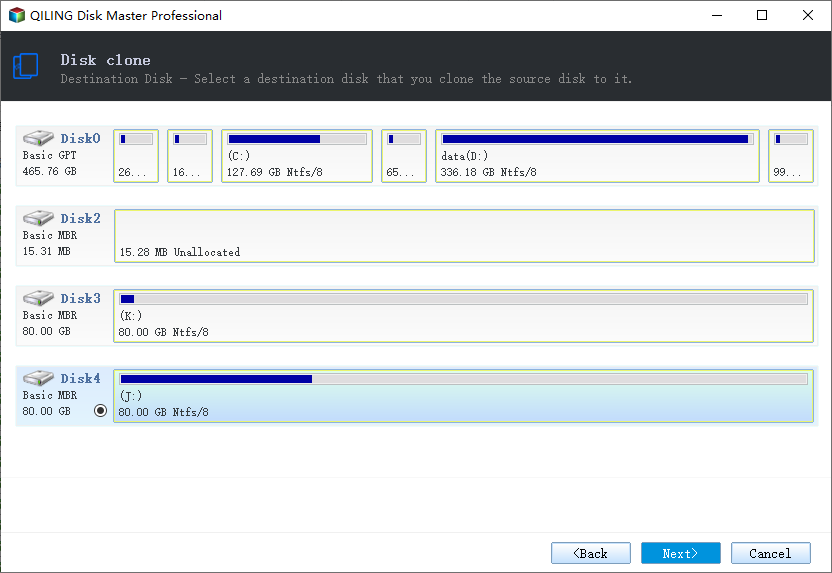
Step 2. Choose the other disk as the destination disk.
Step 3. Check the disk layout of the two disks, and manage the destination disk's layout by selecting "Autofit the disk", "Copy as the source" or "Edit disk layout".
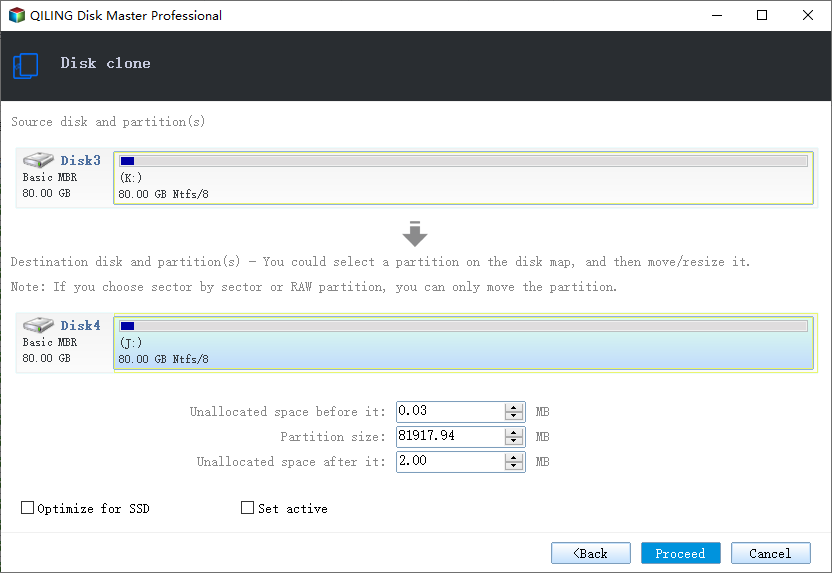
- "Autofit the disk" makes some changes to the destination disk layout by default to optimize its performance.
- The "Copy as the source" option does not modify the destination disk and maintains the same layout as the source disk.
- The "Edit disk layout" feature enables users to manually adjust and customize the partition layout on a destination disk, allowing for resizing and repositioning of partitions as needed.
Enabling the "Check the option if the target is SSD" option can help optimize the performance of your solid-state drive (SSD) by allowing the system to take advantage of its capabilities and provide a smoother user experience. This option is usually found in the BIOS or UEFI settings of your computer and can be enabled or disabled as needed.
Step 4. Click "Proceed" to officially execute the task.
A message appears, warning that data will be lost. To confirm, click "OK".
Final Thoughts
Cloning a 2.5 SSD to an M.2 SSD can be easily done with the help of Qiling Disk Copy. This process involves creating a bit-by-bit copy of the original 2.5 SSD, which includes all its data, settings, and operating system. The steps to achieve this include selecting the source and target disks, creating a bootable USB drive, and using the Qiling Disk Copy software to clone the 2.5 SSD to the M.
Qiling Disk Copy Qiling Disk Copy is an excellent cloning tool that outshines its counterparts with its valuable features and ease of use. It allows users to clone NVMe SSD to SATA SSD, among other capabilities, and supports various external storage devices, including SD cards, USB drives, external drives, and different types of SSDs. This tool can even help clone a 2.5 SSD to an M.2 SSD on any computer, making it a must-try for computer users.
FAQs
1. Can you clone a SSD to NVMe m 2?
If your laptop's motherboard has an M.2 slot that supports NVMe and can boot in UEFI mode, you can clone a SATA drive directly to an M.2 NVMe SSD using a disk cloning utility. This way, you can keep the original SATA drive as a secondary storage device.
2. How do I clone m 2 with one slot?
For laptops/computers with only one M.2 slot, the easiest solution is to use a bootable cloning tool and an external USB HDD. This allows you to boot into the cloning software, create a disk image on the external HDD, shut down, replace the original drive, and then boot into the cloning software again to copy the drive image from the external HDD into the new drive.
3. Is NVMe a SSD?
NVMe is a storage access and transport protocol that enables high-performance flash and solid-state drives to deliver fast response times and high throughput for various enterprise workloads.
4. Is it better to clone or fresh install SSD?
A clean install of Windows is the best option for optimal performance, but if you're short on time or prefer a hassle-free approach, cloning the disk or migrating the system is a viable alternative.
Related Articles
- [Full Guide] Clone Toshiba Hard Drive to SSD Quickly
- Clone OS from HDD to Smaller SSD Without Reinstallation
- How to Move Windows Boot Partition to A New Drive
- 2022 Tips | How to Create Bootable Clone of Windows 10/8/7 Disk to New HDD/SSD
- 3 Tips | How to Install Windows 7 on NVMe SSD for Laptop & PC
If you're unsure how to install Windows 7 on an NVMe SSD, this post can guide you. After reading, you'll learn 3 ways to install your Windows 7 on an NVMe SSD, making the process easier. - Super Easy | How to Install Windows After Replacing Hard Drive🔥
This is a detailed tutorial on how to install Windows after replacing hard drive. In this article, you will get how to install Windows after changing a laptop hard drive.
Products
Articles & Tutorials
- Data Recovery
- Data Backup
- File Recovery
- File Backup
- System Backup and Restore
- Disk and Partition Clone
- Technical articles
- Mobile articles
- Disk Master Help
- Windows Data Recovery Tutorials
- Windows Secure Delete Tutorials
- Windows Partition Management Tutorials
- Windows File Backup and Restore Tutorials
- Windows System Backup and Restore Tutorials
- Windows Disk Backup and Restore Tutorials
- Windows Clone Tutorials