How to Clone Windows to a PCIe 4.0 SSD
A PCIe 4.0 NVMe drive can read several gigabytes per second, but only when the slot, the firmware, and the drive all support that generation. A clone moves Windows onto it in one pass.
This guide explains how to confirm the slot, prepare the drive, copy the system, and check that the new disk actually runs at the speed you paid for.
PAGE CONTENT
- Why Move Windows to a PCIe 4.0 SSD
- Check the Slot and the Link Speed
- Prepare the NVMe Drive and Driver
- Clone Windows to the NVMe SSD
- Confirm the Speed After the Copy
- FAQs About PCIe 4.0 Clones
- Back Up Windows Before You Clone
Why Move Windows to a PCIe 4.0 SSD
- Faster program loads. Large applications and games open in a fraction of the time.
- Shorter update pauses. Windows updates write and unpack many files, which a fast drive handles quickly.
- Room for a bigger library. Gen4 drives are sold in large capacities at reasonable prices.
- Better endurance per byte. Newer controllers handle sustained writes without a long recovery drop.
- A clean hardware upgrade. The old drive can become a spare or move to another machine.
The gain is real but uneven. Boot time improves by seconds, while file copies, game installs, and video work improve far more.
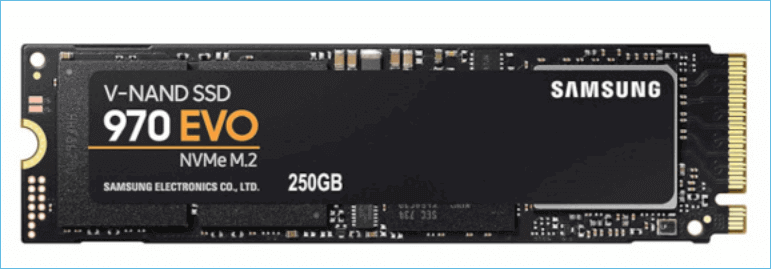
Check the Slot and the Link Speed
- Read the board manual. Only some M.2 slots are wired for four PCIe 4.0 lanes.
- Watch the lane sharing. A second M.2 slot can disable SATA ports or drop the graphics lane count.
- Check the firmware version. Older boards need an update before a Gen4 drive is recognised at full speed.
- Confirm the drive type. A PCIe 4.0 SSD is backward compatible, but it runs at the slot's generation.
- Mind the heatsink. Gen4 drives run hot and slow themselves down without a spreader.
A Gen4 drive in a Gen3 slot still works, but it tops out near the older limit. Check the slot before you expect the benchmark numbers on the box.
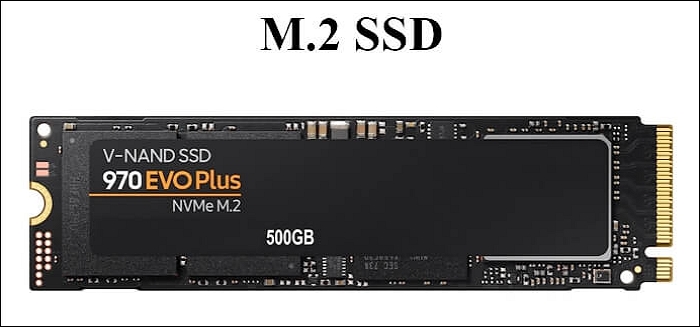
Prepare the NVMe Drive and Driver
- Leave the new drive unformatted. The clone tool initialises it as part of the task.
- Use an NVMe enclosure for the copy. A USB enclosure lets Windows see the drive without opening the case twice.
- Check the NVMe driver. Windows 11 and 10 include a standard driver that works for the first boot.
- Update the firmware of the new SSD. Vendor tools usually need Windows, so do it before the swap if possible.
- Keep the old drive connected. Leave it in place until the new disk has booted once.
Vendor firmware updates are easier before the drive becomes the system disk. After the swap, the update tool may refuse to run on a live system volume.
Clone Windows to the NVMe SSD
Qiling Disk Master copies the system disk to the NVMe drive whether it is attached through an enclosure or a second slot. Tick the SSD option so the partition offsets stay aligned for flash storage.
Watch the video tutorial below to clone the drive step by step with Qiling Disk Master.
Step 1. Open Qiling Disk Master, choose Clone, and then select Disk Clone.

Step 2. Select the Windows system disk as the source and click Next.

Step 3. Select the PCIe 4.0 NVMe drive as the destination and confirm the warning.

Step 4. Review the partition layout and tick Optimize for SSD to keep the alignment correct.

Step 5. Click Proceed, wait for the copy to finish, then shut down before you install the drive.

Confirm the Speed After the Copy
- Boot from the new drive. Set it first in the boot order and disconnect the old disk.
- Check the link in firmware. The storage page should report PCIe 4.0 x4 for the drive.
- Read the drive temperature. A Gen4 SSD that idles hot will slow down under load.
- Run a short benchmark. Sequential and random results should match the drive's rated class.
- Watch the first updates. Windows updates are the quickest real-world check of stability.
If the firmware reports PCIe 3.0 x4, the drive sits in an older slot or a shared lane. Move it to the primary M.2 slot before you judge the speed.
FAQs About PCIe 4.0 Clones
Does a Gen4 SSD work in a Gen3 slot?
Yes, at Gen3 speed. The drive negotiates the fastest link both sides support.
Do I need to reinstall Windows?
No. A disk clone moves the installation and the boot files together.
Will the drive overheat after the clone?
It can under heavy writes. Use the board heatsink or a drive with a built-in spreader.
Is an NVMe enclosure fast enough for the copy?
For most drives, yes. USB 3.2 enclosures reach speeds close to SATA and finish the task quickly.
Should I enable BitLocker after the swap?
Yes, once the machine boots reliably. A disk change may prompt for the recovery key.
Back Up Windows Before You Clone
Installing a new NVMe drive means opening the case and changing the boot order. Take a system image first so a failed swap is a short restore, not a reinstall.
Watch the video tutorial below to back up Windows and restore it if the clone fails.
Step 1. Open Qiling Disk Master and select System Backup to include the boot partitions.

Step 2. Save the image to a drive other than the target disk and start the backup.

Step 3. Click Proceed to start the system backup and wait patiently until it finishes. You can also tick Shut down the computer when the operation is completed to power off automatically.

Step 4. If the NVMe drive will not boot, restore the image to the old disk and check the slot.

Conclusion
A PCIe 4.0 SSD pays off only when the slot matches it. Confirm four Gen4 lanes, update the board firmware, and keep the drive cool. Clone the system with Qiling Disk Master, enable the SSD option for alignment, then boot from the new disk and read the link speed in firmware to prove the upgrade worked.
For more on NVMe upgrades, see How to Clone an HDD to an NVMe SSD on Windows 11, How to Clone an NVMe SSD to a Larger NVMe SSD, Migrate Windows 10 from SSD to NVME and M.2 Without Reinstalling, and 4K Alignment When Cloning to an SSD.
Related Articles
- How to Clone an M.2 SSD to a SATA SSD
The reverse move keeps the same alignment rules. - How to Clone an mSATA SSD to an M.2 SSD
Older notebooks often need this upgrade path. - How to Clone 2.5 SSD to M.2
Move a SATA build into the compact slot. - How to Clone an SSD to a Larger SSD
Grow the partition after the copy finishes. - How Long Does a Disk Clone Take?
Drive speed decides the size of the wait.
Products
Articles & Tutorials
- Data Recovery
- Data Backup
- File Recovery
- File Backup
- System Backup and Restore
- Disk and Partition Clone
- Technical articles
- Mobile articles
- Disk Master Help
- Windows Data Recovery Tutorials
- Windows Secure Delete Tutorials
- Windows Partition Management Tutorials
- Windows File Backup and Restore Tutorials
- Windows System Backup and Restore Tutorials
- Windows Disk Backup and Restore Tutorials
- Windows Clone Tutorials