How Long Does a Disk Clone Take?
People plan a drive upgrade around one question: how long will the computer be out of action? The honest answer depends less on the drive size printed on the box and more on how much data is actually in use.
This guide explains what decides clone time, how long common drive combinations take, and the settings in Qiling Disk Master that make a clone finish sooner.
PAGE CONTENT
- What Decides Clone Time
- Time by Drive Type
- What Slows a Clone Down
- Speed Up a Clone in Qiling Disk Master
- Check Progress Without Cancelling
- FAQs About Clone Time
- Back Up Windows Before You Clone
What Decides Clone Time
- The used space, not the capacity. A 4 TB drive with 200 GB of files copies 200 GB, not 4 TB.
- The slower of the two drives. A clone runs at the pace of the source and target together.
- The connection type. SATA, USB 3.2, and NVMe move data at very different rates.
- The number of small files. Thousands of tiny files take longer than a few large videos.
- The copy mode. Intelligent copy reads only data, while sector by sector reads every block.
Two machines with identical drives can therefore finish at very different times once one of them is nearly full of small documents.

Time by Drive Type
- HDD to HDD. Around 80 to 120 MB/s, so 500 GB of data usually takes one to two hours.
- HDD to SSD. Limited by the hard drive at roughly 100 MB/s, with the SSD never the bottleneck.
- SSD to NVMe. Often 400 MB/s or more, so the same 500 GB finishes in twenty to thirty minutes.
- USB 3.2 enclosure. A fast SSD in a good enclosure can reach several hundred MB/s.
- USB 2.0 port. Around 30 MB/s, which turns a short clone into a long evening.
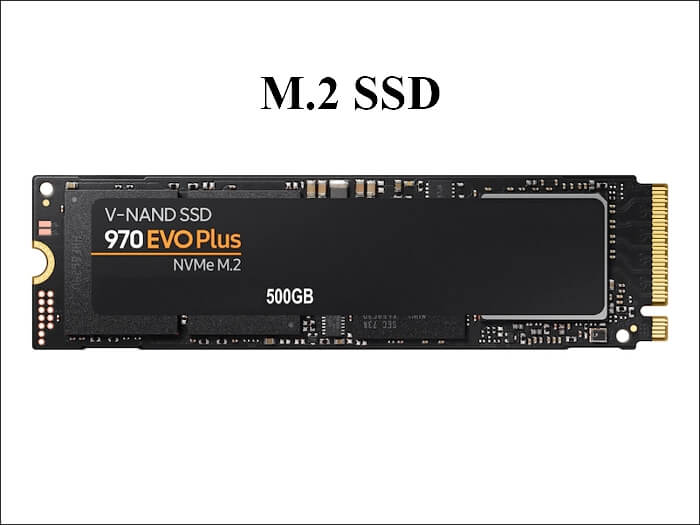
Connecting a single-slot laptop through an enclosure changes the speed more than anything else, as described in How to Clone an M.2 SSD with Only One Slot.
What Slows a Clone Down
- Bad sectors. The tool retries failing blocks, which can stretch hours into a full day.
- Background programs. Games, editors, and antivirus scans compete for the same disk queue.
- A failing source drive. Smart errors and spin-up delays show up as a crawling progress bar.
- Power saving. USB selective suspend can pause an external drive mid-clone.
- Sector-by-sector mode. Reading empty space costs time and gains nothing on a healthy drive.
If the progress bar stalls early, stop and read Clonezilla Failed to Clone Bad Sectors before you retry on a suspect disk.
Speed Up a Clone in Qiling Disk Master
Qiling Disk Master copies only used blocks by default and warns you when the source looks unhealthy. Download and install it first.
Step 1. Open Qiling Disk Master, choose Clone, and select Disk Clone or Partition Clone.

Step 2. Pick the source disk and click Next.

Step 3. Pick the destination disk and confirm the warning.

Step 4. Preview the layout, keep intelligent copy enabled unless you need an exact replica, and close games, editors, and antivirus scans; plug a laptop into mains power.

Step 5. Click Proceed, leave the cable or enclosure alone until it finishes, and note the elapsed time shown at the end so a later clone can be planned the same way.

Check Progress Without Cancelling
- Read the percentage and speed. A steady rate means the copy is healthy even when it looks slow.
- Watch for stalls, not slowness. A number that stops moving for minutes is the real warning.
- Leave the window open. Closing or minimising can pause progress on some systems.
- Do not open big files. Reading from the source during a clone halves the available speed.
- Keep the PC awake. Sleep mode suspends the clone until the machine wakes again.
Most clones finish without trouble, and the only real risk comes from interrupting one partway through.
FAQs About Clone Time
How long does it take to clone a 1 TB drive?
With 300 GB in use, an SSD clone often finishes in twenty minutes to an hour, while a hard drive pair can take two to three hours.
Does a bigger target drive take longer?
No. The target size does not matter with intelligent copy, because only used blocks are written.
Can I keep using the computer while it clones?
Light reading is fine, but heavy writes slow the copy and lengthen the time.
Why does the estimate jump around?
Small files and retries change the rate constantly, so early estimates are rough until the copy settles.
Is it faster to clone from an image?
Usually not. Restoring an image reads and writes the same data, so the time is close to a direct clone.
Back Up Windows Before You Clone
Before changing drives or partitions, create a full Windows backup. Qiling Disk Master creates a system image you can restore from.
Step 1. Open Qiling Disk Master and select System Backup to include Windows and the boot partitions.

Step 2. Save the image to a drive other than the one being cloned and start the backup.

Step 3. Click Proceed to start the system backup and wait patiently until it finishes. You can also tick Shut down the computer when the operation is completed to power off automatically.

Step 4. If a clone is interrupted, restore the image and repeat the copy on a healthy target.

Conclusion
Clone time follows the data, not the label on the drive. Used space, the slower of the two drives, the connection type, and the number of small files decide how long the copy runs, which is why an HDD pair can take hours while an NVMe clone finishes in minutes. Keep intelligent copy enabled in Qiling Disk Master, close heavy programs, plug laptops in, and watch for stalls rather than slow numbers. Note the elapsed time afterward, and take a system image in case a clone has to be repeated.
For more on planning a drive upgrade, see How to Clone an NVMe SSD to a Larger NVMe SSD, How to Clone an External Hard Drive to an Internal SSD, How to Clone Windows 10 to an External Hard Drive, and How to Copy a Hard Drive to an SSD.
Related Articles
- Clone vs Image
A clone replaces a drive, an image restores it later. See which one suits an upgrade and which suits a backup. - Larger HDD to Smaller SSD Clone Guide
Moving to a smaller SSD is possible when the used space fits. Learn how to shrink partitions during a clone. - 4K Alignment When Cloning to an SSD
A misaligned clone can cut SSD speed in half. Learn what 4K alignment means and how to check it. - Macrium Reflect Free vs Clonezilla
Two free tools, different limits. Compare how each handles speed, resizing, and boot repair. - How to Clone a Hard Drive Using Command Prompt
Built-in tools copy images rather than disks. See what they do and where they stop.
Products
Articles & Tutorials
- Data Recovery
- Data Backup
- File Recovery
- File Backup
- System Backup and Restore
- Disk and Partition Clone
- Technical articles
- Mobile articles
- Disk Master Help
- Windows Data Recovery Tutorials
- Windows Secure Delete Tutorials
- Windows Partition Management Tutorials
- Windows File Backup and Restore Tutorials
- Windows System Backup and Restore Tutorials
- Windows Disk Backup and Restore Tutorials
- Windows Clone Tutorials