How to Clone Hard Drive Using Command Prompt for Windows 11/10/8/7
To clone a hard drive using the command prompt, you can use the built-in command line tool called `robocopy`. Here's a simplified step-by-step guide: Open the Command Prompt as an administrator. Navigate to the drive you want to clone (usually C:). Use the robocopy command to copy the contents of the source drive to the destination drive, specifying the source and destination paths. For example: `robocopy C:\source C:\destination /MIR`, where `/MIR` stands for mirror, which means it will copy everything, including system files and folders.
Why Do You Need to Clone a Hard Drive
Cloning a hard drive involves creating an exact copy of the original drive, allowing you to use the cloned one as a substitute for the original. This can be useful in various situations, such as upgrading to a larger hard drive, recovering from a system crash, or creating a backup of your system. The cloned drive can be used as a bootable drive, allowing you to boot your computer from it just like the original.
- Creating a backup. Disk cloning is a process that creates an exact copy of your hard drive, serving as a backup in case of data loss or hard disk failure.
- Migrating operating systems (OS). If you want to transfer your operating system to a new hard drive, you can clone the hard drive.
- Transferring data on the drive to a new computer: When getting a new computer, you can transfer all your data and settings from the old one by cloning the old hard drive to the new one, which is a convenient and efficient way to get started with your new device.
- Upgrading to a larger hard drive. Cloning a hard drive to a larger one can help resolve storage space issues and potentially improve disk speed by optimizing the disk's performance.
2 Ways to Clone a Hard Drive via Command Prompt
Windows has native tools for disk cloning, such as Disk Management and Command Prompt, but do you know how to clone a hard drive using CMD? The next part will explain how to clone a hard drive using the command prompt.
| Workable Solutions | Step-by-step Troubleshooting |
|---|---|
| Method 1. Using Xcopy Command to Clone Hard Drive | Xcopy is a Windows built-in program designed to copy files...Full steps |
| Method 2. Using Copy Command to Clone Hard Drive | The copy command is an internal command of the Windows system, used to create a copy of a file or a group of files. It allows users to duplicate files, making copies of them in the desired location, which can be useful for backing up important data, creating multiple versions of a file, or sharing files with others. The command can be used with various options and parameters to specify the source and destination of the copy, and it can also be used to copy files from one drive to another or from a network location to a local drive.Full steps |
Method 1. Using Xcopy Command to Clone Hard Drive
Xcopy is a Windows built-The Xcopy command is a program designed to copy files and directories from one location to another, making it very convenient to copy data to and from a drive. It can be used to make a copy of files from one drive to another, and is a useful tool for cloning a hard drive.
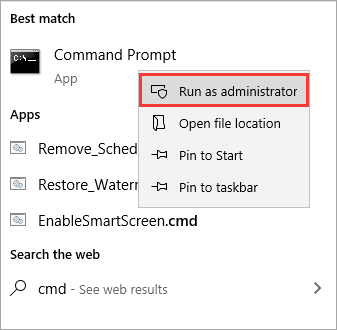
Step 1. To open the Command Prompt as an administrator, go to Start, type "cmd" in the search box, and select Command Prompt (Admin) from the results. This will open the Command Prompt with administrator privileges, allowing you to run commands that require elevated permissions.
Step 2. To copy all files and subdirectories from drive C to drive D, type the command "xcopy c:\ f:\ /s /e /h /i /c /y" and press Enter.
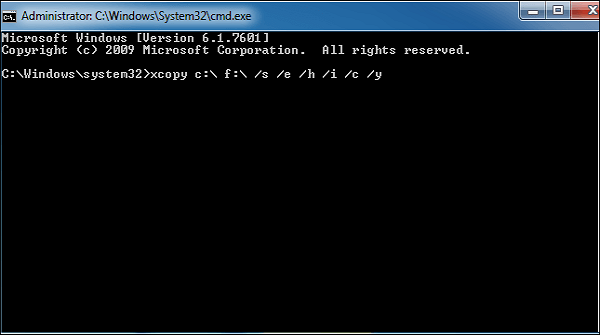
- /s: replicate directories and subdirectories unless they are empty.
- /e: duplicate every subdirectory, even if it contains nothing.
- /h: duplicate files with hidden and system file attributes.
- The command will create a new file named "file.txt" in the current working directory.
- /c: keep copying even if an error occurs.
- /y: suppress prompts to confirm overwriting files.
Step 3. Wait for the process to be complete. Then exit Command Prompt.
Method 2. Using Copy Command to Clone Hard Drive
The copy command is an internal command of the Windows system, available in the Command Prompt of Windows 11/10/8/7/Vista/XP, allowing you to copy files from one location to another, including copying files from one drive to another.
Step 1. To open the Command Prompt as an administrator, go to Start, type "cmd" in the search bar, and select Command Prompt (Admin) from the search results to open the Command Prompt with administrative privileges.
Step 2. Input the following commands to copy files:
copy c:\example.txt
`cp C:\example.txt .`
copy c:\example.txt d:
To copy the "example.txt" file from the C disk to the D drive, simply type the following command: `copy C:\example.txt D:\`.
copy *.txt c:
A copy of every text file in the current directory will be placed on the C disk.
A Better and Easier Way: Using Disk Cloning Software
Cloning a hard drive can be done using various methods, including command-line interfaces, which are text-only and have limitations such as requiring specific computer skills, allowing for more space for error, a large number of instructions, and the inability to solve problems through research, making them unfriendly to new computer users. However, professional disk cloning software, like Qiling Disk Copy, can assist with these challenges.
Qiling Disk Copy is a user-friendly and efficient disk cloning utility that runs smoothly on various Windows systems, including Windows 11/10/8/7. It allows users to clone a hard drive with ease, supporting full disk and partition-level cloning, as well as resizing partitions during the cloning process. Additionally, it enables users to upgrade a hard disk to a larger one, clone an HDD to an SSD, and even clone a hard drive with bad sectors. Its capabilities also include migrating Windows 10 from one PC to another, making it a versatile tool for various disk-related tasks.
The following are the detailed steps to clone a hard drive.
Step 1. Download, install and run Qiling Disk Copy on your PC.
To clone a hard drive, go to the tools page and click on "Disk clone". Then, select the hard drive you want to copy or clone and click "Next" to proceed.

Step 2. Select the destination disk.
Note: The destination disk should be at least as large as the source disk to copy or clone the source hard disk.

Step 3. Check and edit the disk layout.
If your destination disk is an SSD drive, make sure to check the option that indicates the target is an SSD.

Step 4. Click "Proceed" to start the hard drive cloning process.
Step 5. Confirm the operation when the program warns that data on the destination disk will be erased before proceeding.
The Best Way to Clone a Hard Drive
To clone a hard drive using the command prompt, you can use various methods, but it's recommended to use a tool like Qiling Disk Copy due to its ease of use and ability to meet different cloning demands. However, if you're familiar with computer skills and willing to take the risk, you can attempt to clone a hard drive using the command prompt, but be aware that it's prone to error. Using Qiling Disk Copy is a more reliable and user-friendly option.
FAQs
1. Does cloning a drive also clone Windows?
A cloned drive is an exact copy of the original one, including the OS and all files, allowing the computer to boot up and run, whereas backing up files only copies personal data.
2. What is the fastest way to clone a hard drive?
Qiling Disk Copy is the fastest way to clone a hard drive, offering an easy-to-use interface and simple operation that saves time and effort. With it, you can clone a disk to a larger one for greater capacity or clone a hard drive to a smaller SSD.
3. What is the difference between a system clone and a disk clone?
A disk clone copies the entire disk, including the operating system, applications, drivers, and personal files, whereas a system clone only copies the system partition and related partitions, such as the EFI system partition and recovery partition.
4. Does cloning a drive make it bootable?
You have two options when it comes to duplicating a disk: directly cloning one disk to another or creating an image of the disk. Cloning a drive allows you to boot from the second disk, which is ideal for migrating from one drive to another.
Related Articles
- (2022 Tips) Replace Hard Drive with SSD without Reinstalling Windows
- Find Macrium Reflect Alternative to Clone HDD and SSD or Migrate OS
- How to Clone Hard Drive Without Windows Operating System [Simple as a Few Clicks]
- How to Clone Laptop Hard Drive and Operating System
- How to Upgrade Lenovo IdeaPad Gaming 3 SSD (2024 Guideline)🥇
The Lenovo IdeaPad Gaming 3 is a powerful laptop, but its storage capacity may not be sufficient for some users. To address this, users may want to know if they can upgrade or add an SSD (solid-state drive) to increase storage space. - How to Migrate Windows 11 to Larger SSD Without Losing Anything
To migrate or clone Windows 11 to a larger new SSD, you'll need to attach the SSD to your computer, then use a cloning software to copy the entire Windows 11 OS, including all installed programs and files, to the new SSD.
Products
Articles & Tutorials
- Data Recovery
- Data Backup
- File Recovery
- File Backup
- System Backup and Restore
- Disk and Partition Clone
- Technical articles
- Mobile articles
- Disk Master Help
- Windows Data Recovery Tutorials
- Windows Secure Delete Tutorials
- Windows Partition Management Tutorials
- Windows File Backup and Restore Tutorials
- Windows System Backup and Restore Tutorials
- Windows Disk Backup and Restore Tutorials
- Windows Clone Tutorials