How to Migrate Windows 11 to Larger SSD Without Losing Anything
❓Q: Can I clone Windows 11 OS to a new SSD?
❗A: Cloning Windows OS to a new SSD can be easily achieved through a professional disk cloning tool, Qiling Disk Copy, with a few simple clicks. The process involves a few steps, which can be completed with ease. Keep reading to learn more.
📚Migrating or cloning Windows 11 to a larger SSD involves several steps. First, prepare the new SSD by formatting it and making sure it's recognized by the system.
User Case: Need to Migrate Windows 11 to a new larger SSD
🙎♂️To migrate your Windows 11 OS to a new SSD, you can use the built-in "Clone Disk" feature in Windows or a third-party cloning software like Qiling Disk Master. This will create an exact copy of your OS and all its files on the new drive, including the operating system, programs, and settings. Alternatively, you can also use a USB drive to create a bootable installation media, boot from it, and then select the new SSD as the installation location. This will reinstall Windows 11 on the new drive while keeping all your files, settings, and installed programs intact. Be sure to back up all your important files before starting the migration process.
Migrating Windows 11 to a larger SSD Upgrading to a larger SSD or adding an external hard drive can significantly increase your computer's storage space and improve its performance, making it ideal for running Windows 11 with its improved capabilities and requirements.
Transferring Windows 11 to a larger SSD not only addresses storage constraints but also boosts your computer's performance and capabilities, resulting in a more seamless computing experience. By cloning Windows 11 to a bigger SSD using professional disk cloning software, you can achieve this without reinstalling the OS. This process involves a step-by-step approach that ensures a smooth transfer, making it a convenient and efficient way to upgrade your computer's storage and capabilities.
You may be interested:
Preparations Before Cloning Windows 11 to a Larger New SSD
To ensure a smooth migration of the Windows 11 operating system to a larger SSD, it's essential to prepare adequately. This includes backing up important files and data, disabling any unnecessary startup programs, and updating the operating system to the latest version.
1️⃣A New Larger SSD
You'll need to purchase an SSD that's compatible with your computer or laptop and has sufficient storage space, larger than your previous SSD. If the larger SSD is a used one with data on it, be sure to back it up since cloning will erase all data saved on it. There are various types of SSDs available, including SATA SSD, M.2 SSD, NVMe SSD, and PCIe SSD, among others.
2️⃣SATA to USB Cable or adapter
| 🖥️For computer: | Most computers come with two SSD slots, allowing you to insert the new larger SSD into the computer case along with the old SSD. If not, you can use a USB to connect the old SSD, allowing you to keep your existing data and software intact. This way, you can upgrade your storage capacity without losing any important files or programs.SATA cable to connect the computer and SSD. |
| 💻For laptop: | If your laptop has only one slot, you can connect your SSD to it using an SATA to USB cable or an SSD adapter, which allows you to use the single slot for both the laptop's original drive and the new SSD. |
3️⃣SSD Cloning Software for Windows 11
A reliable disk cloning tool is essential for copying an SSD to a larger one. Qiling Disk Copy is a professional and easy-to-use software that is compatible with a wide range of SSDs and HDDs, making it ideal for cloning HDD to SSD, SSD to HDD, smaller to larger SSD, and even cloning SSD to M.2 SSD.
Qiling Disk Copy Qiling Disk Copy ensures a smooth Windows 11 OS migration to a larger SSD, allowing you to move the operating system without reinstalling. It intelligently modifies the partition style and allocates storage space, skipping initialization procedures. The software automatically monitors storage space and prompts you to migrate the system, notifying you if the target SSD lacks sufficient space, allowing you to transfer only the operating system disk if necessary.
Download it and continue with the following steps.
How to Migrate Windows 11 OS to SSD [Stepwise Guide]
To clone the data from the smaller SSD to the larger SSD, first, ensure both drives are recognized by the computer and the larger SSD is set as the target drive. Next, select a cloning software, such as Qiling Disk Master, and follow the software's instructions to initiate the cloning process.
Action 1. Connect/Insert Larger SSD to Windows 11 Computer
Connect your SSD to your device, or insert it into one of the two available slots, ensuring the larger SSD is properly recognized.
Action 2. Migrate/Clone Windows 11 OS to a Larger SSD With Qiling Disk Copy
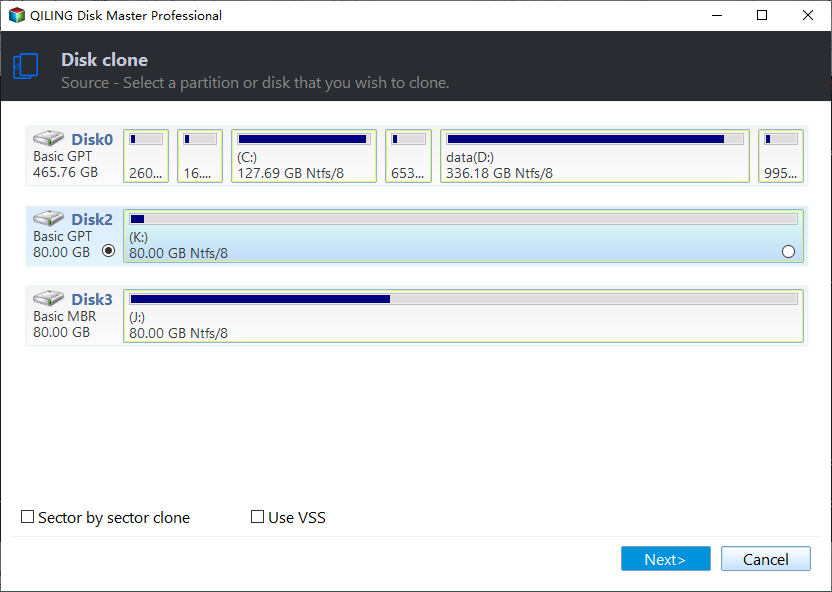
Step 1: Choose "Disk clone" and select the smaller hard drive as the source disk.
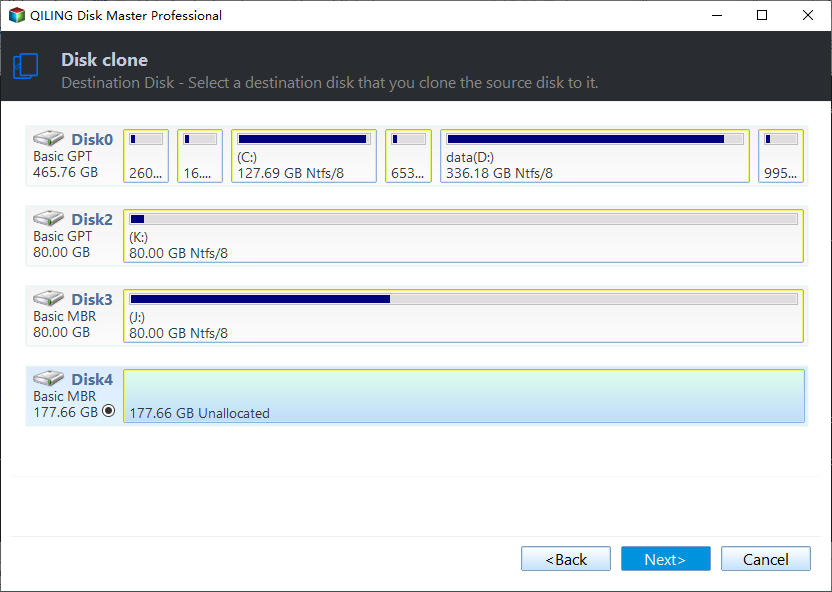
Step 2: Choose the bigger hard drive to save the data and then click "Next".
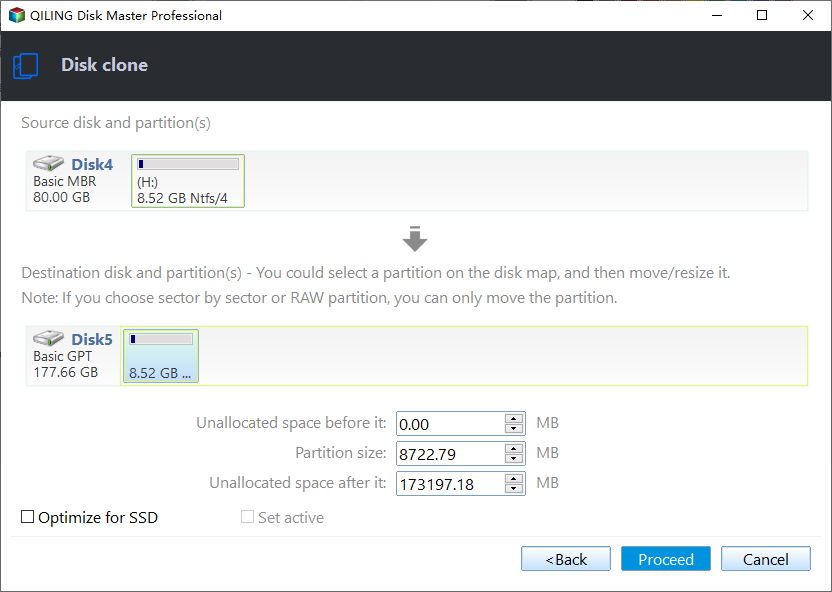
Step 3: Edit the disk layout and then click "Proceed" to continue.
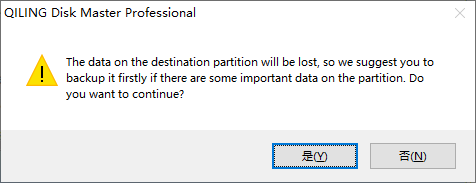
Step 4: A warning message is displayed, stating that the data on the destination disk will be overwritten. To proceed, click "OK" if the destination disk does not contain important data.
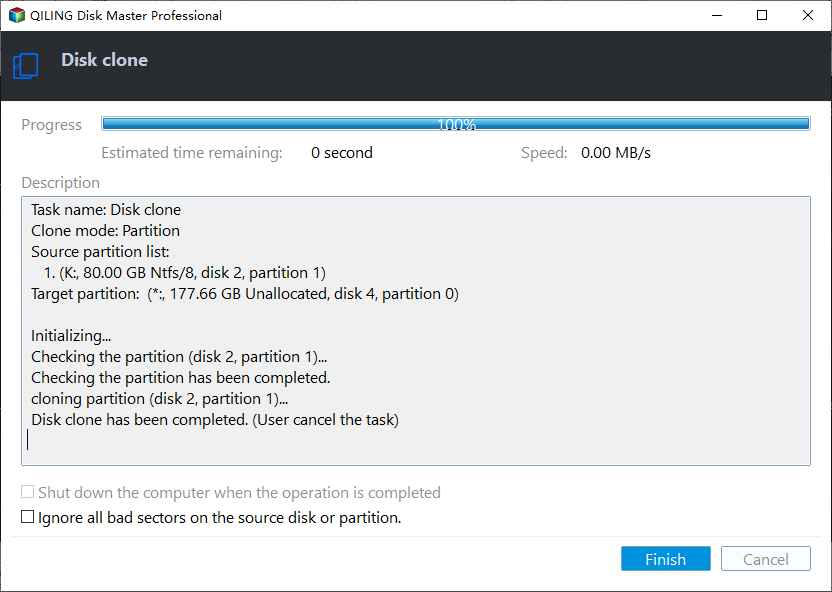
Step 5: Wait for the process to complete.
Boot Windows 11 From New Larger SSD After Cloning
Case 1. After the cloning process is complete, replace the old SSD with the larger one and boot from the cloned larger SSD.
- Shut down your computer/laptop and remove the old disk.
- Put in or connect the new SSD.
- To transfer the operating system to the new SSD, restart your computer/laptop, and it will boot from the cloned SSD.
Case 2. To keep the old SSD as a storage device, simply change the boot order in your BIOS settings to prioritize the old SSD. This way, your system will still utilize it for storage purposes while the new SSD takes over the booting process.
- You can try restarting your computer and pressing F2 or F8 (depending on your computer model) to access the BIOS settings, where you can adjust the boot order and other settings to troubleshoot the issue.
- Select the cloned SSD as the boot device in the Boot tab and save the changes.
- Restart your machine, and it will now boot from the cloned SSD.
Best Disk Cloning Software - Qiling Disk Copy
Qiling Disk Copy is a reliable and user-friendly disk cloning software that enables you to create a precise duplicate of your hard drive or solid-state drive, providing a seamless solution for upgrading or replacing storage devices.
This software offers a user-friendly interface and comprehensive features to quickly clone entire disks or specific partitions. It supports various disk types, including HDDs, SSDs, and others. Customizable cloning options, such as sector-by-sector and intelligent clone, ensure reliable data reproduction. It efficiently meets the disk cloning needs of both novice and experienced users.
Apart from Qiling Disk Copy, other popular disk cloning tools include Clonezilla and DiskGenius. We assess them based on their speed, performance, time duration, and difficulty, using the chart below to make a wise decision.
| Qiling Disk Copy🥇 | Clonezilla | DiskGenius | |
| 🖥️Performance | Very quick | Moderate | Quick |
| 🛖Stability | High | Medium | Medium |
| ⌛Tested cloning speed | 400MB/s | 80MB/s | 200MB/s |
| 🥝Difficulty | ⭐ | ⭐⭐⭐⭐⭐ | ⭐⭐⭐⭐ |
Benefits of Cloning Windows 11 to a new SSD
Transferring the Windows 11 OS to a larger SSD offers several benefits, including increased storage capacity, improved performance, and enhanced overall system efficiency. With a larger SSD, you can store more files, programs, and data without worrying about running out of space, making it ideal for users who need to store large files, such as videos, photos, and documents.
- 🔋Sufficient Storage Space: If your existing SSD is running low on storage capacity, upgrading to a larger one can provide enough space to resolve issues like slow performance and the inability to install new apps.
- 📚Upgraded Hardware: When updating other components of your computer, such as RAM or graphics card, consider migrating Windows 11 to a larger SSD to ensure peak system performance.
- 🖥️Improved System Performance: A bigger SSD with sufficient storage capacity can significantly improve overall system performance, enabling faster boot times, quicker application launches, and smoother multitasking.
- 🧮Future-Proofing: As technology advances and software becomes more demanding, a larger SSD provides ample space for future upgrades and installations, ensuring that performance is not compromised.
- 🗂️Storage Consolidation: Some users may have multiple smaller SSDs or a mix of SSDs and traditional hard drives. Upgrading to a bigger SSD can condense storage onto a single, more efficient, and high-performance drive.
The Bottom Line
Migrating Windows 11 to a larger SSD optimizes system performance and storage capacity by cloning the operating system and data to a bigger SSD, resulting in faster startup speeds, better responsiveness, and more storage space.
Because of its user-Qiling Disk Copy is the perfect solution to migrate Windows 11 to a bigger SSD. With its user-friendly interface, extensive functionality, and dependable performance, you can trust it to clone your system with precision and accuracy, ensuring no data loss. Whether you're a beginner or an experienced user, Qiling Disk Copy provides the tools and guidance you need to make the migration process smooth and hassle-free, giving you a better computing experience.
FAQs on Migrating Windows 11 to a Larger SSD
1. How do I move my operating system to a bigger SSD?
Cloning the hard drive containing the operating system to a new larger SSD is the best solution to transfer the operating system, ensuring an exact clone of the original disk without reinstalling the OS or losing data, and a reliable cloning program like Qiling Disk Copy can make the process straightforward.
2. What is the best size for OS SSD?
128GB is generally recommended for the operating system and necessary software, but the ideal size can vary depending on individual requirements and usage patterns.
For a more optimal experience, consider a bigger capacity such as 256GB or 512GB, allowing for more apps, files, and updates, while also providing space for temporary files and system caches, which can enhance overall system speed. The ideal size is determined by individual needs and preferences.
3. How do I restore my Windows 11 to a new hard drive?
If you want to restore Windows 11 to a new hard drive, you must create a Windows 11 system image before restoring it. Qiling Disk Master is an excellent system backup and restore program with simple operation. Download it and follow the steps below.
For Backup
- Launch Qiling Disk Master on your Windows 11 computer.
- Click Create Backup > OS.
- Select a location to store the system backup.
- Click Proceed to start the process.
For Restore
- Launch Qiling Disk Master.
- Click Browse to Recover.
- Locate where the backup is saved and select it.
- Click OK to recover.
Was this page helpful? Your support is truly important to us!
Qiling Disk Copy
Qiling Disk Copy is a user-friendly tool that makes it easy to clone and migrate HDD/SSD drives. It's ideal for quickly transferring an existing system disk to a new disk or SSD with minimal configuration.
Related Articles
- How to Clone Hard Drive with Bootable USB | Full Guide
- Clone hard drive with easy and simple steps - Qiling Disk Copy
- Acronis True Image WD Edition Clone Not Working - Try These Fixes
- Best Way to Clone a Hard Drive with Multiple Partitions🔥
- How to Clone Windows 11 to Another Hard Drive (Bootable)
You can easily clone your Windows 11 operating system to another hard drive using cloning software, which allows you to transfer your OS and data to a new drive with just a few clicks, making it a convenient way to upgrade your system. - Five Effective Ways to Improve Windows 11 Performance
To improve Windows 11 performance, there are several effective solutions that can be implemented. First, disabling unnecessary startup programs can help reduce system load and free up resources.
Products
Articles & Tutorials
- Data Recovery
- Data Backup
- File Recovery
- File Backup
- System Backup and Restore
- Disk and Partition Clone
- Technical articles
- Mobile articles
- Disk Master Help
- Windows Data Recovery Tutorials
- Windows Secure Delete Tutorials
- Windows Partition Management Tutorials
- Windows File Backup and Restore Tutorials
- Windows System Backup and Restore Tutorials
- Windows Disk Backup and Restore Tutorials
- Windows Clone Tutorials