How to Clone an M.2 SSD to a SATA SSD
An M.2 slot is valuable hardware. Moving Windows onto a SATA SSD frees that slot for a faster NVMe drive or for a build that needs the bandwidth elsewhere.
This guide explains the adapter and capacity checks, the boot settings that keep the copy startable, and the clone steps with Qiling Disk Master.
PAGE CONTENT
- When to Move to a SATA SSD
- Check the Target and Adapter
- Prepare Windows Before Cloning
- Clone the M.2 Drive with Qiling Disk Master
- First Boot from the SATA SSD
- FAQs About M.2 to SATA Clones
- Back Up Windows Before You Clone
When to Move to a SATA SSD
- The M.2 slot is needed elsewhere. A new NVMe drive can take the slot once Windows moves off it.
- The board only boots from SATA. Some older firmware ignores an M.2 boot entry.
- The SATA SSD is larger. A 2TB SATA drive may hold data that no longer fits the M.2 module.
- A laptop has only a SATA bay. The M.2 drive belongs to a desktop, and the laptop needs a bootable 2.5-inch disk.
- The copy prepares a test machine. A spare SATA SSD is easier to install in a second system.
The switch costs speed. A SATA SSD tops out around 550 MB/s, while the M.2 drive may have been several times faster.
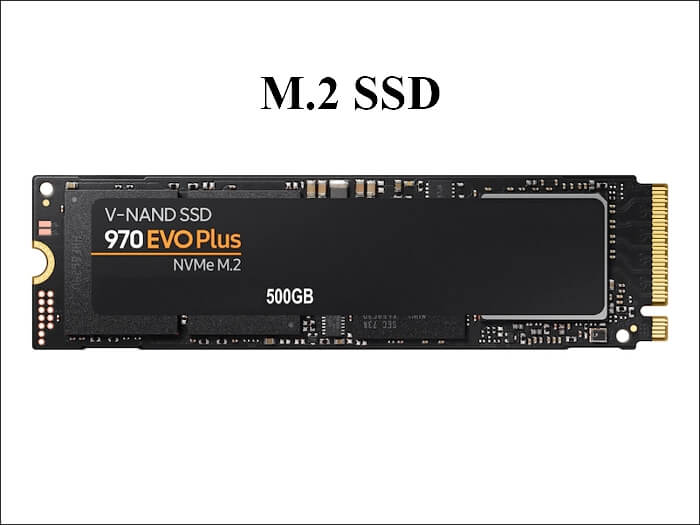
Check the Target and Adapter
- Confirm the SATA port. Use a SATA III port and cable so the SSD reaches its full speed.
- Choose a USB-SATA adapter. A USB 3.0 dock lets the clone run before you open the case.
- Check the drive height. A 7 mm SSD fits slim laptops, while desktops accept 7 mm and 9.5 mm drives.
- Match the partition style. Keep GPT for UEFI boot and MBR for legacy boot.
- Compare the capacity. The SATA drive must hold the used data plus the boot and recovery volumes.
A SATA SSD needs no NVMe driver, but the firmware must still see it as a boot candidate. Confirm that in the BIOS device list before the copy.

Prepare Windows Before Cloning
- Suspend BitLocker. Pause protection so the new disk starts without a recovery key prompt.
- Disable Fast Startup. A full shutdown clears hibernation files that point at the M.2 drive.
- Initialize the target. An empty SATA SSD should be initialized as GPT on a UEFI system.
- Note the boot mode. Record whether the firmware boots in UEFI or legacy mode.
- Keep the M.2 drive intact. Do not erase it until the SATA copy has booted cleanly.
If the plan is to reuse the M.2 slot for a data drive, add that drive only after the SATA system boots. Two Windows entries at once cause confusion.
Clone the M.2 Drive with Qiling Disk Master
Qiling Disk Master copies the full disk, including the EFI and recovery partitions, from the M.2 drive to the SATA SSD.
Step 1. Open Qiling Disk Master, choose Clone, and then select Disk Clone.

Step 2. Select the M.2 drive as the source and click Next.

Step 3. Select the SATA SSD in the adapter as the destination and confirm that its data will be replaced.

Step 4. Review the partitions, keep the EFI and recovery volumes, and tick Optimize for SSD.

Step 5. Click Proceed, wait for the copy to finish, then shut down and install the SATA SSD in the bay.

First Boot from the SATA SSD
- Set the SATA entry first. Choose the new drive or Windows Boot Manager in the boot order.
- Keep AHCI enabled. A SATA SSD expects AHCI mode, not IDE or RAID.
- Confirm TRIM is active. Windows should schedule optimization for the new solid state drive.
- Extend the volume. Use Disk Management to use free space when the SATA drive is larger.
- Remove the M.2 drive. Take it out once the copy boots alone to avoid duplicate entries.
If the firmware ignores the SATA disk, check the port, the cable, and the boot mode. Cloned Drive Wont Boot Fix explains the boot entry repair.
FAQs About M.2 to SATA Clones
Will Windows boot from a SATA SSD?
Yes when the whole disk is copied with its EFI or system reserved partition and the boot entry points to it.
Is a SATA SSD much slower than M.2?
Sequential speed is lower, but everyday app loading stays responsive because random access is still fast.
Can I clone to a SATA SSD through USB?
Yes. Use a USB 3.0 SATA adapter, then install the drive in a SATA bay before the first boot.
Do I need an NVMe driver for the target?
No. The SATA controller uses the standard AHCI driver that Windows already includes.
Can I keep the M.2 drive as extra storage?
Yes after the SATA copy boots. Format it as a data volume instead of leaving a second Windows install.
Back Up Windows Before You Clone
Before changing drives or partitions, create a full system backup. Qiling Disk Master creates an image you can restore from.
Step 1. Open Qiling Disk Master and select System Backup to include Windows and the boot partitions.

Step 2. Save the image to a drive other than the target disk and start the backup.

Step 3. Click Proceed to start the system backup and wait patiently until it finishes. You can also tick Shut down the computer when the operation is completed to power off automatically.

Step 4. If the copy will not start, restore the image to a spare drive and boot from it.

Conclusion
An M.2 to SATA move is a straight disk clone as long as the adapter and boot mode are right. Confirm the SATA port, keep the partition style, suspend BitLocker, and copy the whole disk so the boot partitions come along. After the swap, enable AHCI, set the SATA entry first, confirm TRIM, and remove the M.2 drive before you reuse its slot.
For more on drive swaps, see How to Clone a 2.5-inch SSD to M.2, 4K Alignment When Cloning an SSD, Cloned Drive Wont Boot Fix, and How Long Does a Disk Clone Take.
Related Articles
- How to Clone an M.2 SSD When There Is Only One Slot
A USB enclosure solves the single-slot problem. - How to Clone an NVMe SSD to a Larger NVMe
Grow the partition after copying a bigger drive. - How to Clone Only the OS Partition to a New SSD
Partition copies need extra boot work. - How to Clone an HDD to an NVMe SSD on Windows 11
The reverse move, from platter to PCIe storage. - How to Clone an mSATA SSD to an M.2 SSD
Older mSATA drives move to modern M.2 slots with a cheap adapter.
Products
Articles & Tutorials
- Data Recovery
- Data Backup
- File Recovery
- File Backup
- System Backup and Restore
- Disk and Partition Clone
- Technical articles
- Mobile articles
- Disk Master Help
- Windows Data Recovery Tutorials
- Windows Secure Delete Tutorials
- Windows Partition Management Tutorials
- Windows File Backup and Restore Tutorials
- Windows System Backup and Restore Tutorials
- Windows Disk Backup and Restore Tutorials
- Windows Clone Tutorials