How to Switch From IDE to AHCI After Cloning
An SSD copied from a drive that ran in IDE mode can boot but feel slow. The controller setting decides whether Windows uses the full command set the drive supports.
This guide explains what IDE mode costs, how to prepare the driver before the switch, and how to recover if Windows stops with a no boot device error.
PAGE CONTENT
- Why IDE Mode Slows an SSD Down
- Check the Current Controller Mode
- Load the AHCI Driver Before the Switch
- Clone and Switch with Qiling Disk Master
- Fix the No Boot Device Error
- FAQs About IDE and AHCI
- Back Up the Drive Before You Clone
Why IDE Mode Slows an SSD Down
- Queue depth drops to one. IDE mode issues one command at a time, so the drive cannot overlap reads.
- Native command queuing is lost. AHCI lets the drive reorder requests and finish them out of order.
- Trim may be blocked. Some IDE drivers never pass the trim command, so the SSD degrades over time.
- Hot swap stops working. AHCI supports drive removal without a reboot, IDE mode does not.
- Benchmarks look normal at first. The loss shows up in small random reads, which is what Windows does most.
The setting exists for old operating systems that had no AHCI driver. Windows 11 and Windows 10 both ship with one, so IDE mode is only a leftover from an earlier install.
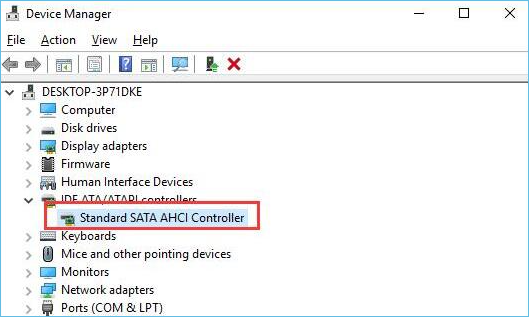
Check the Current Controller Mode
- Open Device Manager. Expand IDE ATA/ATAPI controllers and read the driver name.
- Look for Standard SATA AHCI. That name means AHCI is already on and nothing needs changing.
- Look for Standard Dual Channel PCI IDE. That name means the board runs in IDE or compatibility mode.
- Read the firmware setting. The SATA mode sits under Storage or Peripherals in the firmware menu.
- Record the current value. Write it down so you can go back if the machine will not start.
Change the mode in the firmware only after Windows has loaded the AHCI driver. Reversing the order is the usual cause of the inaccessible boot device message.
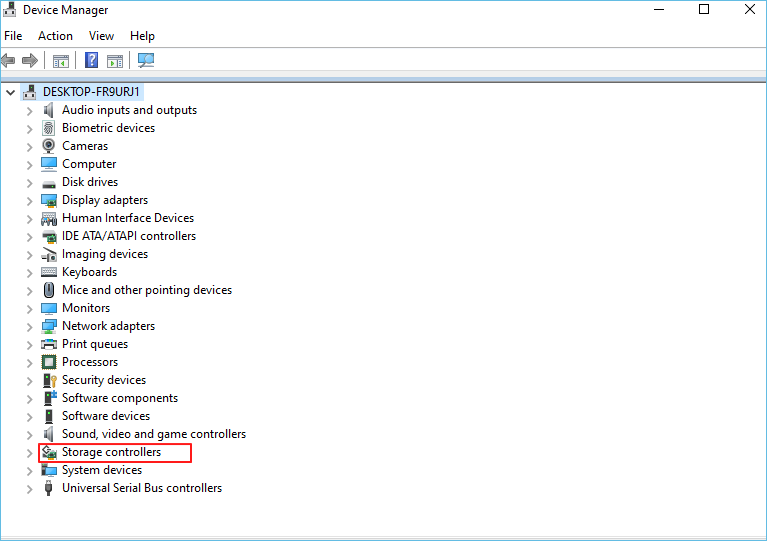
Load the AHCI Driver Before the Switch
- Set the driver to start on boot. The msahci or storahci service must be enabled before the firmware changes.
- Use the registry value. Set Start to 0 under the service key for the AHCI driver.
- Or run the safe-mode trick. Boot in safe mode once with AHCI on, then restart normally.
- Never skip the preparation. Flipping the firmware first leaves Windows without a driver it can load.
- Keep a recovery drive. A Windows USB with startup repair handles the cases the driver trick misses.
The safe-mode trick works because Windows loads a generic driver set in that mode and keeps the change. It takes two reboots and no registry editing.
Clone and Switch with Qiling Disk Master
Clone the drive while the machine still boots, then switch the firmware mode and move the new SSD into place. Qiling Disk Master writes the same layout, so the driver change is the only variable.
Watch the video tutorial below to clone the drive step by step with Qiling Disk Master.
Step 1. Open Qiling Disk Master, choose Clone, and then select Disk Clone.

Step 2. Select the current system disk as the source and click Next.

Step 3. Select the new SSD as the destination and confirm that its data will be replaced.

Step 4. Keep the boot and recovery partitions, then tick Optimize for SSD for the new drive.

Step 5. Click Proceed, wait for the copy to finish, then shut down and swap the drives.

Fix the No Boot Device Error
- Set the firmware back. Return the SATA mode to IDE so the machine boots again.
- Load the driver properly. Enable the AHCI service or boot once in safe mode, then reboot.
- Try the other port. Some boards use a separate controller for the first two SATA ports.
- Run startup repair. Boot from the Windows USB and let it rebuild the boot configuration.
- Check the drive order. A new SSD can take a different disk number than the old HDD.
Most failures come from changing the firmware before the driver is ready. If the machine has already stopped, put the mode back, boot, prepare the driver, and only then switch again.
FAQs About IDE and AHCI
Can I switch to AHCI after Windows is installed?
Yes, if the driver is enabled first. Changing the firmware alone is what breaks the boot.
Will I lose data by changing the mode?
No. The setting changes how the controller talks to the drive, not what is stored on it.
Is AHCI still the best choice?
For SATA drives, yes. NVMe drives use their own driver and ignore the SATA mode.
Why does the BIOS show RAID instead of AHCI?
Both use the AHCI driver. Pick AHCI unless the machine actually runs a RAID array.
Do I need to reinstall Windows?
No. Preparing the driver and switching the mode is enough for a working clone.
Back Up the Drive Before You Clone
A controller change can leave the machine unbootable for a while. Keep a current system image so you can return to a working state in minutes.
Watch the video tutorial below to back up Windows and restore it if the clone fails.
Step 1. Open Qiling Disk Master and select System Backup to include the boot partitions.

Step 2. Save the image to a drive other than the target disk and start the backup.

Step 3. Click Proceed to start the system backup and wait patiently until it finishes. You can also tick Shut down the computer when the operation is completed to power off automatically.

Step 4. If the switch fails, restore the image to the original drive and start again from a working boot.

Conclusion
Switch to AHCI after the copy, never before. Check the driver name in Device Manager, enable the AHCI service or boot once in safe mode, clone the drive, then change the firmware and move the SSD into the bay. If the machine stops at a no boot device message, put the mode back, prepare the driver, and repeat the sequence.
For more on controller and boot issues, see Cloned Drive Won't Boot? How to Fix It, Clone HDD to SSD in Windows 7 Safely, How to Clone a Disk with a Different Sector Size, and How to Clone an MBR Disk to a GPT SSD.
Related Articles
- How to Clone an HDD to an SSD on Windows 10
The same driver rules apply to Windows 10. - How to Clone an HDD to an NVMe SSD on Windows 11
NVMe bypasses the SATA mode entirely. - Does Cloning a Hard Drive Copy Windows?
Understand what a clone does and does not move. - How to Clone a Hard Drive Without Booting Windows
Offline copies avoid driver problems. - How to Clone a Hard Drive Using Command Prompt
See what the built-in tools can and cannot do.
Products
Articles & Tutorials
- Data Recovery
- Data Backup
- File Recovery
- File Backup
- System Backup and Restore
- Disk and Partition Clone
- Technical articles
- Mobile articles
- Disk Master Help
- Windows Data Recovery Tutorials
- Windows Secure Delete Tutorials
- Windows Partition Management Tutorials
- Windows File Backup and Restore Tutorials
- Windows System Backup and Restore Tutorials
- Windows Disk Backup and Restore Tutorials
- Windows Clone Tutorials