Clone HDD to SSD in Windows 7 Safely
Cloning a hard drive in Windows 7 involves copying all data from one hard disk to another. A common debate among users is whether to clone an SSD to an HDD or clone a hard drive to an SSD. Typically, SSDs are used for system storage, while HDDs are used for data storage.
Cloning an SSD to an HDD can be a cost-effective solution for increasing storage capacity, especially when budget is a concern. However, for performance improvement, it's recommended to clone the HDD to an SSD in Windows.
Cloning the hard disks of Windows 7 to an SSD is recommended due to the significant speed and storage capacity boost it provides, making it a worthwhile upgrade.
Top 5 | Best SSD Cloning Software of 2022
Short for Solid-SSDs (Solid State Drives) are a new generation of computer data storage devices that use flash-based memory, making them significantly faster than traditional mechanical hard drives.
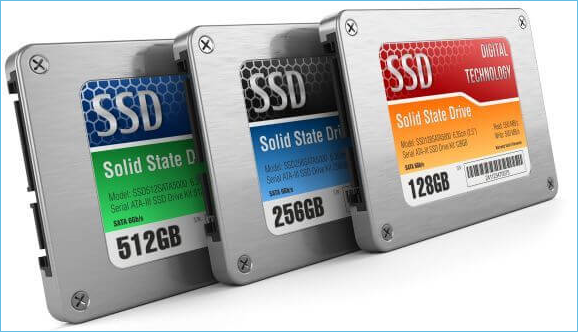
Benefits of Cloning HDD to SSD Windows 7
Despite the widespread adoption of Windows 10, many users still prefer Windows 7 due to its greater software compatibility and security, which make it a more attractive option for those who value these features.
Cloning your hard drive to an SSD (solid state drive) is a great option to improve storage and performance, especially for Windows 7 users who experience slowdowns over time due to accumulated files and programs.
1. Speed and Performance
Cloning your hard drive to an SSD can give your computer a significant speed and performance boost, drastically improving boot times, file-transfer speeds, and overall performance. If you're tired of waiting for your computer to start up or files to transfer, an SSD can make a big difference.
2. Enhanced Reliability
Hard drives are prone to failure and can develop bad sectors over time, leading to data loss, whereas SSDs are more reliable and less likely to suffer from data corruption.
3. Energy Efficiency
SSDs are also more energy-Solid-state drives (SSDs) are more efficient than hard drives. They use less power, which can help extend the life of your battery.
4. Lower Cost
The price of SSDs has come down significantly in recent years, making them more affordable compared to hard drives. A 1TB SSD can now be purchased for around the same price as a 1TB hard drive.
How to Clone HDD to SSD Windows 7 with a Safe Tool
We'll guide you through the data transfer process step-by-step, ensuring your data is safely and correctly transferred. Let's get started!
Cloning a hard drive to an SSD can be a simple process if you have a reliable disk cloning tool installed on your devices. Qiling Disk Copy is a top-notch option that helps you clone your hard drive to an SSD easily and quickly, while also migrating operating systems and applications to another hard drive without any data loss.
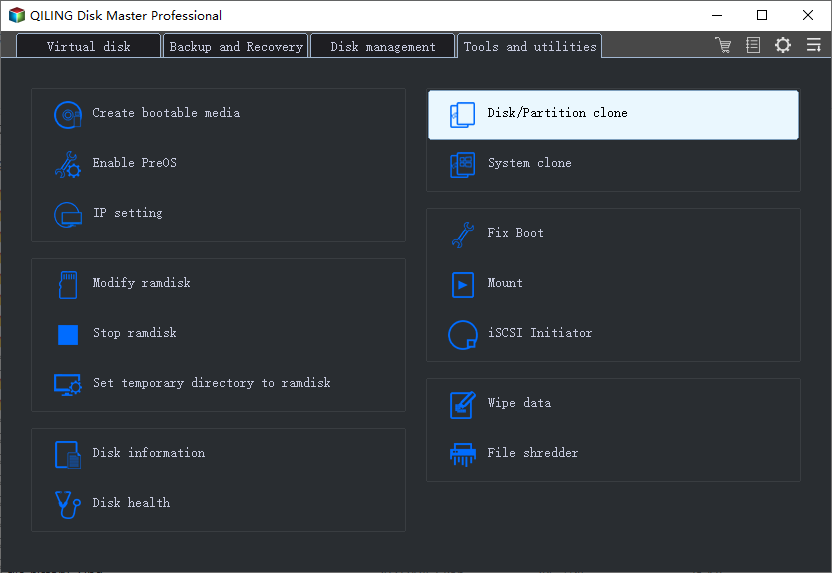
Highlights of Qiling Disk Copy
- Compatible with Windows 11/10/8/8.1/7/Vista/XP
- One-time purchase for lifetime use.
- Easy to install and implement.
- Excellent and stable hard drive cloning performance.
- Offers sector levels cloning, helping to clone a hard drive with bad sectors.
- "Quickly restore corrupted hard drive data and fully replicate the resource disk in minutes with our efficient solution. Our technology allows for rapid data recovery, minimizing downtime and ensuring business continuity.
Tips for using this disk cloning tool
Tip 1. If you're cloning a desktop PC's HDD, you may need a screwdriver to open the host chassis. For a laptop, you might need a USB-to-SATA adapter to connect the computer to the hard drives.
Tip 2. If you're using a brand new SSD to clone the HDD, format the new SSD first. If the target SSD has already been used, you can skip this step.
Tip 3. Ensure a stable power supply throughout the cloning process to prevent data loss from power failures.
Detailed steps of using Qiling Disk Copy in Windows 7
Step 1: To clone a hard drive in Disk Mode, select the hard drive that you want to clone.
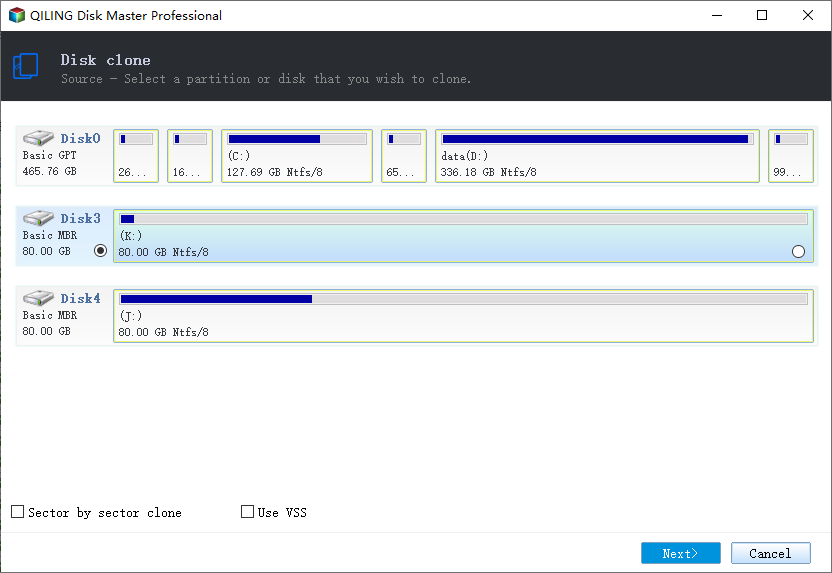
Step 2: Select the SSD as your destination.
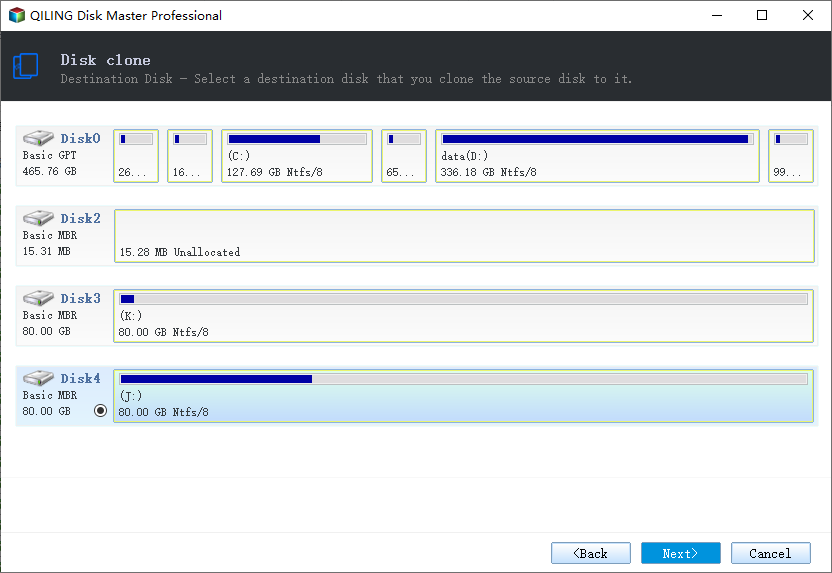
Step 3: Edit the disk layout and then click "Proceed" to continue.
When transferring data to an SSD, select the "Check the option if the target is SSD" box to ensure optimal performance.
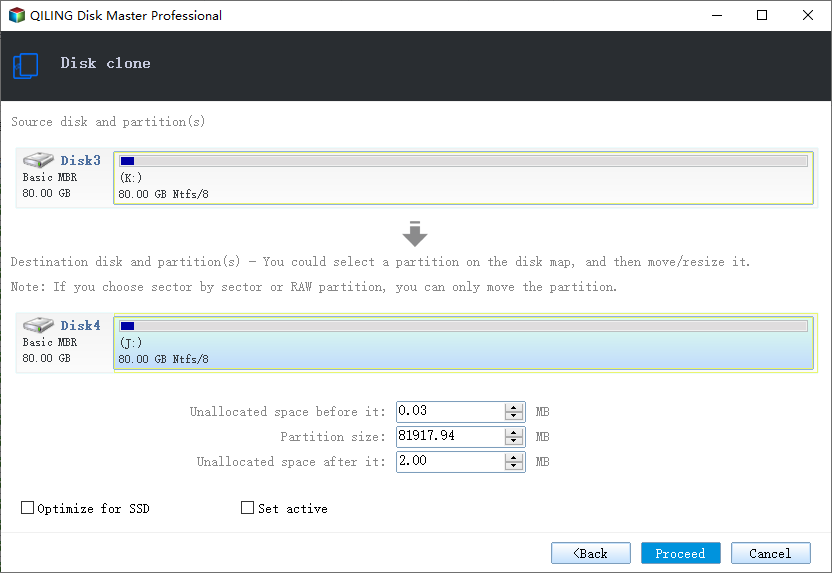
Step 4: Wait for the process to complete.
A warning message informs you that the data on the SSD will be erased. Click "OK" to proceed if you don't have important data on the destination disk.
If you have any questions about using this tool or addressing issues that arise during the cloning process, please don't hesitate to contact us. We'll provide technical support as soon as we receive your message.
Bonus Tips: Make the New SSD Operates Correctly
Now that you have a solid-To get the most out of your solid-state drive (SSD), follow these steps:
Update your drivers: To ensure your SSD is running optimally, check that you have the latest firmware and drivers installed. You can typically find these updates on the manufacturer's website, which may improve performance and resolve any existing bugs or issues with the SSD.
Back up the data of SSD: By backing up your data regularly, you can ensure that your important files and documents are safe and secure, even in the event of an SSD failure. This can be done using an external hard drive or cloud storage services like Google Drive or Dropbox, which can automatically sync your files and provide a redundant copy in case something goes wrong. This way, if your SSD ever fails, you can simply restore your data from the backup and get back to work without losing any important information.
Regularly check for errors on the SSD by running a diagnostic tool or monitoring the SMART data for the drive.
Keep the SSD clean: To keep your SSD running smoothly, it's essential to maintain it just like any other computer component. This involves freeing up disk space by uninstalling unused programs, emptying your Recycle Bin and browser cache, and deleting any temporary files. By doing so, you'll ensure your SSD remains clean and efficient, allowing your computer to perform at its best.
Avoid physical damages: To maintain the longevity of your solid-state drive (SSD), it's essential to protect it from potential hazards such as fire, water, and physical impact. This can be achieved by taking precautions like keeping the drive in a safe location, away from heat sources and moisture, and handling it with care to prevent drops or collisions. By doing so, you can help ensure that your SSD remains functional for a long time.
You may also interested in:
Conclusion
Now that you know how to clone your HDD to an SSD in Windows 7 using Qiling Disk Copy safely, don't forget to follow the bonus tips to ensure your new SSD functions correctly. If you have any questions or suggestions, feel free to send a message!
Related Articles
- Can I Clone NVMe SSD to SATA SSD? How to Do it?
- (2022 Tips) Replace Hard Drive with SSD without Reinstalling Windows
- Preferred Way to Clone C Drive to External Hard Drive
- [2022 Guide] Dell Clone HDD to SSD Without Data Loss
- Samsung Data Migration Not Detecting SSD [Fixed]
Samsung Data Migration fails to detect certain Samsung SSDs, but there are simple methods to fix the issue. 1. Check for BIOS updates. 2. Ensure the SSD is not in RAID mode. - Samsung Data Migration Stuck at 0% While Cloning SSD [100% Working]
Samsung Data Migration (SDM) is a software that helps users transfer data from an old hard drive to a new one. However, sometimes it may get stuck at 0, causing frustration and delays.
Products
Articles & Tutorials
- Data Recovery
- Data Backup
- File Recovery
- File Backup
- System Backup and Restore
- Disk and Partition Clone
- Technical articles
- Mobile articles
- Disk Master Help
- Windows Data Recovery Tutorials
- Windows Secure Delete Tutorials
- Windows Partition Management Tutorials
- Windows File Backup and Restore Tutorials
- Windows System Backup and Restore Tutorials
- Windows Disk Backup and Restore Tutorials
- Windows Clone Tutorials