How to Clone an MBR Disk to a GPT SSD
A Windows installation created years ago usually sits on an MBR disk and boots in legacy BIOS mode. Modern hardware expects GPT and UEFI, and an MBR copy will not appear in the UEFI boot menu no matter which drive it lives on.
This guide explains how to clone an MBR disk onto a GPT SSD, convert the partition layout during the copy, and make the new drive boot under UEFI.
PAGE CONTENT
- Why Convert MBR to GPT While Cloning
- Check UEFI Support and Disk Limits
- Prepare the Target SSD
- Clone MBR to GPT with Qiling Disk Master
- Boot the GPT Copy in UEFI Mode
- FAQs About MBR to GPT Cloning
- Back Up Windows Before You Clone
Why Convert MBR to GPT While Cloning
- UEFI ignores MBR boot code. Firmware looks for a GPT disk with an EFI system partition, so a copied MBR disk is skipped.
- MBR stops at four partitions. Recovery, EFI, and system partitions quickly use up that limit.
- MBR cannot address past 2 TB. GPT uses 64-bit addresses, so large SSDs are fully usable.
- Windows 11 wants UEFI. New installations and security features such as Secure Boot assume GPT.
- Doing both at once saves work. A clone can write the old data into a new GPT layout instead of converting later.
The result is a bootable SSD that carries the old installation but speaks the modern firmware language.
Check UEFI Support and Disk Limits
- Confirm the board boots UEFI. Look for UEFI entries in the boot menu or a CSM switch in the firmware setup.
- Check the firmware mode. Run msinfo32 and read the BIOS mode; legacy means the old disk booted through CSM.
- Measure the used space. The new SSD must hold every partition, including the recovery volume.
- Note the current partition count. MBR allows four primary entries, and a clone may need an extra EFI partition.
- Plan the boot test. Keep the old disk installed until the new one starts Windows on its own.
If the board offers no UEFI option at all, converting the disk gains nothing and the clone should stay MBR.
Prepare the Target SSD
- Install or connect the SSD. Use a free SATA port, an M.2 slot, or a USB enclosure.
- Back up personal files first. A clone overwrites the target, and a failed run can cost data.
- Leave the target unformatted. The clone writes its own GPT layout, so no manual initialization is needed.
- Suspend BitLocker. Pause protection on the source drive so the copied files stay readable at boot.
- Close open programs. Stop games, editors, and sync clients that lock files on the system disk.
An empty, healthy target disk removes most reasons a clone fails halfway through.
If the machine has only one M.2 slot, see How to Clone an M.2 SSD with Only One Slot for a workable setup.
Clone MBR to GPT with Qiling Disk Master
Qiling Disk Master copies the disk and writes the destination layout itself, so the GPT conversion happens inside the same wizard. Download and install it on the source system.
Step 1. Open Qiling Disk Master, choose Clone, and then select Disk Clone.

Step 2. Select the MBR system disk as the source and click Next.

Step 3. Select the new SSD as the destination and confirm the warning that its data will be replaced.

Step 4. In the layout preview, switch the destination to GPT, keep an EFI system partition, and tick Optimize for SSD.

Step 5. Click Proceed and wait for the copy to finish, then shut down before you change any hardware.

Boot the GPT Copy in UEFI Mode
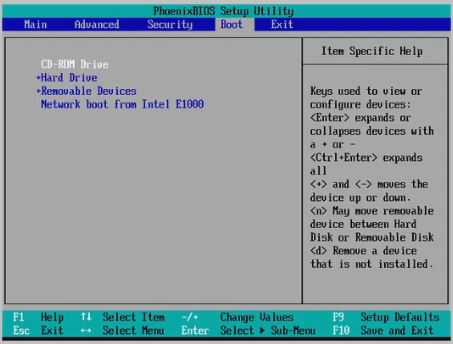
- Open the firmware settings. Press Del or F2 at power-on and switch the boot mode to UEFI.
- Disable CSM. Legacy support hides UEFI entries, so the SSD may never appear while it is on.
- Pick the Windows entry. Select the UEFI entry that names the SSD, not a generic removable device.
- Check Secure Boot. Enable it only after the copy boots normally once.
- Confirm the partition style. Disk Management should report GPT for the new system disk.
If Windows still refuses to start, the fixes in Cloned Drive Wont Boot Fix cover the usual EFI and boot-order causes.
FAQs About MBR to GPT Cloning
Can I convert MBR to GPT without losing data?
Yes, when the conversion happens during a clone to a separate disk. The source disk stays untouched until the new one boots.
Does Windows stay activated after the conversion?
Yes. The motherboard is unchanged, so the digital licence follows the same hardware.
Will the old MBR disk still boot?
It will, unless you convert it in place. Keep it as a fallback until the GPT copy has proven itself.
Do I need a new EFI partition?
Yes. A GPT system disk needs an EFI system partition, which the clone creates in the destination layout.
What if the SSD is larger than 2 TB?
GPT handles the full capacity. Extend the system partition into the unused space after the first successful boot.
Back Up Windows Before You Clone
Before changing drives or partitions, create a full Windows backup. Qiling Disk Master creates a system image you can restore from.
Step 1. Open Qiling Disk Master and select System Backup to include Windows and the boot partitions.

Step 2. Save the image to a drive other than the system disk and start the backup.

Step 3. Click Proceed to start the system backup and wait patiently until it finishes. You can also tick Shut down the computer when the operation is completed to power off automatically.

Step 4. If the GPT copy will not boot, restore the image and try again with a fresh target disk.

Conclusion
Moving an MBR installation onto a GPT SSD is one operation when the clone wizard writes the new partition table. Connect the target SSD, select the system disk as the source, and set the destination layout to GPT with an EFI system partition. Enable SSD optimization, run the copy, then switch the firmware to UEFI, disable CSM, and boot from the new entry. Keep the MBR disk installed until the copy starts cleanly, and create a system image beforehand so a failed conversion never turns into a lost installation.
For more on moving a system to new storage, see How to Clone an NVMe SSD to a Larger NVMe SSD, Replace a Hard Drive with an SSD Without Reinstalling Windows, Cloned Drive Wont Boot Fix, and 4K Alignment When Cloning to an SSD.
Related Articles
- How to Clone a 2.5 SSD to M.2
Moving between drive formats keeps the system intact. See the steps and the boot checks after the swap. - Migrate Windows 10 to NVMe or M.2
An older Windows install can move to modern storage. Learn what changes in the firmware and driver setup. - Windows 11 NVMe SSD Cloning Software
Windows 11 expects UEFI and GPT. See which cloning tools handle both without a reinstall. - How to Clone a GPT Disk to an MBR Disk
Legacy boards need the 2TB and four-partition limits. - How to Clone Windows 11 to a SATA SSD
SATA drives remain the cheapest way to grow storage on an older board.
Products
Articles & Tutorials
- Data Recovery
- Data Backup
- File Recovery
- File Backup
- System Backup and Restore
- Disk and Partition Clone
- Technical articles
- Mobile articles
- Disk Master Help
- Windows Data Recovery Tutorials
- Windows Secure Delete Tutorials
- Windows Partition Management Tutorials
- Windows File Backup and Restore Tutorials
- Windows System Backup and Restore Tutorials
- Windows Disk Backup and Restore Tutorials
- Windows Clone Tutorials