How to Clone Windows 11 to a SATA SSD
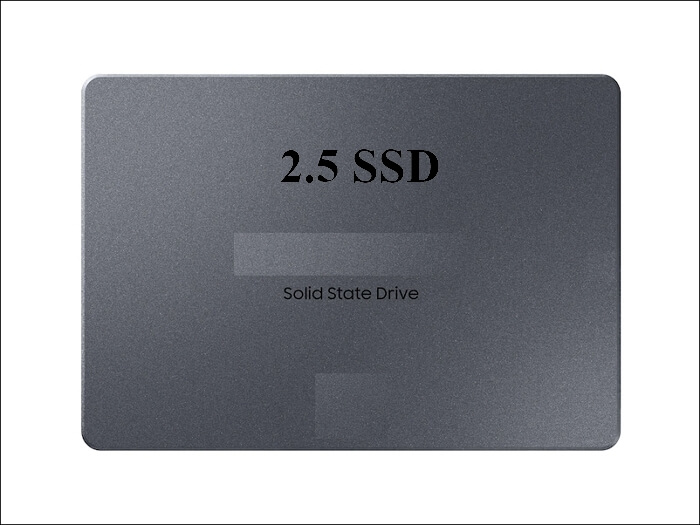
A 2.5-inch SATA SSD is the cheapest way to make an older desktop or laptop feel new. Windows 11 keeps its licence, programs, and settings, and the machine boots in seconds instead of minutes.
This guide explains the compatibility checks, how to clone the system to a SATA SSD, and what to fix if the copy will not start.
PAGE CONTENT
- Why a SATA SSD Still Makes Sense
- Check Compatibility and Space
- Connect the SSD and Match Boot Mode
- Clone Windows 11 with Qiling Disk Master
- First Boot and Checks
- FAQs About Windows 11 Clones
- Back Up Windows Before You Clone
Why a SATA SSD Still Makes Sense
- The price is low. A SATA SSD costs less per gigabyte than an NVMe drive of the same size.
- Old boards have SATA ports. Machines without an M.2 slot can still take a 2.5-inch drive.
- The gain is large. Moving from an HDD to any SSD removes the biggest bottleneck.
- Fitting is simple. A 2.5-inch drive drops into a laptop bay or a desktop cage.
- It suits backups. The old HDD becomes an external archive after the swap.
SATA tops out near 550 MB/s, which is far below NVMe, but still several times faster than a spinning disk. For office work, browsing, and older games, the difference is obvious.
Check Compatibility and Space
- Confirm the SATA port. Check that the board or laptop bay has a free SATA connection.
- Match the drive size. The SSD must hold every partition, not just the C: volume.
- Check the boot mode. Windows 11 needs UEFI and Secure Boot capable firmware.
- Suspend BitLocker. Encryption blocks the copy and can lock the new drive.
- Note the drive height. Laptop bays take 7 mm drives; some take 9.5 mm.
Windows 11 also expects TPM 2.0. The module stays on the motherboard, so a drive clone does not change the security state, but check the firmware if the machine was upgraded from Windows 10.

Connect the SSD and Match Boot Mode
- Attach the SSD. Use a spare SATA port or a USB to SATA adapter for the copy.
- Leave it unformatted. An empty disk lets the clone rebuild the partition table.
- Keep GPT and UEFI. A UEFI install needs a GPT disk with an EFI system partition.
- Note the boot entry. Record the drive name before you swap the disks.
- Keep the old drive. Do not wipe it until the SSD proves reliable.
If the machine has only one SATA port, copy through a USB adapter instead of removing the working drive. Both disks must be visible during the clone.
Clone Windows 11 with Qiling Disk Master
Qiling Disk Master clones the whole system disk, including the EFI, MSR, and recovery volumes. Download it before you attach the SATA SSD.
Step 1. Open Qiling Disk Master, choose Clone, and then select Disk Clone.

Step 2. Select the Windows 11 disk as the source and click Next.

Step 3. Select the SATA SSD as the destination and confirm that its data will be replaced.

Step 4. Review the layout, keep the EFI and recovery volumes, and tick Optimize for SSD.

Step 5. Click Proceed, wait for the copy to finish, then shut the PC down before you swap the drives.

First Boot and Checks
- Set the SSD first. Choose its entry in the firmware boot order.
- Confirm Secure Boot. Enable it if the firmware turned it off during the swap.
- Check activation. Windows 11 keeps the digital licence on the same hardware.
- Run Windows Update. Install pending updates before you fill the disk.
- Test sleep and restart. Confirm that both work before you retire the old drive.
If Windows stops with an inaccessible boot device error, the storage driver or the boot entry is wrong. The repairs in Cloned Drive Wont Boot Fix cover both cases.
FAQs About Windows 11 Clones
Can Windows 11 boot from a SATA SSD?
Yes. SATA is slower than NVMe but fully bootable and supported by every Windows 11 build.
Do I need to reinstall Windows?
No. A disk clone keeps the system, programs, and licence on the new drive.
Will BitLocker ask for a key after the swap?
Suspend BitLocker before the clone to avoid the recovery prompt on the first boot.
Does TPM 2.0 matter for the clone?
The module stays on the board, so the copy does not change it. Keep the firmware settings the same.
Can I clone to a smaller SATA SSD?
Yes if the used space fits. Shrink the system volume before the copy and keep the boot volumes intact.
Back Up Windows Before You Clone
Before changing drives, create a full system backup. Qiling Disk Master creates an image you can restore from if the SATA SSD will not start.
Step 1. Open Qiling Disk Master and select System Backup to include Windows and the boot partitions.

Step 2. Save the image to a drive other than the target disk and start the backup.

Step 3. Click Proceed to start the system backup and wait patiently until it finishes. You can also tick Shut down the computer when the operation is completed to power off automatically.

Step 4. If the SSD will not start, restore the image to the original drive and try again.

Conclusion
Cloning Windows 11 to a SATA SSD is a straightforward disk swap when the boot volumes travel with the system. Confirm the SATA port and drive height, suspend BitLocker, and clone the whole disk with SSD optimisation. Then set the new drive first, re-enable Secure Boot, and let Windows install its updates. Keep the old drive until restart and sleep behave normally.
For more on Windows 11 storage moves, see How to Clone Windows 11 to an External SSD, How to Clone an HDD to an NVMe SSD on Windows 11, How to Clone a 2.5-Inch SSD to an M.2 SSD, and Replace a Hard Drive with an SSD Without Reinstalling Windows.
Related Articles
- Cloned Drive Wont Boot Fix
Repair the boot entry when the copy refuses to start. - How to Clone the Windows 11 System Reserved Partition
Small boot volumes must survive the copy. - 4K Alignment When Cloning an SSD
Raw copies keep the original alignment intact. - How to Replace the C Drive with an SSD
Swap the system drive without reinstalling Windows. - How to Clone an SSD to a Larger SSD
Grow the partition after copying a bigger drive.
Products
Articles & Tutorials
- Data Recovery
- Data Backup
- File Recovery
- File Backup
- System Backup and Restore
- Disk and Partition Clone
- Technical articles
- Mobile articles
- Disk Master Help
- Windows Data Recovery Tutorials
- Windows Secure Delete Tutorials
- Windows Partition Management Tutorials
- Windows File Backup and Restore Tutorials
- Windows System Backup and Restore Tutorials
- Windows Disk Backup and Restore Tutorials
- Windows Clone Tutorials