How to Clone Windows 11 with the System Reserved Partition
Windows 11 hides its boot manager in partitions that never appear in File Explorer. Copy the C drive alone and the new disk can hold every file while still refusing to start.
This guide explains what the small partitions do, why a disk clone carries them, and how to confirm they arrived intact on the new drive.
PAGE CONTENT
- What the Hidden Partitions Do
- Why a Partition Clone Alone Fails
- Check the Layout Before Cloning
- Clone the Whole Disk with Qiling Disk Master
- Verify the Partitions After First Boot
- FAQs About Boot Partition Clones
- Back Up Windows Before You Clone
What the Hidden Partitions Do
- The EFI system partition. About 100 MB of FAT32 space that holds the Windows boot manager.
- The Microsoft reserved partition. Around 16 MB reserved for Windows internal metadata and never stores user files.
- The recovery partition. Several hundred megabytes holding WinRE, used by reset and advanced startup.
- The system reserved volume. A legacy layout kept by systems upgraded from older Windows versions.
- No drive letter by design. Windows hides these volumes so a normal file copy never touches them.
A Windows 11 install on UEFI hardware normally uses EFI, MSR, and recovery partitions. The older system reserved label still appears on machines upgraded from Windows 7 or 8.
Why a Partition Clone Alone Fails
- The boot manager lives elsewhere. EFI or reserved volumes hold the files the firmware launches first.
- BCD points by identifier. The boot entry refers to the Windows volume, so the store must be rebuilt if it is copied alone.
- WinRE goes missing. Without the recovery partition, reset and startup repair options disappear.
- BitLocker expects its keys. A partial copy can trigger a recovery prompt on the new disk.
- Firmware needs one boot entry. A disk with two Windows entries can start the wrong copy after a swap.
The reliable rule is simple: clone the whole disk, not just the C drive. Then every small volume arrives with the correct order and identifiers.

Check the Layout Before Cloning
- List the partitions. Run diskpart and use list partition to see every volume, including hidden ones.
- Record the sizes. Add EFI, MSR, recovery, and C together, because the target must hold all of them.
- Confirm GPT. A UEFI Windows 11 install expects GPT with an EFI partition.
- Suspend BitLocker. Pause protection so the new disk starts without a key prompt.
- Check the recovery state. Run reagentc /info and note whether WinRE is enabled before the move.
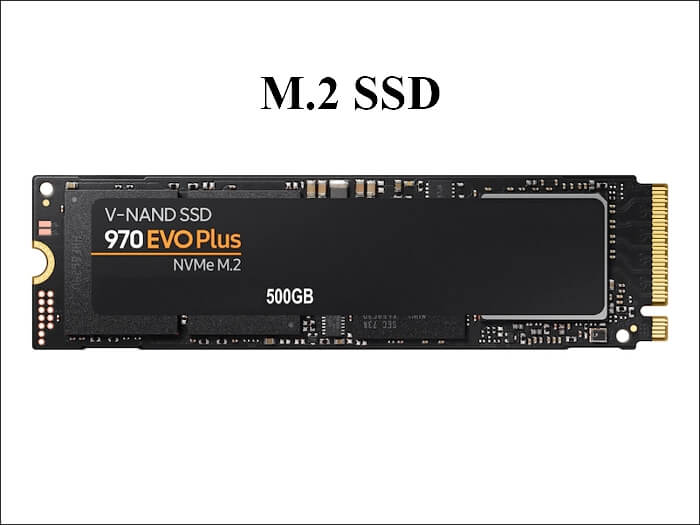
A 500 GB SSD is a tight fit for a 450 GB install once the recovery partition is counted. Size the target against the whole layout, not the C drive alone.
Clone the Whole Disk with Qiling Disk Master
Qiling Disk Master copies a disk with all of its partitions in one pass, which keeps the EFI, MSR, and recovery volumes in their original order.
Step 1. Open Qiling Disk Master, choose Clone, and then select Disk Clone.

Step 2. Select the Windows 11 disk as the source and click Next.

Step 3. Select the new SSD as the destination and confirm that its data will be replaced.

Step 4. Review every volume, keep the EFI, MSR, and recovery partitions, and tick Optimize for SSD.

Step 5. Click Proceed, wait for the copy to finish, then shut down and swap the disks.

Verify the Partitions After First Boot
- Open Disk Management. The new disk should show a 100 MB EFI volume, a 16 MB MSR, and a recovery partition.
- Check WinRE. Run reagentc /info and confirm the recovery image is enabled at its new location.
- Review the boot store. bcdedit should list one Windows entry pointing at the new volume.
- Confirm the boot order. Set the new disk entry first and remove stale duplicates if the old disk stays connected.
- Boot without the old disk. Only a clean start with the original removed proves the copy is independent.
If the firmware reports no bootable device, the EFI partition is missing or the boot store is empty. Cloned Drive Wont Boot Fix explains how to rebuild both.
FAQs About Boot Partition Clones
Is the system reserved partition the same as EFI?
No. The EFI partition holds the UEFI boot manager, while the system reserved volume is a legacy BIOS layout kept by upgraded systems.
Can I delete the MSR partition?
It holds no user data, but Windows expects it on GPT disks. Leave it in place during the clone.
Can I clone only the reserved partition?
You can copy it, but it will not boot without the Windows volume and a matching boot entry.
Will the recovery options still work?
Yes when the recovery partition is cloned. Confirm with reagentc /info after the first boot.
Does the clone change the partition GUIDs?
The copy gets new disk-level identifiers. Windows adjusts the boot entry when the volume is cloned as part of the disk.
Back Up Windows Before You Clone
Before changing drives or partitions, create a full system backup. Qiling Disk Master creates an image you can restore from.
Step 1. Open Qiling Disk Master and select System Backup to include Windows and the boot partitions.

Step 2. Save the image to a drive other than the target disk and start the backup.

Step 3. Click Proceed to start the system backup and wait patiently until it finishes. You can also tick Shut down the computer when the operation is completed to power off automatically.

Step 4. If the copy will not start, restore the image to a spare drive and boot from it.

Conclusion
Windows 11 needs more than the C drive to start. The EFI partition holds the boot manager, MSR is reserved for Windows metadata, and the recovery partition provides WinRE. Clone the whole disk so these volumes keep their order and identifiers, then check Disk Management, reagentc, and bcdedit after the swap. Set the new boot entry first and test with the old drive unplugged before you retire it.
For more on boot layouts, see How to Clone an MBR Disk to a GPT SSD, Cloned Drive Wont Boot Fix, How to Clone Windows 11 to an External SSD, and How Long Does a Disk Clone Take.
Related Articles
- How to Clone Only the OS Partition to a New SSD
Partition copies need extra work to become bootable. - How to Clone a BitLocker Encrypted Drive
Suspend protection before copying encrypted boot volumes. - How to Clone an HDD to an NVMe SSD on Windows 11
Faster storage without a reinstall or lost boot entry. - Replace a Hard Drive with an SSD Without Reinstalling Windows
Keep the hidden partitions and every installed program. - How to Clone a Boot Drive With Multiple EFI Partitions
Keep every EFI volume when more than one boots the disk.
Products
Articles & Tutorials
- Data Recovery
- Data Backup
- File Recovery
- File Backup
- System Backup and Restore
- Disk and Partition Clone
- Technical articles
- Mobile articles
- Disk Master Help
- Windows Data Recovery Tutorials
- Windows Secure Delete Tutorials
- Windows Partition Management Tutorials
- Windows File Backup and Restore Tutorials
- Windows System Backup and Restore Tutorials
- Windows Disk Backup and Restore Tutorials
- Windows Clone Tutorials